VN Templates created with [BeatsClips] place your photos or videos into pre-timed media slots that follow the template's music and rhythm. After filling the required slots, you can export the finished video immediately or open it in the full VN editor for additional changes.
Open and Fill the Template
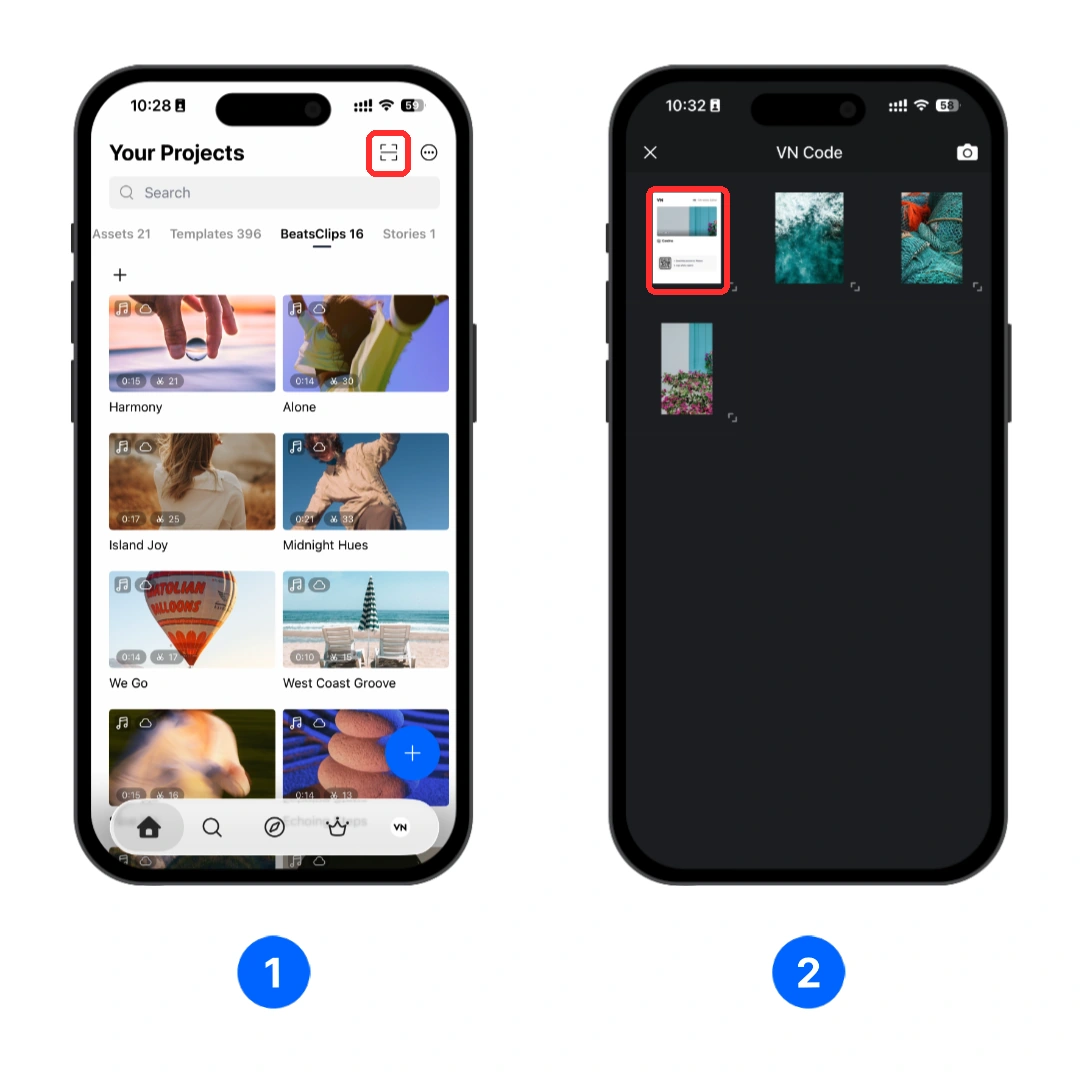
1. On the [Home] screen, open the [BeatsClips] tab and tap the scan button in the upper-right corner.
2. Scan the VN Code, or select the image that contains the VN Code in your album.
Note
If you received a VN Template file instead of a VN Code, simply open the file with the VN app. VN will load the template directly, so you can continue from Step 3.
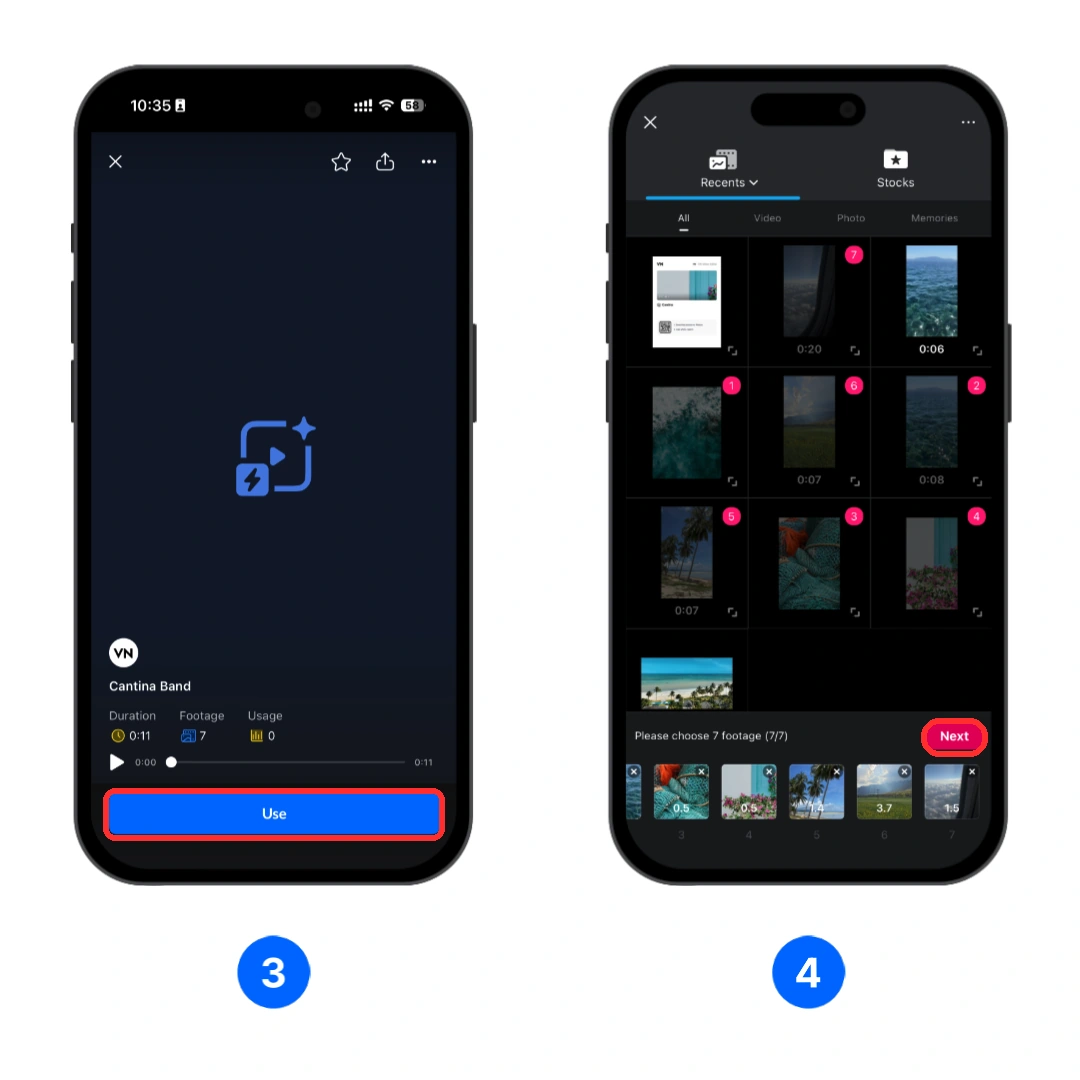
3. Review the template information, including its duration and required number of media items, then tap [Use].
4. Select the desired photos or videos. After filling every required slot, tap [Next].
Adjust the Template Clips
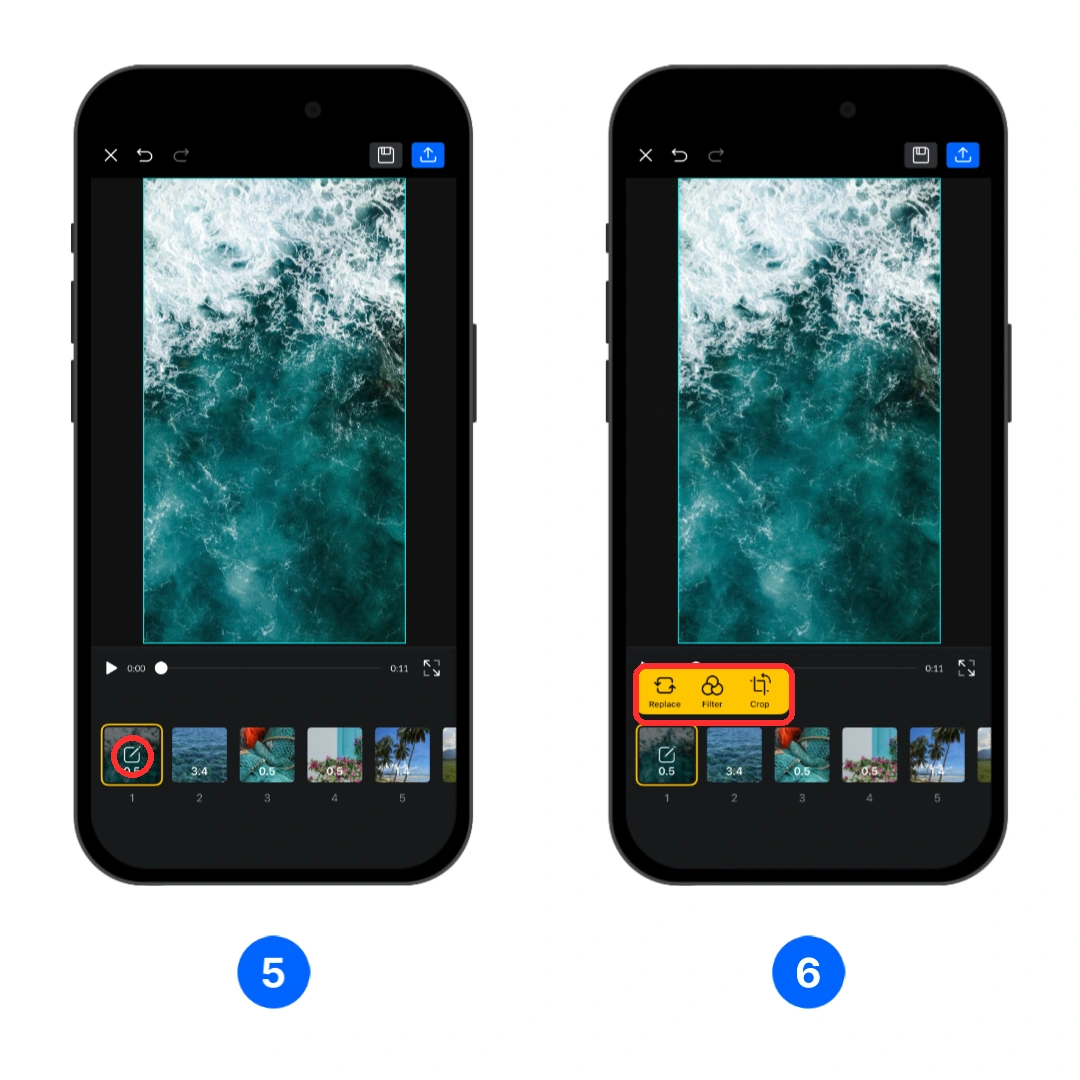
5. On the preview screen, tap the edit button on the first clip you want to adjust.
6. Use the clip menu to make changes:
- [Replace]: Choose a different photo or video for the slot.
- [Filter]: Apply or change the clip's filter.
- [Crop]: Reposition or crop the media inside the template frame.
Repeat these steps for any other clips that need adjustment.
Export or Continue Editing
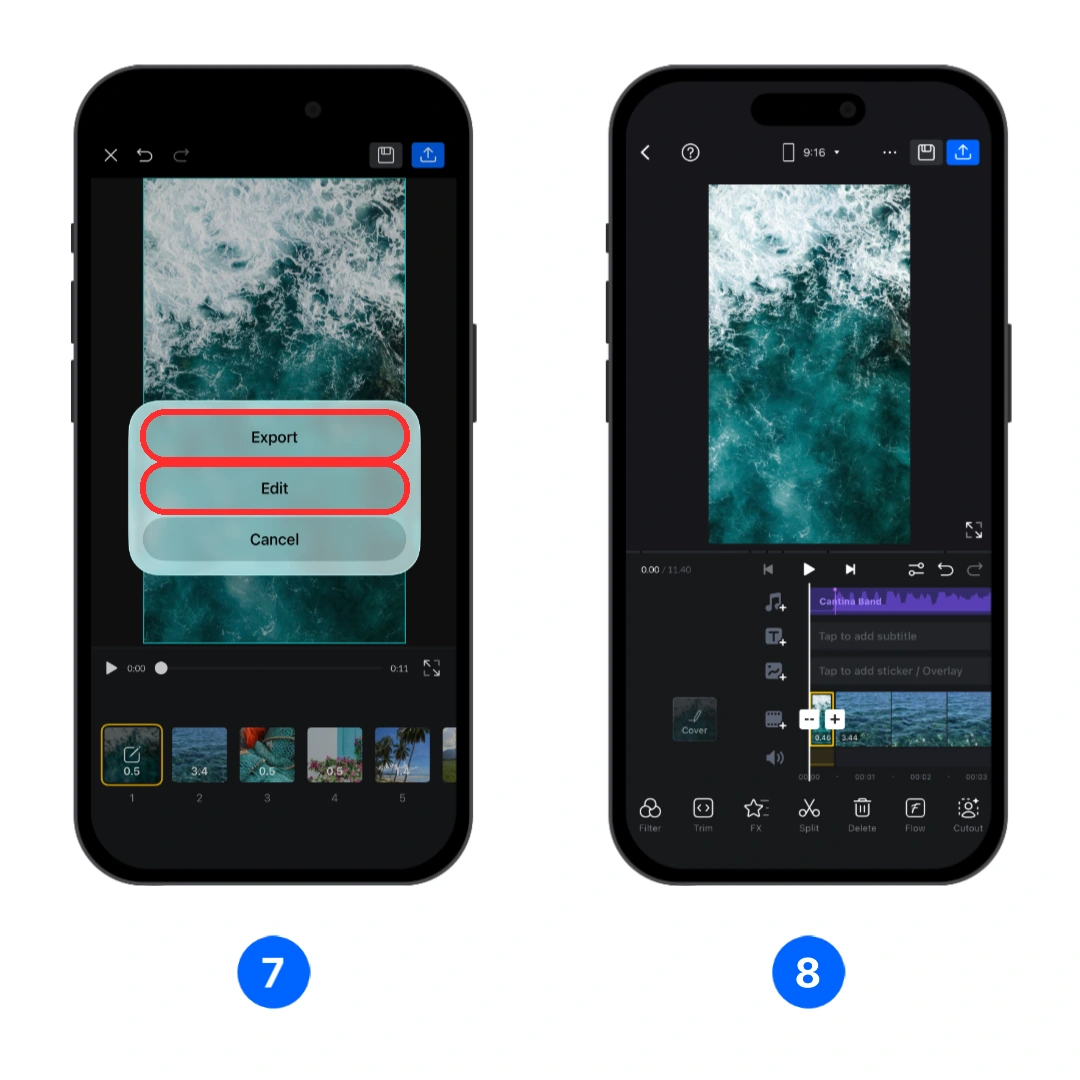
7. Tap the action button in the upper-right corner, then choose one of the following:
- [Export]: Export the completed video right away.
- [Edit]: Open the video as a regular VN project and edit it like any other VN project.
8. If you select [Edit], continue editing the timeline with VN's standard tools. When the project is ready, export it from the VN editor.