



Green Screen - Chroma
1. Tap the [Chroma] to enter color sampling and removal.
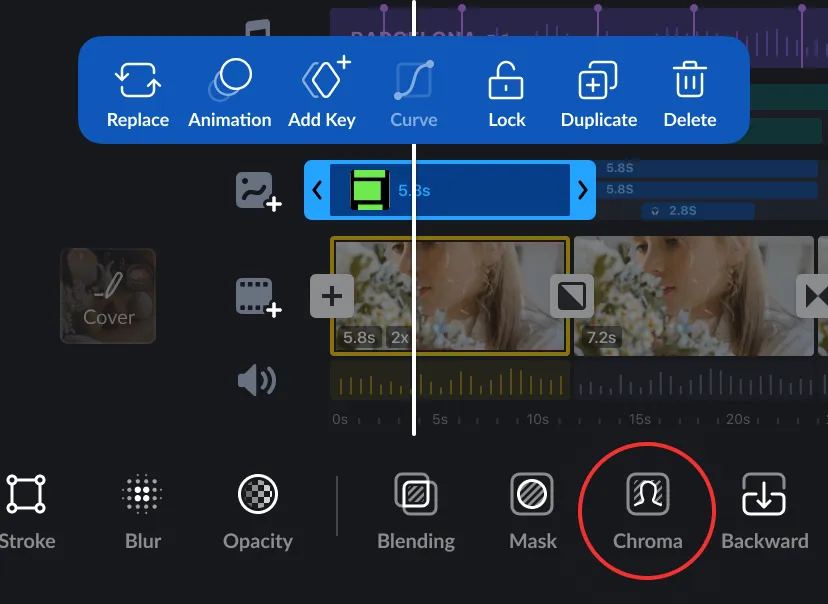
2. Use the color picker tool to select the color you want to remove, then adjust the [Intensity] and [Spill] to achieve a better effect.
Learn how to use chroma key to replace green screens.
1. Tap the [Chroma] to enter color sampling and removal.
2. Use the color picker tool to select the color you want to remove, then adjust the [Intensity] and [Spill] to achieve a better effect.
Common questions about using Chroma Key to remove green-screen backgrounds in VN.
[Intensity] controls how strongly the selected color is removed. [Spill] reduces traces of that color around the subject, such as a green tint from a green screen.
Use an evenly lit green screen, sample the background color carefully, and adjust [Intensity] and [Spill] gradually. Preview the subject over the intended background while making adjustments.
No. Chroma Key changes are applied to the clip inside the VN project and do not modify the original video stored on your device.
Yes. [Chroma] runs locally on your device and can be used without an internet connection.