


Photo & Video Editor
Download

Import Music & Audio

Learn how to import music and audio from files or videos into VN.

To import music in VN:

1. Open VN and click the [+] button and select the [Yours] tab.

2. Tap [Music] to enter the music library.

3. Tap [Yours] in the music library.
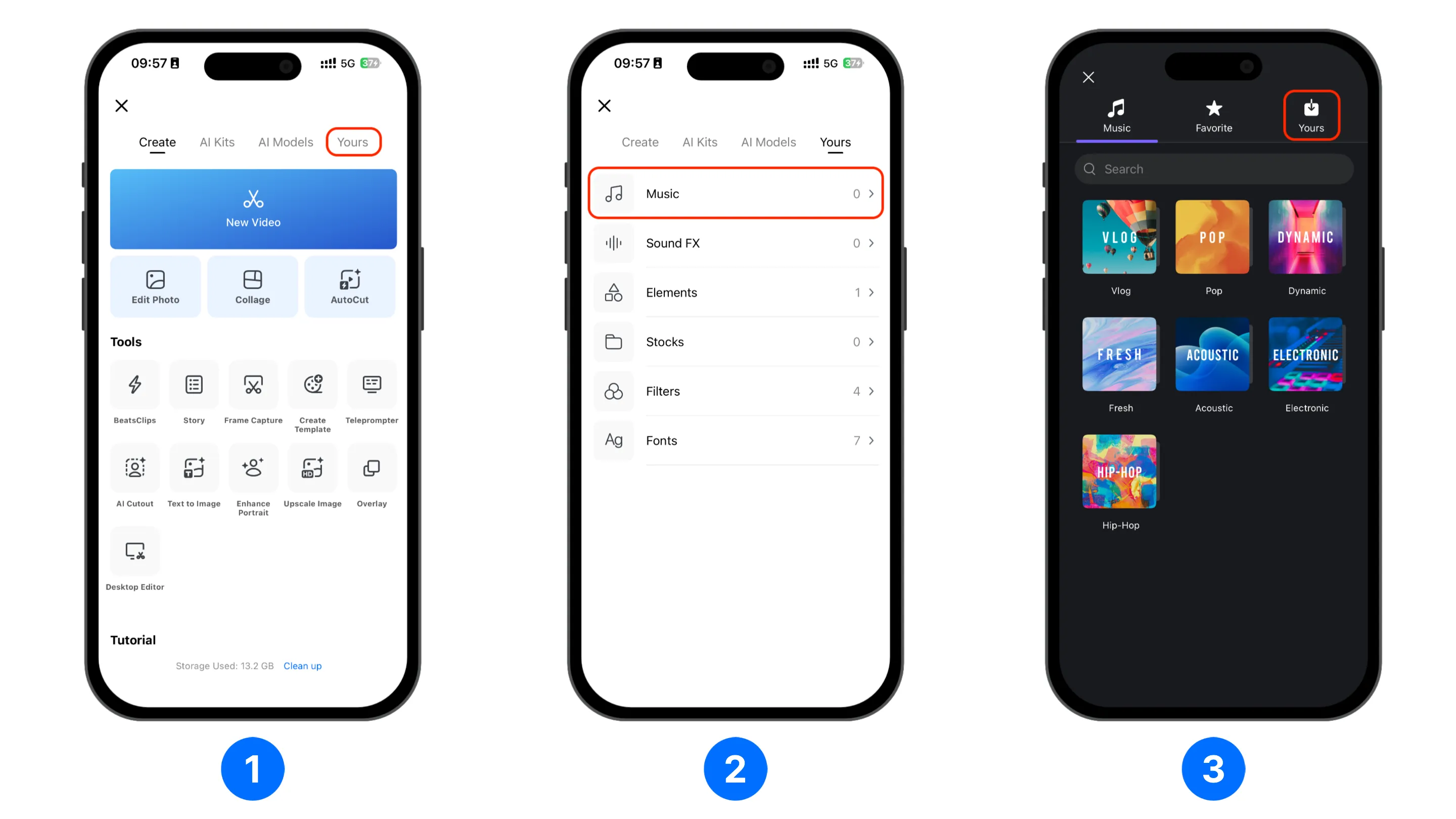
Open Library and enter Music library

From here you can use two methods:

Import music from file

1. Click the vertical [...] button.

2. Select one of the method to import file.

  • [File App]: Extract audio from the file on your phone's File app.
  • [AirDrop]: Extract audio from a file transfered via AirDrop, this is mostly used for transfering file from Mac to iPhone/iPad.
  • [Wi-Fi]: Create a temporary file transfer portal where you can transfer file in a browser.
  • [Link]: Extract audio from the link you provided.
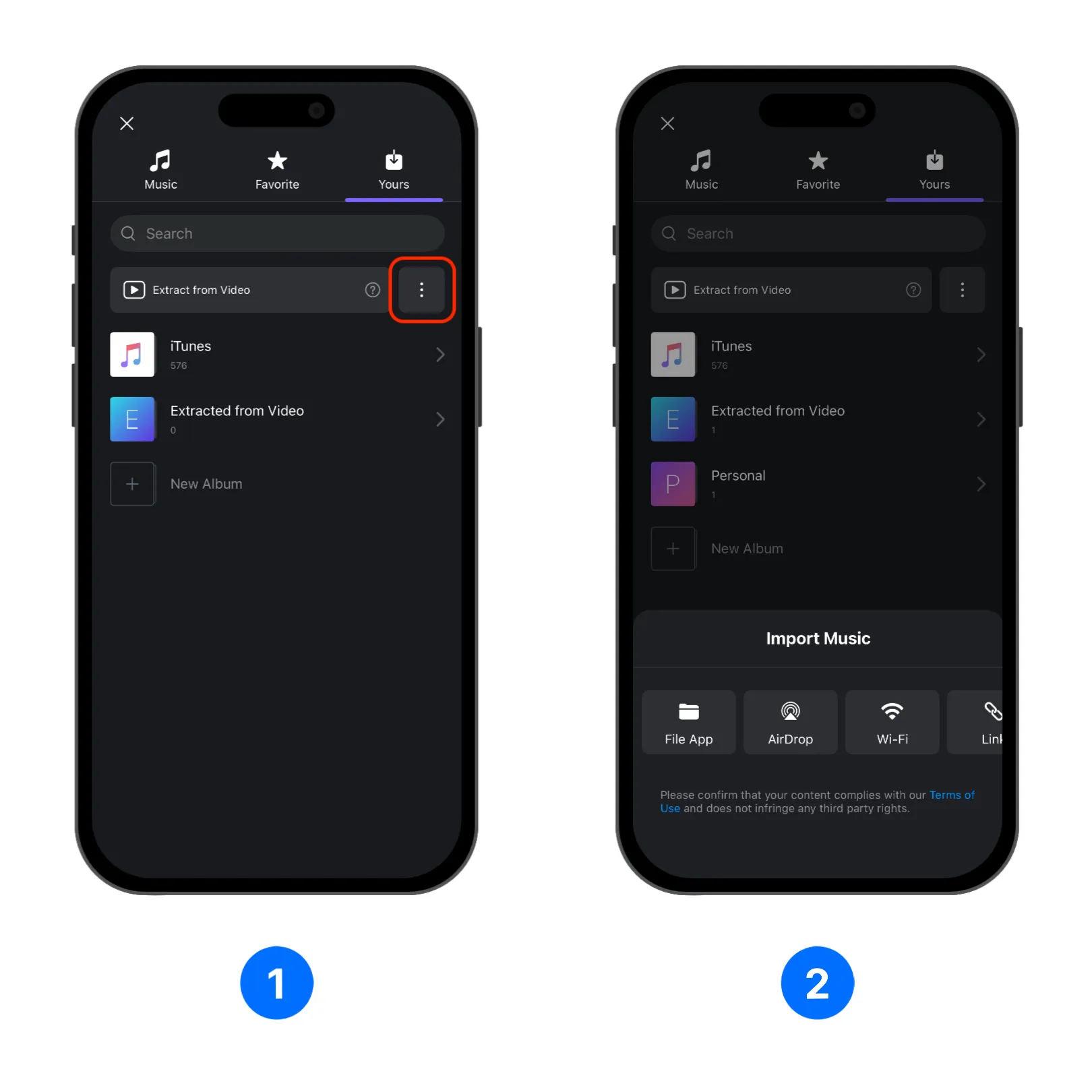
Click More and select import method

3. Once file is imported, you will be prompted to put it in a album, you can use existing albums or add a new album.

4. Music file will appear in the album you selected.
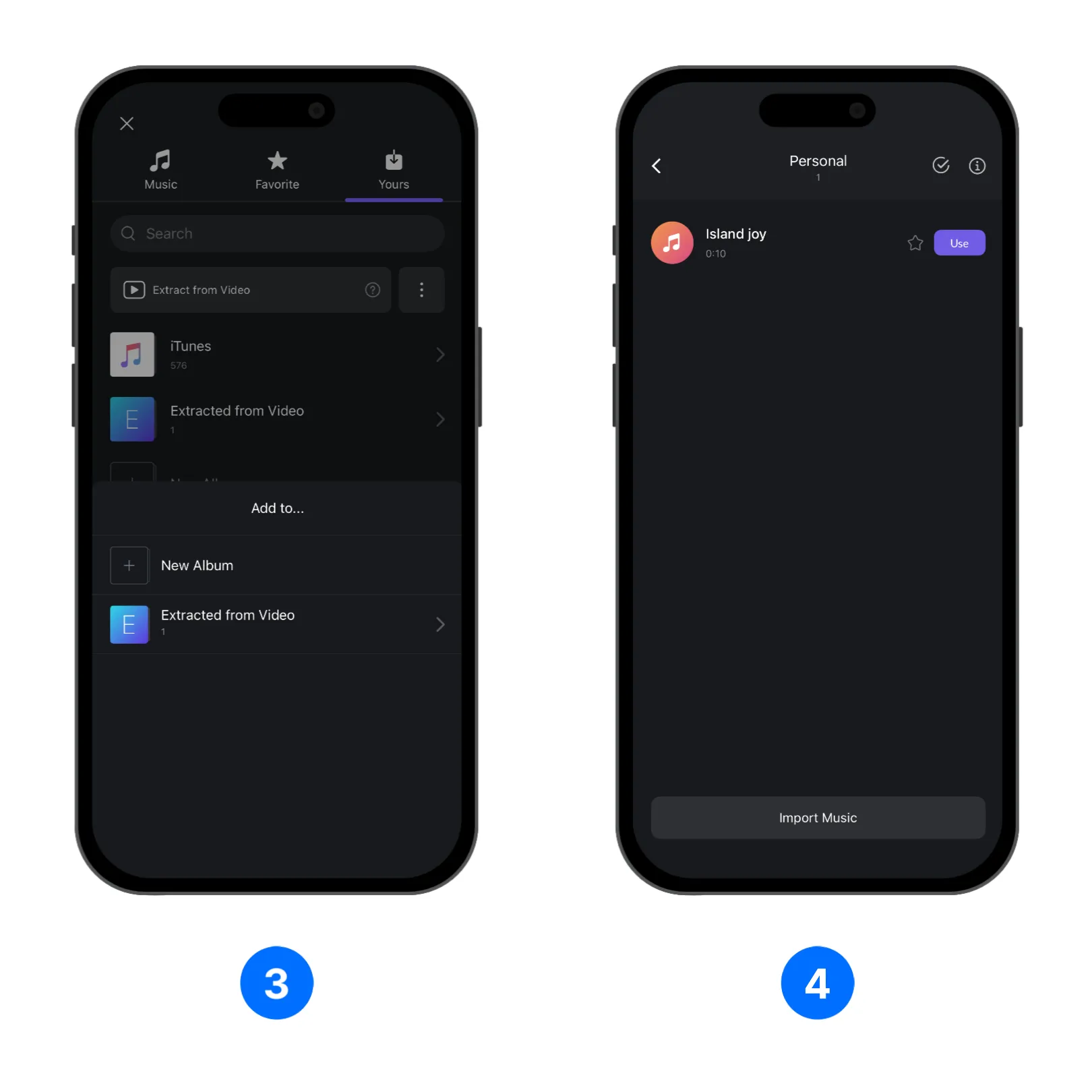
Import and put it in album

Import music from video

1. Select the [Extract from Video].

2. Tap the [Import Music] button.
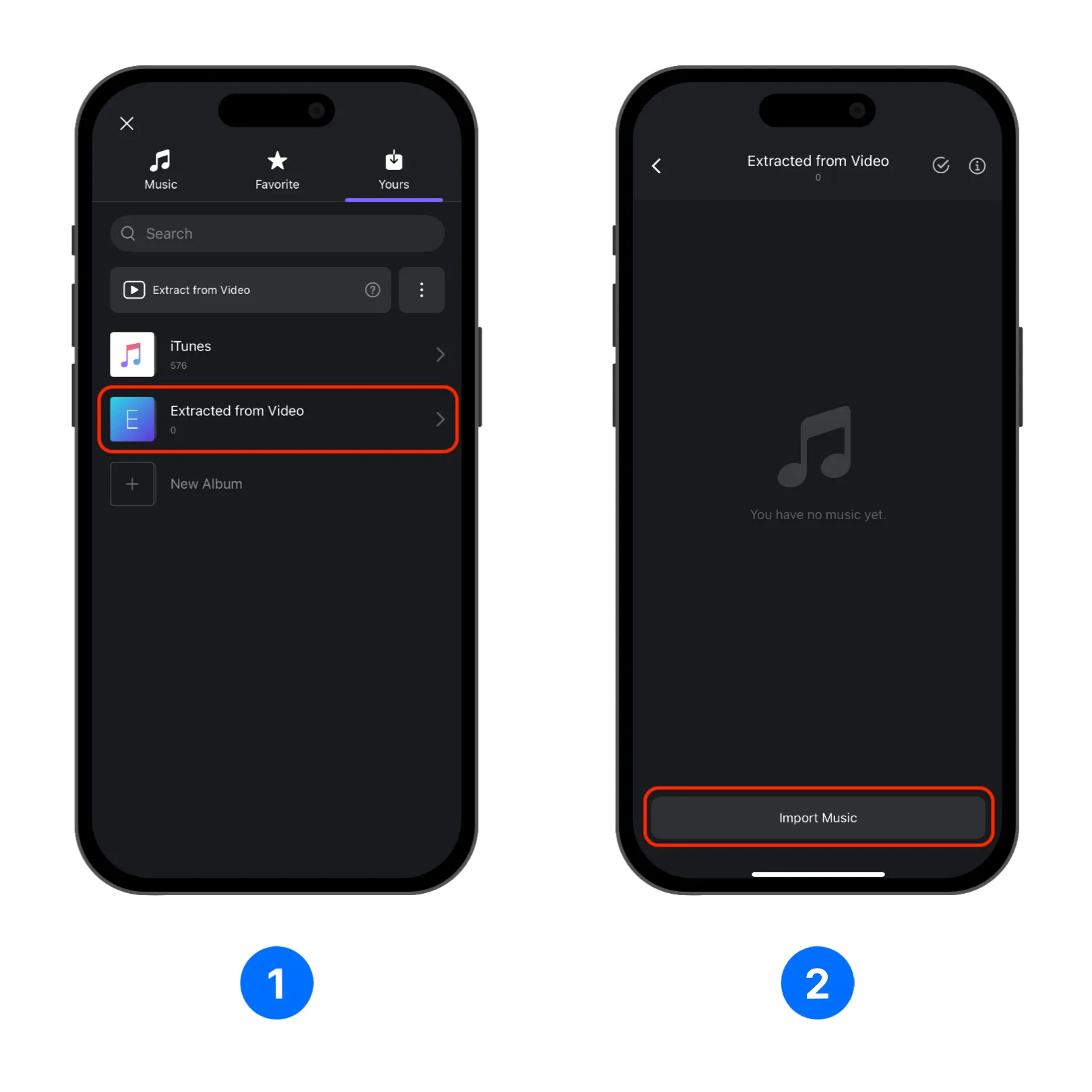
Click Extract from Video and select video

3. Select [Video].

4. Choose the desired video, only video with sound can be used to extract audio.
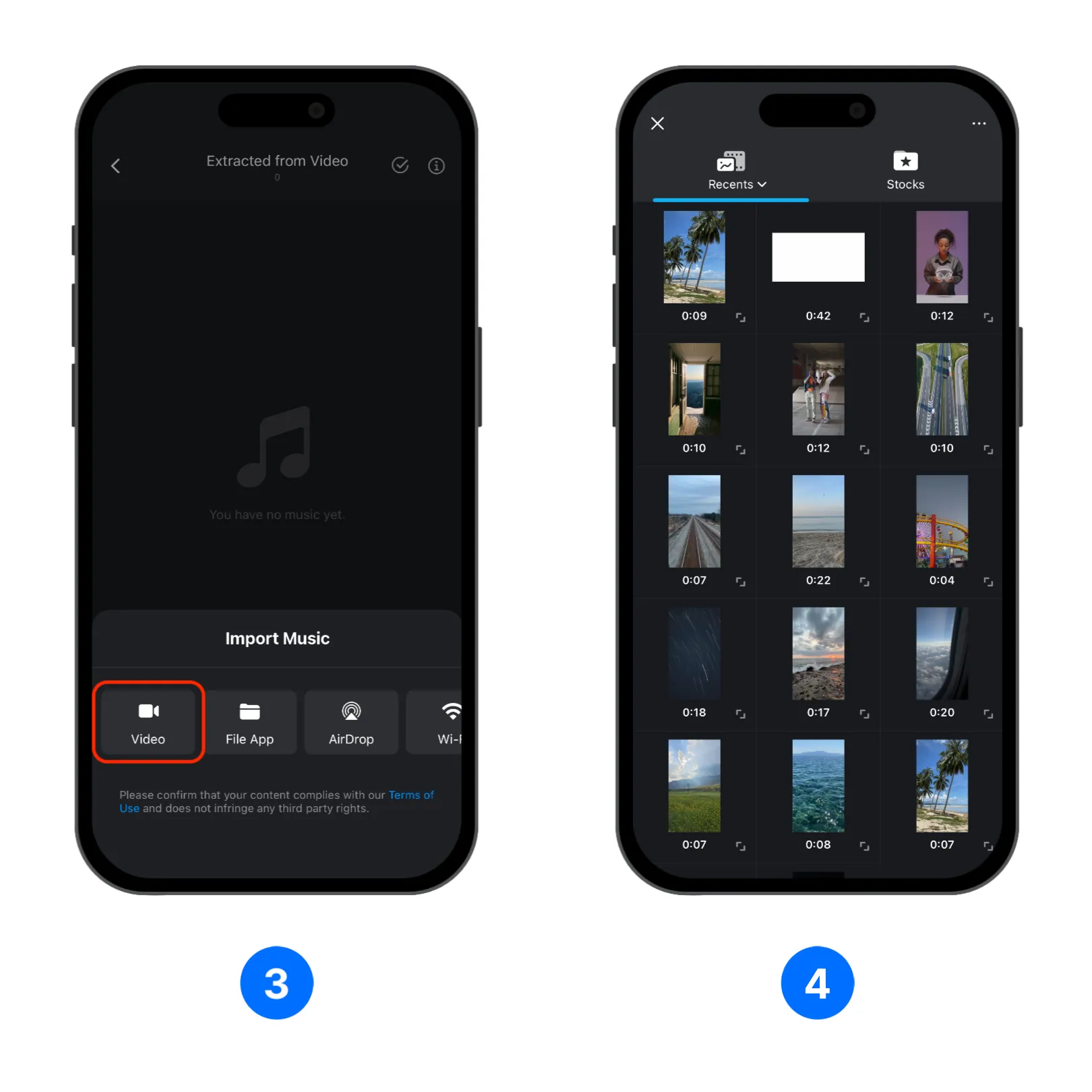
Click Extract from Video and select video

5. Once a video file is imported, select the desired length and trim the video.

6. The extracted music will appear in the [Extracted from Video] page and ready to be used.
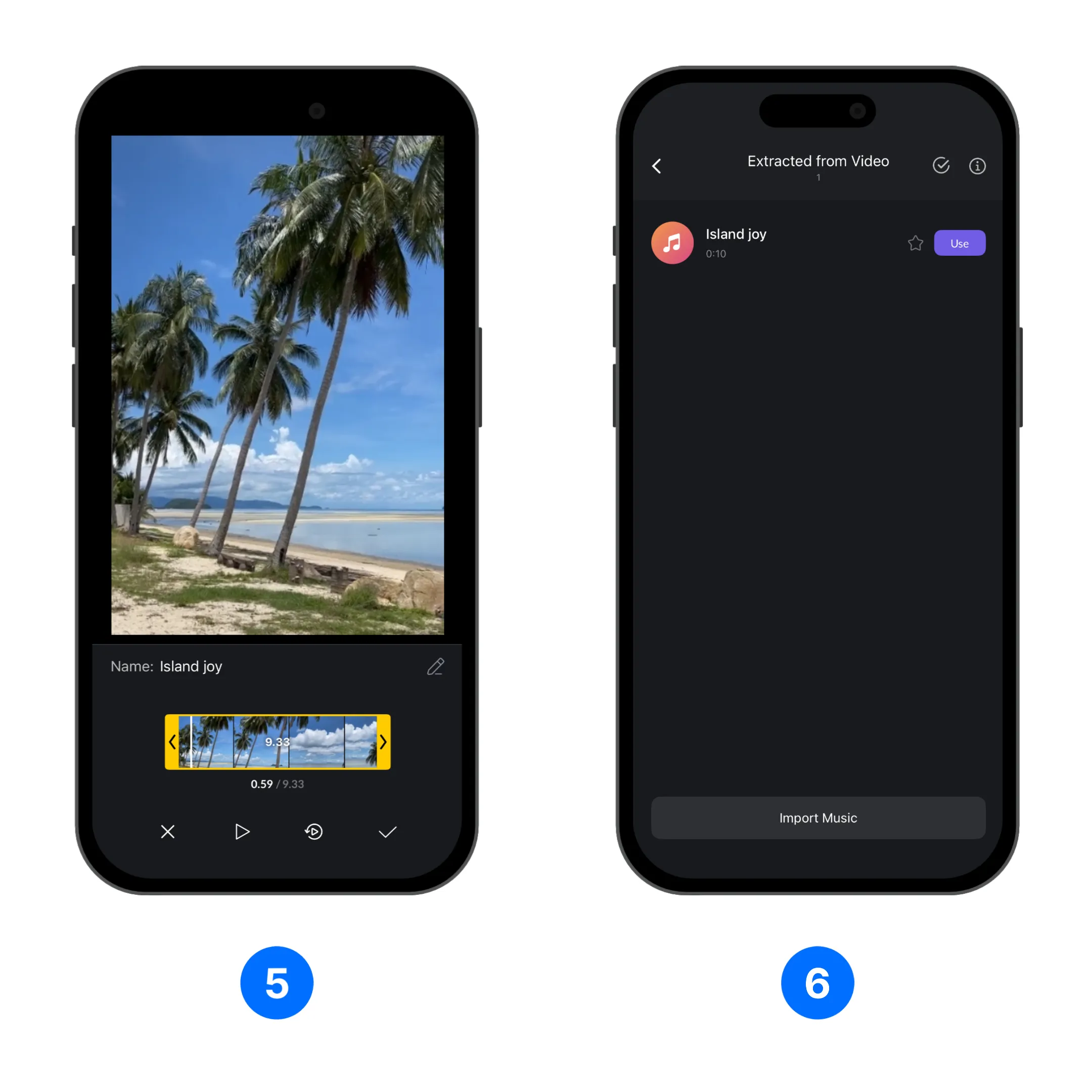
Trim the video and extract the music

Import music video tutorial

Frequently asked questions

Learn how to import music and audio from files or videos into VN.

Open VN, select [Create], then open the [Library] tab and choose [Music]. Tap [Extract from Video], select a video, rename or trim the audio if needed, and tap the Done icon. The audio will appear in the [Extracted from Video] folder.

Tap [More], select [Files App], open the folder containing the file, and select the file you want to import. Choose the destination folder; after import, the file will appear in its corresponding folder.

Open VN, tap the [+] button, select the [Yours] tab, tap [Music], and then tap [Yours] in the music library.

You can import a music file through the [File App], [AirDrop], [Wi-Fi], or [Link] options.

After importing a file, choose an existing album or create a new one. The music file will appear in the album you selected.

Only videos with sound can be used to extract audio. After selecting a video, you can choose the desired length and trim it before saving the extracted music.