

Introduction
Collage combines several photos into one polished composition. Choose the images you want to show together, customize their arrangement, make final image edits, and save the finished design to your device.
Create a Collage
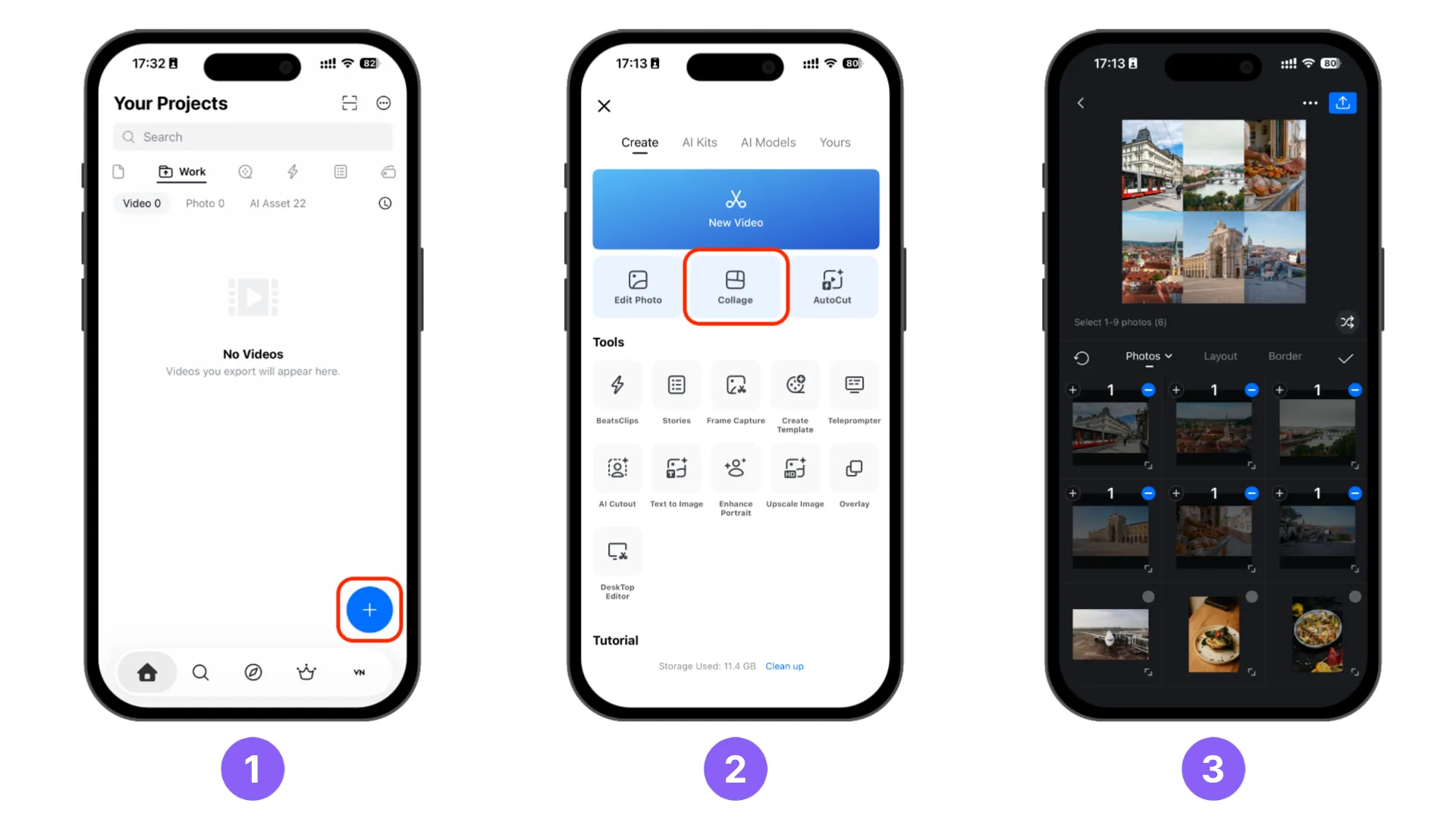
1. On the [Home] screen, tap the blue [+] button.
2. Tap [Collage] in the creation menu.
3. Select the photos you want to include in the collage. You can select the same photo multiple times if you want to use it in more than one frame.
Layout and Border
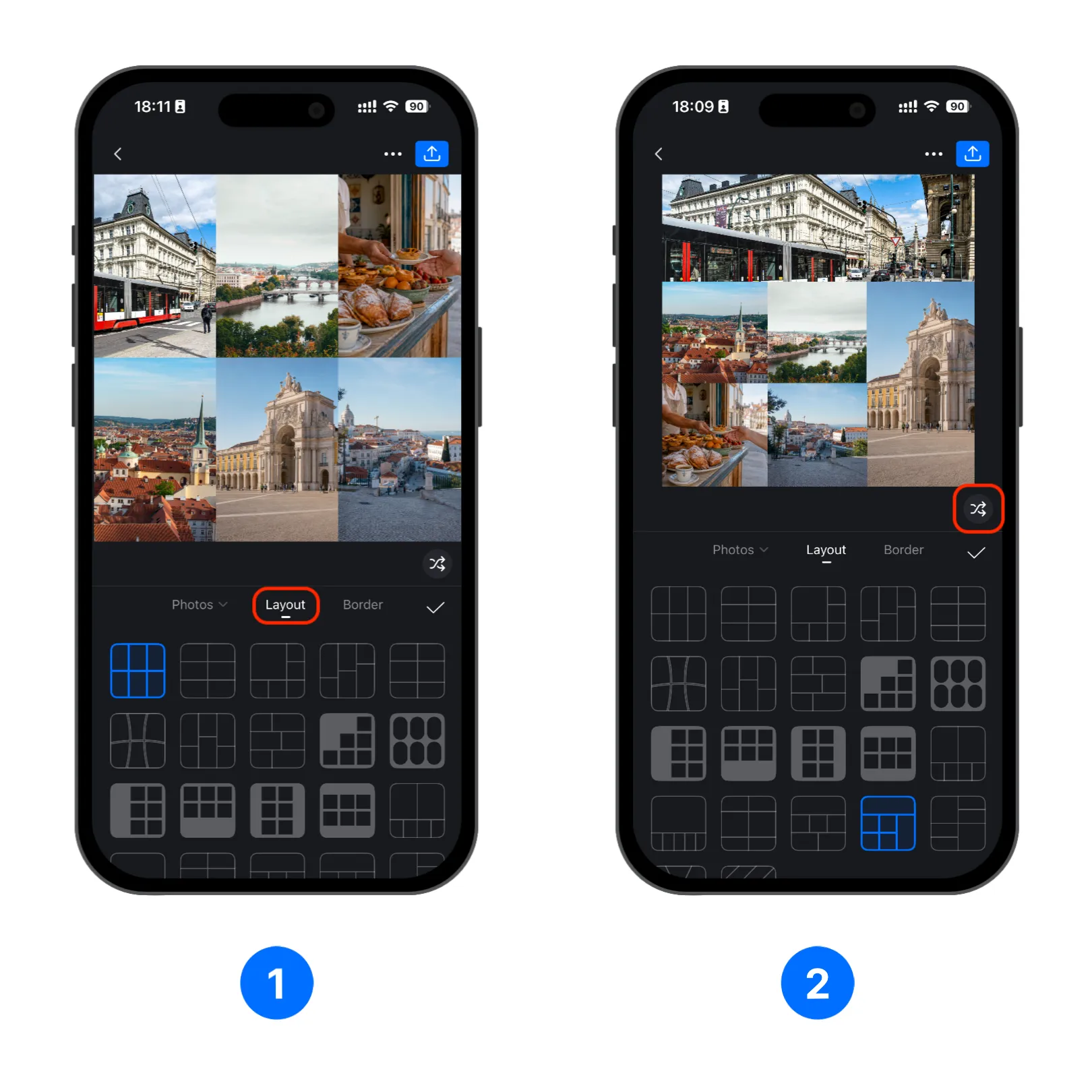
1. Tap [Layout] and choose a preset to arrange the selected photos.
2. You can also tap the 🔀 [Shuffle] button in the lower-right corner to quickly try a random layout.
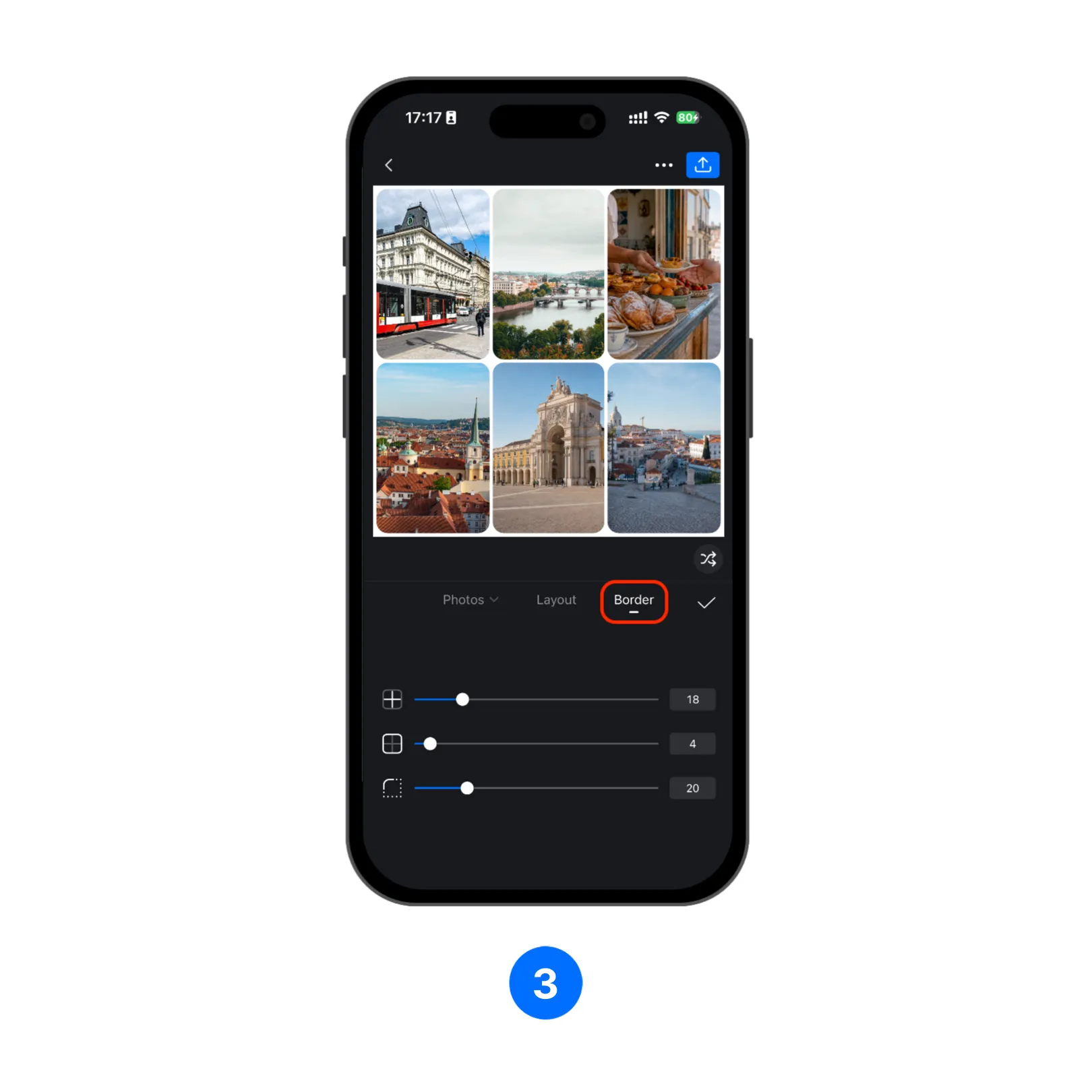
3. Tap [Border] to adjust the spacing, corner radius, and other border settings.
Edit the Collage
1. Tap the check mark to the right of the [Layout] and [Border] tabs.
2. VN opens the collage editing mode. Use the available tools to set the final image’s [Ratio], change the [BG], apply a [Filter], and adjust settings such as exposure and contrast with [Adjust].
3. Tap [Text] to add text or [Elements] to add decorative elements to the collage.
4. Review the composition and make any final changes before opening Collage Settings.
More about Photo Editing can be found in Photo.
Export Quality
Tap the three-dot button in the upper-right corner, then open [Settings] page. Then tap [Export Quality] and choose the setting that best matches how you plan to use your collage.
For Sharing
Choose [For Sharing] when you want to quickly post or send a social media photo collage through apps such as Instagram posts and Stories, TikTok, Facebook, WhatsApp, or other sharing platforms.
| Best for | Output size | Main consideration |
|---|---|---|
| Social media posts, Stories, messaging apps, and quick online sharing | Short side up to 1440 px | Image can be blurry when zoomed in even if source photos is high resolution |
Balanced
Choose [Balanced] for most collages, including everyday sharing, saving memories, and creating a photo album. This recommended setting adjusts the export size according to your device, collage ratio, and the detail available in your photos. It aims to keep the most visible parts of the collage detailed while balancing image quality, file size, export speed, and memory use.
The maximum output depends on your device’s physical memory. The device names below are common examples, not fixed requirements. These are approximate upper limits; the actual size may be lower depending on the collage layout, source photos, and available memory during export.
| Best for | Output size | Main consideration |
|---|---|---|
| Everyday sharing, saving memories, and creating photo albums | See the table below | Balances image quality, file size, export speed, and memory use for most collages |
| Device memory | Common device examples | Approximate maximum output |
|---|---|---|
| 4 GB or less | iPhone 12, iPhone 13, iPhone SE (3rd generation) | Up to 3584 px on the long side or 12 megapixels (MP) |
| More than 4 GB and up to 6 GB | iPhone 13 Pro, iPhone 14 series, iPhone 15 | Up to 5120 px on the long side or 20 MP |
| More than 6 GB | iPhone 15 Pro, iPhone 16 Pro, and Pro Max models | Up to 7168 px on the long side or 30 MP |
[Balanced] is the default setting for new users and for anyone without a previous export-quality choice.
HD
Choose [HD] when you want more detail for larger prints, keeping a high-resolution copy, or sharing a collage with family members, groups, or group chats where the image may be viewed on different devices. VN uses the clearest source details and the largest safe output size available for your device and memory.
| Best for | Output size | Main consideration |
|---|---|---|
| Larger prints, high-resolution keepsakes, and sharing with family members or groups | See the table below | Produces larger files and may take longer to export or share |
| Device memory | Common device examples | Approximate maximum output |
|---|---|---|
| 4 GB or less | iPhone 12, iPhone 13, iPhone SE (3rd generation) | Up to 4608 px on the long side or 18 megapixels (MP) |
| More than 4 GB and up to 6 GB | iPhone 13 Pro, iPhone 14 series, iPhone 15 | Up to 7168 px on the long side or 30 MP |
| More than 6 GB | iPhone 15 Pro, iPhone 16 Pro, and Pro Max models | Up to 10032 px on the long side or 100 MP |
The final output is also limited by the collage ratio, the detail in each source photo, and available memory. If the requested size is too demanding, VN may reduce the output size or use [Balanced] so the collage can export successfully. Enlarging a low-resolution photo does not create new detail, so some individual photos may still look soft.
Image Format
Tap the three-dot button in the upper-right corner, then open [Settings] page. Then tap [Image Format] and choose an option from the table below.
| Image Format | Strength | Tradeoff |
|---|---|---|
| [Auto] | Lets VN select a suitable format automatically. | You have less control over the final file format. |
| [JPEG] | Produces widely compatible files with a smaller file size. | Uses lossy compression, which may reduce image detail. |
| [PNG] | Preserves sharp image detail and supports lossless compression. | Usually creates larger files than JPEG. |
| [HEIF] | Provides high image quality with efficient file sizes. | May not be supported by every app or device. |
4. Tap the check mark to confirm and save the Collage Export Settings.
Export and Share
1. Tap the blue export button in the upper-right corner.
2. VN saves the collage to your phone’s photo album.
3. After the collage is saved, choose [Create New] to make another collage, [Edit Photos] to edit the exported collage image.
4. You can also directly share the collage using [Other] (Share Sheet), [TikTok], or [Facebook] buttons.