



Introduction
Stories provides a guided way to plan a video before working on the full timeline. Build the structure first, add the footage for each part, choose how Story text should appear, and then continue editing the generated video as a normal VN project.
Create a Story
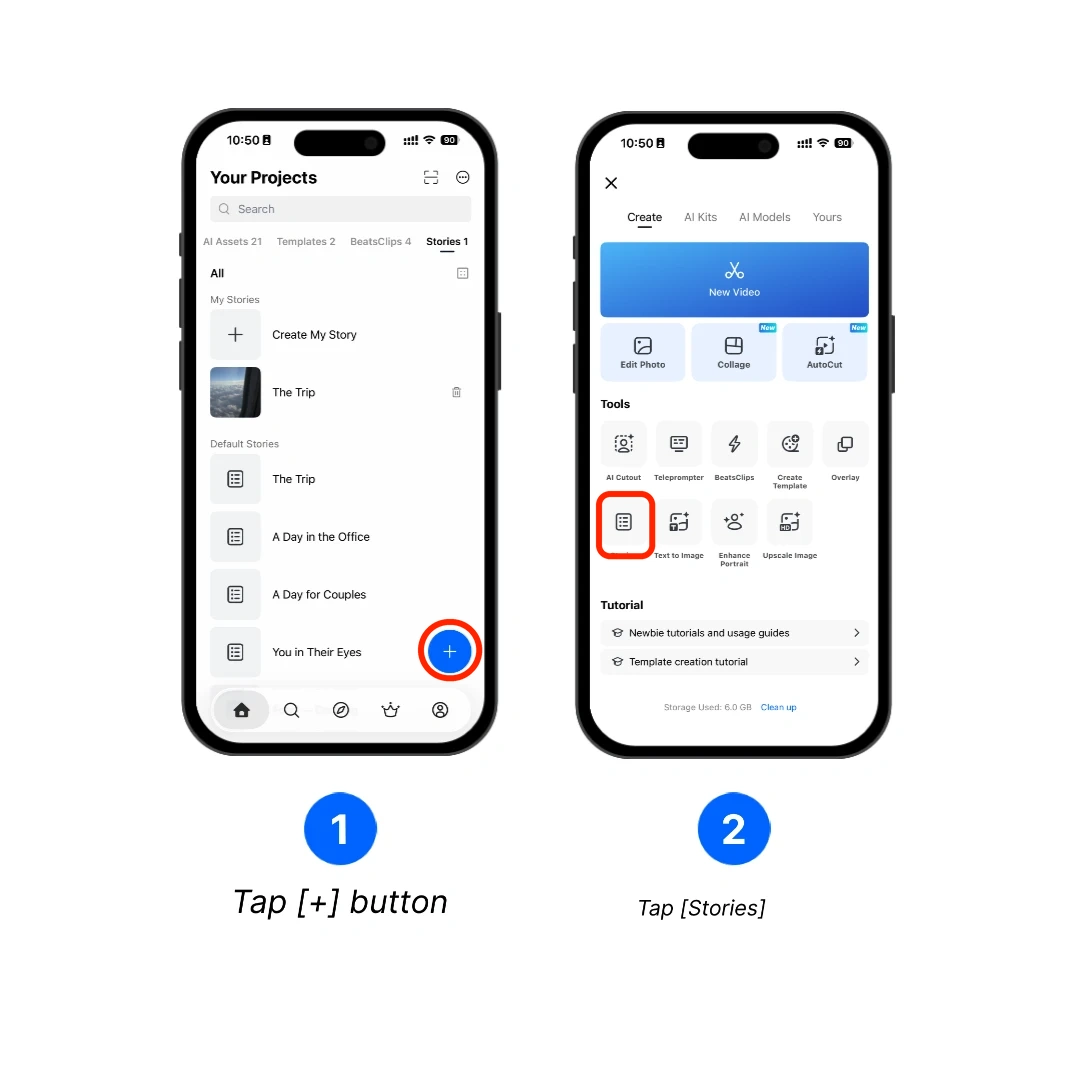
1. On the [Home] screen, tap the blue [+] button.
2. Tap [Stories] in the creation menu.
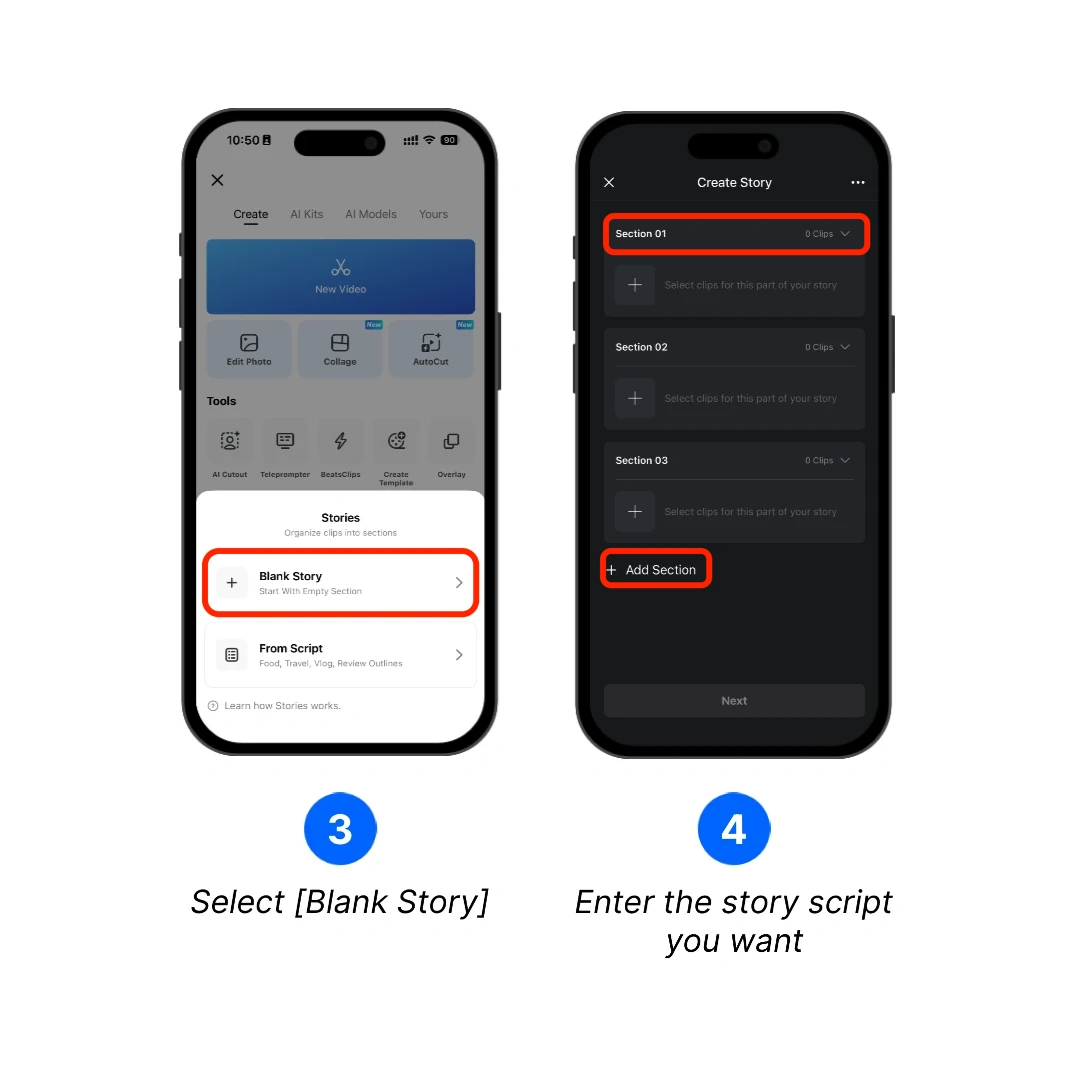
3. Select [Blank Story].
4. Enter the title for each section. Tap [Add Section] when you need another part in the Story.
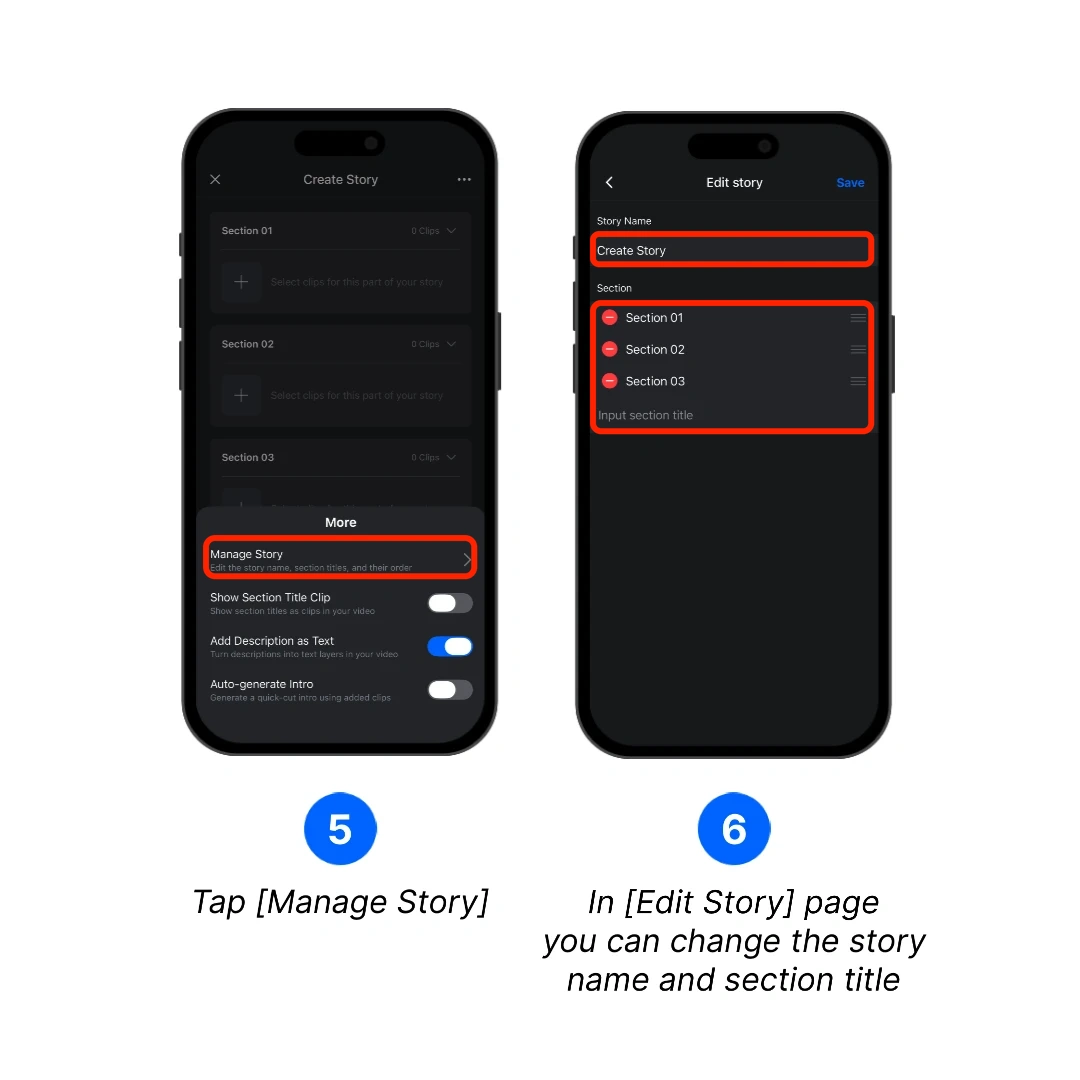
5. You can tap the top right elipsis button [...], then select [Manage Story] to access more settings for your story.
6. On the [Edit Story] page, change the Story name or edit the section titles, then tap [Save].
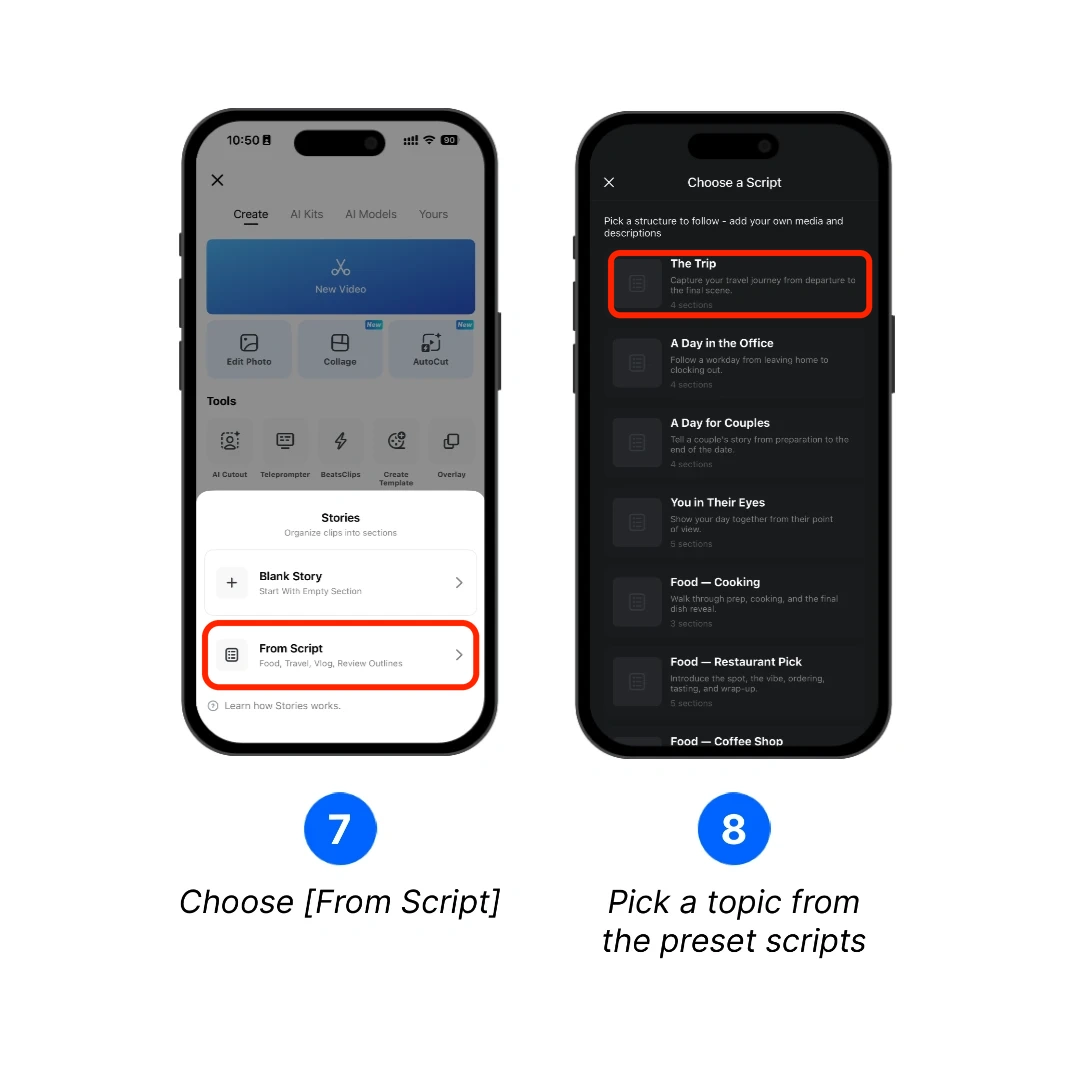
7. Or instead of building the structure from scratch, you can use a preset script by selecting [From Script].
8. Choose a topic from the available preset scripts. VN creates the section structure, which you can then customize with your own clips and descriptions.
Story Editing
1. Enter the section titles first to establish the Story structure.
2. Add clips to each section, then enter a description beside a clip when needed. Repeat this until every section contains the footage and descriptions you want to use.
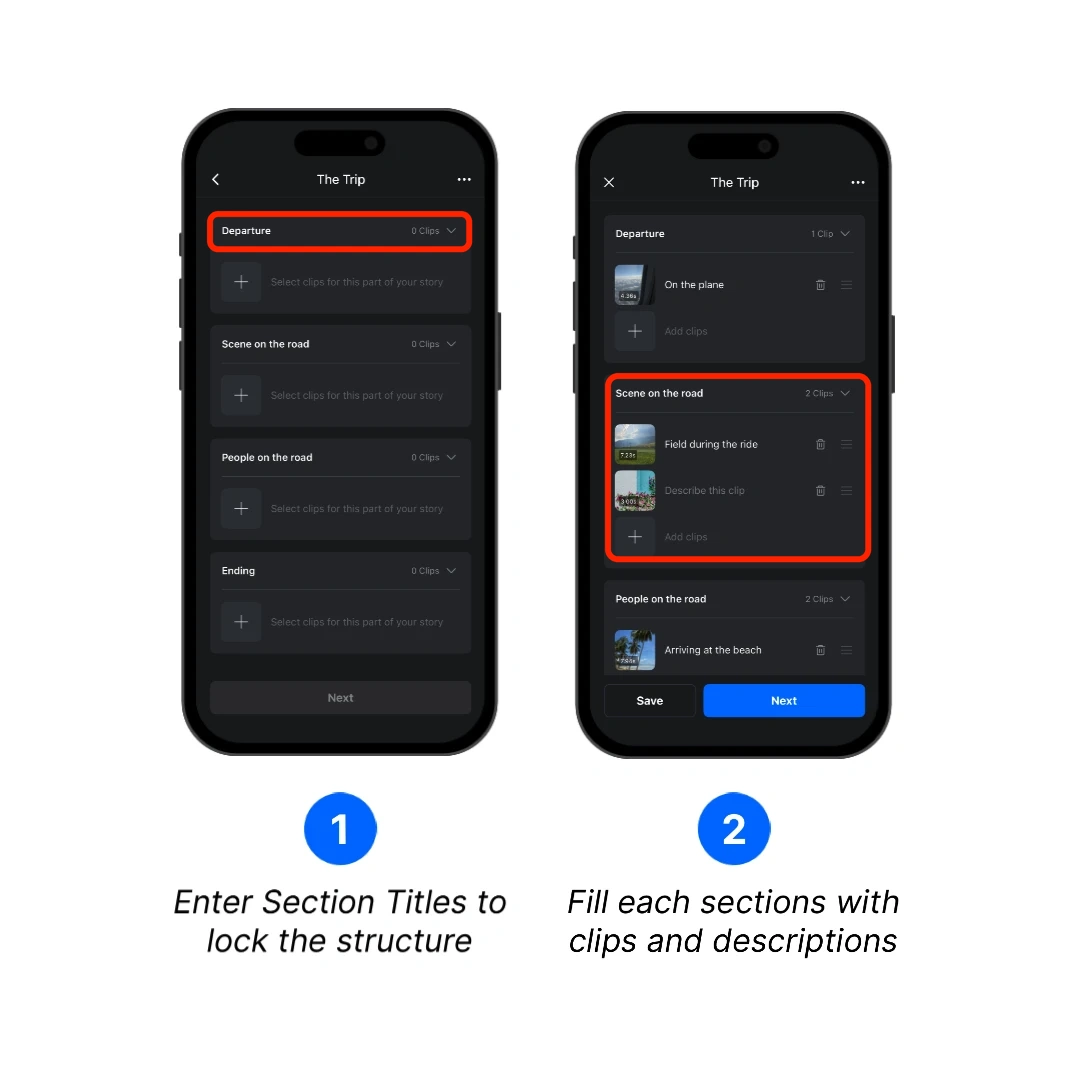
3. Tap the thumbnail of the clip you want to adjust.
4. Drag the trim handles to select the part of the clip you want to use, then confirm the change.
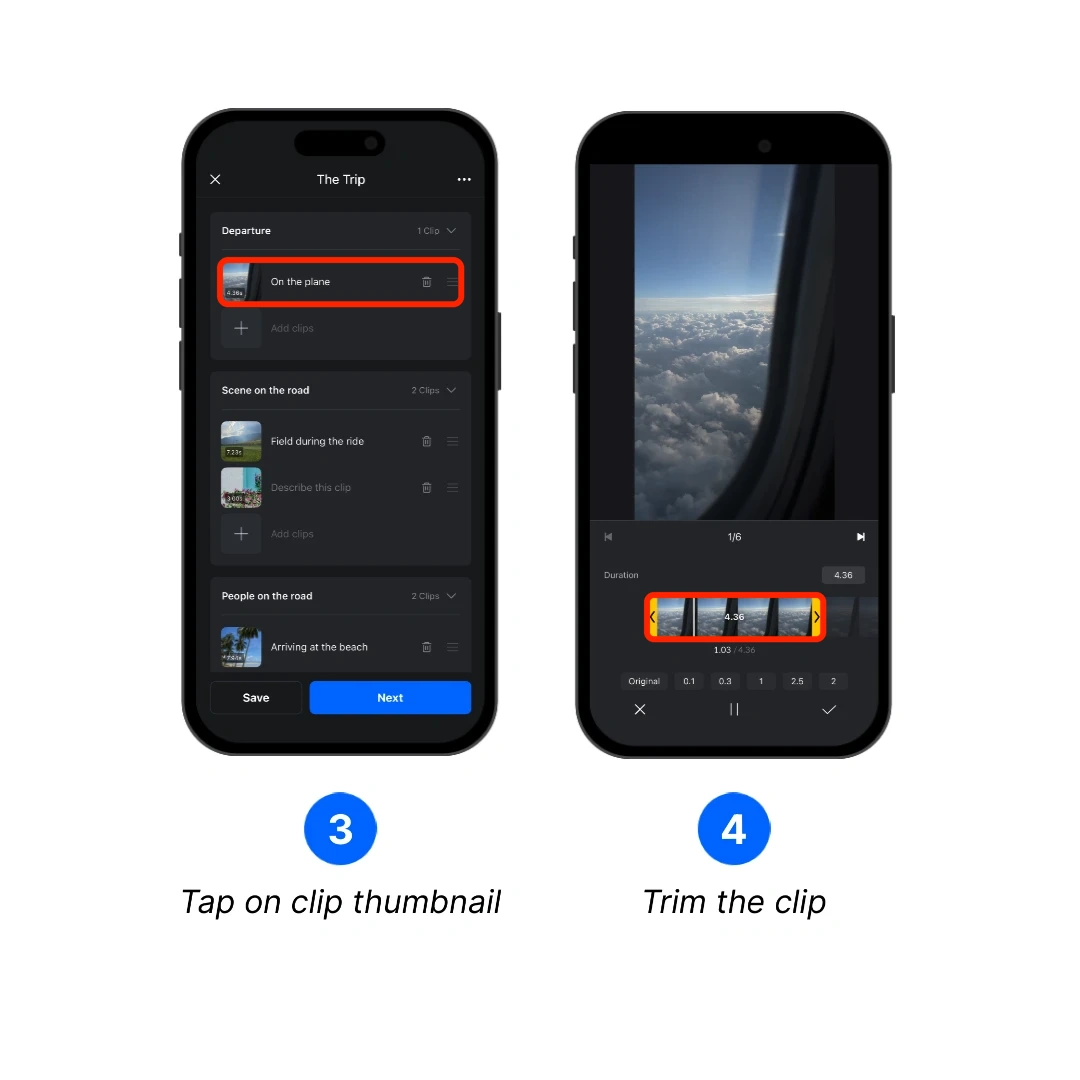
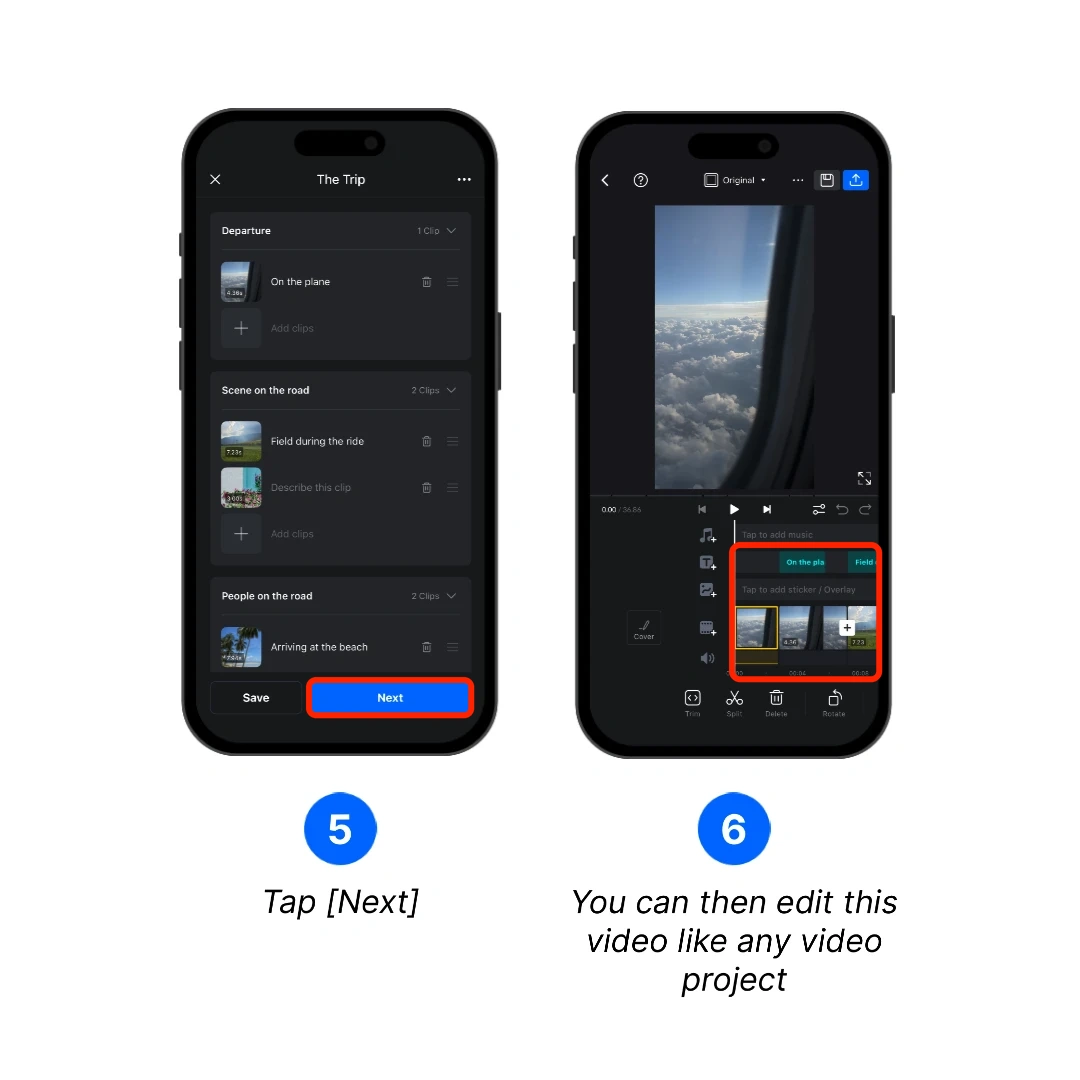
5. Tap [Next] after you finish filling the Story.
6. VN creates a video project from the Story. You can then edit the clips, timing, text, audio, effects, and other elements in the editor like a regular project.
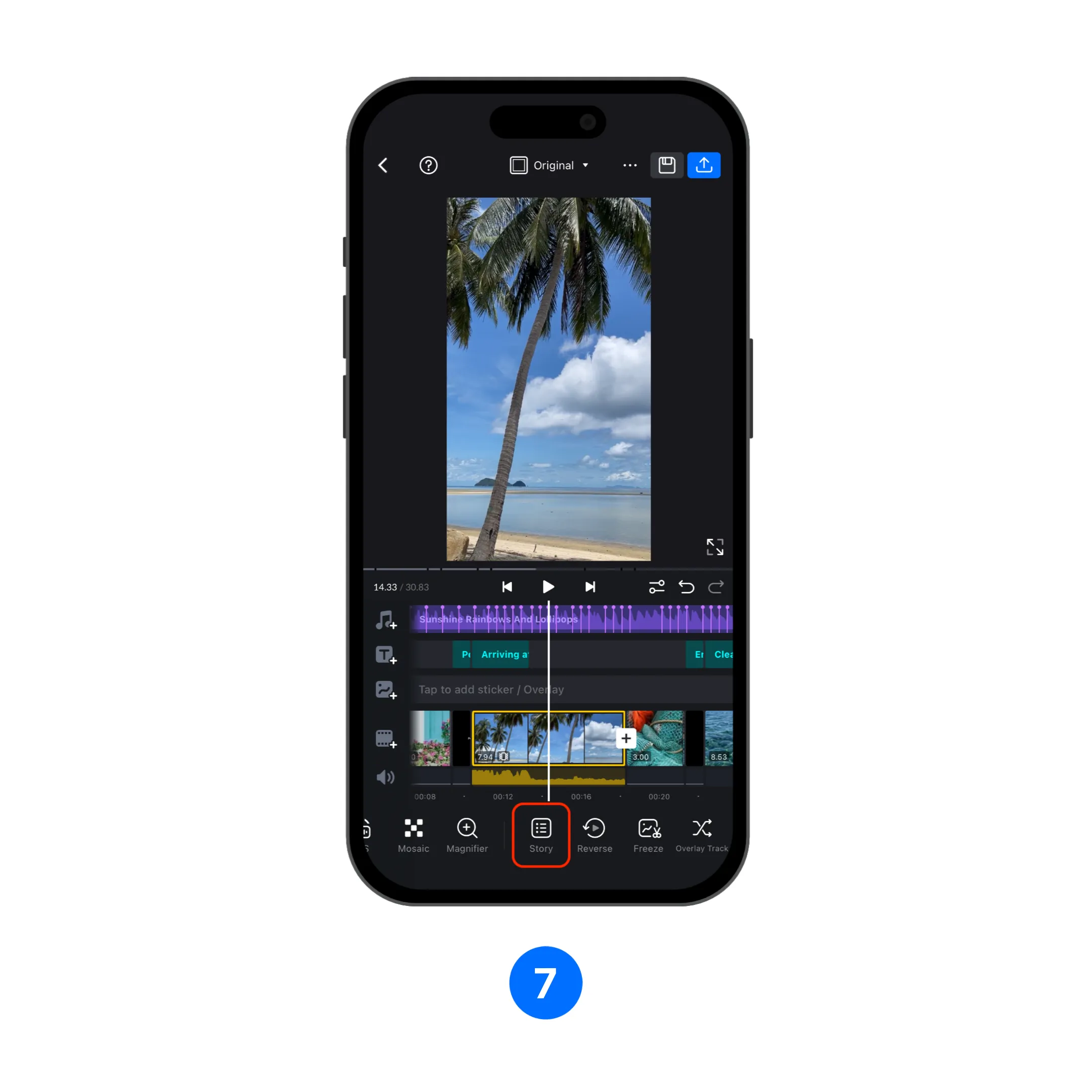
7. You can tap on the Story button to go back to the Story Editor at any time. This also works for projects that started out as regular video project so you can better control the overall structure.
Configure Story Settings
Tap the top right elipsis button [...] on the Story screen to find the three Story Settings below. Review them before tapping [Next], because they determine which additional text or clips VN adds to the generated project.
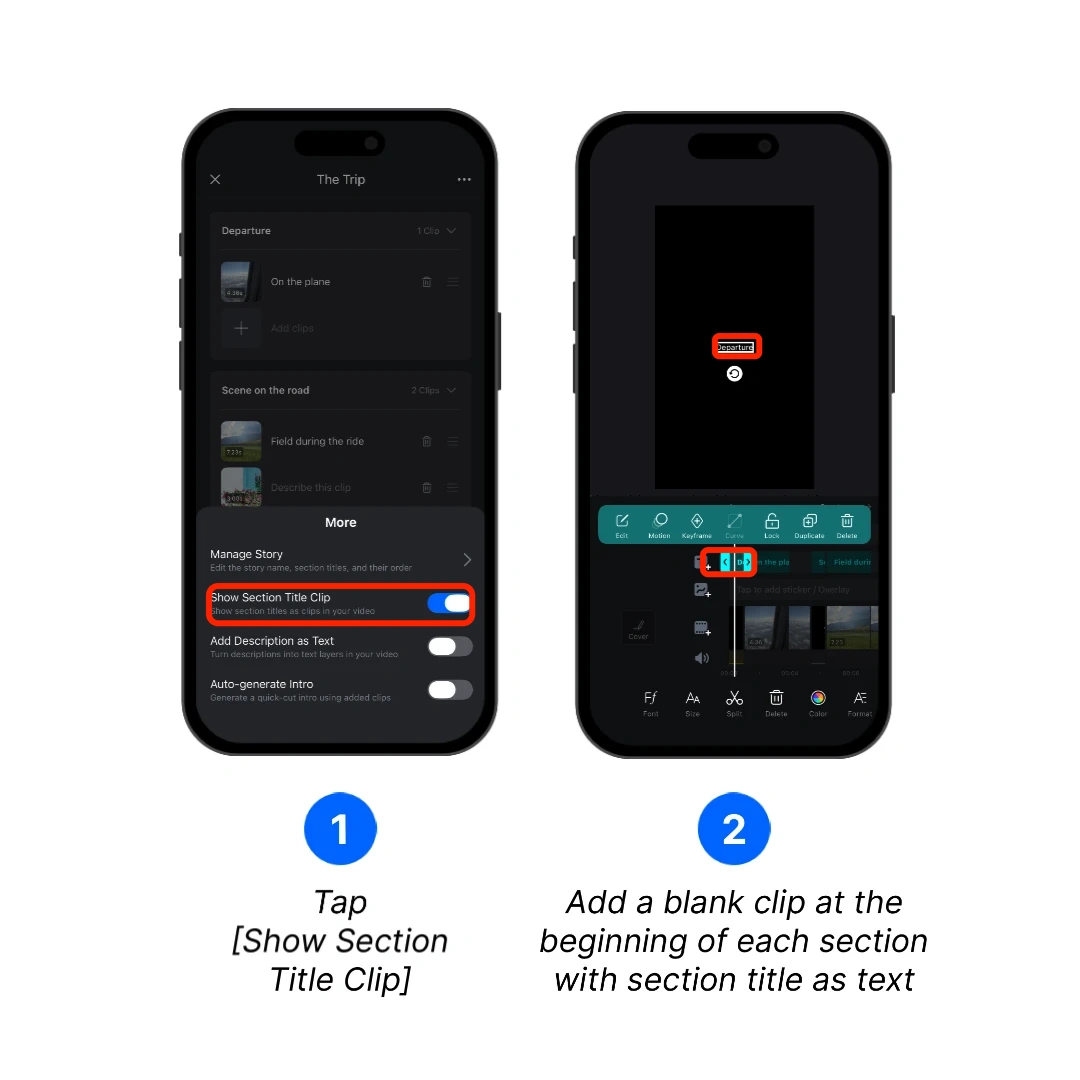
Show Section Title Clip
1. Turn on [Show Section Title Clip].
2. VN adds a title clip at the beginning of each section and uses the corresponding section title as its text.
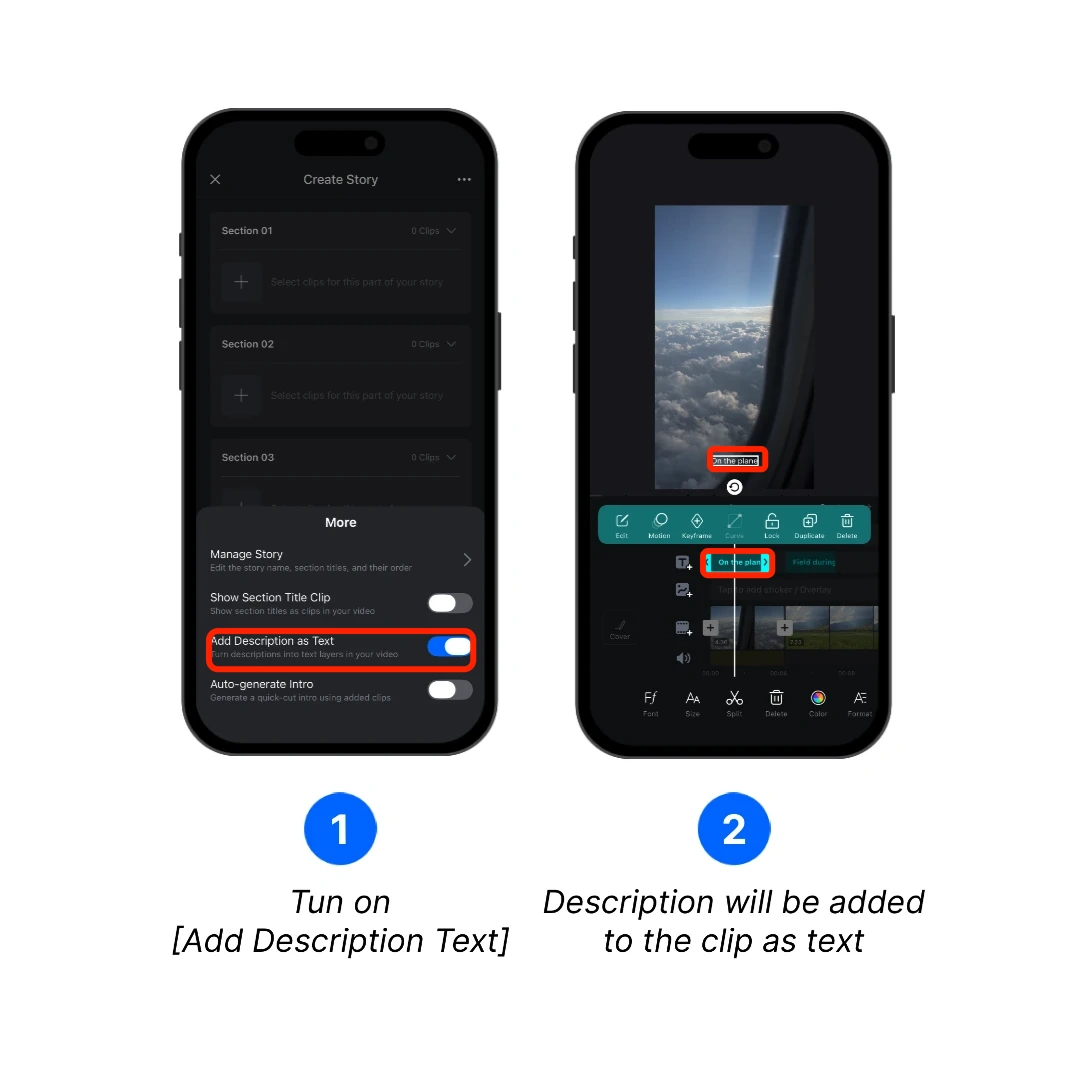
Add Description as Text
1. Turn on [Add Description as Text].
2. VN adds each clip description to its corresponding clip as text. A clip without a description does not receive description text.
Auto-generate Intro
Turn on [Auto-generate Intro] to let VN create a quick-cut opening sequence from clips already added to the Story. After VN creates the project, the generated intro appears on the timeline and can be edited like the rest of the video.