



Use [Characters] in [Voice Switch] to change the voice in your video. Characters uses AI to process the selected voice and generate a new voice with a different language, accent, gender, age, or vocal style.
Open Voice Switch
- Open your project and select the video or audio clip.
- Tap [Voice Switch] in the toolbar to see the [Characters] tab where you can choose a language and select a character.
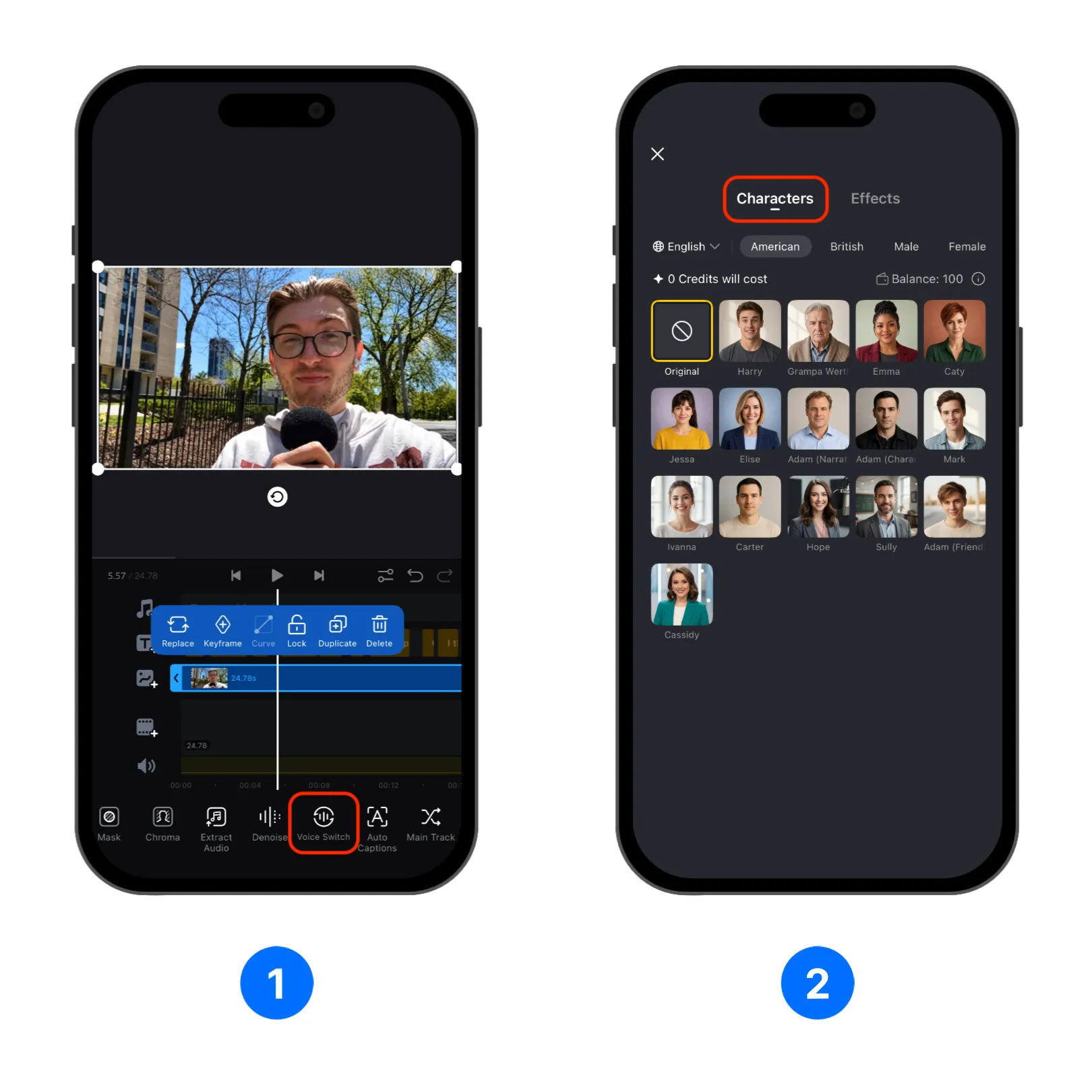
Choose a Character Voice
Choose a language and browse the available character voices. Supported languages include:
- English, including American and British accents
- Japanese
- German
- Hindi
- French
- Portuguese
- Italian
- Spanish
- Russian
- Chinese
- Arabic
Each language includes multiple voice styles, such as male or female voices, younger or older voices, and friendly or other expressive tones. Tap a character portrait to preview the voice. Listen to the preview and choose the voice that best matches your video.
Some character voices can also speak languages other than the language selected in the menu. Depending on the voice, the spoken language may retain characteristics of the selected voice, such as an American or British accent.
Note: [Characters] uses AI processing, so the selected audio is uploaded to the cloud for processing and deleted after processing is finished. Using this function consumes credits. Estimated credit cost is shown in the interface alongside your credit balance. For more about credits, check out How Do Credits Work?.