
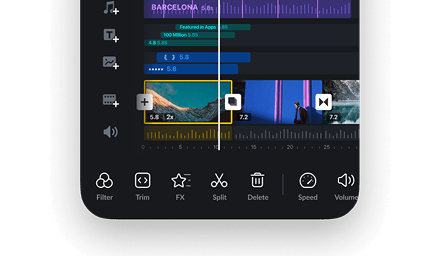

Replace BG-Image/Color
1. Select the clip on the main track and tap [BG].
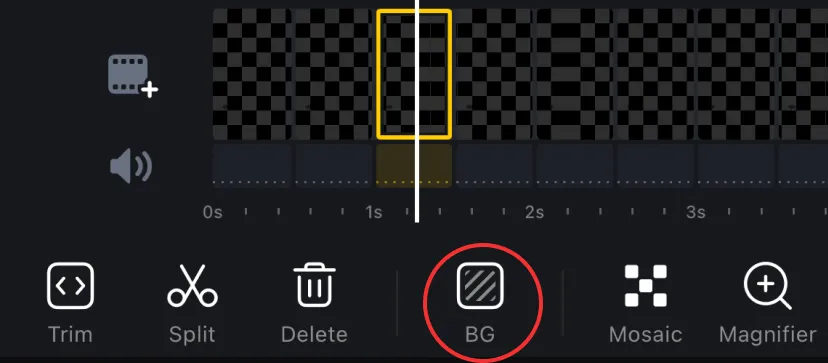
2. Select the clip on the main track and tap [BG].
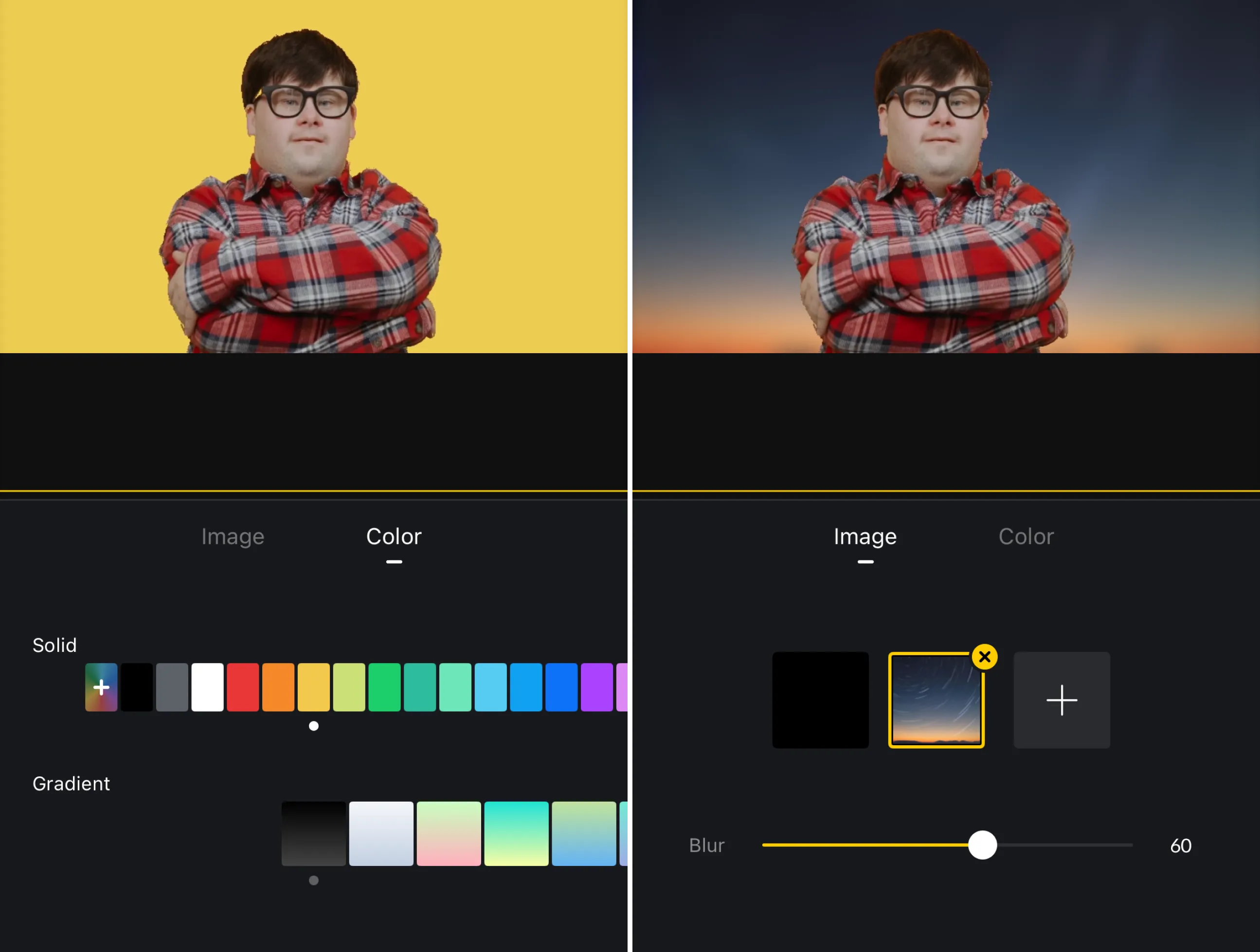
Create a unique atmosphere by changing the background.
Video Cutout
1. Tap the video clip, then tap [Cutout].
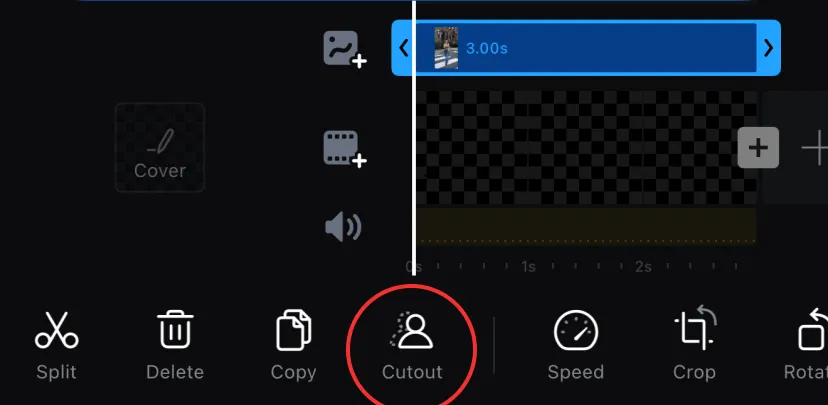
2. Tap [Cutout] to remove the background. Adjust Feather and Expand for better results.
3. Tap [Stroke] to add an outline.
Green Screen - Chroma
1. Tap the [Chroma] to enter color sampling and removal.
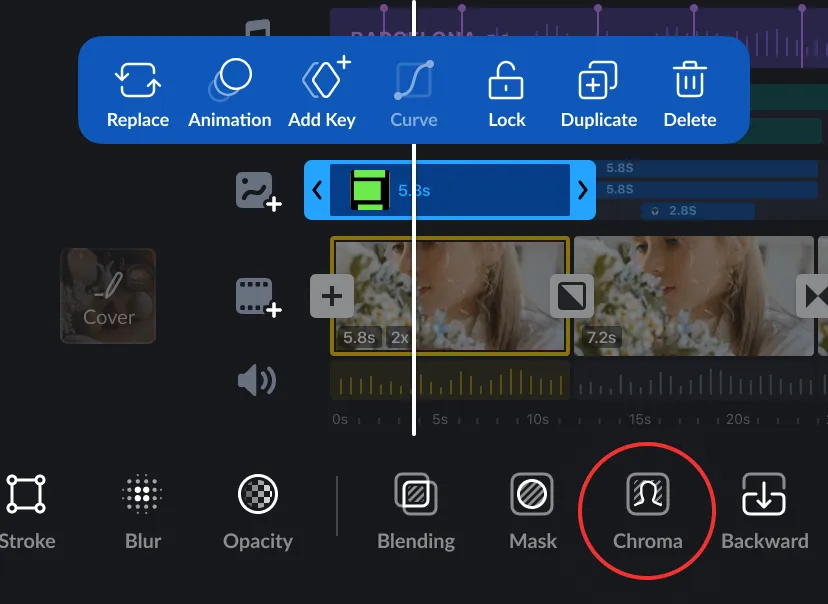
2. Use the color picker tool to select the color you want to remove, then adjust the [Intensity] and [Spill] to achieve a better effect.
Mask
1. Tap the [Mask] to add a shape mask to the material.
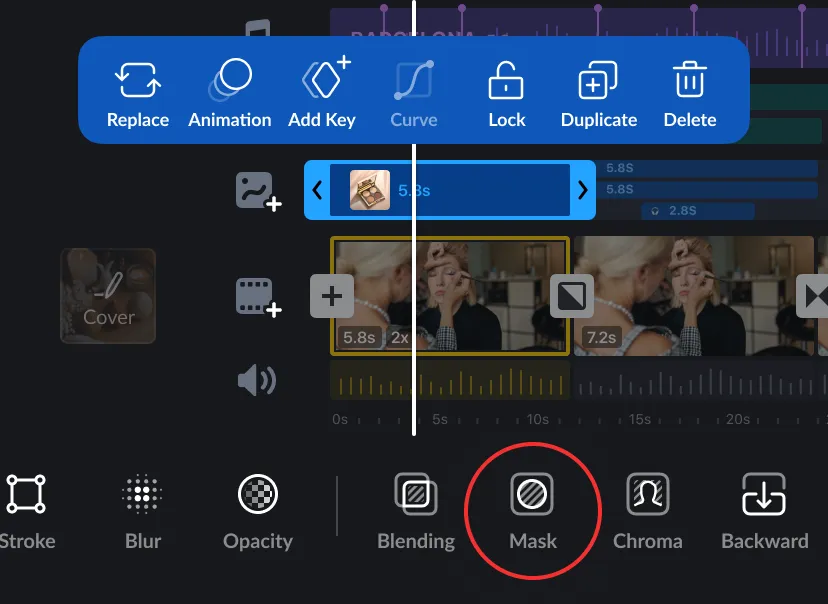
2. Select the desired mask style and adjust its size accordingly.