Photo & Video Editor
Download

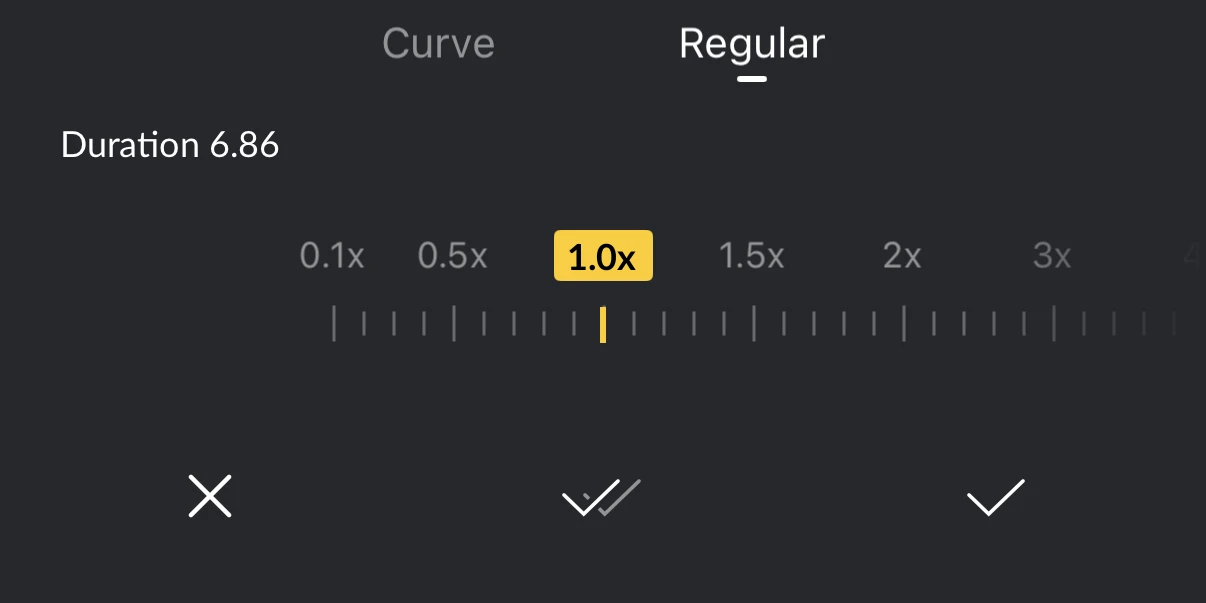
Speed Ramping & Freeze

Learn how to use speed ramping, speed curves, velocity editing, slow motion, fast motion, and freeze-frame effects to retime videos.

Speed Ramping (Curve)

1. Multiple preset curves are available for direct use.

2. Tap the [Add] or [Delete] to add or remove nodes on the curve.

3. Select speed nodes, drag vertically to adjust video speed, and drag horizontally to adjust speed duration.

Freeze

Tap [Freeze] to create a freeze-frame video.

Frequently Asked Questions

Common questions about changing clip speed, editing speed curves, and creating freeze frames in VN.

[Speed Ramping] changes the playback speed across a clip, while [Freeze] creates a still frame at the selected position.

Open the speed curve editor, then tap [Add] or [Delete] to add or remove a selected speed node.

Drag a speed node vertically to change the playback speed. Drag it horizontally to change when the speed adjustment happens and how long that section lasts.

No. Speed and freeze-frame changes are applied to the clip inside the VN project and do not modify the original video stored on your device.

Yes. [Speed Ramping] and [Freeze] run locally on your device and can be used without an internet connection. More about functions that can run while the device is offline can be found in Use VN Without an Internet Connection