How to Create and Publish an AI Template
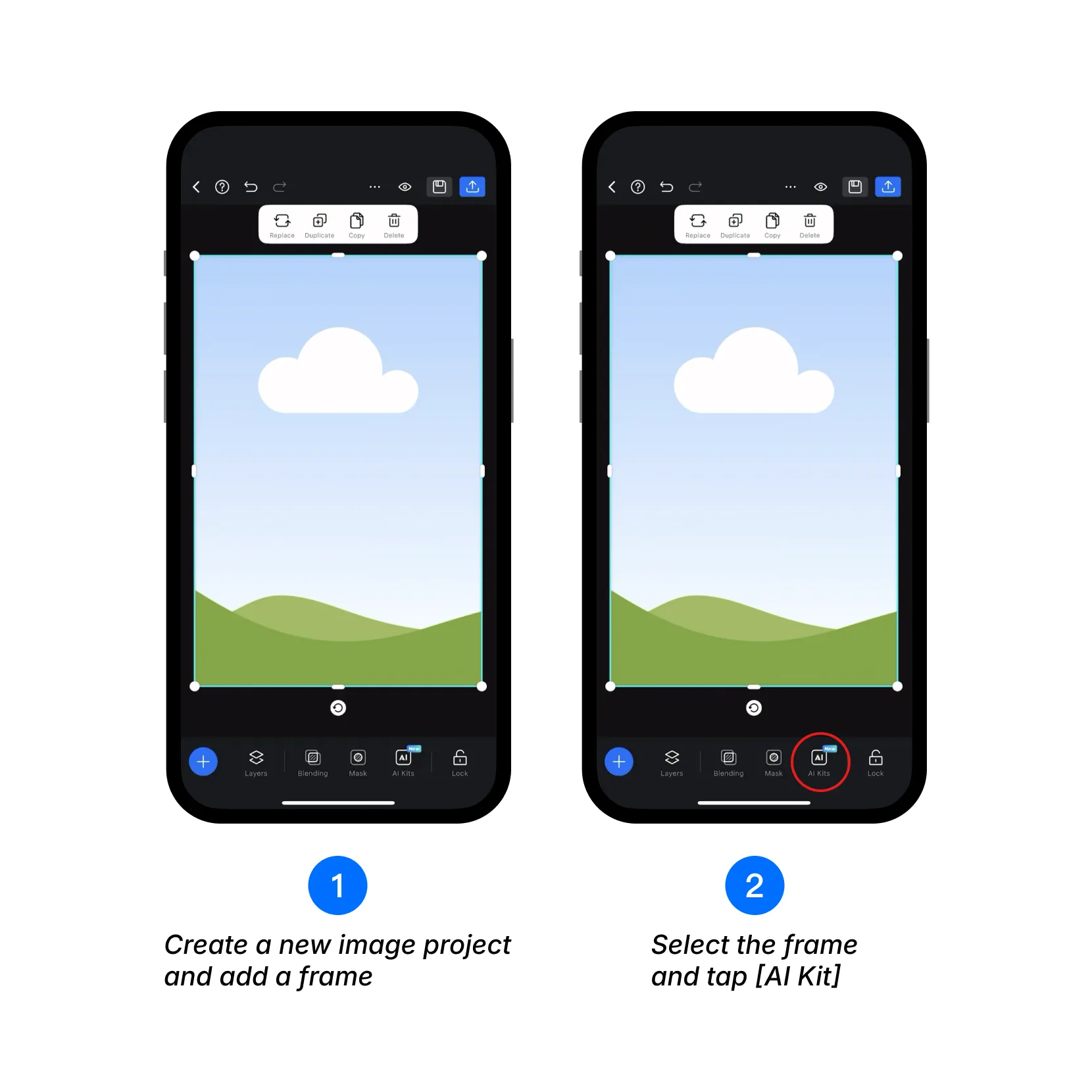
1. Create a new Image Project in the Flow app and add a Frame to your canvas.
Download Flow Studio: https://flow.ui.com/
2. Select the Frame, then tap [AI Kit] in the bottom toolbar.
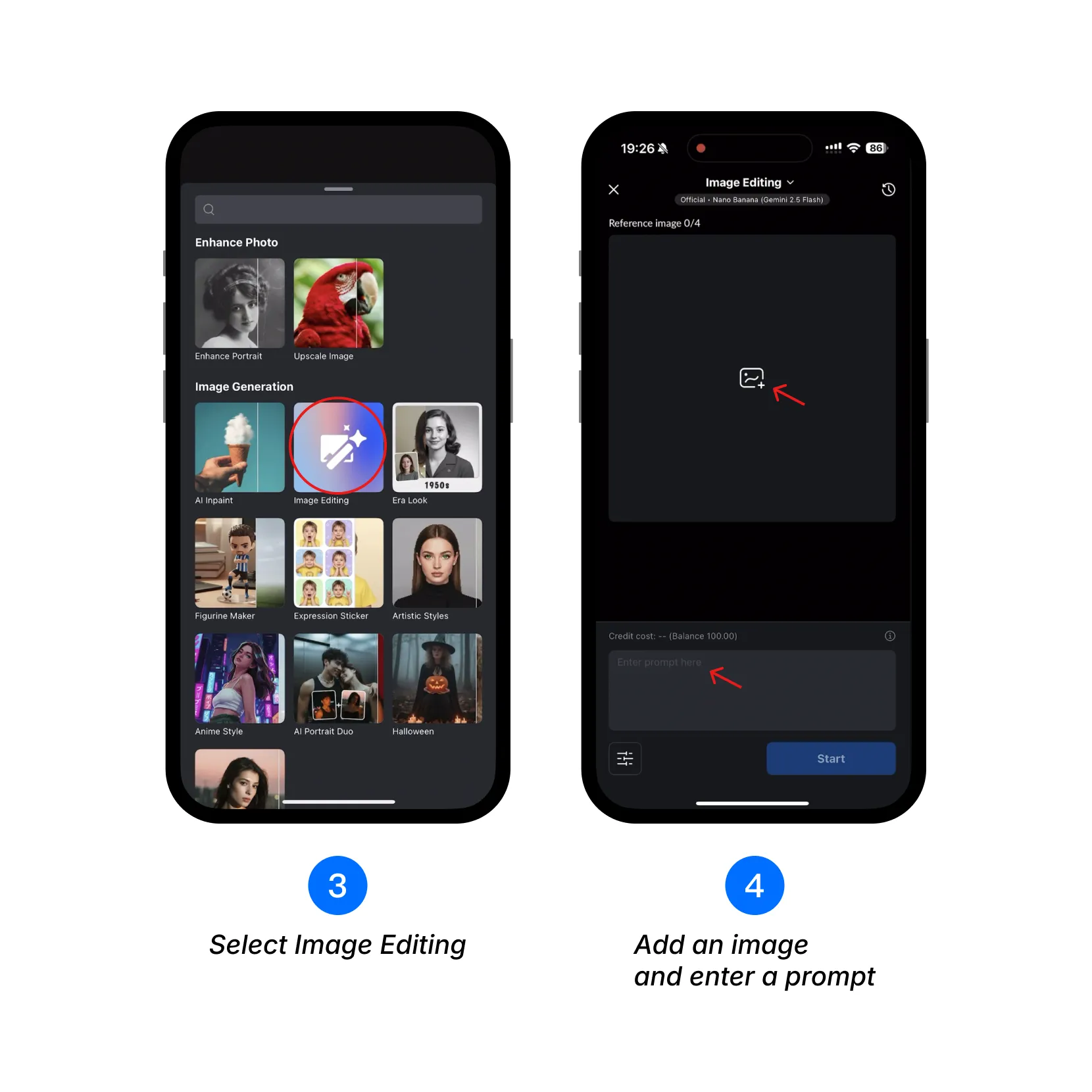
3. In the AI Kit panel, select [Image Editing] to start generating images.
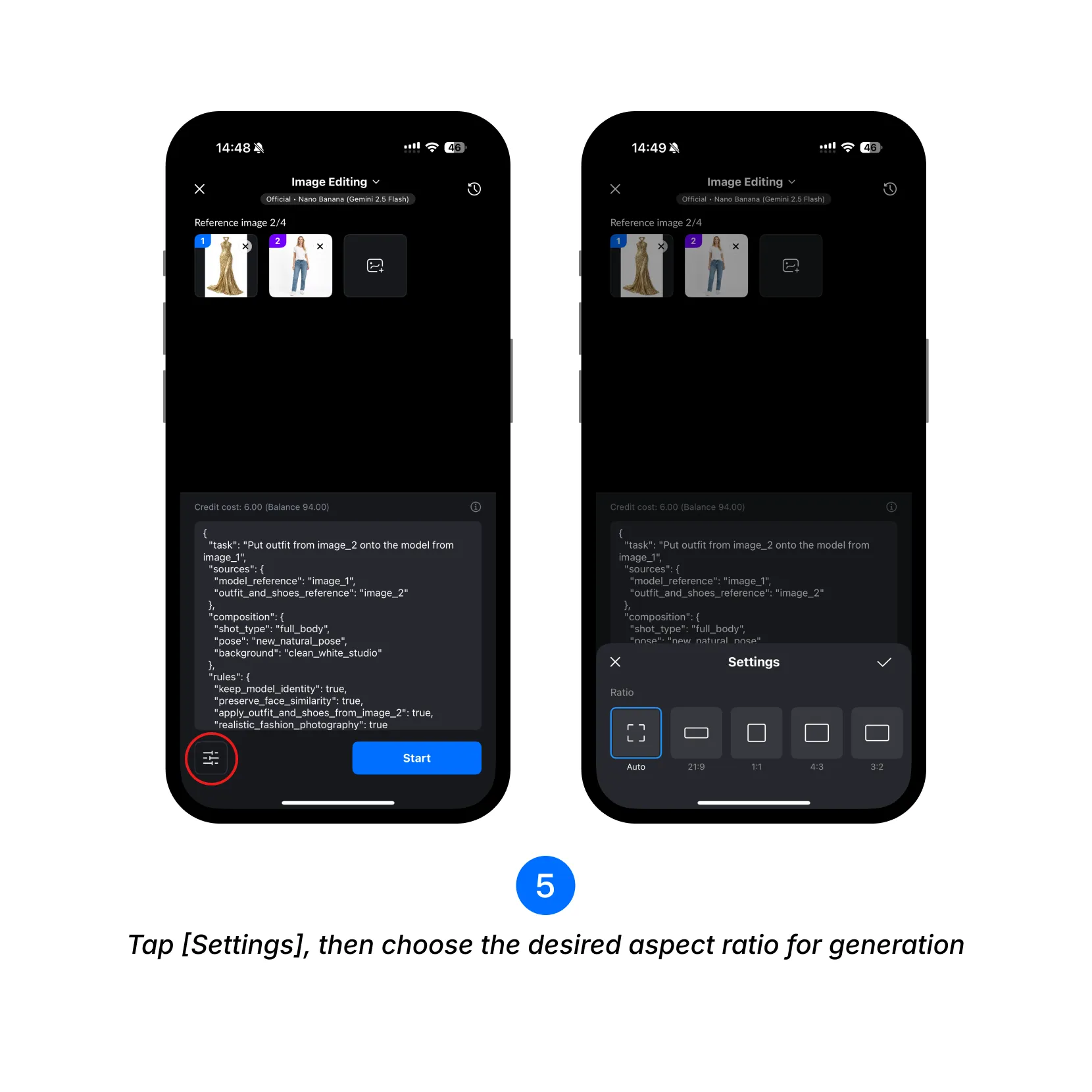
4. Add an image and enter a Prompt. Prompts support plain text and JSON format.
5. Tap [Settings], then choose the desired aspect ratio for generation.
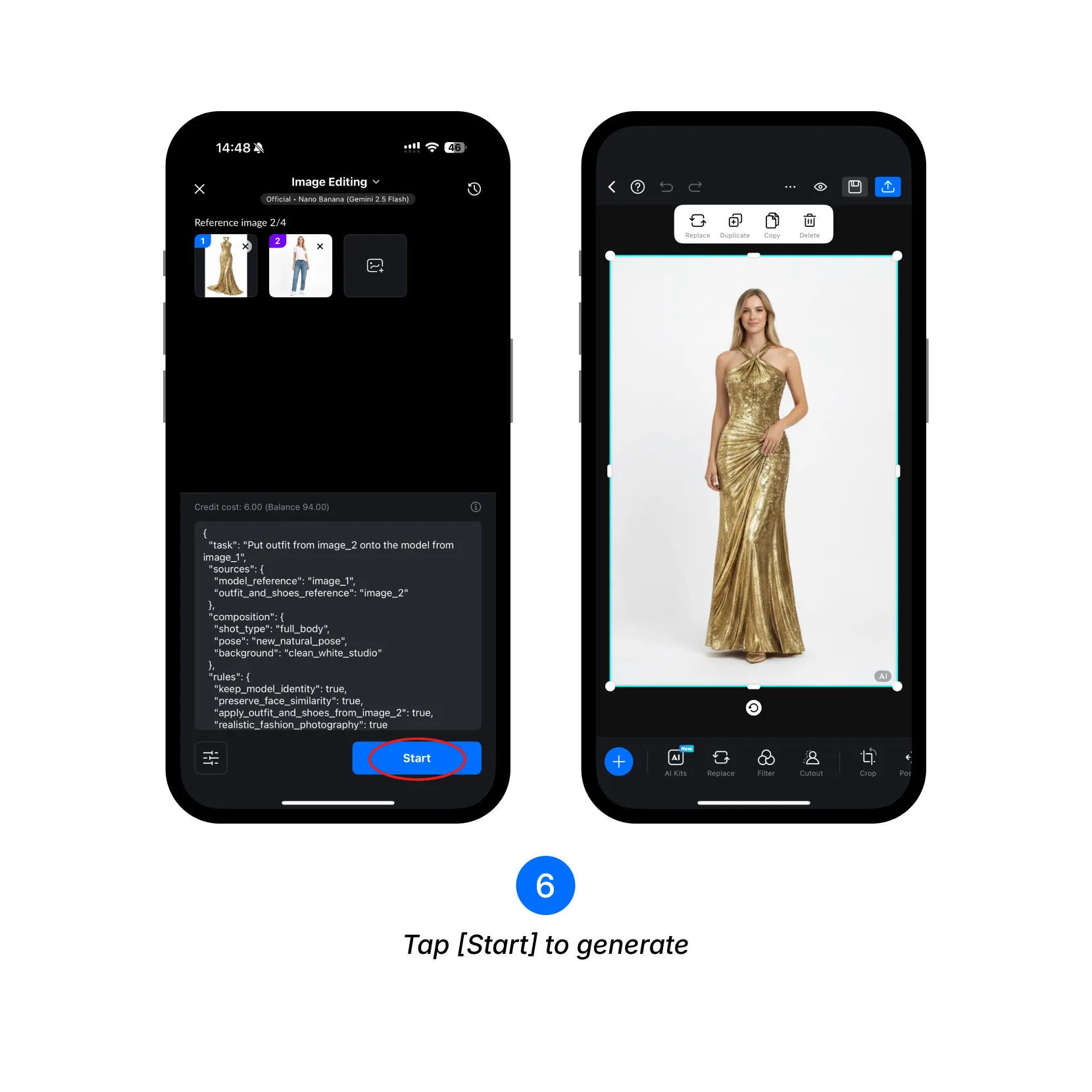
6. Tap [Start] to generate the image. The generated image will appear in the Frame.
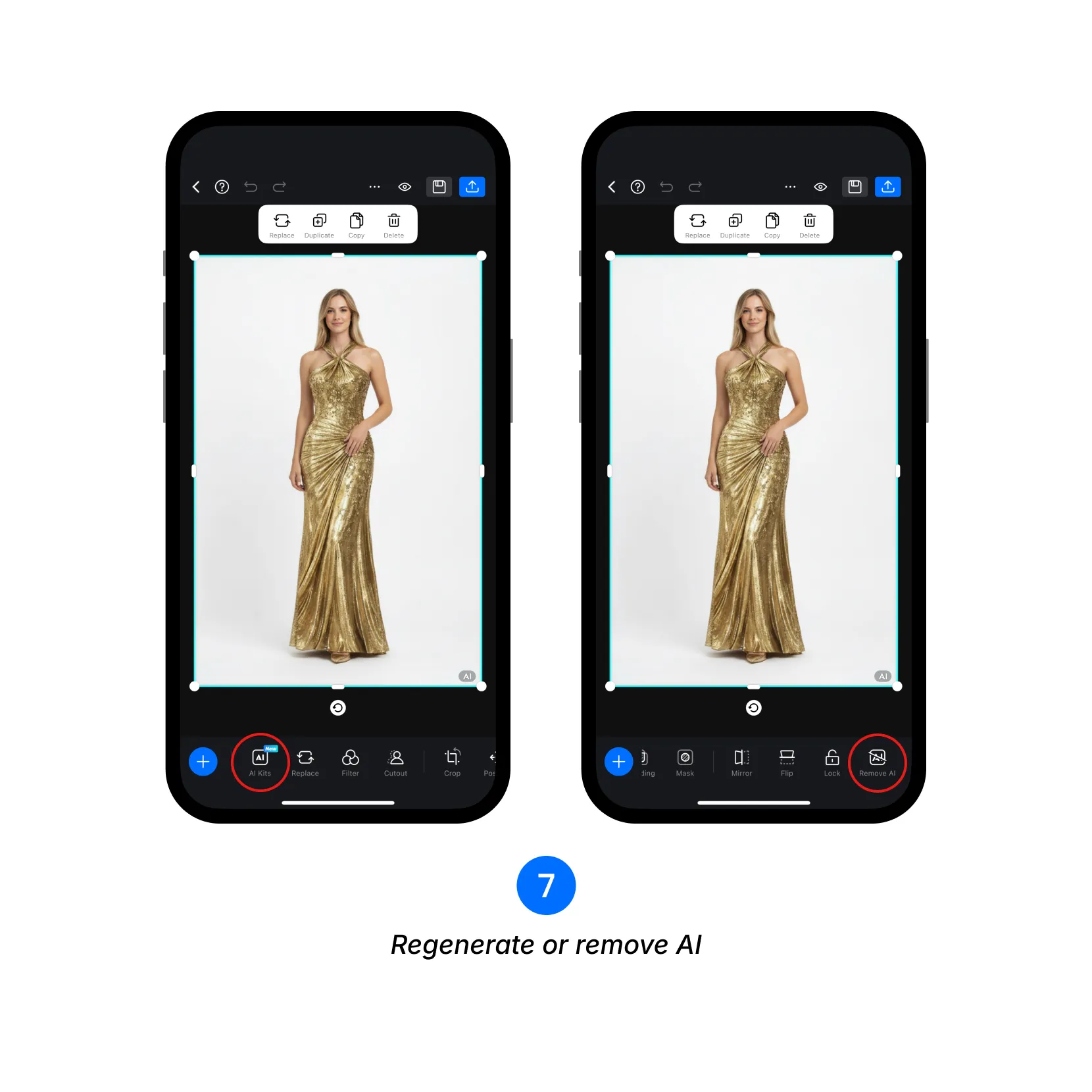
7. To regenerate or remove the AI image, use the following options:
- Tap [AI Kit] to modify the prompt and regenerate.
- Tap [Remove AI] to convert it into a regular image.
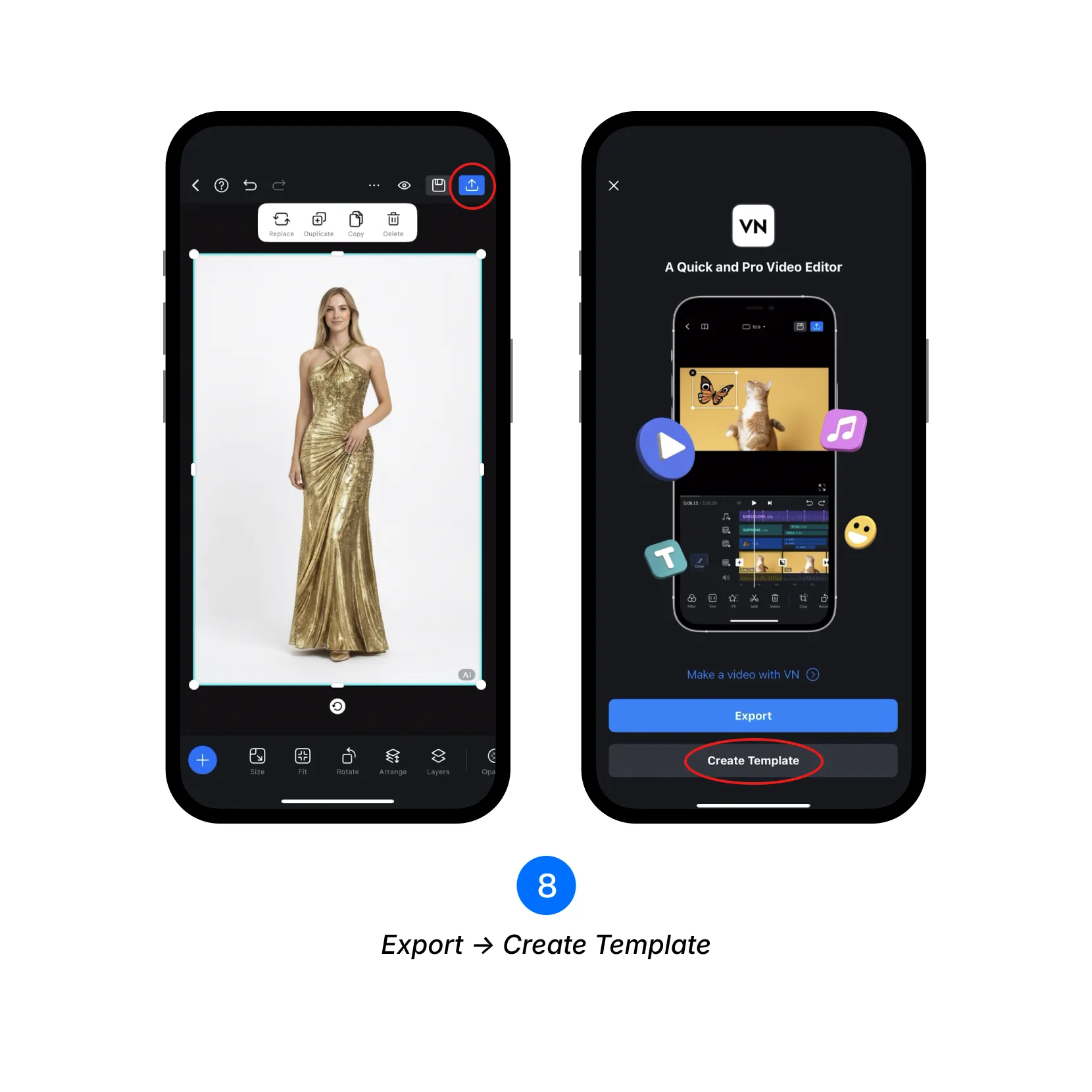
8. Tap [Export], then select [Create Template].
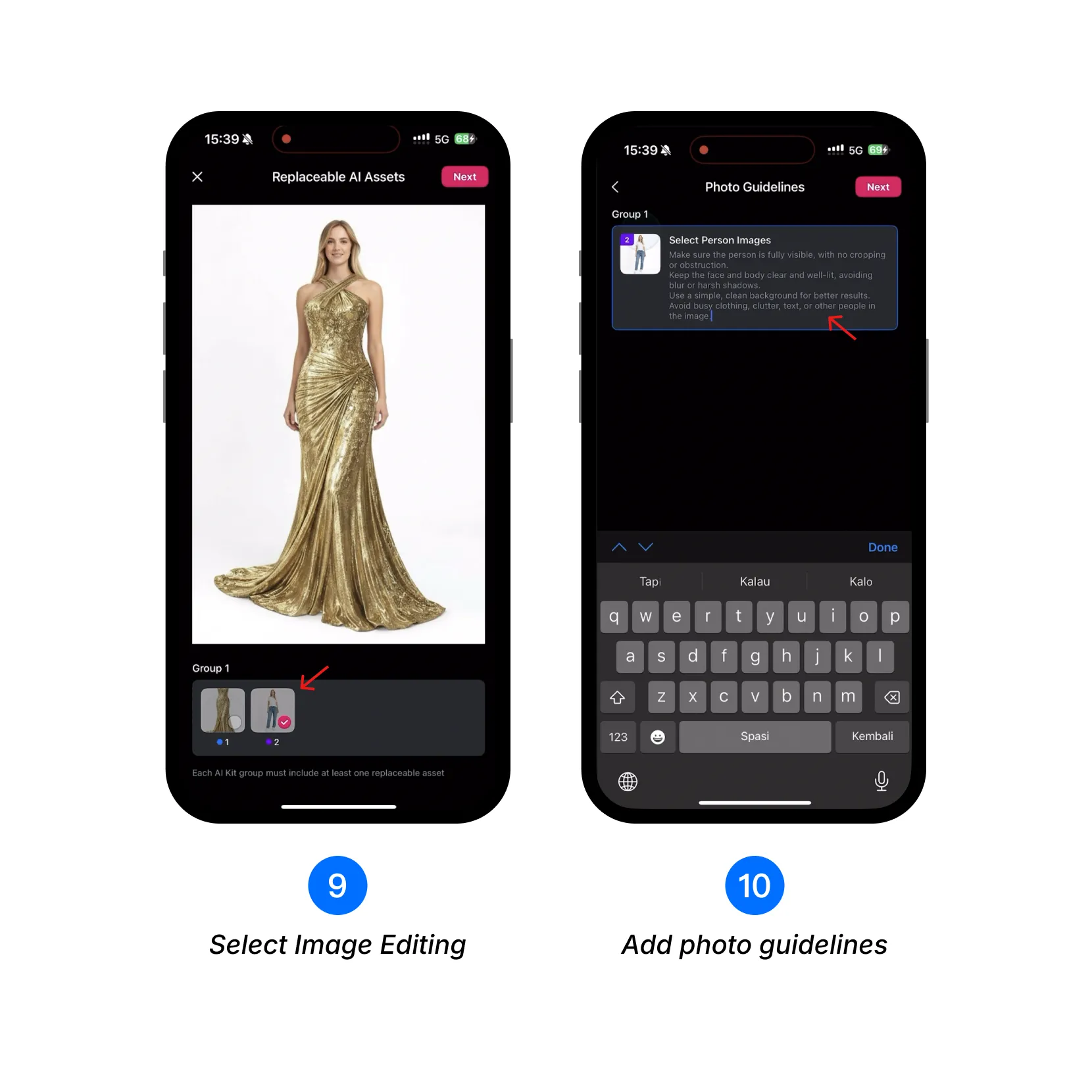
9. Select the images users can replace in the Replaceable AI Assets screen.
10. Add photo guidelines for the replaceable images.
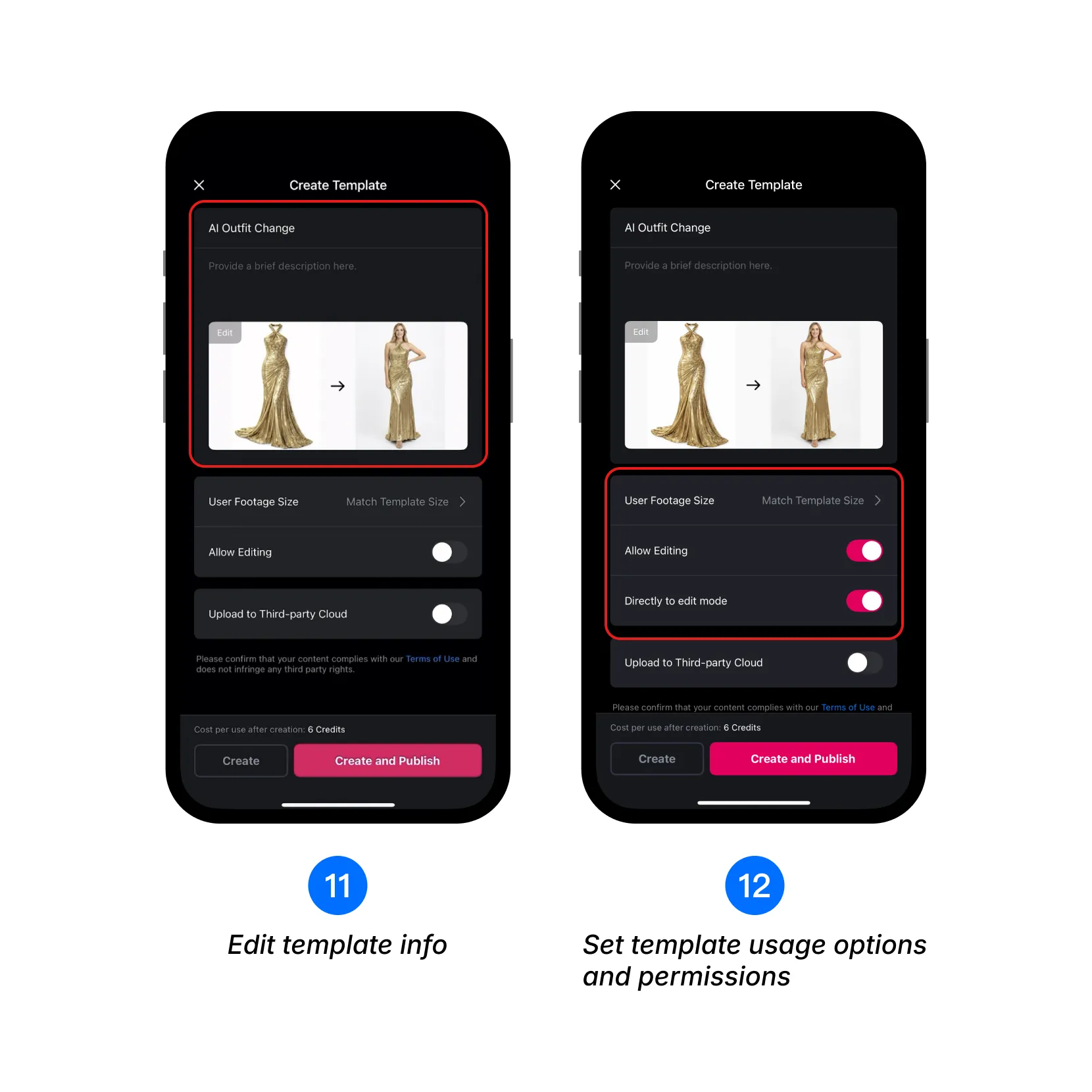
11. Enter the template name and description, and edit the VN Code cover.
12. Configure how users can use your template:
- Set User Footage Size to [Match Template Size] or [Keep Original Size].
- Enable [Allow Editing] and [Directly to edit mode] as needed.
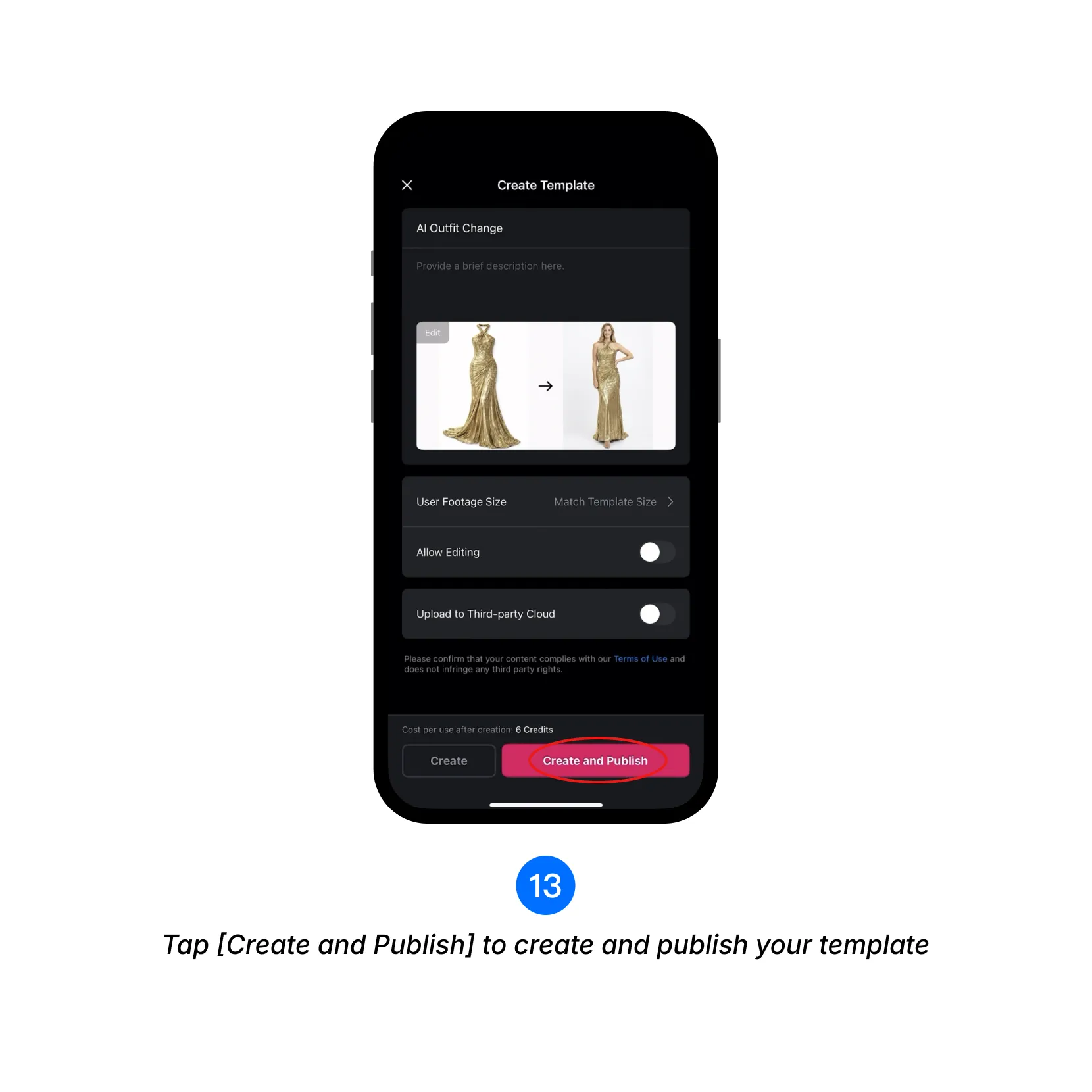
13. Tap [Create and Publish] to create and publish your template.
If you want to store the template file on a third-party cloud service, enable [Upload to Third-party Cloud], paste the download link, make sure download access is enabled, then tap [Create and Publish].
How to Share an AI Template
AI templates can be shared in two ways: VN Code or Share File.
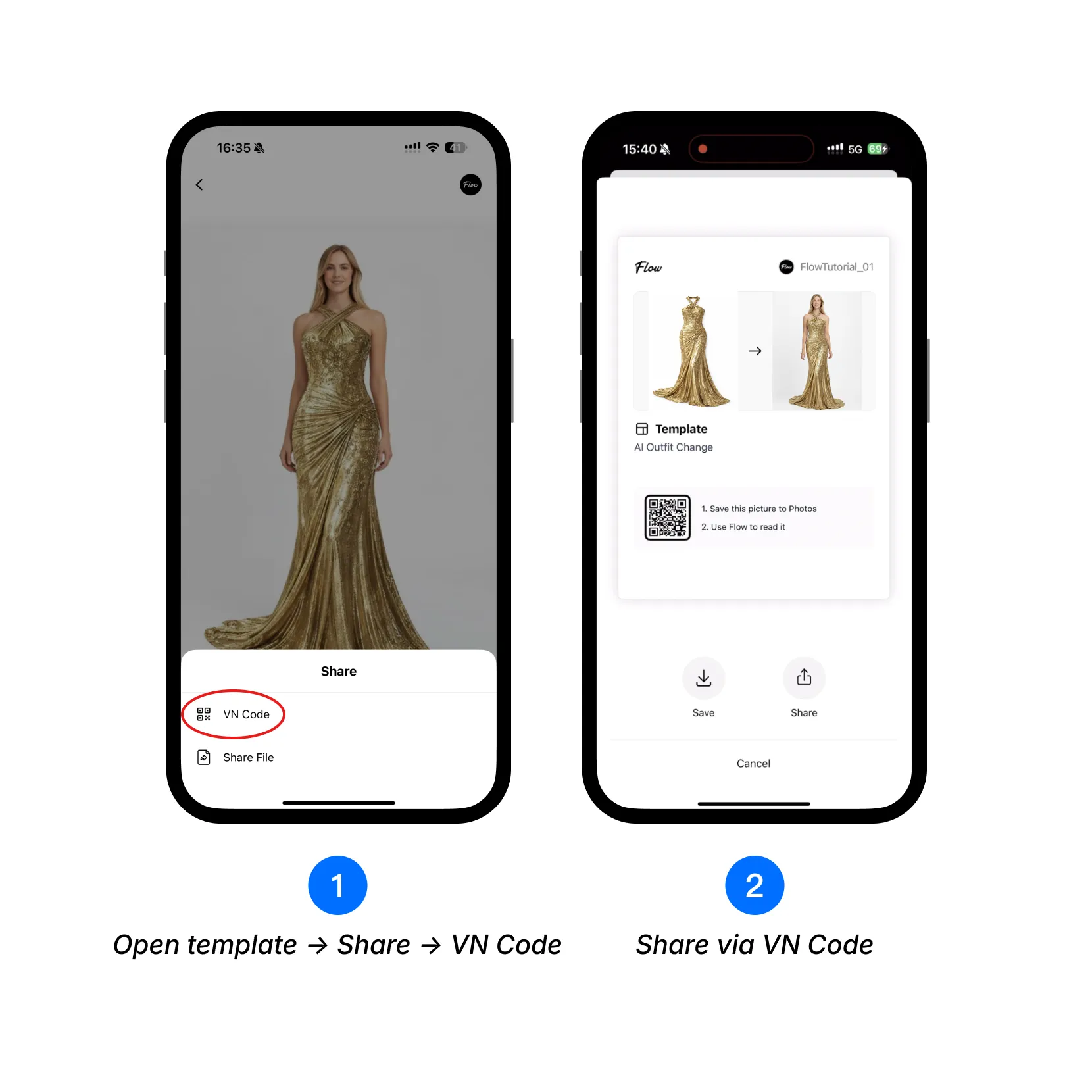
Option 1. Share via VN Code
1. Go to Profile > Template > Mine, tap the template you want to share, then tap [Share] and select [VN Code].
2. Share the generated QR Code with others to let them use your template.
Option 2. Share via Share File
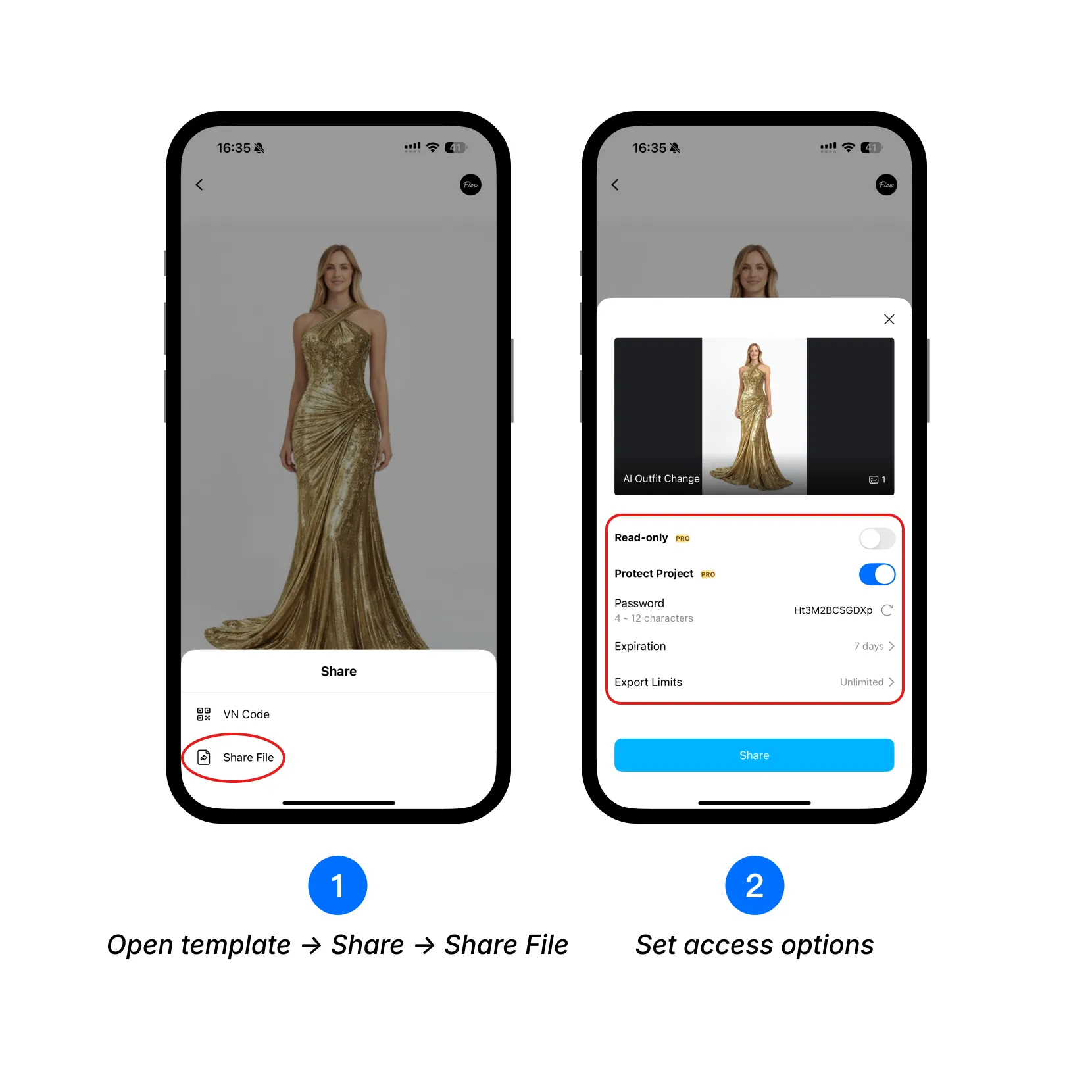
1. Go to Profile > Template > Mine, tap the template you want to share, then tap [Share] and select [Share File].
2. Set template access options.
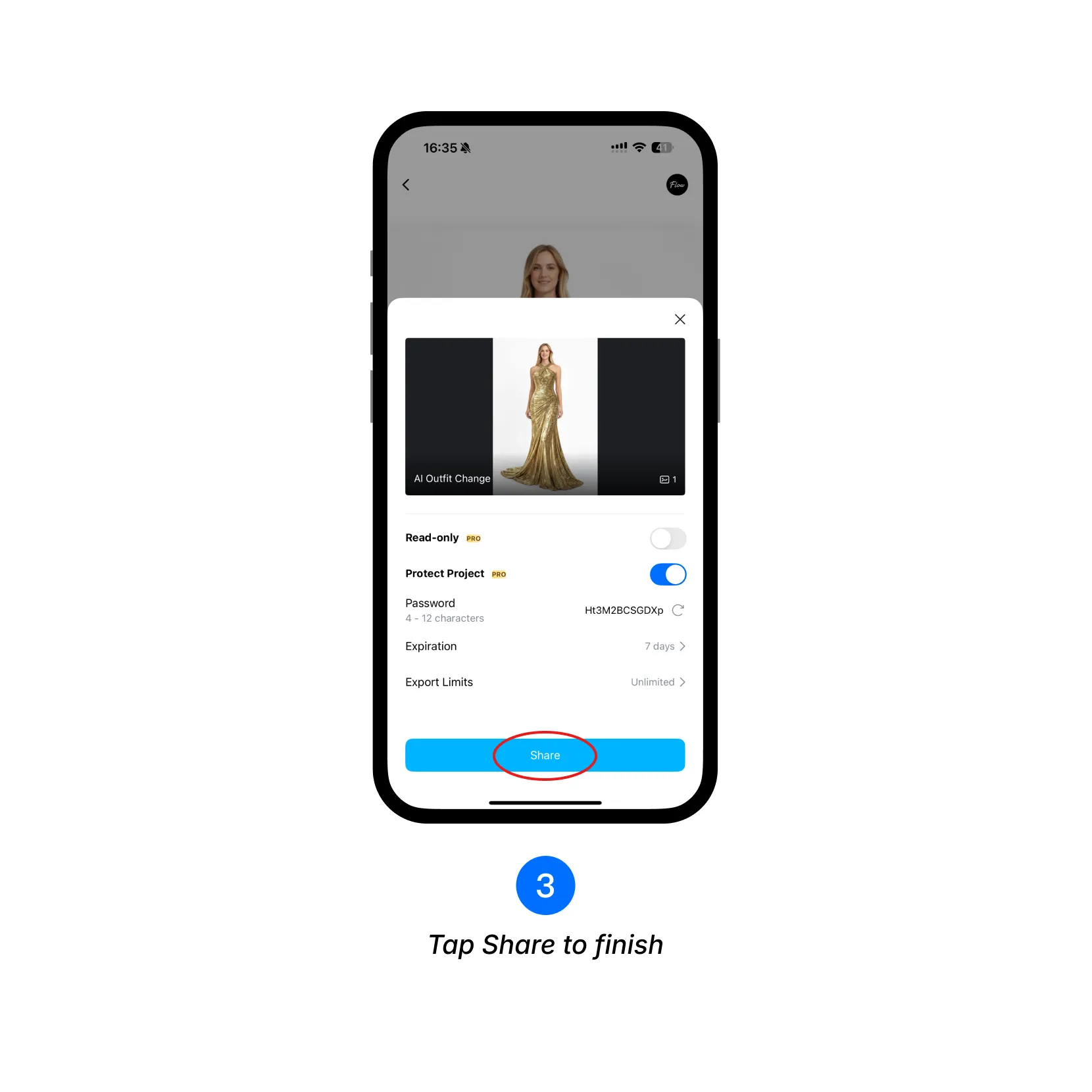
3. Tap [Share] to share the template file.
How to Use an AI Template
1. Import via VN Code
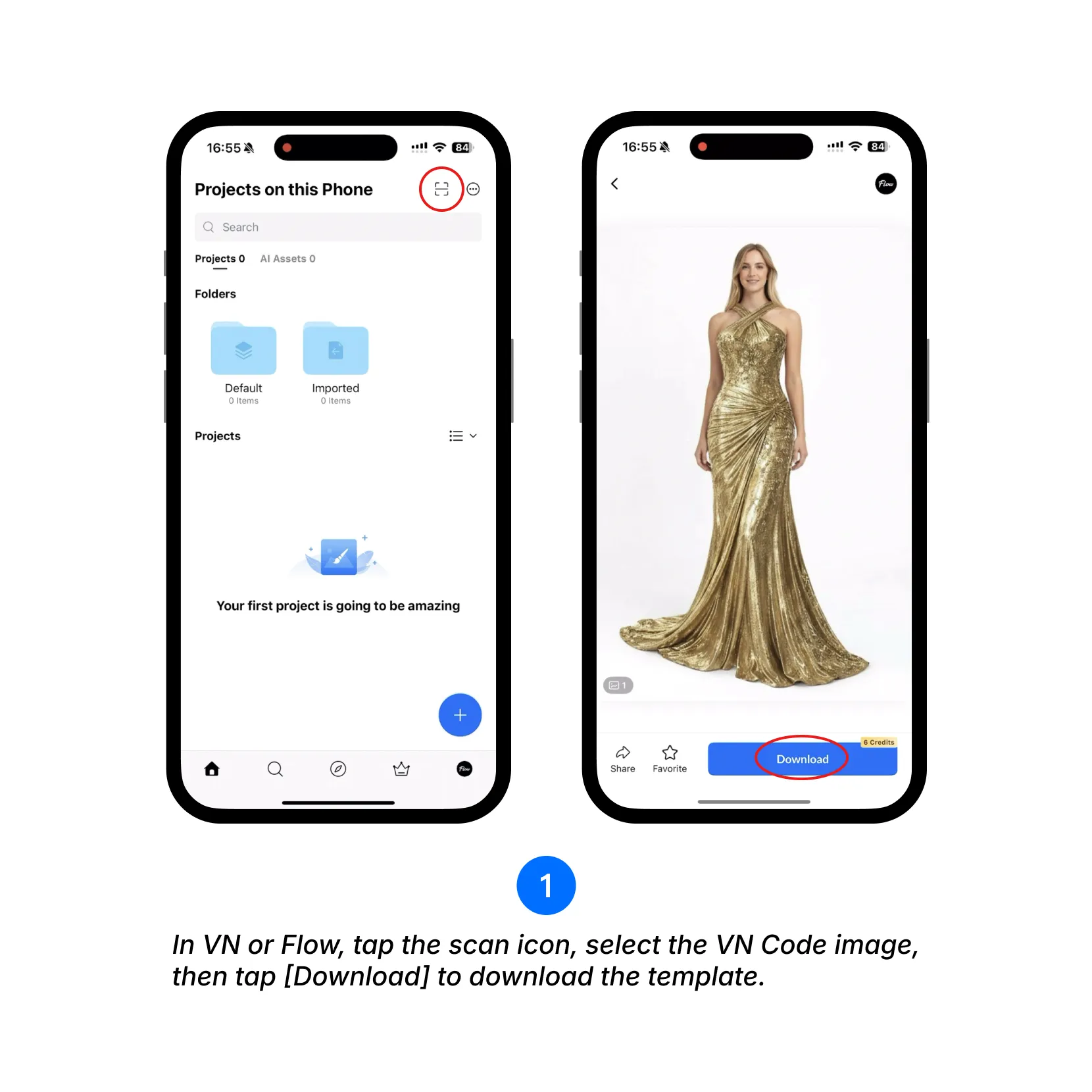
In VN or Flow, tap the scan icon, select the VN Code image, then tap [Download] to download the template.
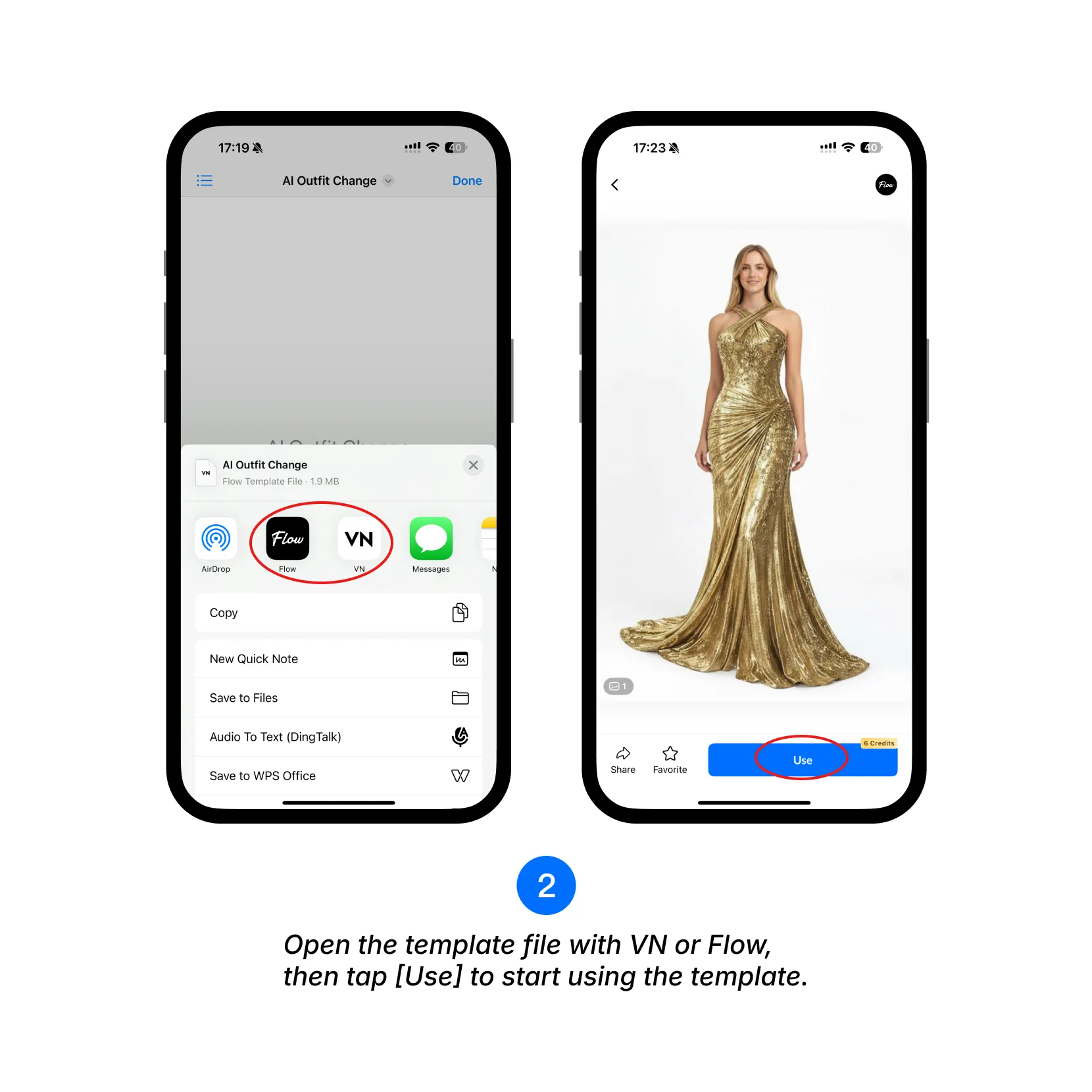
2. Import via Template File
Open the template file with VN or Flow.
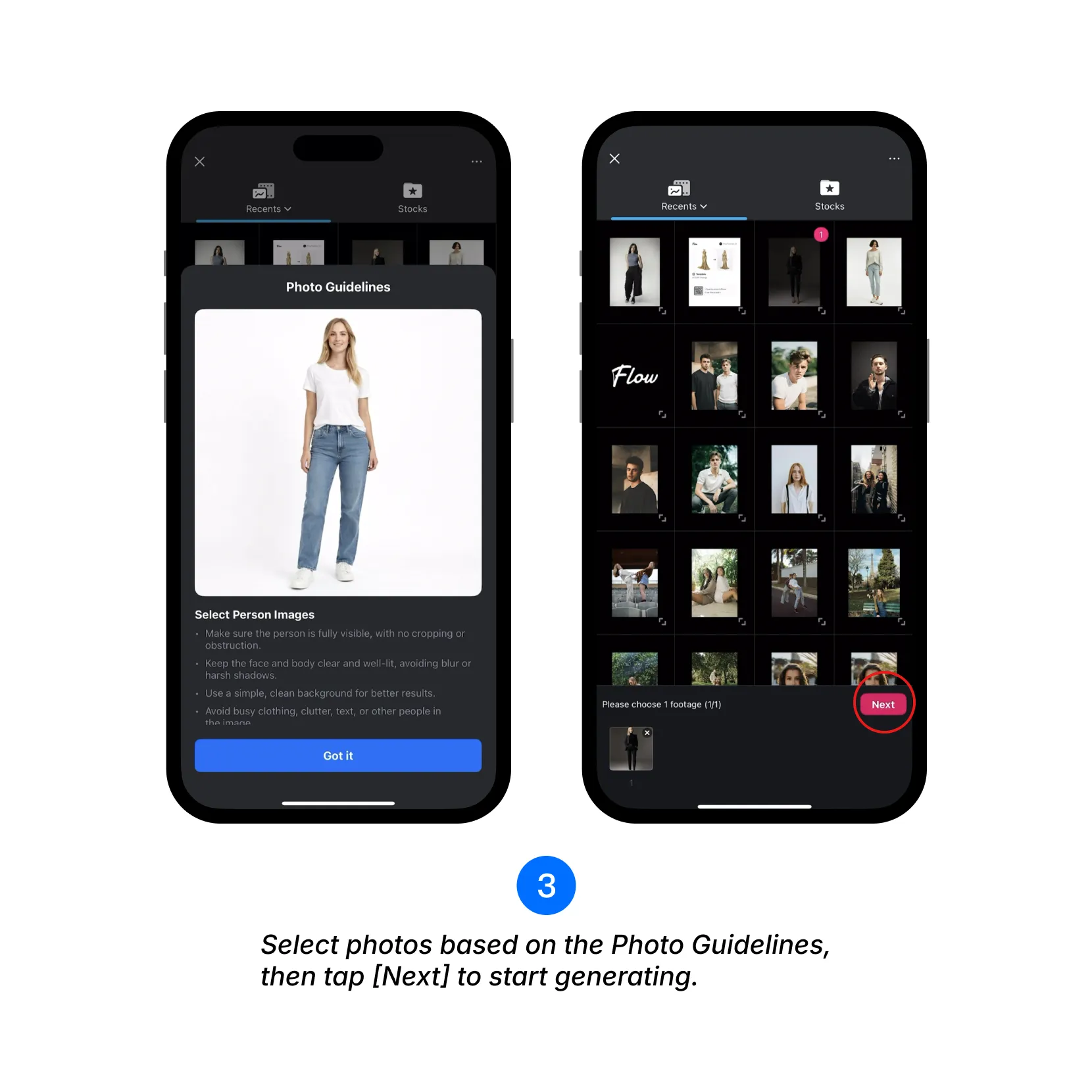
3. Select photos based on the Photo Guidelines, then tap [Next] to start generating.
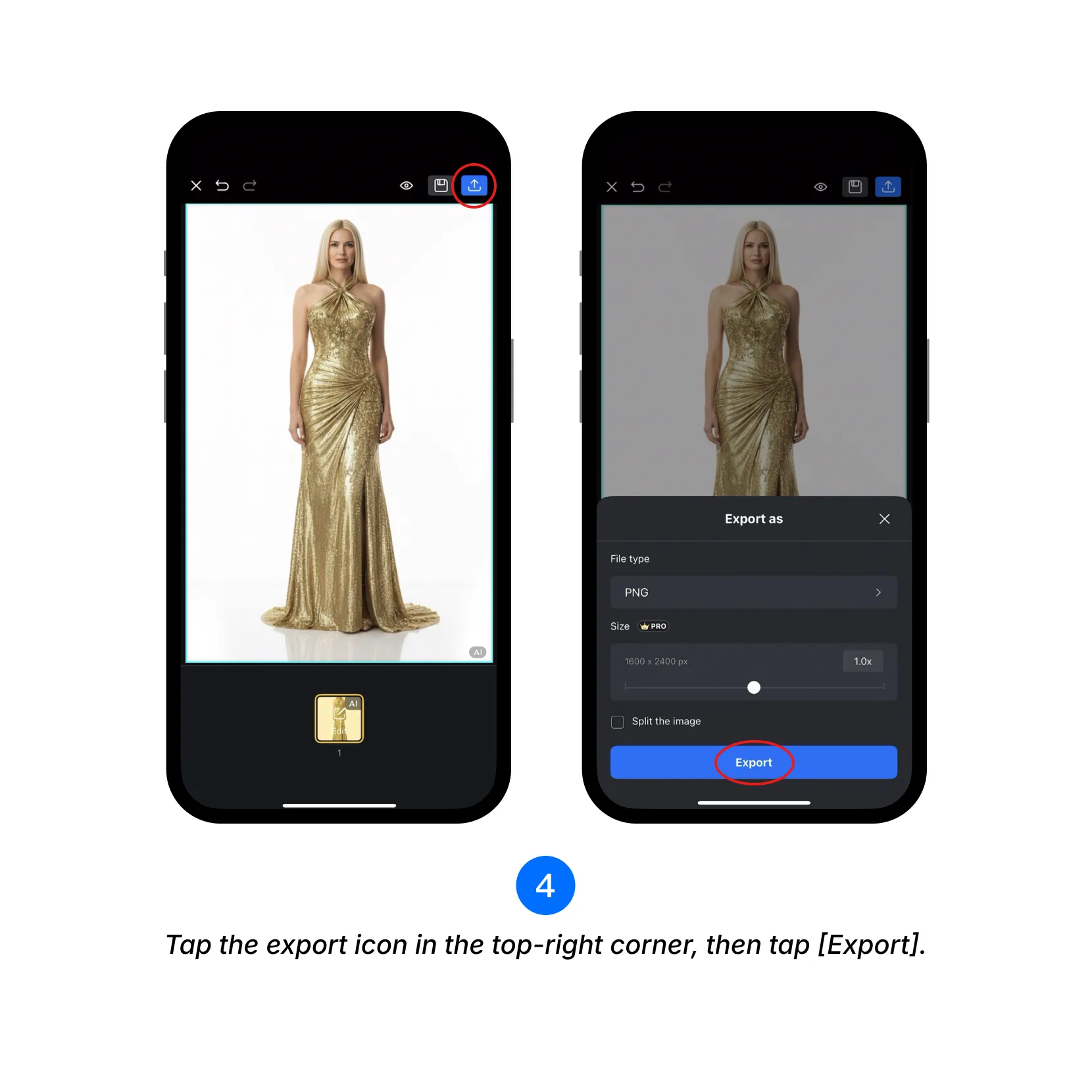
4. Tap the export icon in the top-right corner, then tap [Export].