Overview
A Video Template is a reusable editing layout with preset transitions, beat markers, text styles, and filter effects. By simply replacing the media, users can quickly create polished, consistent videos—greatly improving editing efficiency.
How to Use Official Templates?
VN offers a wide variety of official templates. Users can browse, select, and apply them directly from the template library to quickly complete their videos.
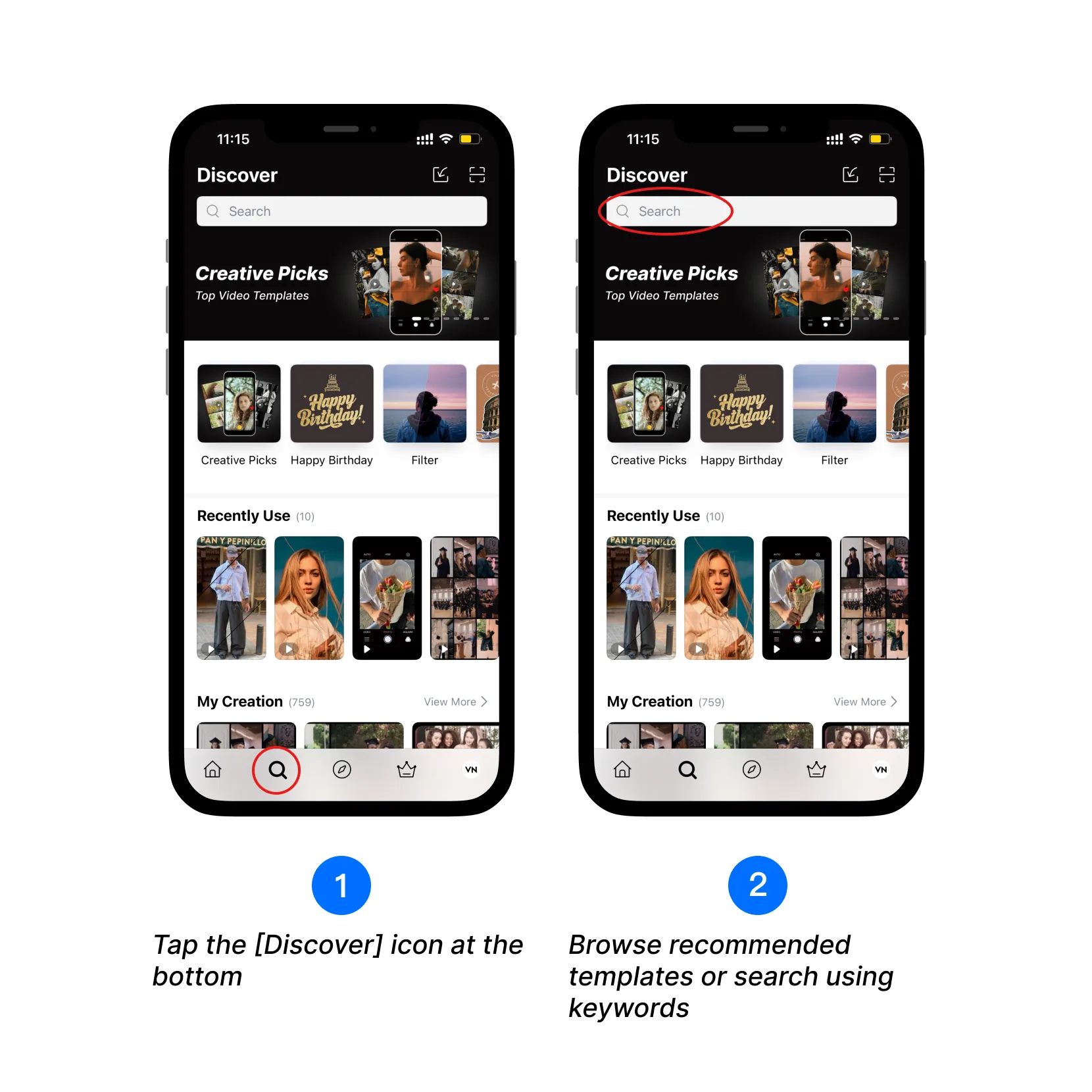
1. Tap the [Discover] icon at the bottom.
2. Browse recommended templates or search using keywords.
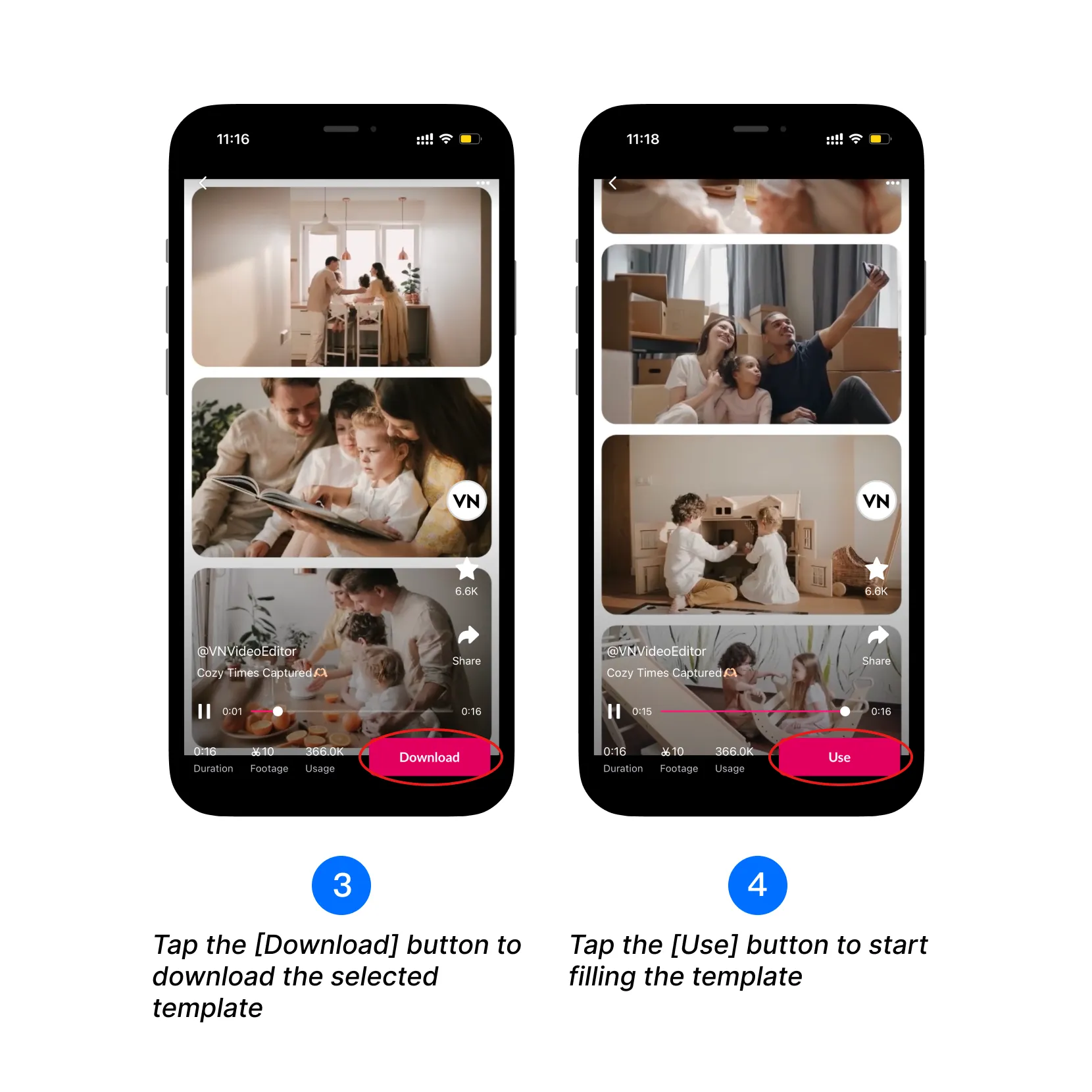
3. Tap the [Download] button to download the selected template.
4. Tap the [Use] button to start filling the template.
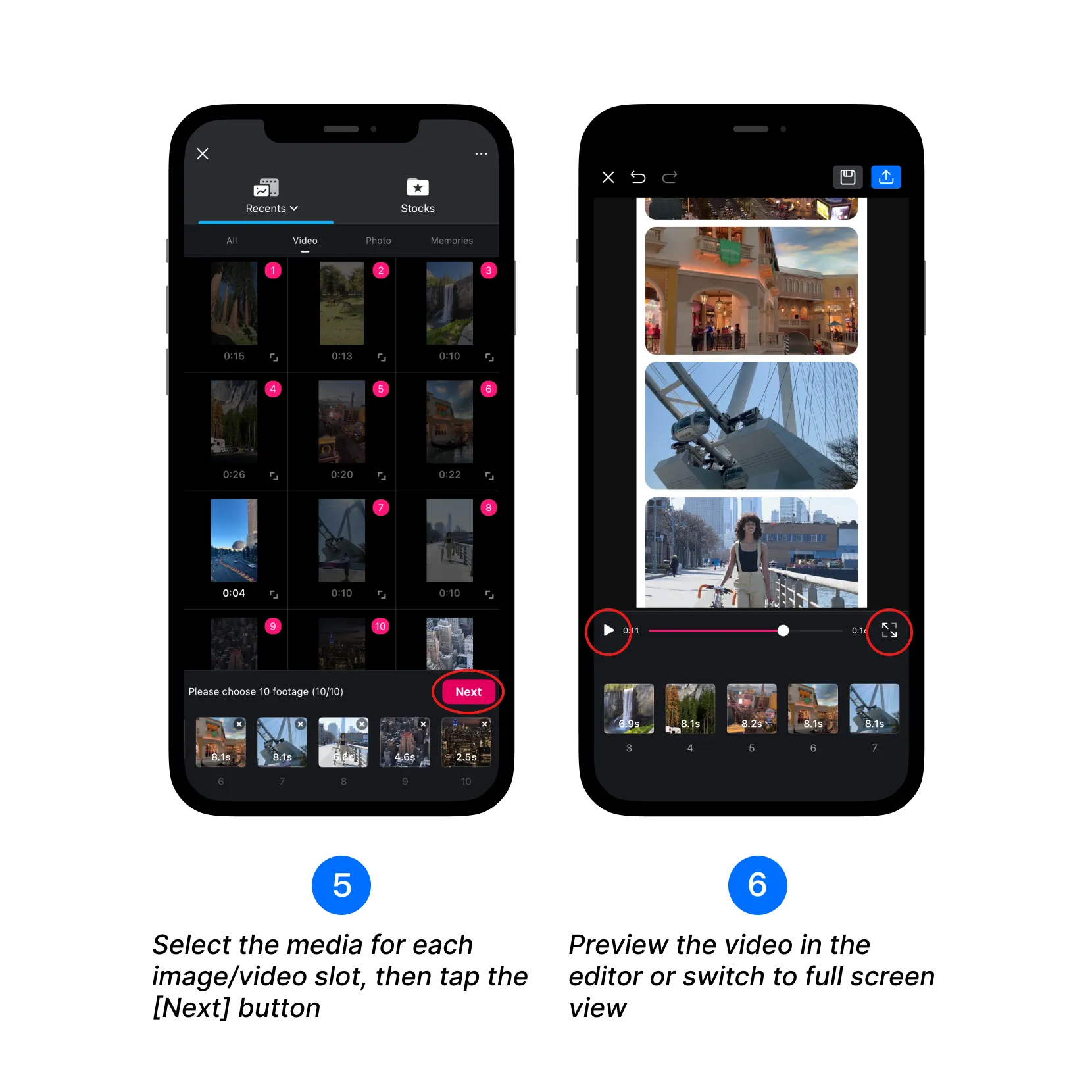
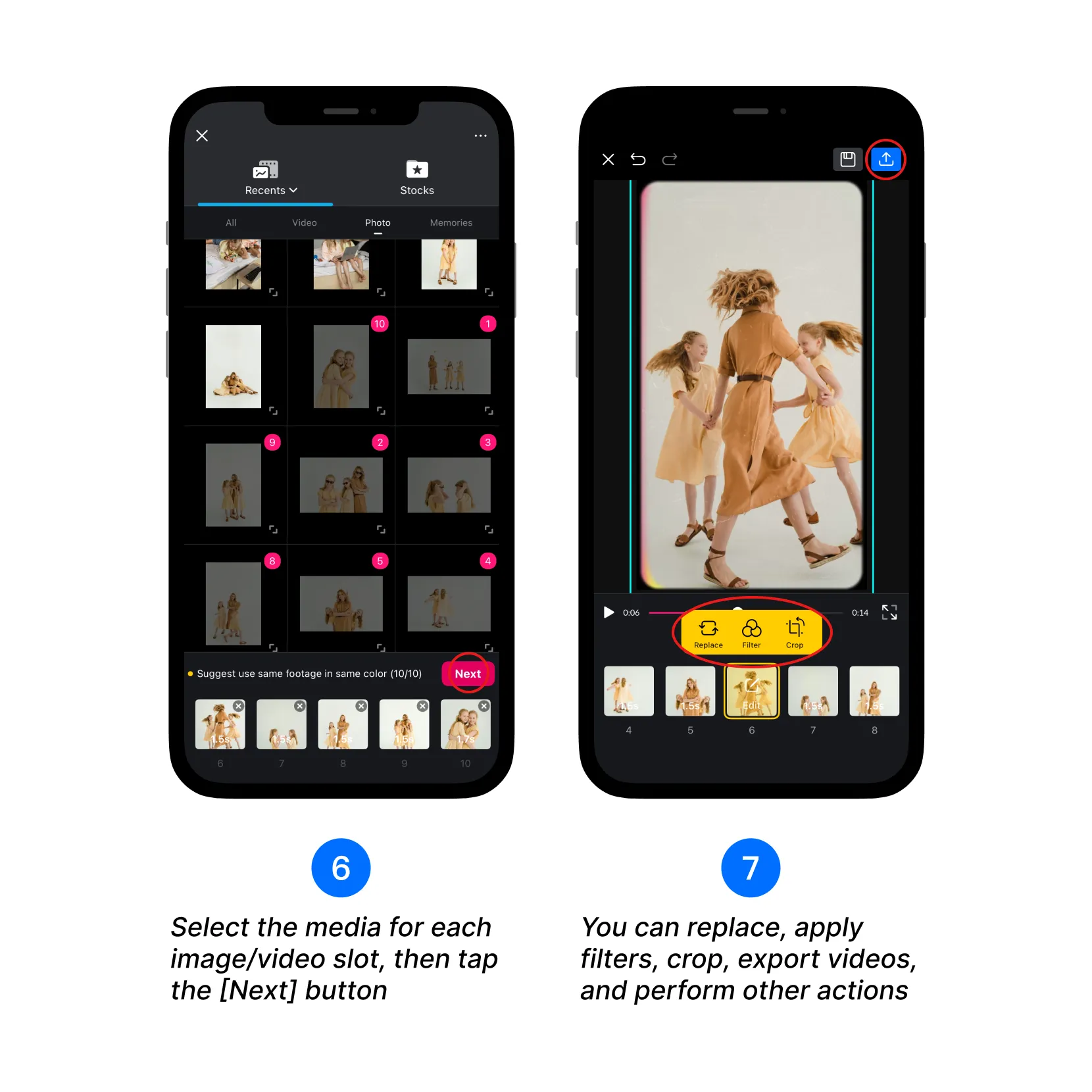
5. Select the media for each image/video slot, then tap the [Next] button.
6. Preview the video in the editor or switch to full screen view.
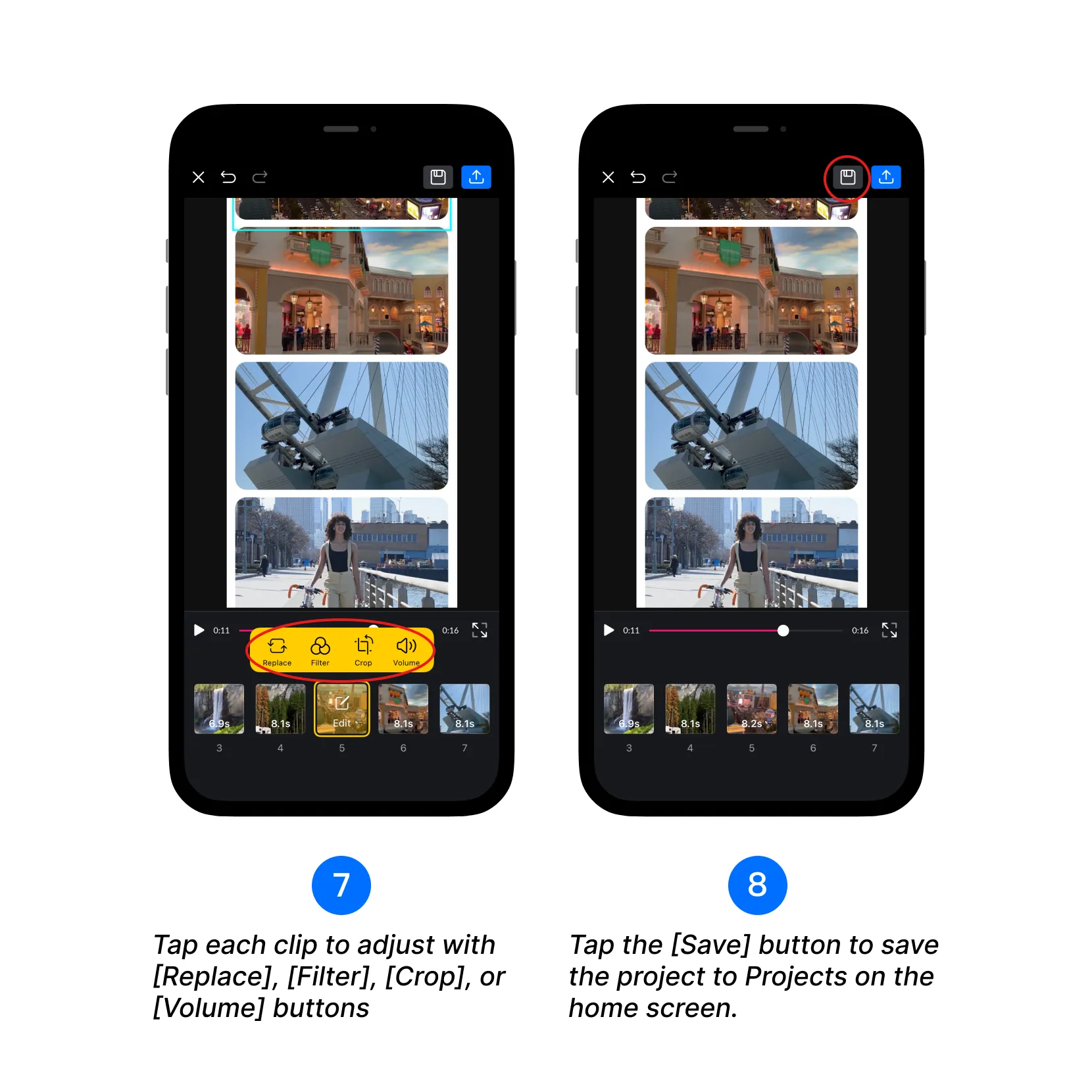
7. Tap each clip to adjust with [Replace], [Filter], [Crop], or [Volume] buttons.
8. Tap the [Save] button to save the project to Projects on the home screen.
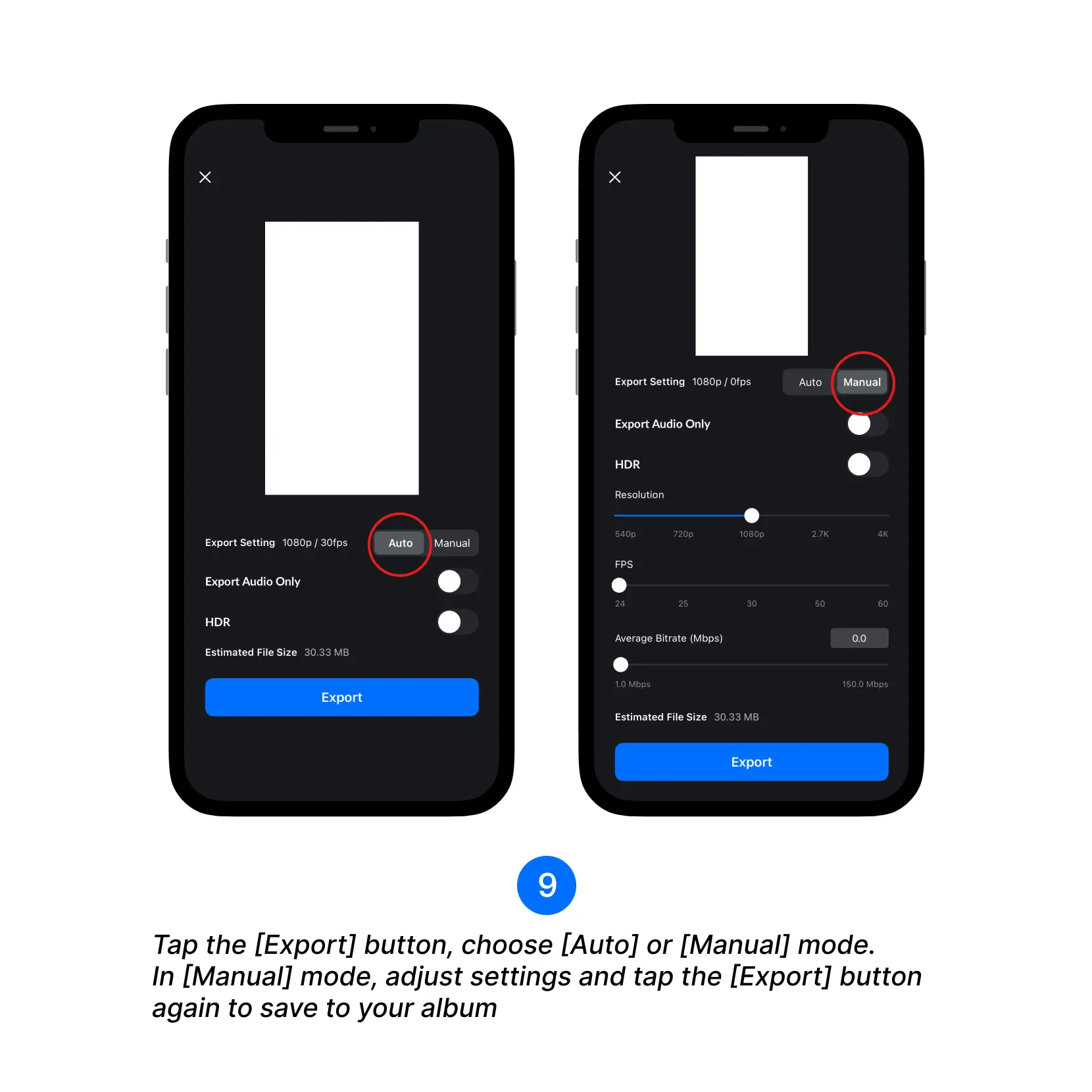
9. Tap [Export] and select whether to enable [Export Audio Only] and/or export the video with [HDR]. Tap [Export] to save the video to your album.
10. Choose [Manual] mode to adjust the resolution, frame rate, and bitrate. Higher settings improve video quality, while lower settings help reduce file size.
How to Find New VN Templates?
In addition to the official templates available in VN, you can discover templates through VN’s official social channels, independent creator accounts, and third-party template websites.
1. Visit @vnvideoeditor on Instagram and check the Creative Picks Highlight for templates featured by VN.
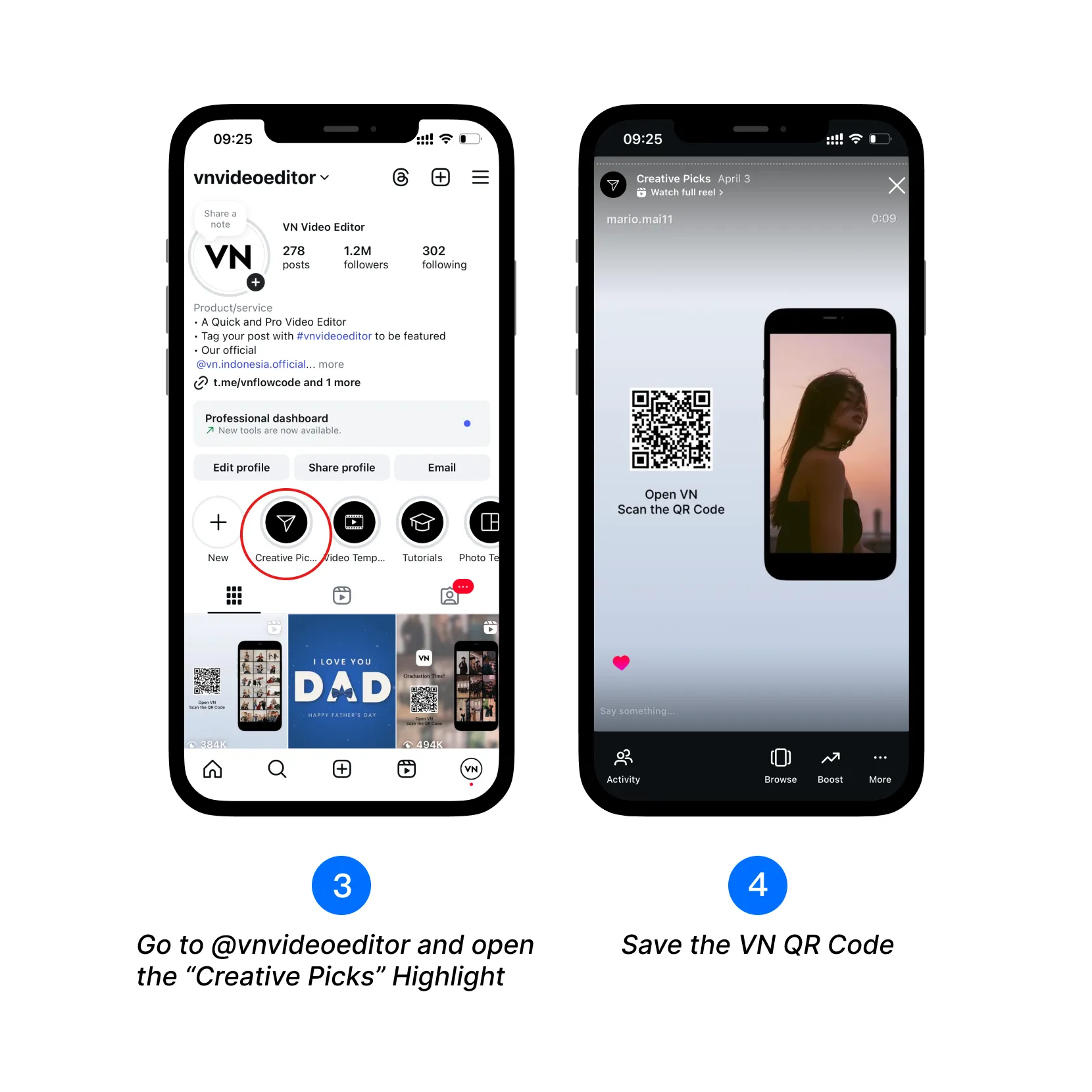
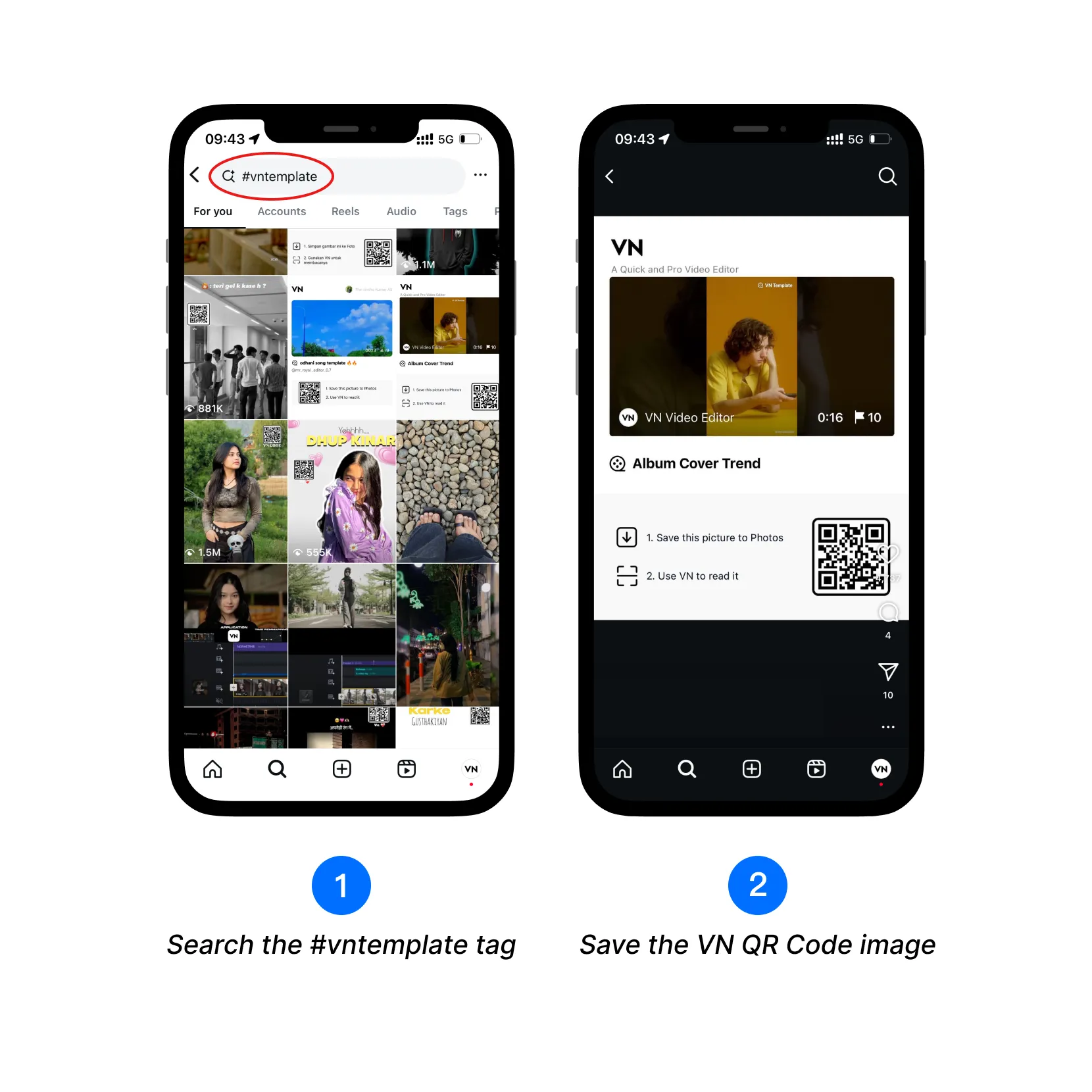
2. To browse templates shared by independent creators, search #vntemplate on Instagram. You can also explore accounts such as @vn_templates_codes, @vn_codes, and @vncodes.in.
3. Third-party websites such as vncodes.in and vntemplatecodes.com may also provide templates intended for use in VN. Depending on the provider and template, access may be free or require payment.
4. When you find a template you want to use, save the complete VN QR Code image or download the .vnt template file.
5. Follow the relevant instructions below to import and use the template.
About third-party sources Unless explicitly identified as an official VN channel, the accounts and websites listed above are independently operated. VN does not control their template availability, pricing, licensing, payment, refund, download, or support policies. Their inclusion is for informational purposes and does not constitute endorsement. Review the provider’s terms and template permissions before downloading or purchasing. For purchase, payment, refund, or access issues, contact the provider directly.
How to Download and Use Templates? (QR Code)
Others can scan your template QR code to download it, then replace the media to create a new video without starting from scratch. VN supports creating video templates and sharing them via QR codes. How to use it once you have the QR code?
Scan the Template QR Code
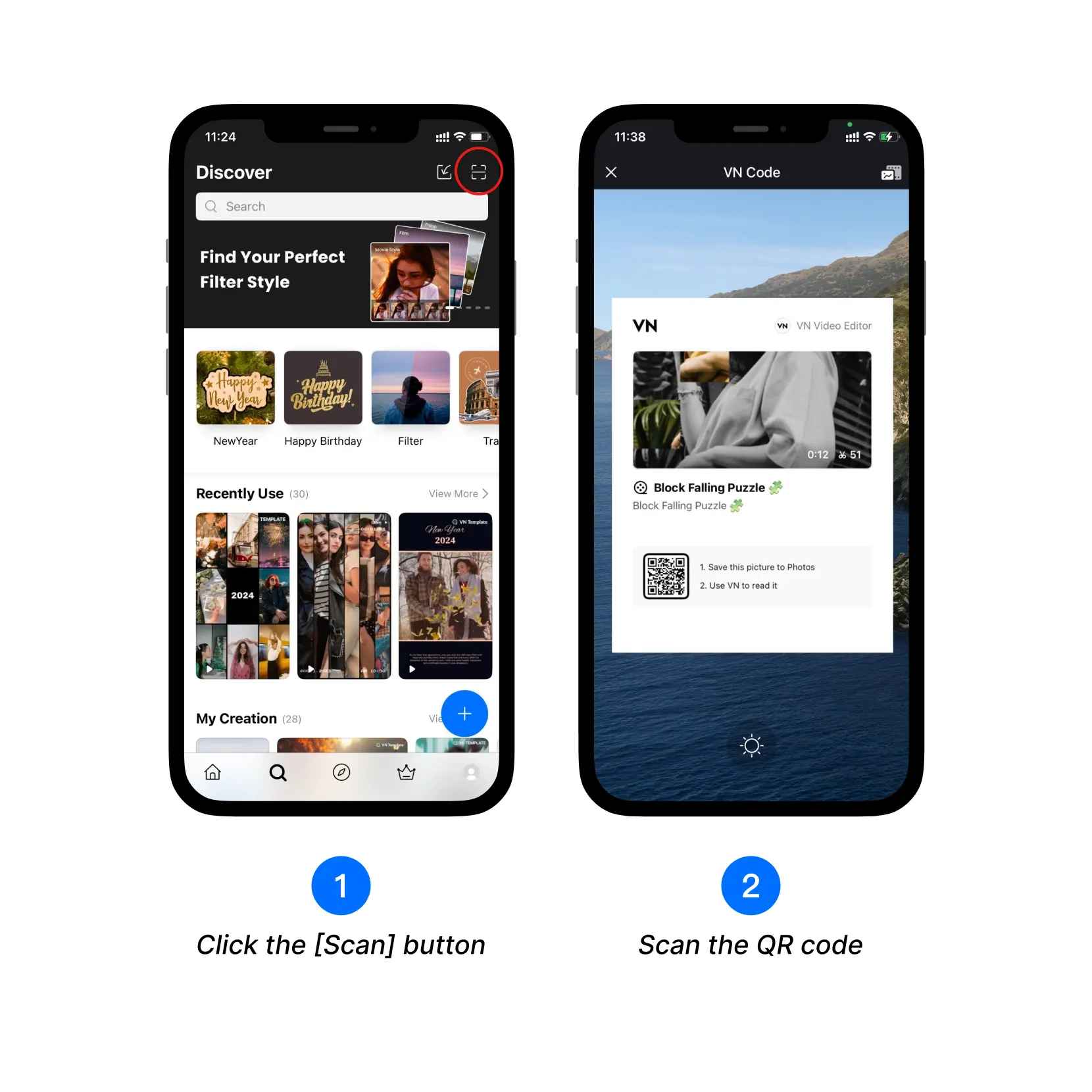
1. Open the VN app and click the [Scan] icon.
2. Scan the QR code, and VN will automatically detect and load the template.
Download the Template
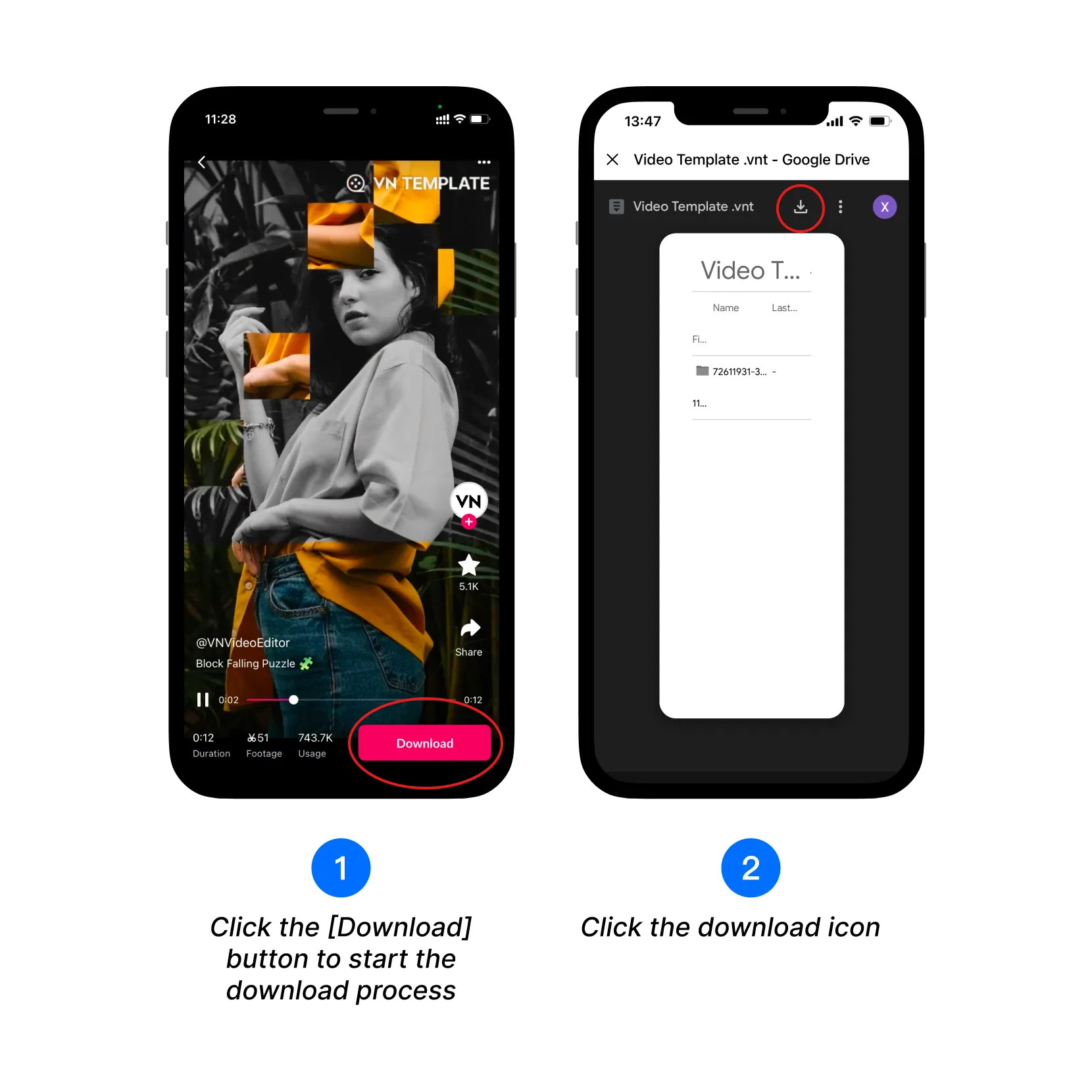
1. Click the [Download] button at the bottom right of the template preview to start the download process.
2. Click the [Download] icon at the top to download.
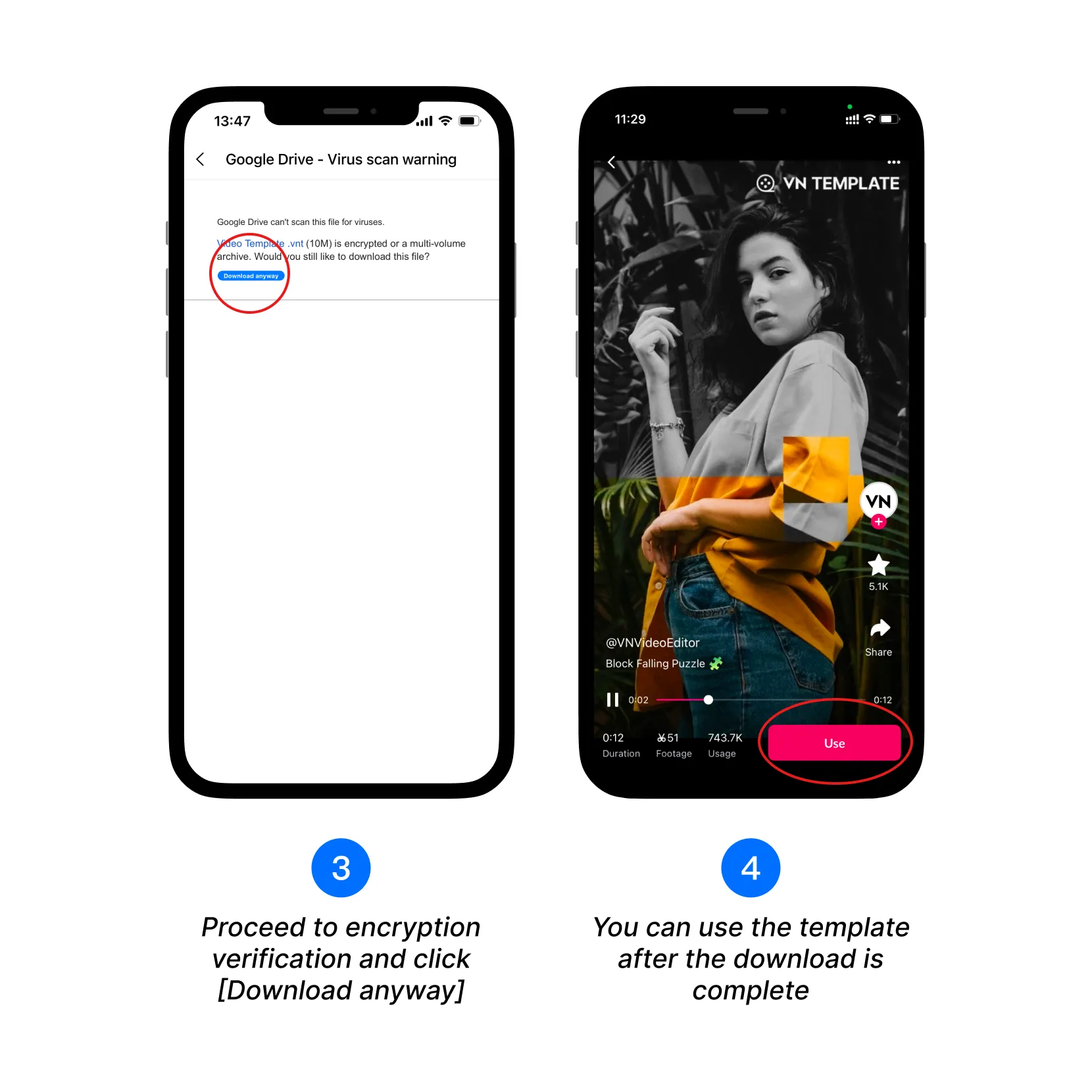
3. If the download source is Google Drive, after encryption verification, click [Download anyway] to proceed with the download.
4. Once the download is complete, click the [Use] button to start using the template.
Use the Template
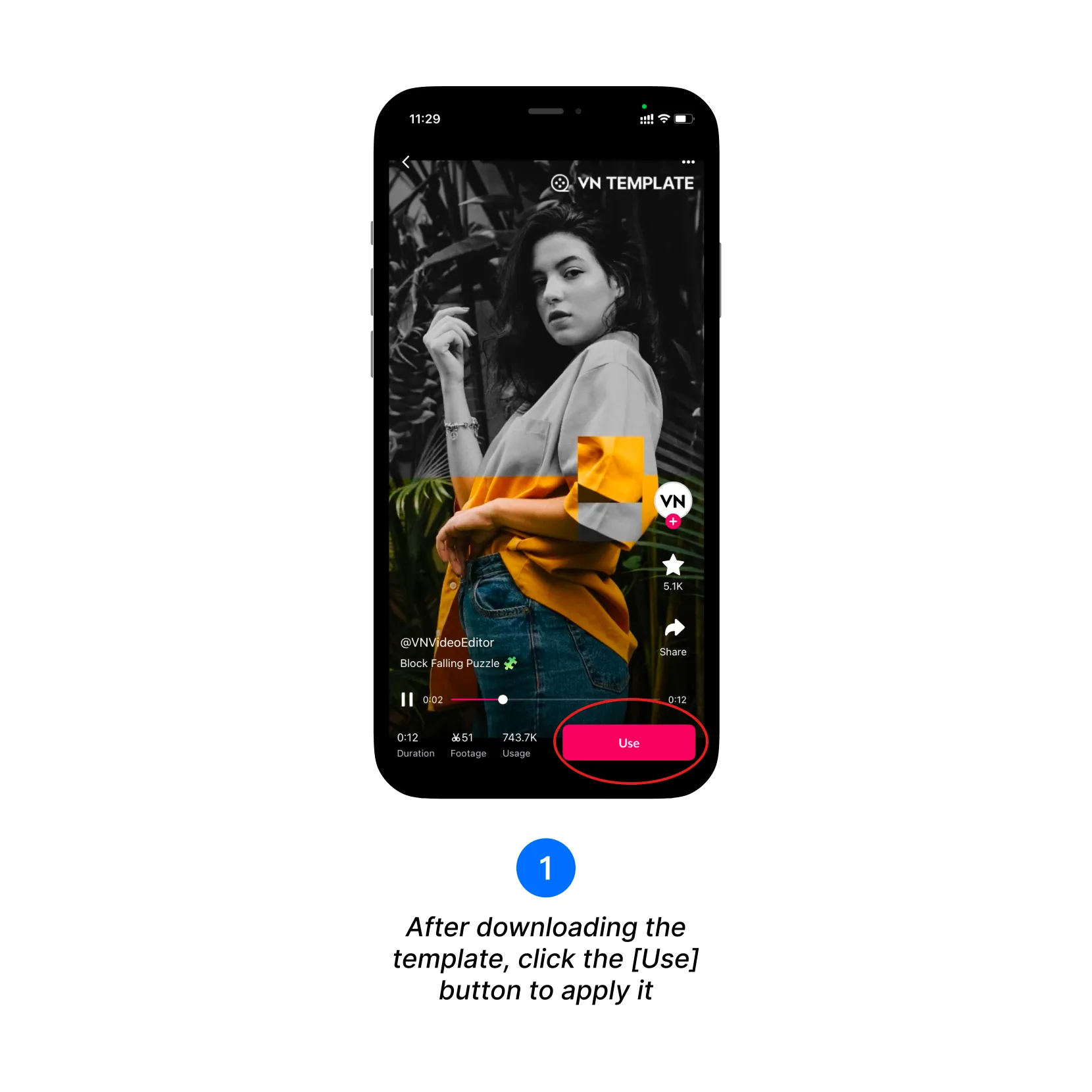
1. Once the template is downloaded, click the [Use] button to apply the template.
2. Select the photos to fill.
3. If the template uses the same photo, a pop-up will appear asking if you want to replace other clips that require the same photo.
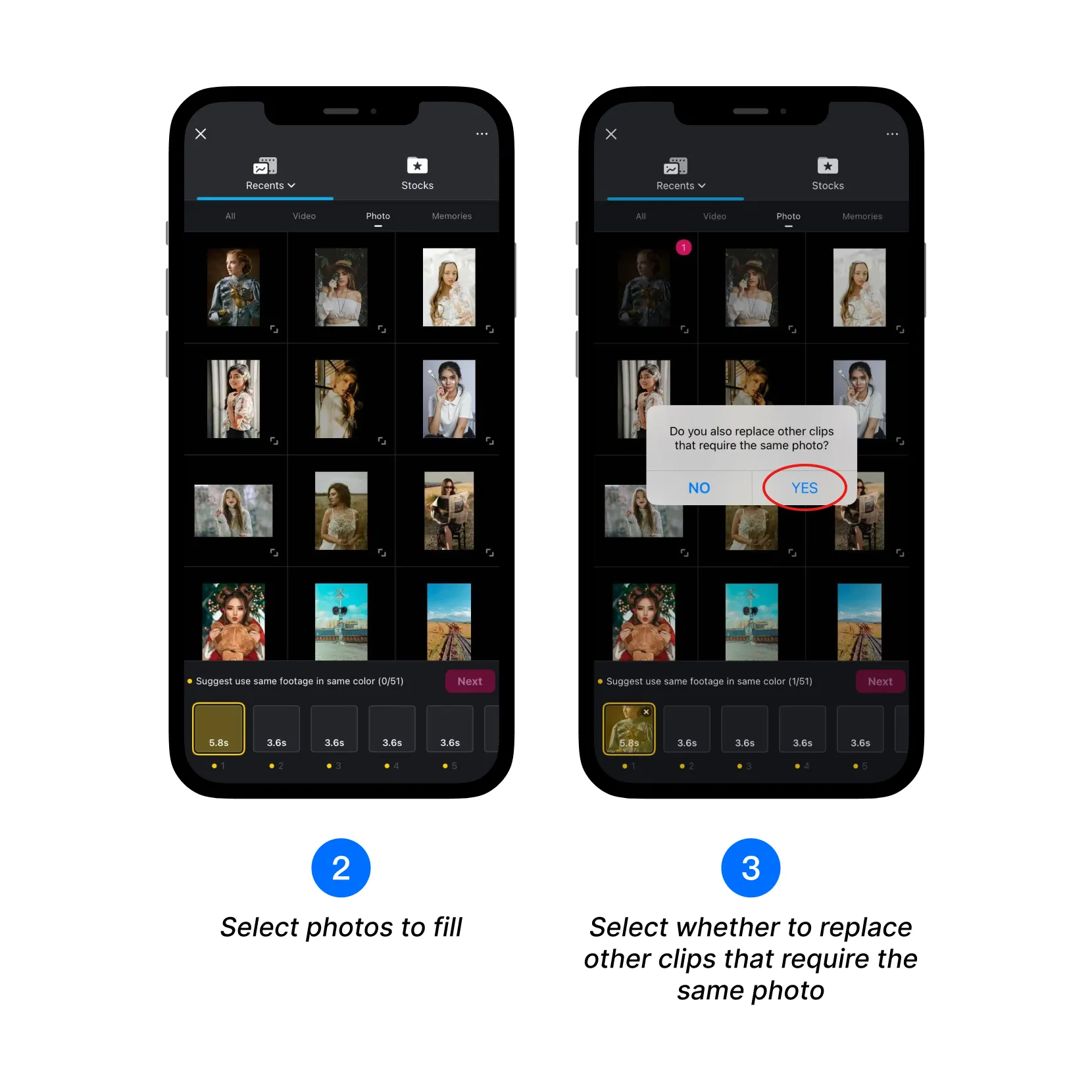
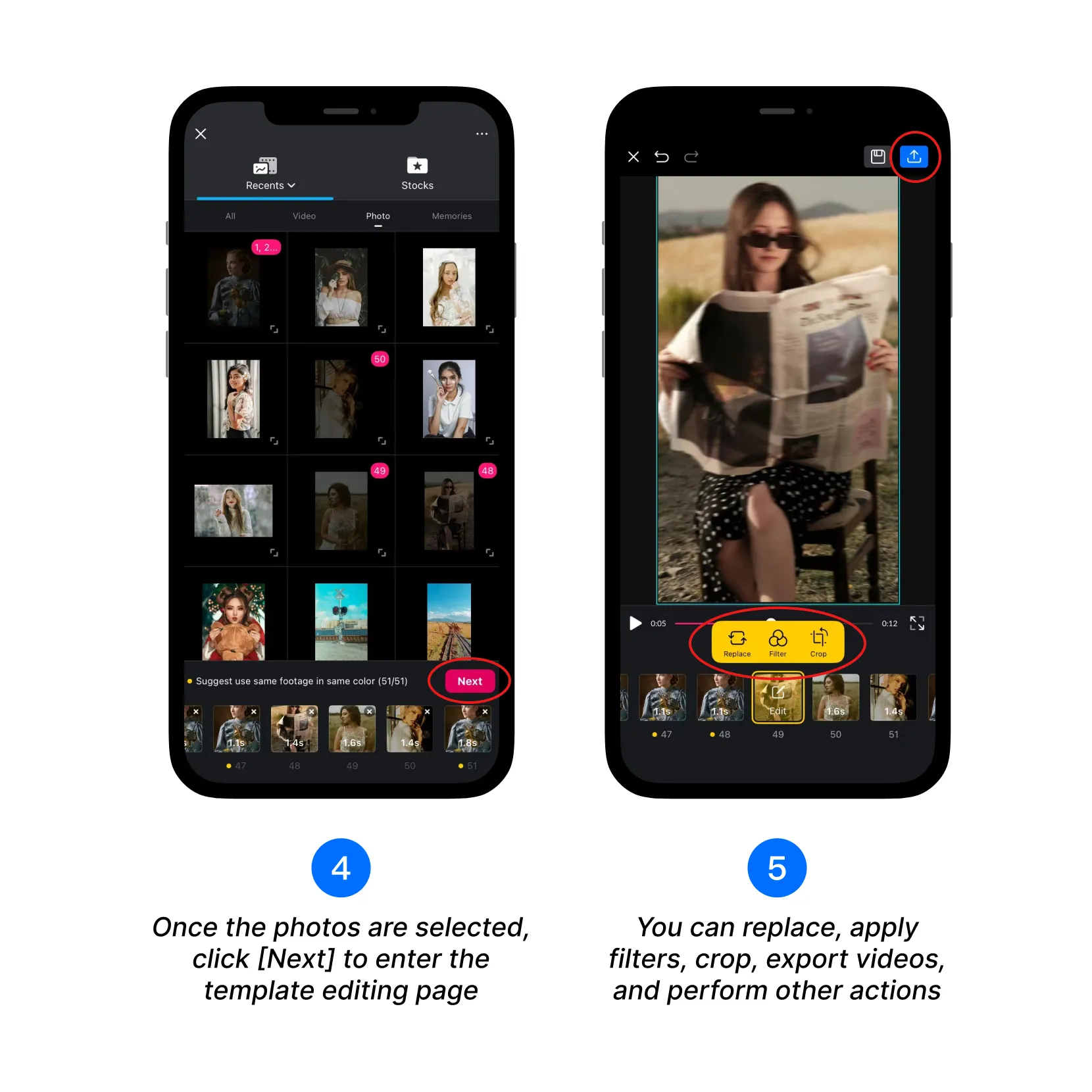
4. Once the photos are selected, click [Next] to enter the template editing page.
5. In the template editing page, you can replace, apply filters, crop the filled assets, and perform other actions. When you're done editing, export your video.
How to Download and Use Templates? (Template File)
When you receive a VN template file (.vnt), you can open it in the app to start creating your own video. If the template is protected, simply enter the password or follow any limits set by the creator.
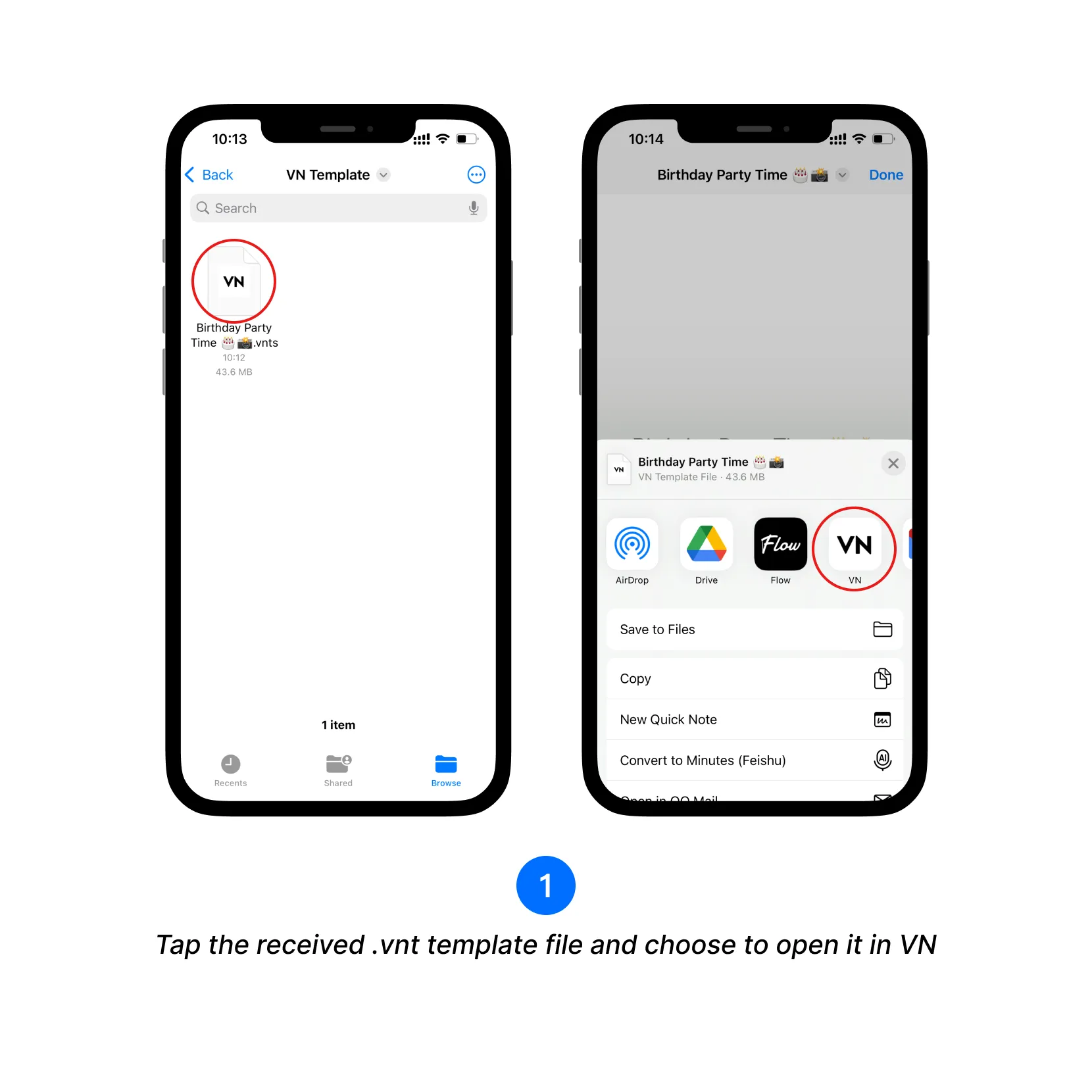
1. Tap the received .vnt template file and choose to open it in VN.
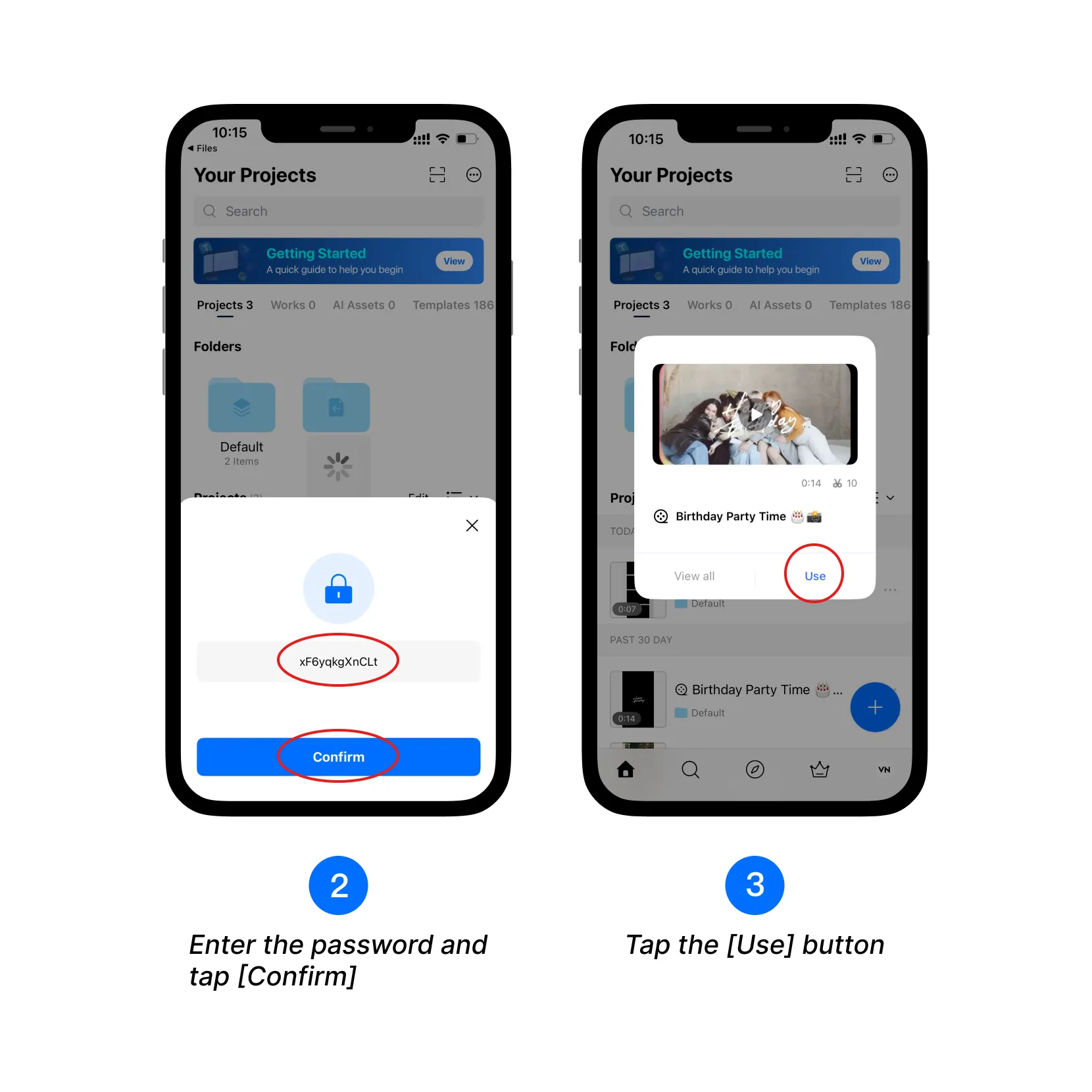
2. If prompted, enter the template password and tap [Confirm].
3. Tap the [Use] button.
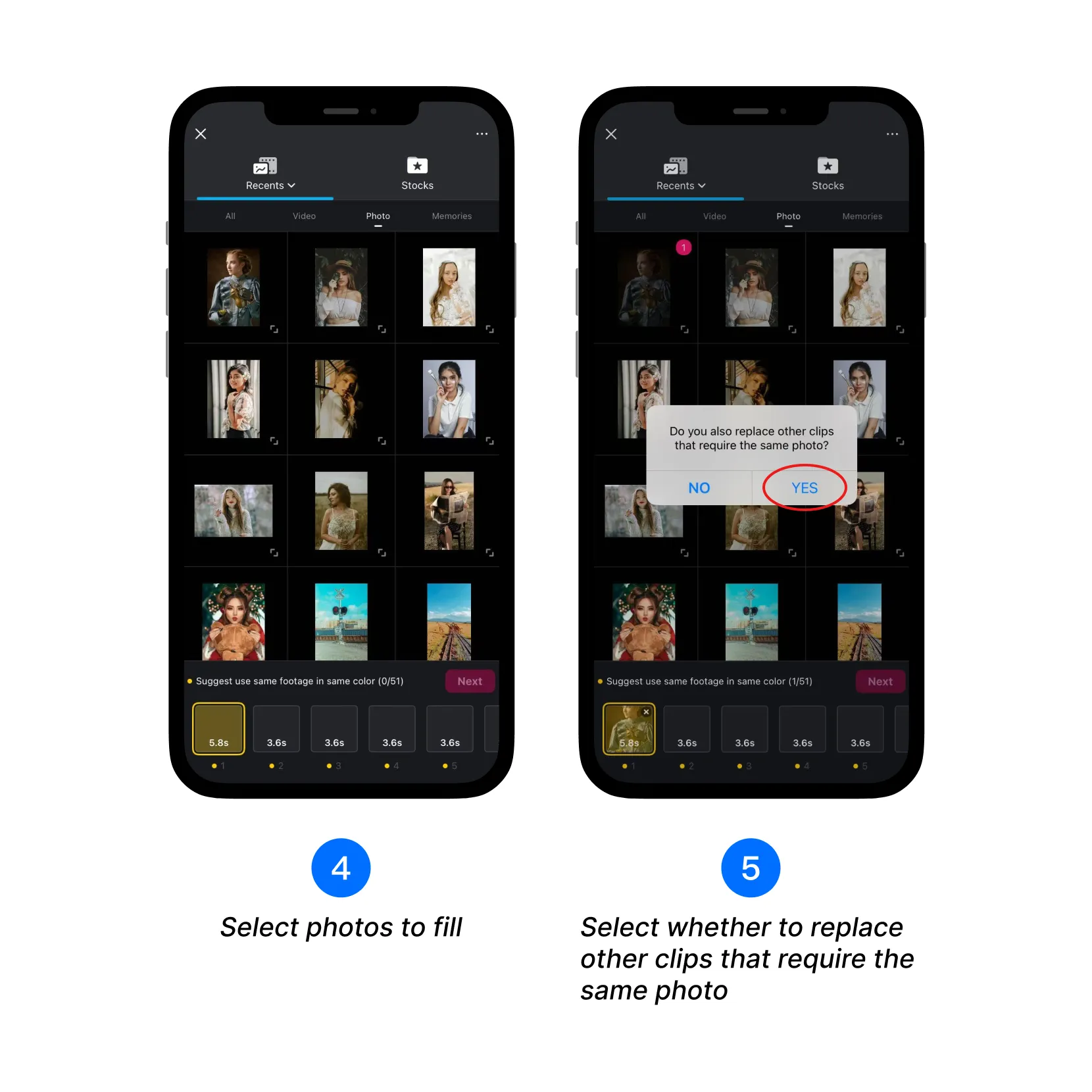
4. Select the photos or videos to fill the template.
5. If the same photo is used multiple times, a pop-up will ask if you'd like to apply it to all clips.
6. After selecting materials, tap [Next] to enter the editing page.
7. On the editing page, you can replace assets, apply filters, crop clips, and more. Once satisfied, export your video.
How to Find Your Downloaded, Imported, and Created Templates?
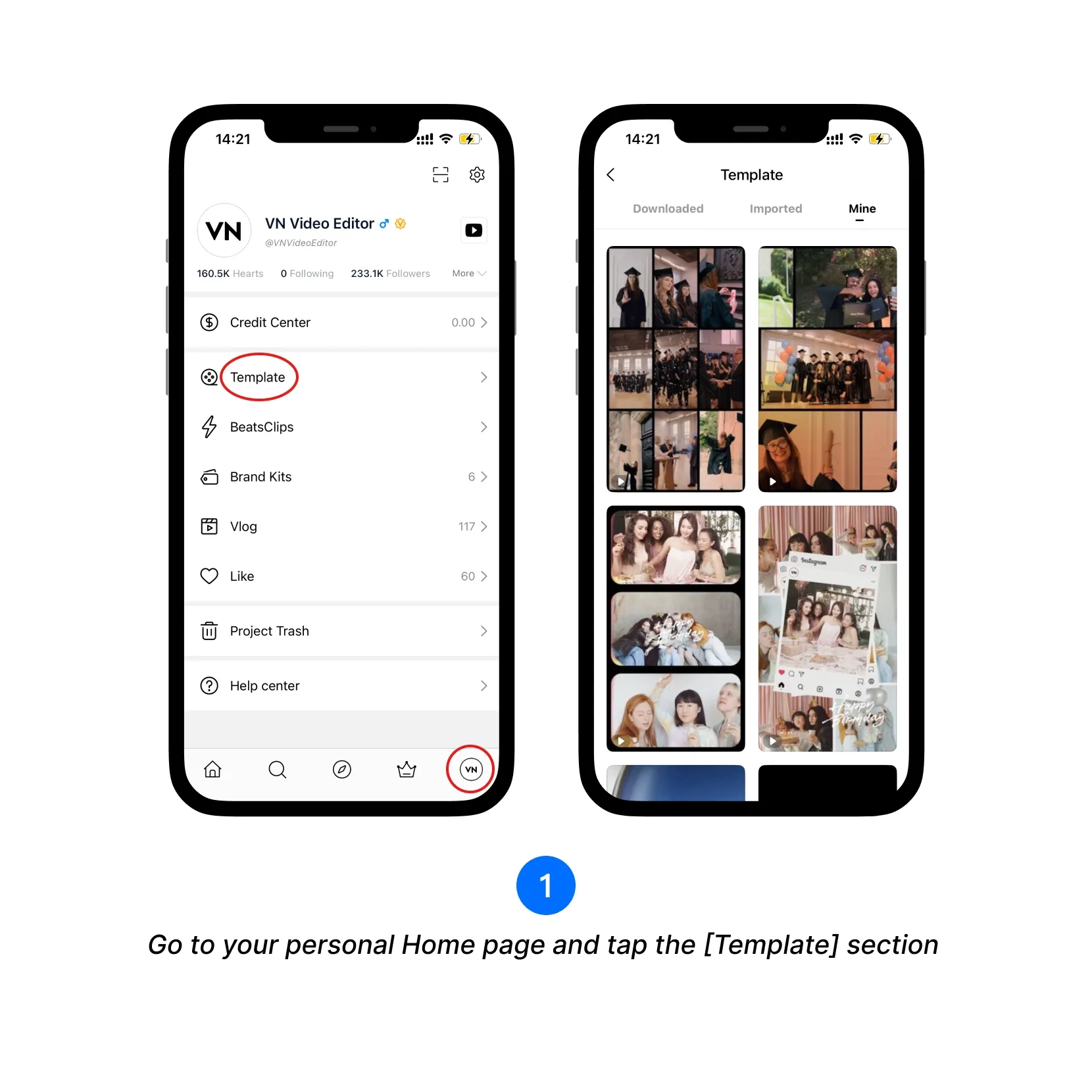
1. Go to your personal Home page and tap the [Template] section.
2. In the [Downloaded] category, you'll find all templates you’ve downloaded.
3. The [Imported] category includes templates imported via VN Code scan (downloaded or not) and those added through VN project file imports.
4. In the [Mine] category, you’ll find all templates you’ve created and saved.