



Photo Cutout
Note: Photo Cutout is currently only available when editing an image in a timeline within a video project.
- Select an image clip in the timeline editor, then tap [Cutout] in the clip-editing toolbar.
- Use the Cutout interface to access [Quick Removal], [Modify Area], [Stroke], [Invert], and [AI Cutout].
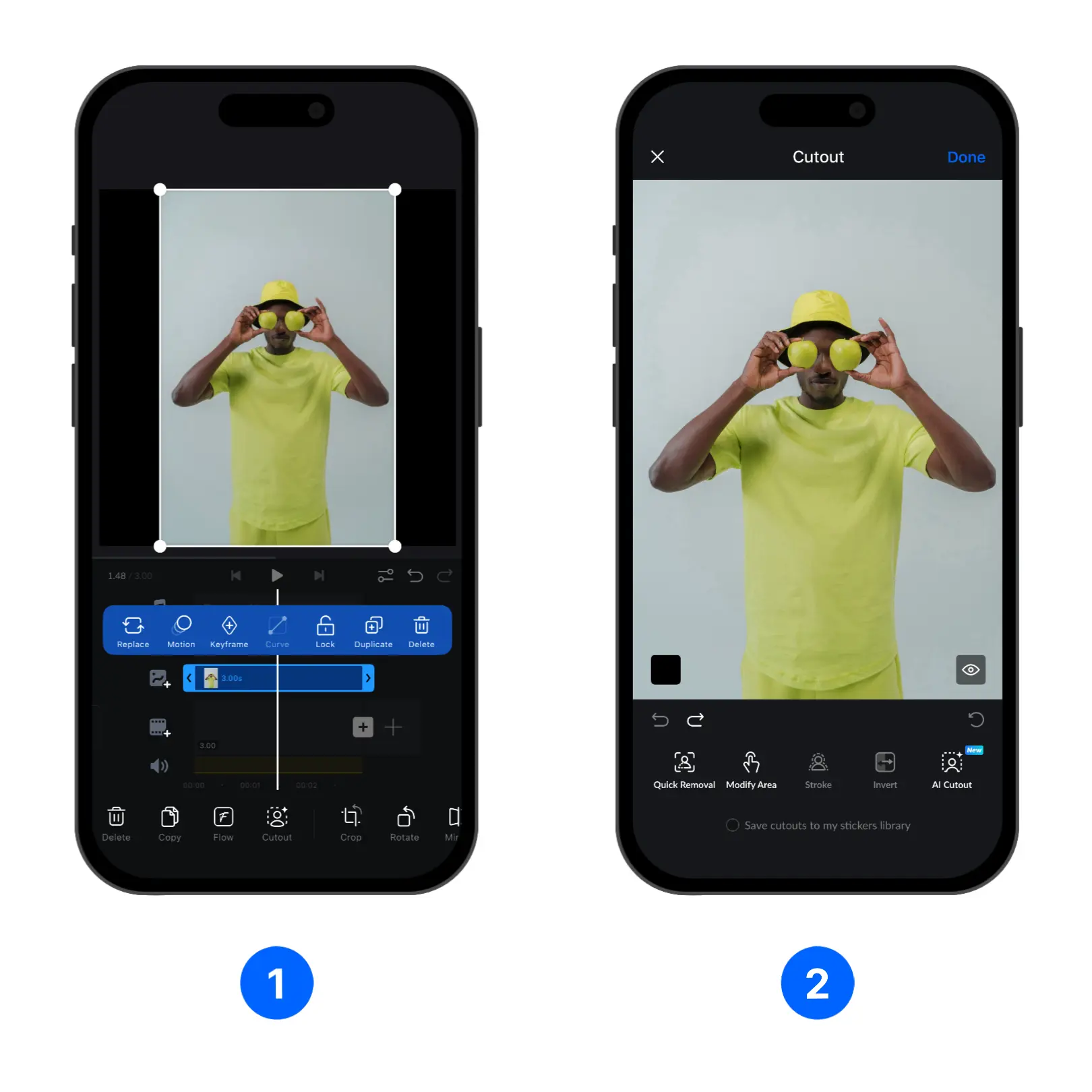
The available background-removal tools work in different ways:
- [Quick Removal]: Works best with images where the person or subject can be clearly distinguished from the background. The process runs entirely on-device, but results may vary depending on the image. Some images can't be processed this way.
- [Modify Area]: Manually remove or restore the background, or remove unwanted parts of the image, using a brush.
- [AI Cutout]: Uses AI to remove backgrounds from a wider variety of images, including images that can't be processed by Quick Removal. Using AI Cutout consumes credits. For more information, see Credits.
Check the [Save cutouts to my stickers library] checkmark to save the cutout result as a sticker that you can use in later projects.
Customize Stroke
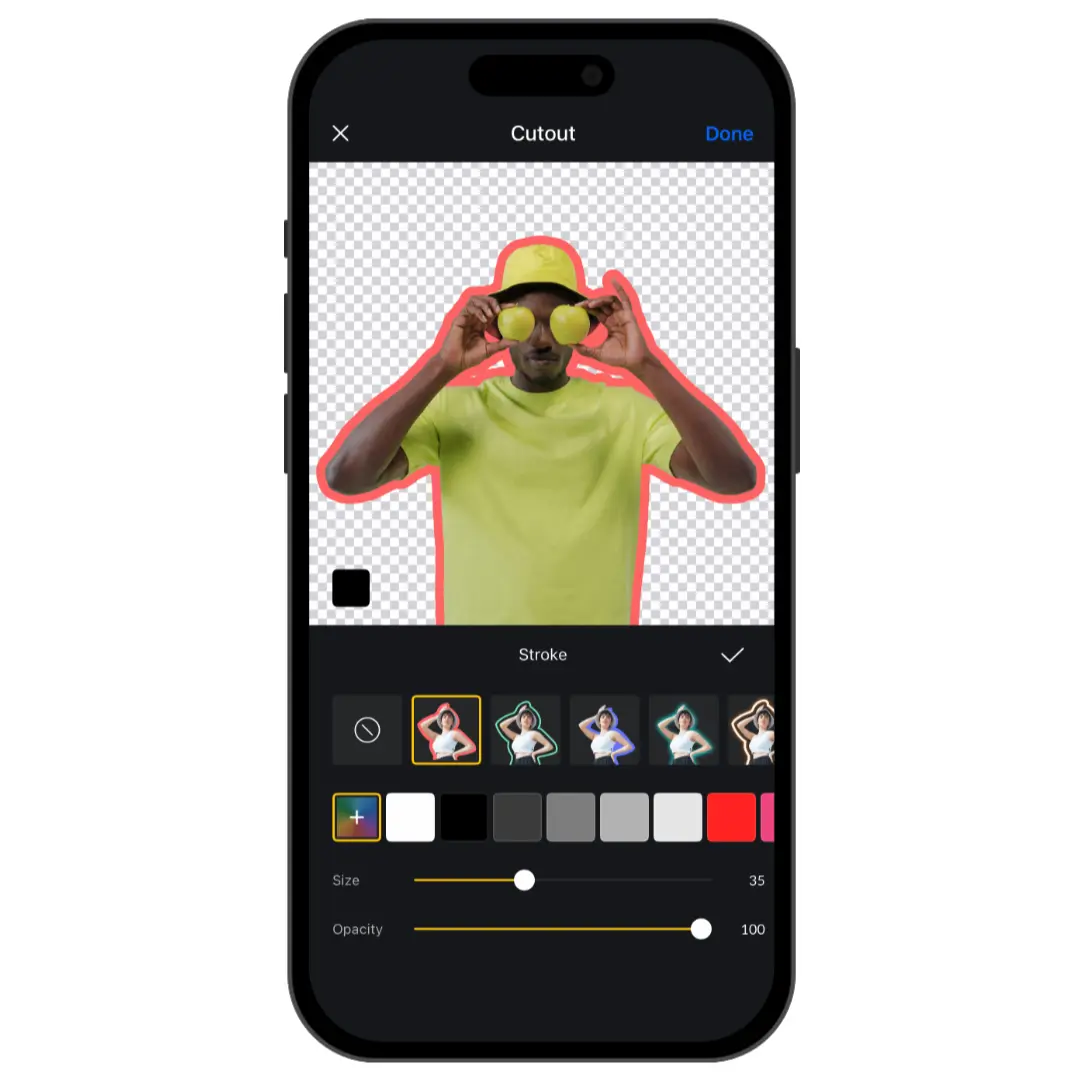
You can add an outline to a character that has been cut out using the [Stroke] function.
- Tap [Stroke] in the Cutout interface.
- Choose a preset stroke style and select a color.
- Adjust the stroke [Size] and [Opacity].
Invert the Cutout
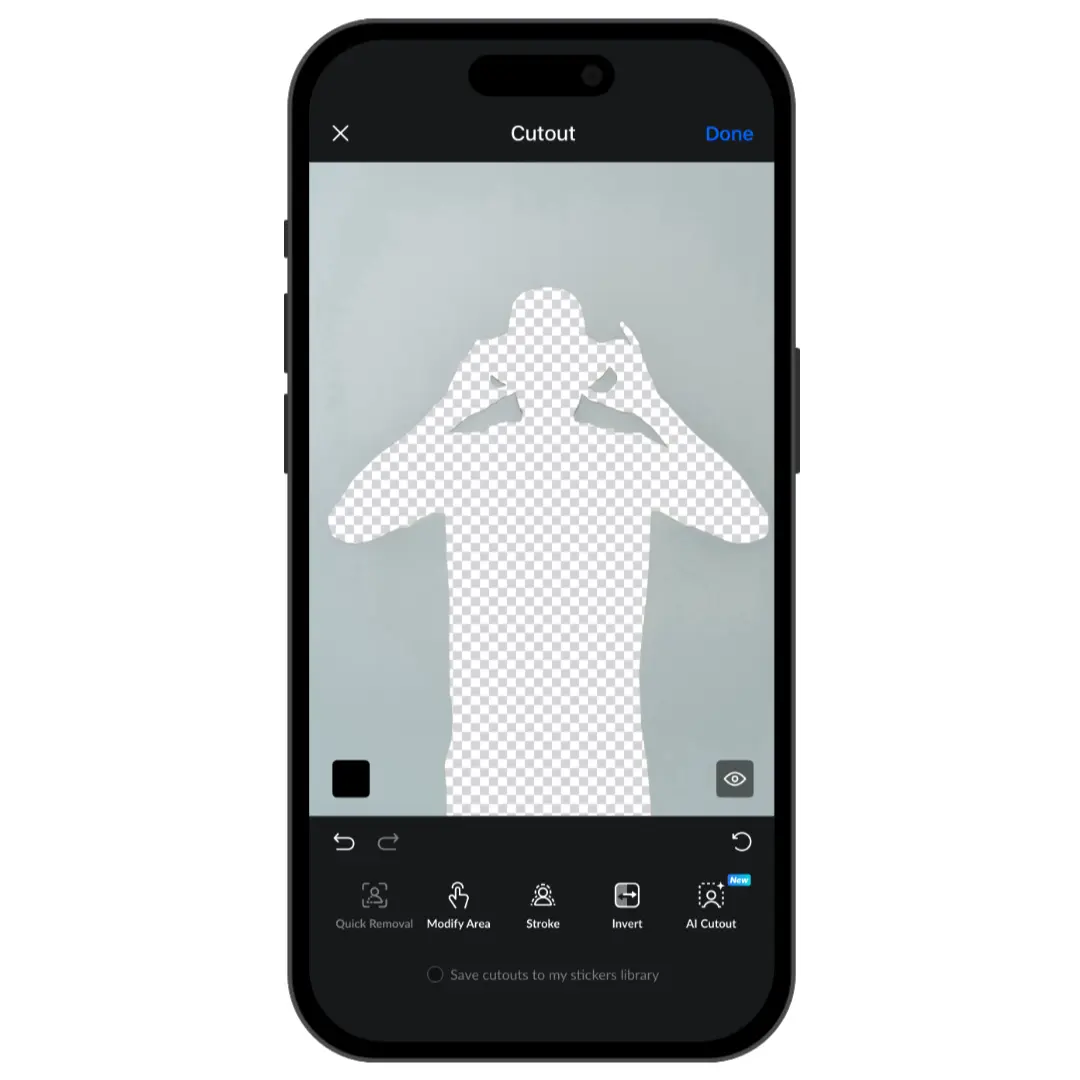
- Tap [Invert] to swap the selected and transparent areas.
- Review the result in the preview.
- Tap [Done] to apply the cutout.
Video Cutout
Similar to Photo Cutout, simply tap [Cutout] to remove the background. Adjust Feather and Expand for better results.
Note: Video Cutout currently runs only offline and directly on the device, so not all videos can be processed.