



When to Use Flow
Use Flow when the main structure of a VN template is based on photos, videos, frames, collages, or page layouts. It works well for photo dumps, scrapbooks, mood boards, comparison videos, split-screen edits, and templates with repeated media slots.
Flow is used to prepare the visual composition and replaceable media areas. The project is then exported to VN, where you control the final timing, transitions, audio, motion, and template publishing.
Click HERE to download the Flow app.
Create a Flow Project
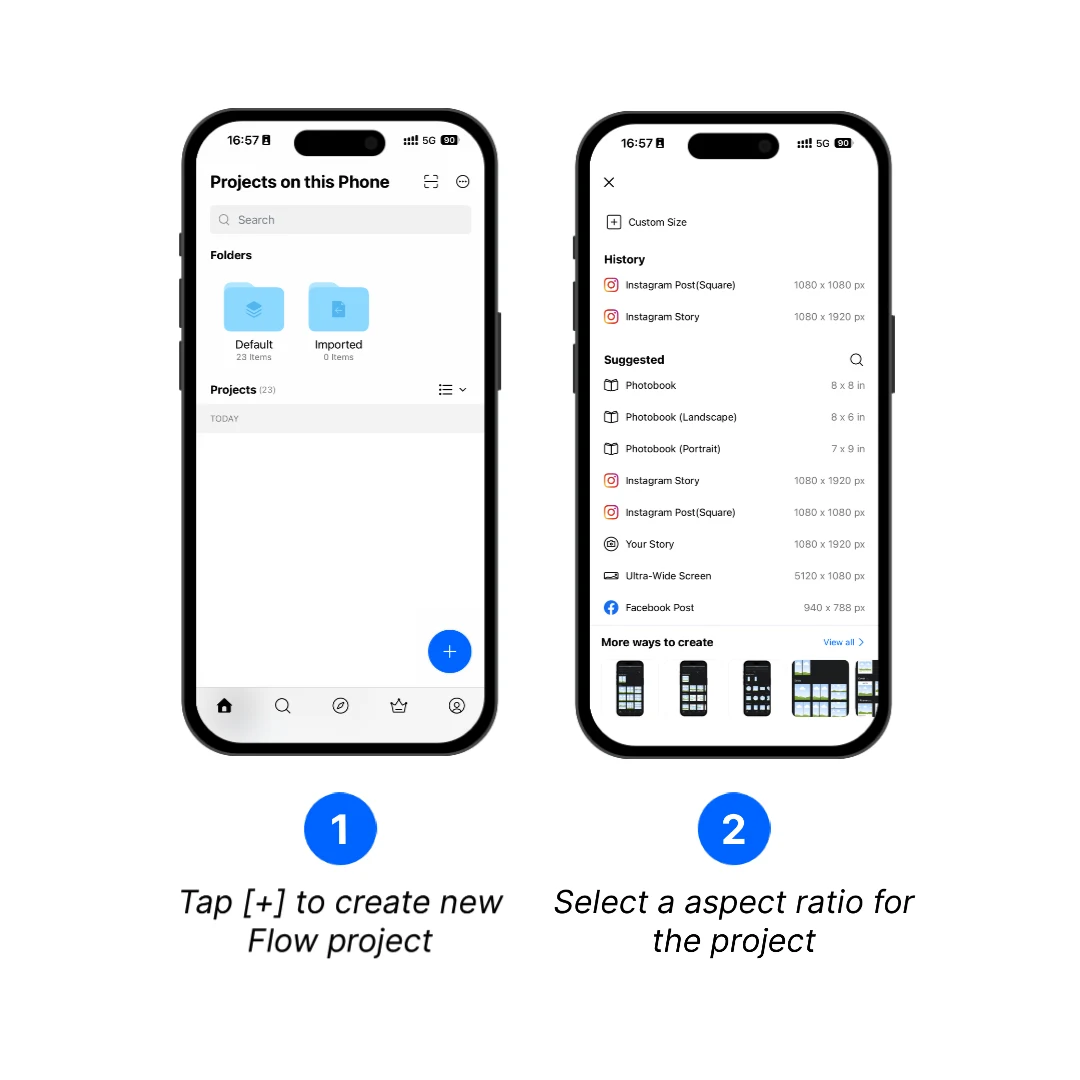
1. Open Flow and tap the [+] button to create a project.
2. Select an aspect ratio that matches the final video. For vertical short-form videos, select Instagram Story which is 9:16.
Add Replaceable Photo or Video Areas
Choose the tool that matches the structure needed on the current page:
| Tool | Best for |
|---|---|
| Frame | Add an outter frame or define a shape for the media |
| Layout | A ready-made page composition with one or more media placeholders |
| Grid | Multiple media placeholders arranged in predefined cells |
Use a Frame
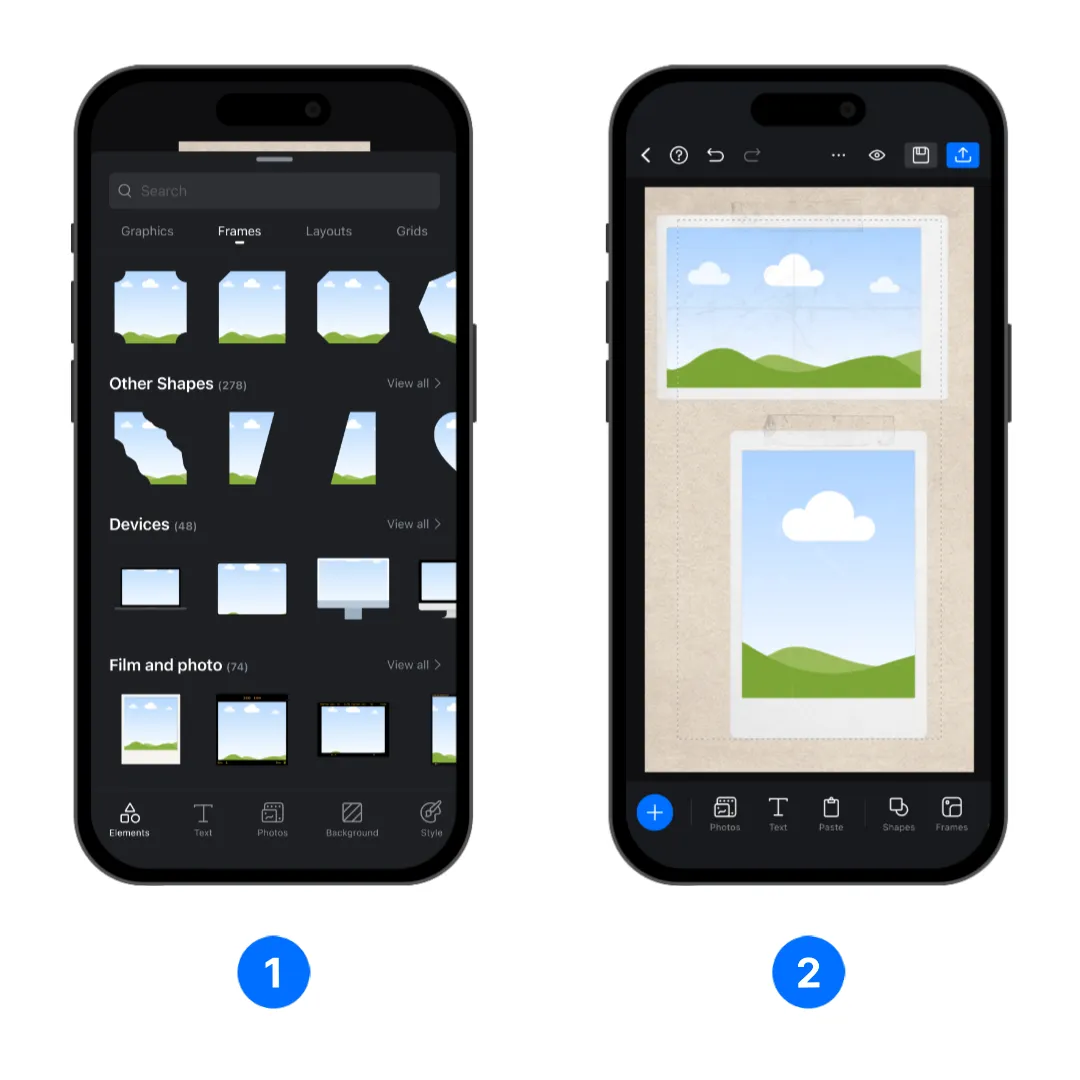
Use a Frame when you want to add a frame for a media, or if you want the media to be in specific shapre.
1. Tap [+], select [Elements], then head to the [Frames] tab to browse through hundres of frames.
2. Choose a frame and add it to the page, arrange it to your liking, you can add multiple frames on one page.
Use a Layout
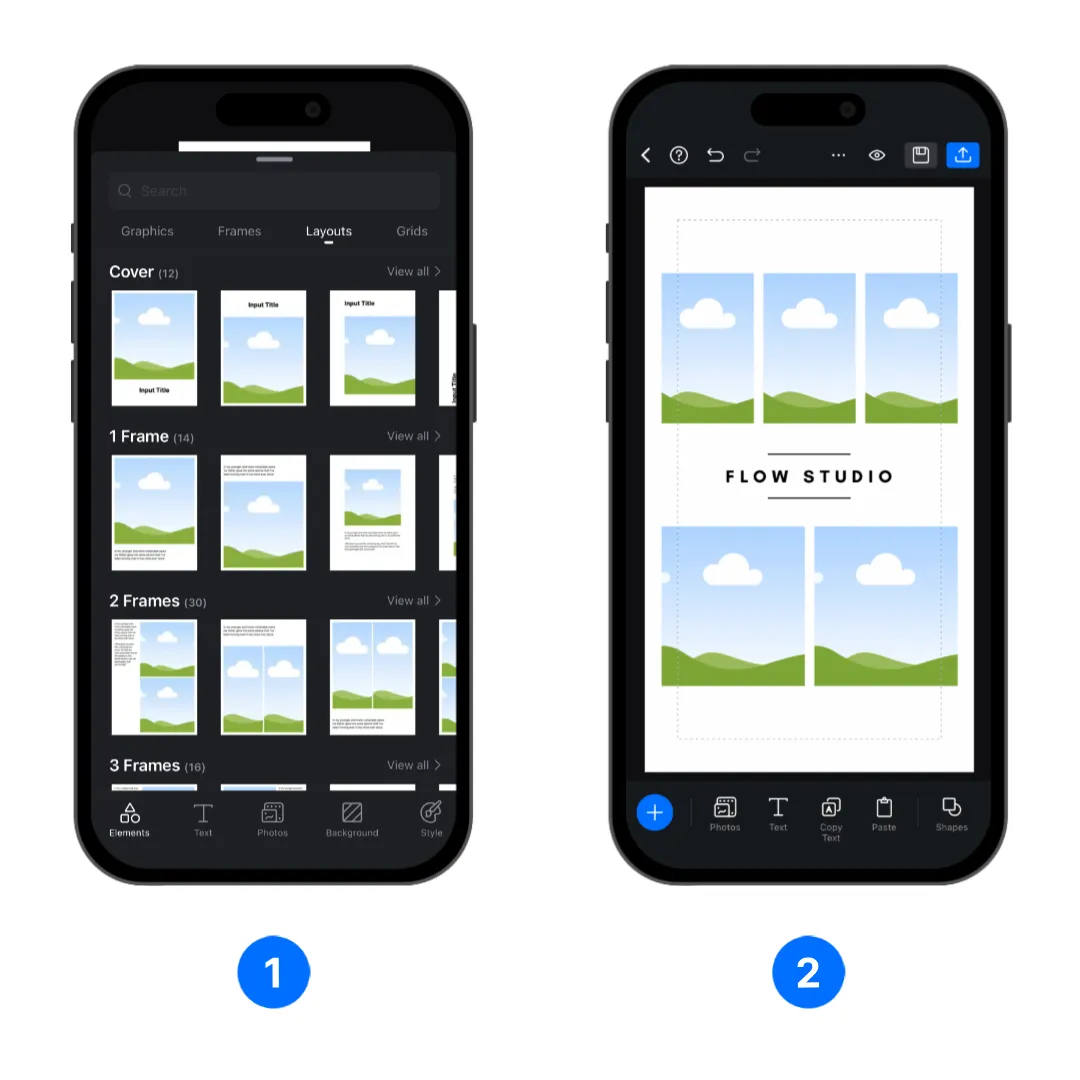
Use a Layout when you want a ready-made composition that combines media placeholders with an arranged page design.
1. Tap [+], select [Elements], then head to the [Layouts] tab to browse through hundres of Layouts.
2. Choose a layout that matches the number and arrangement of media areas needed on the page.
Use a Grid
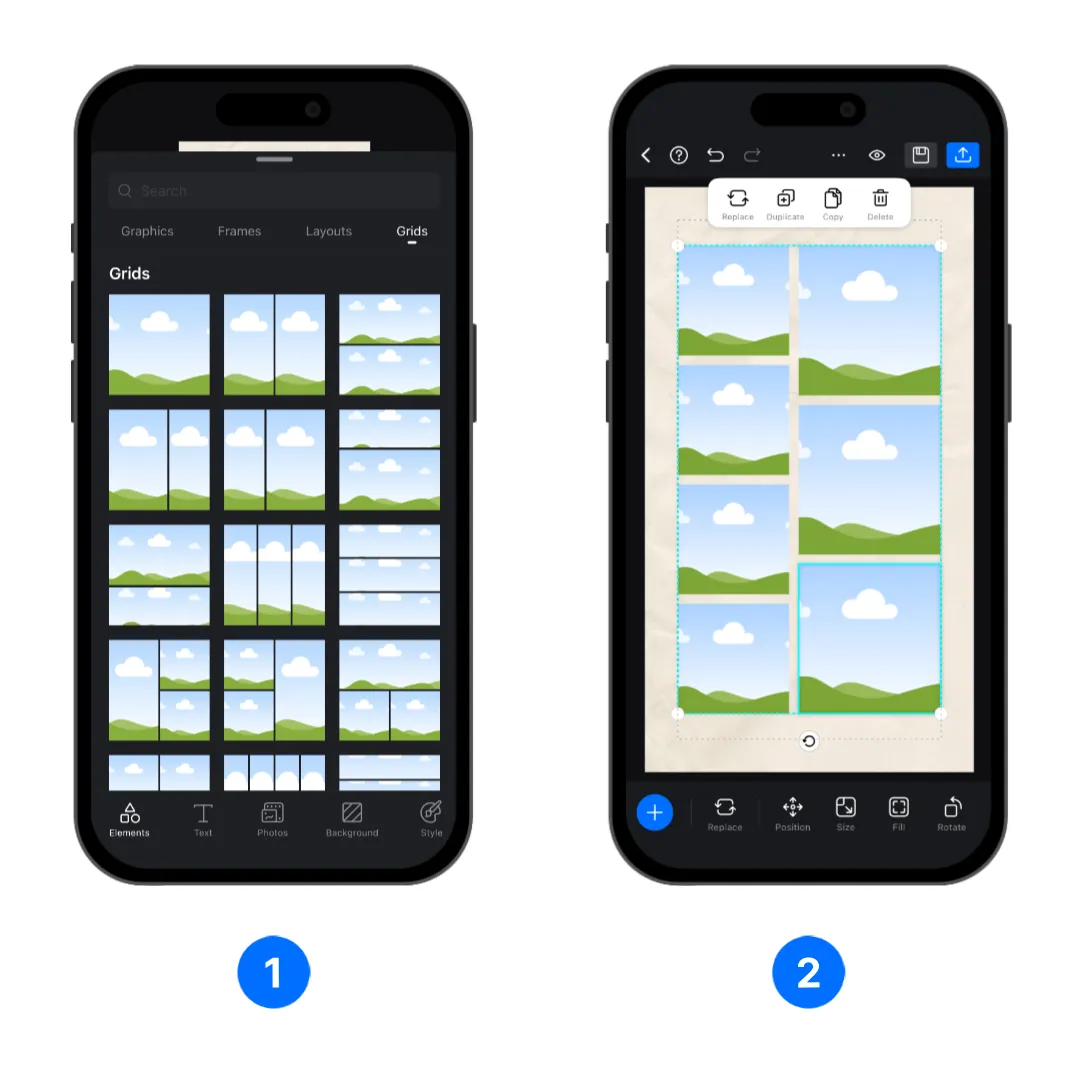
Use a Grid when you need several photo or video placeholders arranged in rows, columns, or evenly divided sections.
1. Tap [+], select [Elements], then head to the [Grids] tab to browse the avaialble grids.
2. Choose a grid arrangement that matches the number and direction of the media areas. Grid will automatically adapte to the aspect ratio of the project, you can adjust it like any image by dragging the white dots on its corner.
Add a Background to the Page
You can add background to your flow projects.
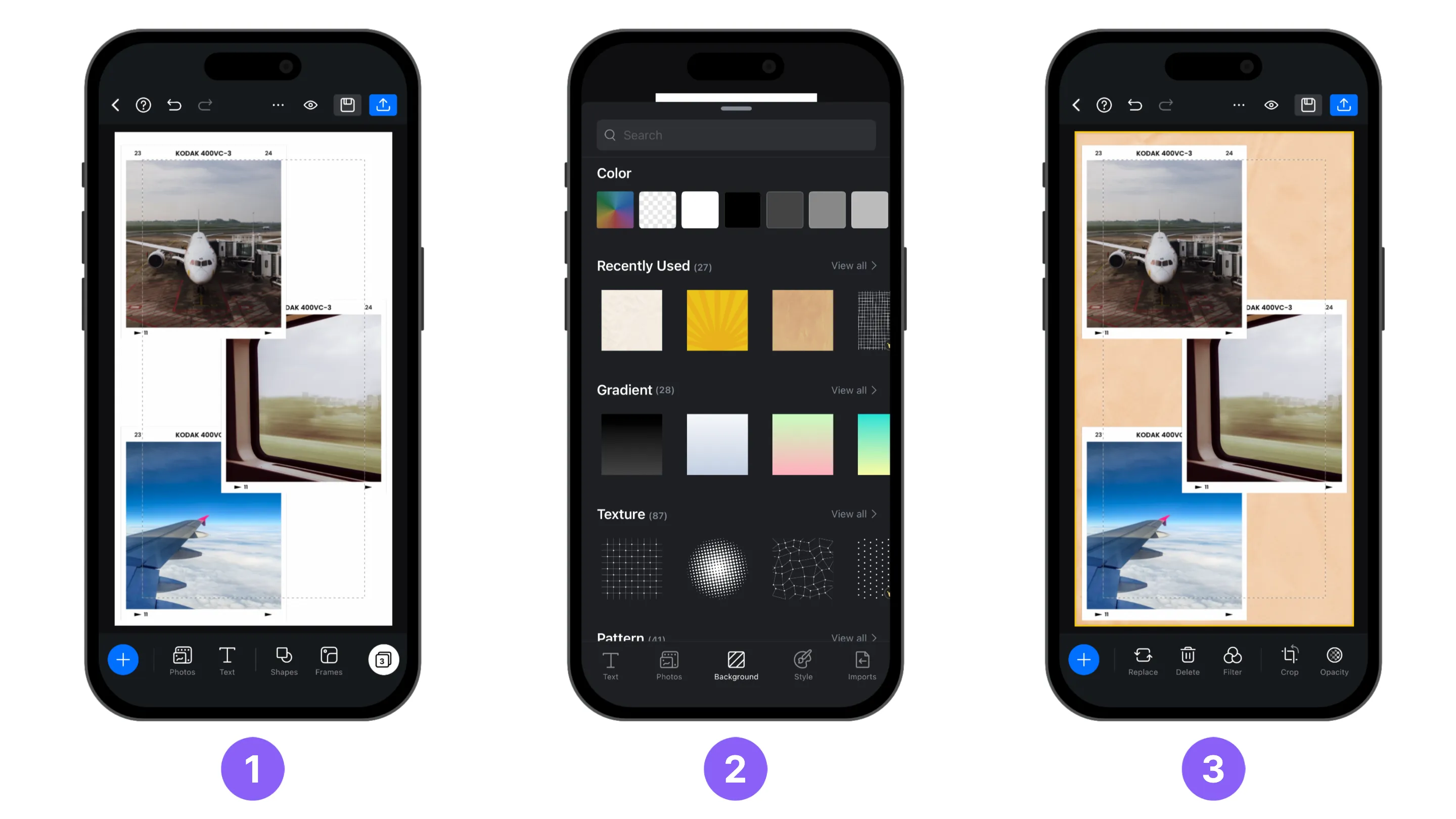
Add background
1. On the bottom menu, locate and tap on the [background] button.
2. Select a background you like.
3. See how the selected background fits your page.
Change background color
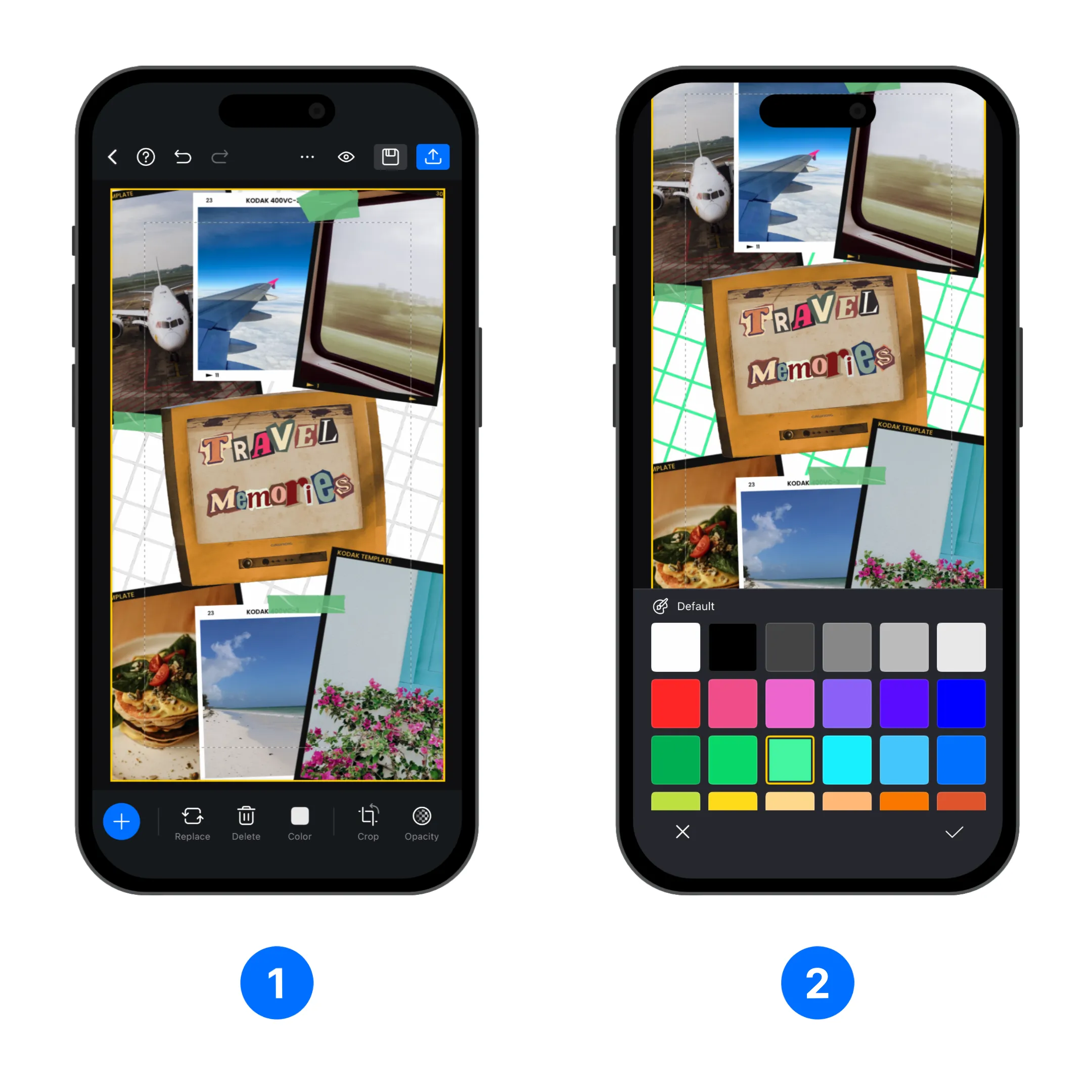
Some backgrounds allows you to change its color, it can be the entire background, parts of the background, or certain elements.
1. Tap on the background in the preview, and select [Color].
2. Choose a color and see how it fit with your page.
Add filter to a background
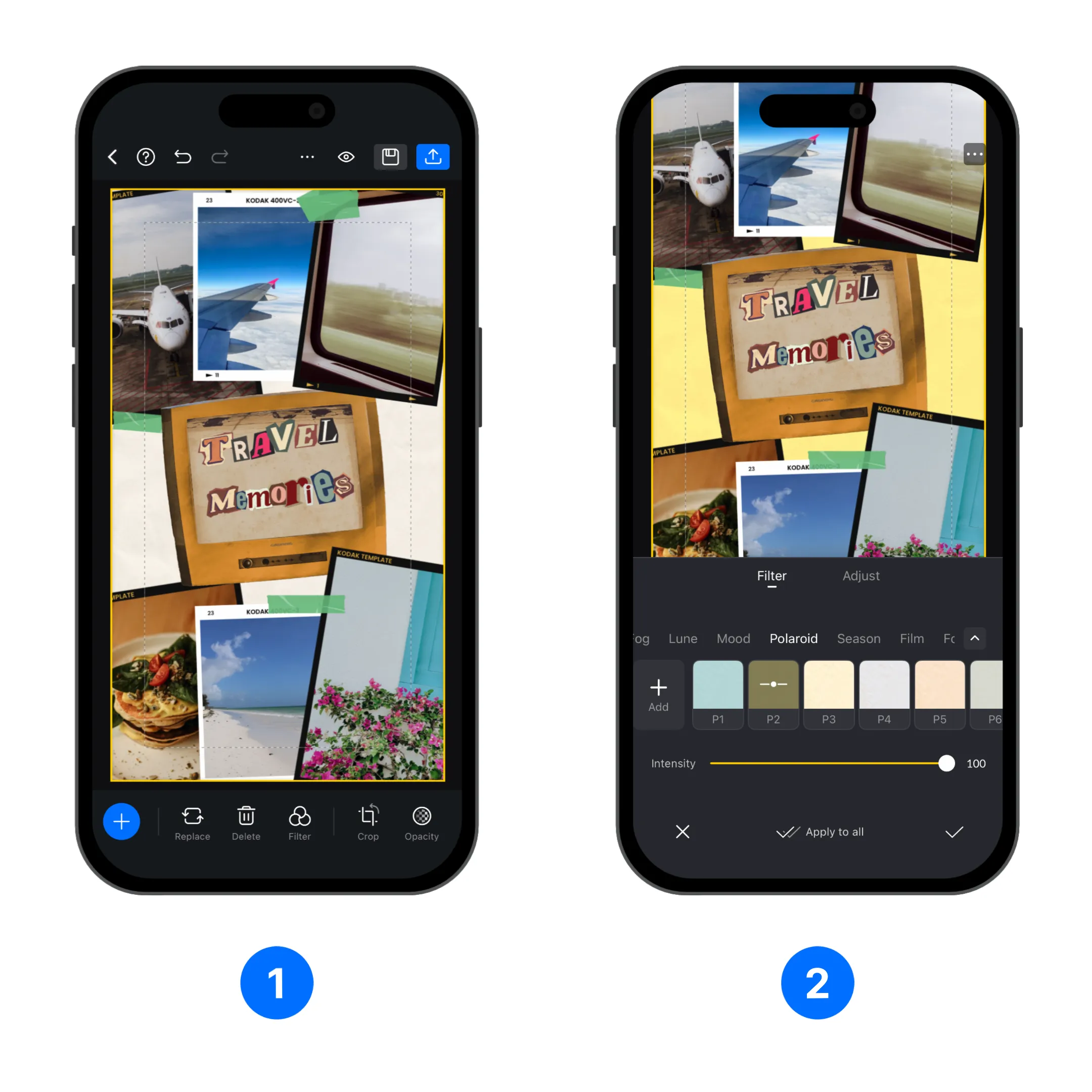
Color Texture backgrounds allows you to add a filter to alter it's look.
1. Tap on the background in the preview, and select [Filter].
2. Choose a filter, adjust its settings, and see how it fit with your page. Visit Filters to learn more about it.
Adjust background crop and opacity
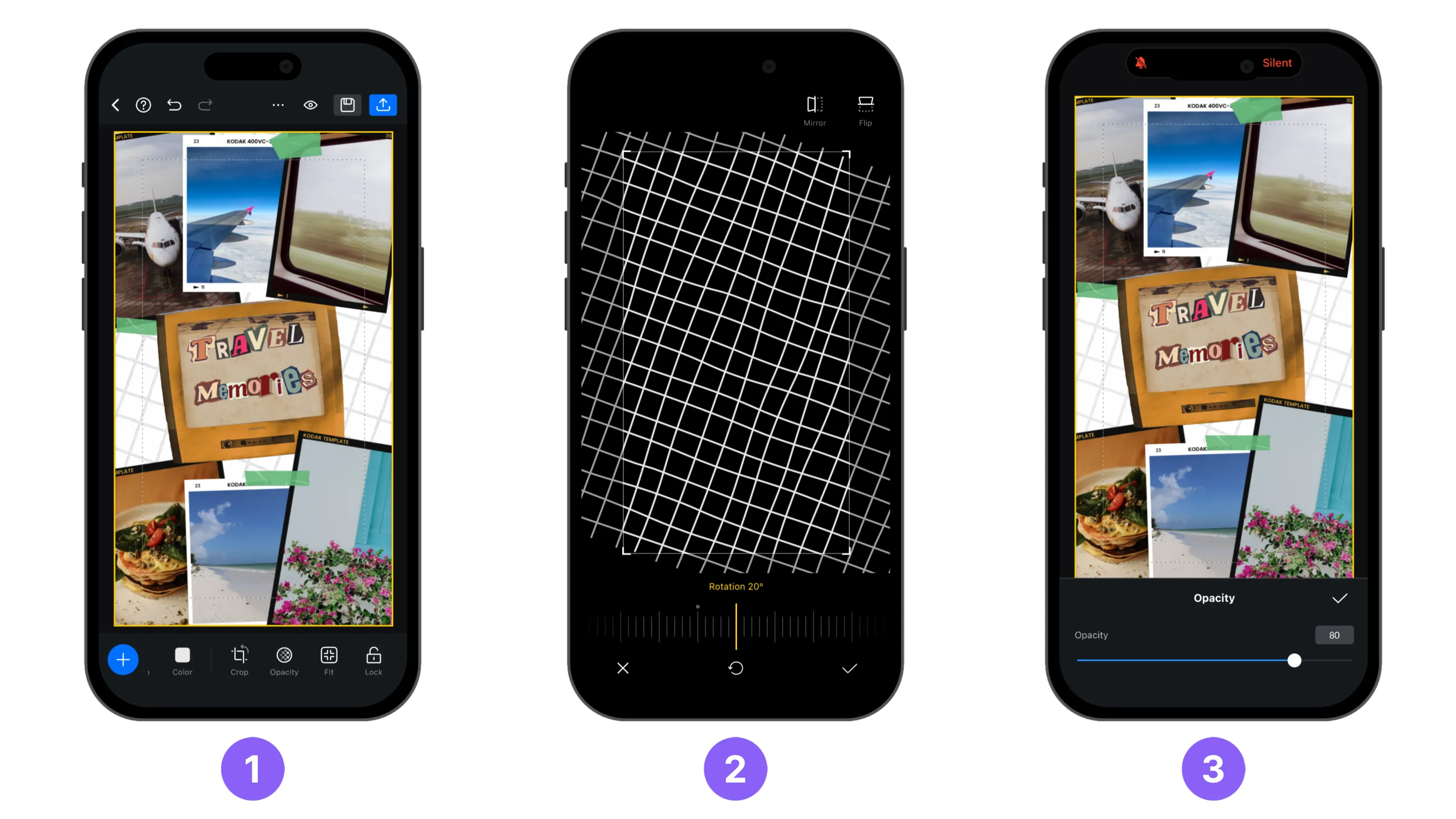
You can change background pattern's position, size, and background's opacity using the [Crop] and [Opacity] buttons.
Create Multiple Pages
You can create multiple pages in a Flow project, if you have setup background, subsequent pages will use the same background.
1. Swipe from right to the left on the preview screen to add multiple pages. You can tap the bottom right pages button to access the page management screen. The button also shows how many pages there are.
2. On page management screen, you can press and hold the page to rearrange it.
Note
After exporting to VN, each Flow page becomes a separate timed section of the video.
Export and Edit in VN
After the pages and replaceable media areas are ready, send the project to VN to build the final video template.
1. Tap the [Export] button in Flow.
2. Select [Make a video with VN].
3. In [Video Duration Setting], choose how many seconds each Flow page should remain on screen.
4. Tap [Save] to open the project in VN. Each Flow page appears as a separate section in the video timeline.
5. Complete the video edit and create the template. See How to Create a VN Template for how to create VN template.