



Edit Photo
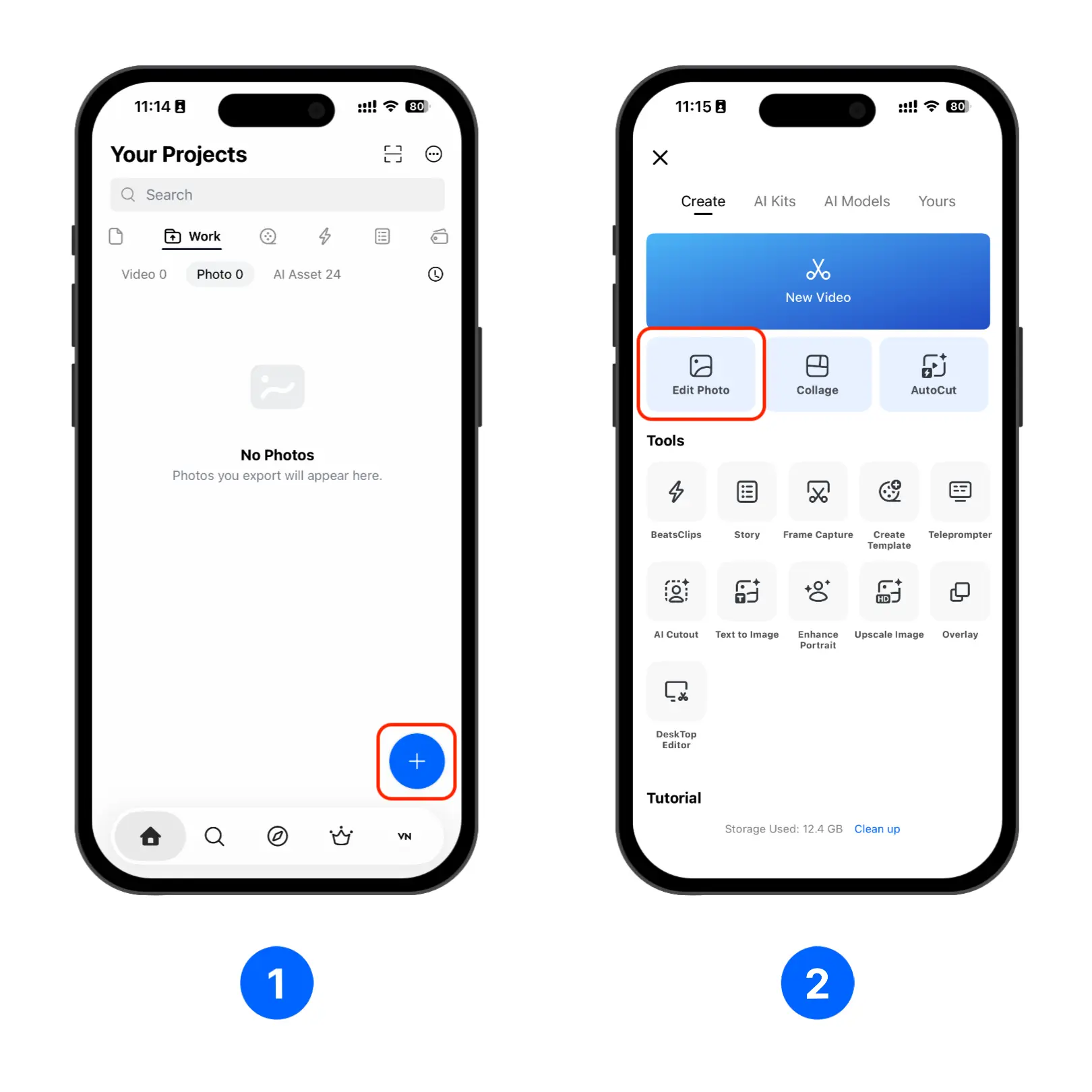
- Open the Projects screen and tap [+].
- Select [Edit Photo], then choose a photo from your album.
- The Photo Editor interface appears, and you can start editing the photo using the available tools.
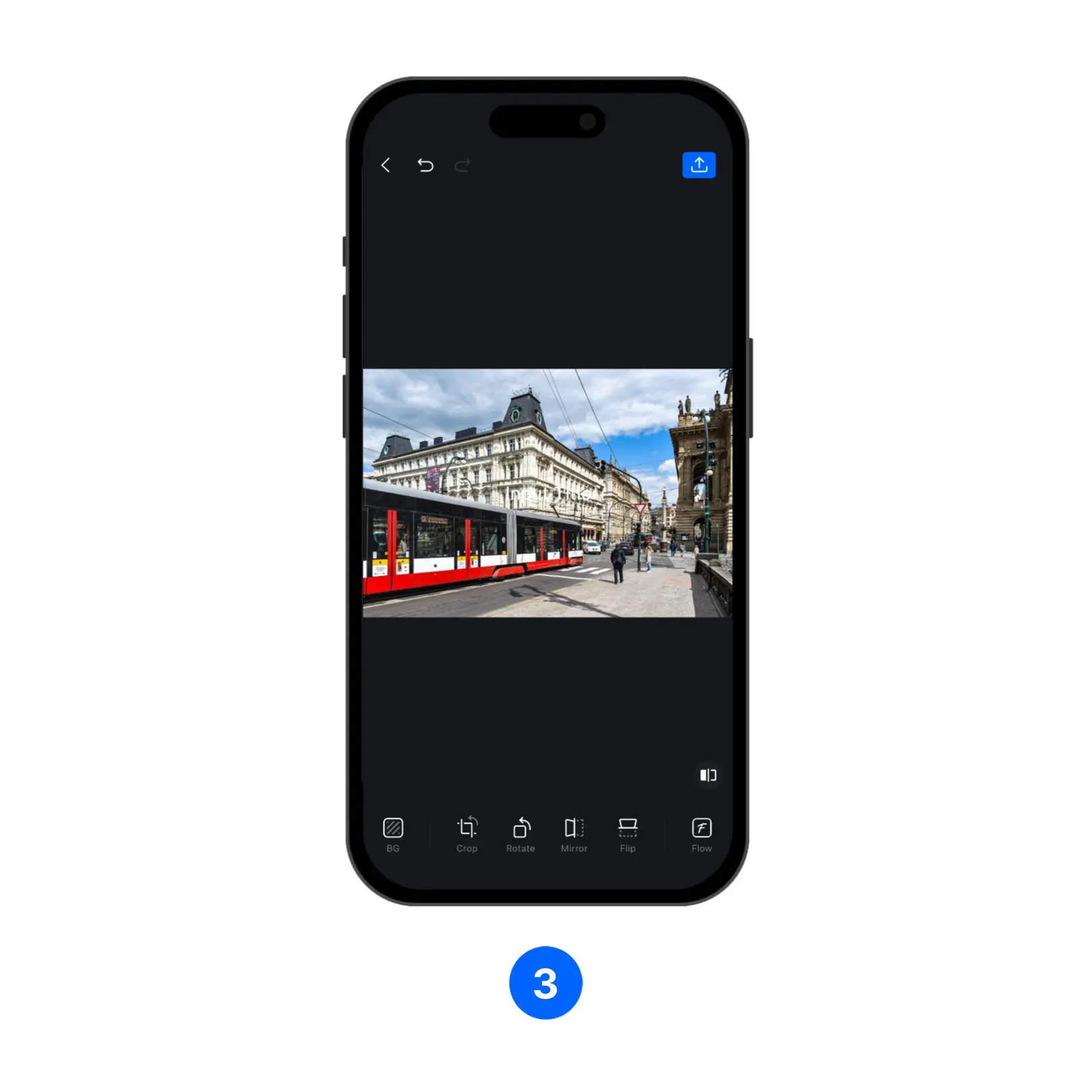
You can also move the project to the Flow app for more advanced image editing, such as adding elements or borders, applying layouts or grids, and more.
Multi Edit
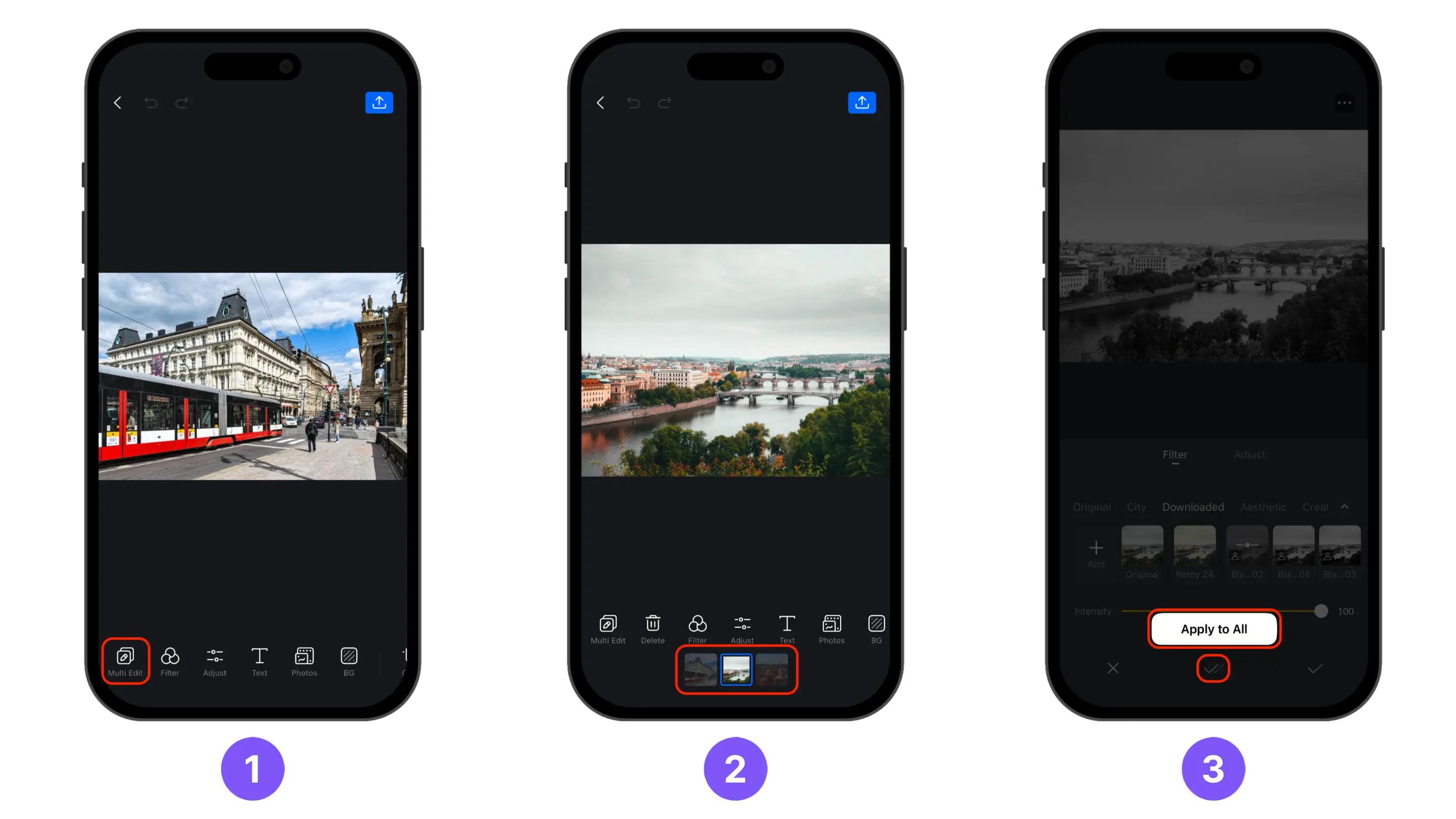
- Tap [Multi Edit] to select multiple photos and edit them together.
- When multiple images are selected, the [Multi Edit] button is replaced by [Delete]. Tap [Delete] to remove the currently selected image from the edit photo queue, tap [+] below [Delete] to add more images, or tap a selected image below to select it.
- Tap [Apply to All] when shown to apply the same filter, adjustment, and background changes to every selected photo.
| Tool | Apply to All |
|---|---|
| Filters | ☑️ |
| Adjust | ☑️ |
| Text | ✖️ |
| Photos | ✖️ |
| BG | ☑️ |
| Crop | ✖️ |
| Rotate | ✖️ |
| Mirror | ✖️ |
| Flip | ✖️ |
For more details about the image editing functions, see Image & Clip Adjustment and Filters.