



Options under [Other Tracks] alows you to change the other tracks behavior or size.
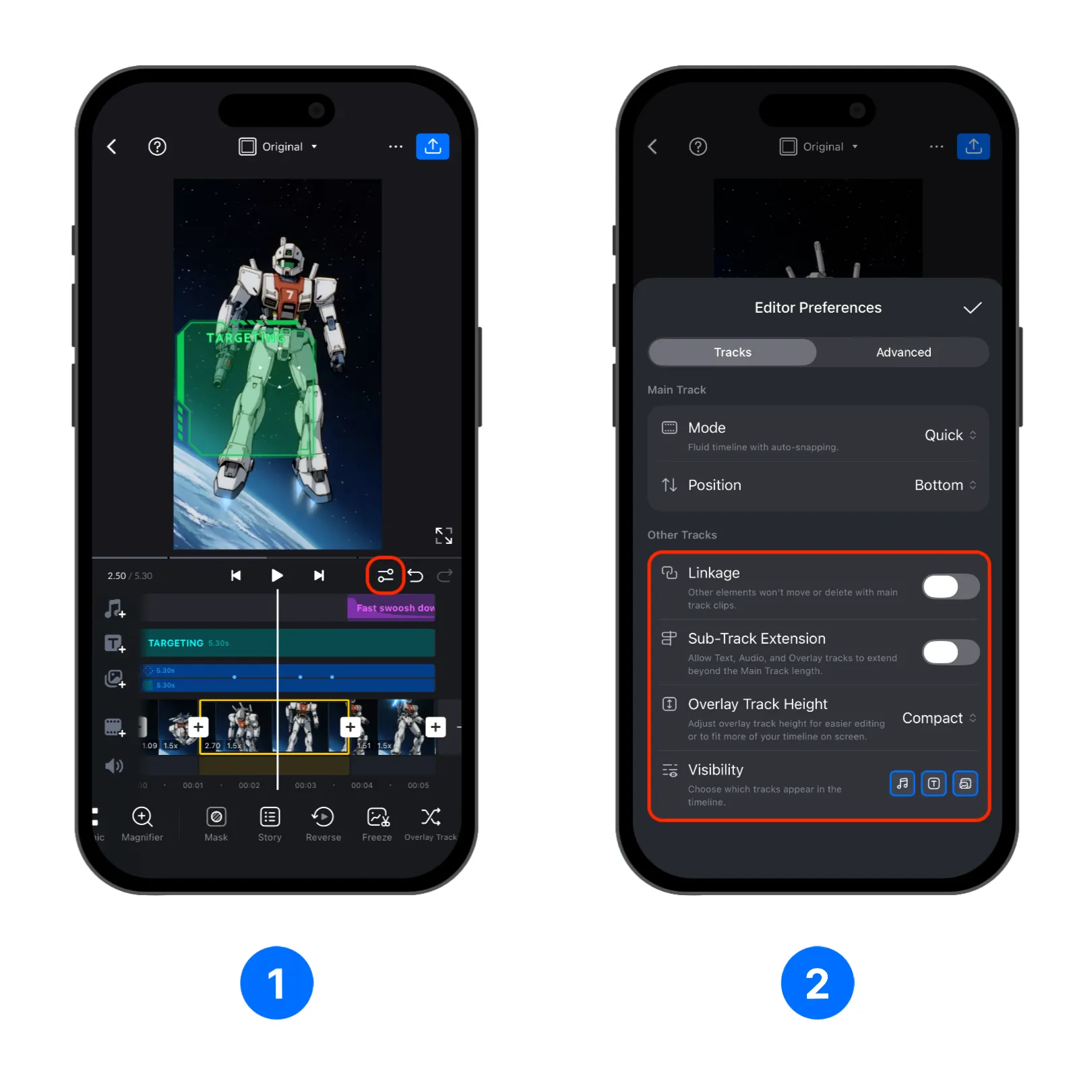
1. Open a project in VN and enter the editor, then tap the [Editor Preferences] button in the editor toolbar.
2. Here you can see the [Linkage], [Sub-Track Extension], [Overlay Track Height], and [Visibility] options.
Linkage
[Linkage] controls whether elements on other tracks move with, or are deleted together with, the main-track clips.
When it's enabled, if you move or delete a main-track clip. Related texts, audios, and elements will move with or be deleted together with the main-track clip, helping linked materials to stay in sync.
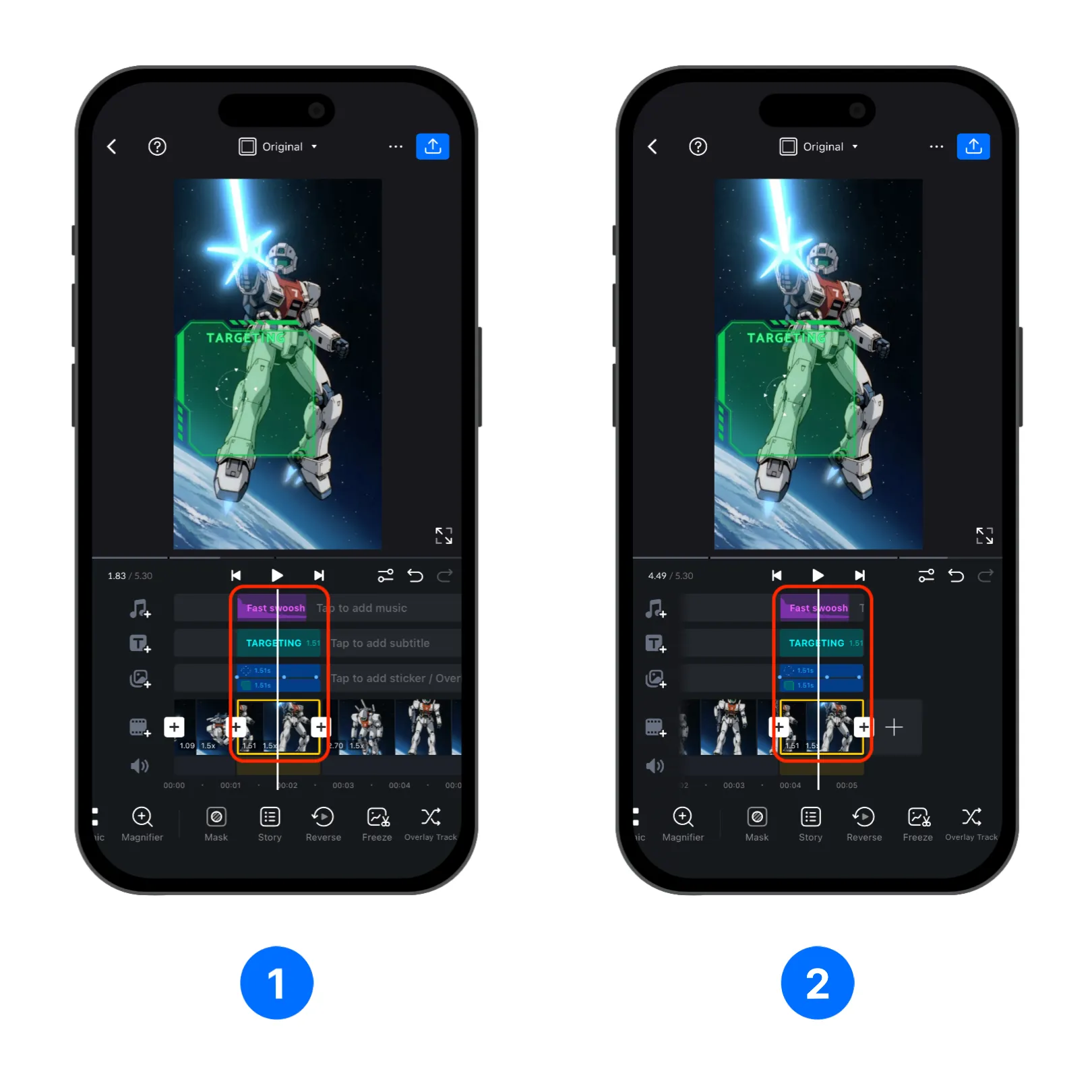
When it's disabled, moving or deleting a main-track clip will not affect texts, audios, elements that are on the same timestamp.
Sub-Track Extension
Sub-Track Extension controls whether Text, Audio, and Overlay tracks can extend beyond the length of the main track.
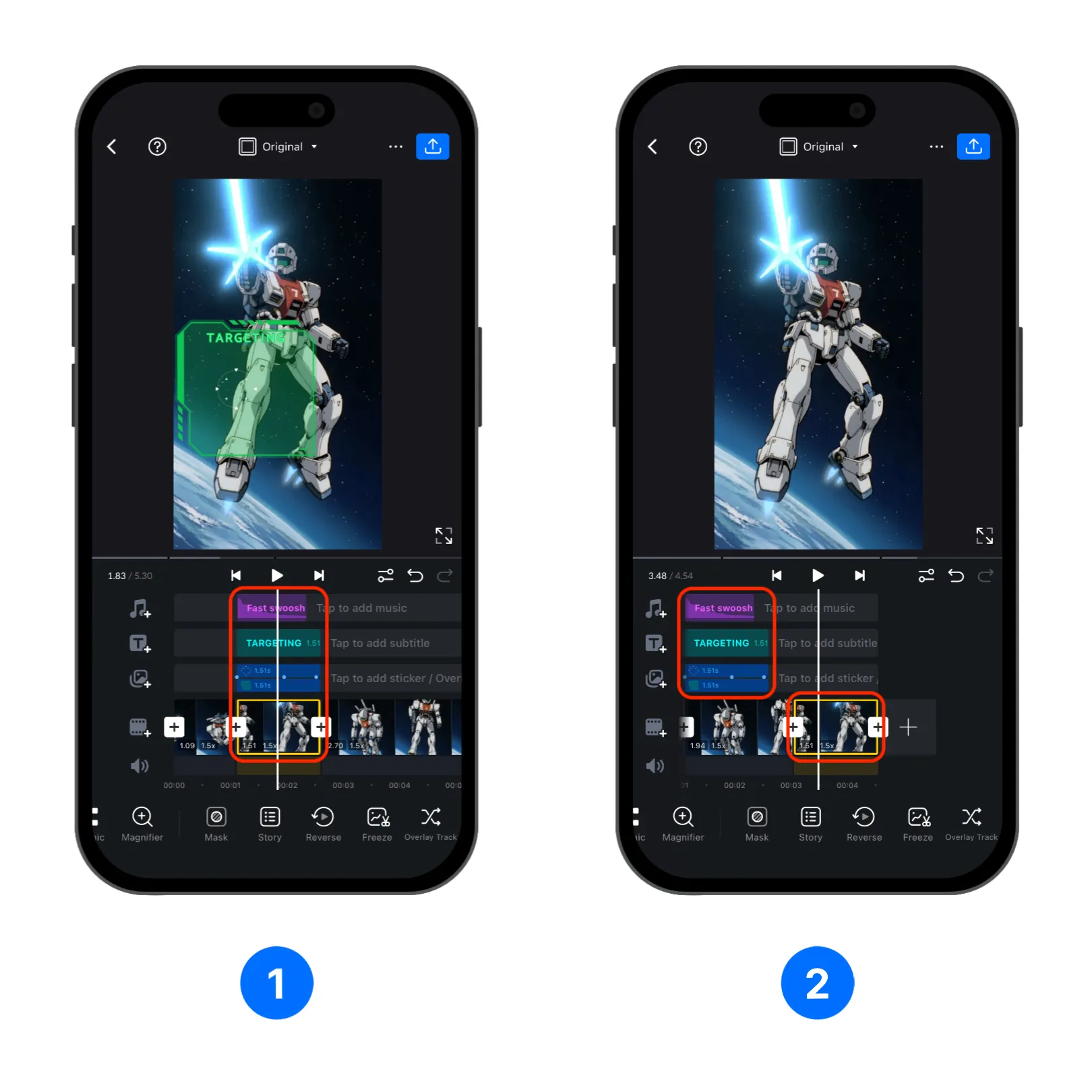
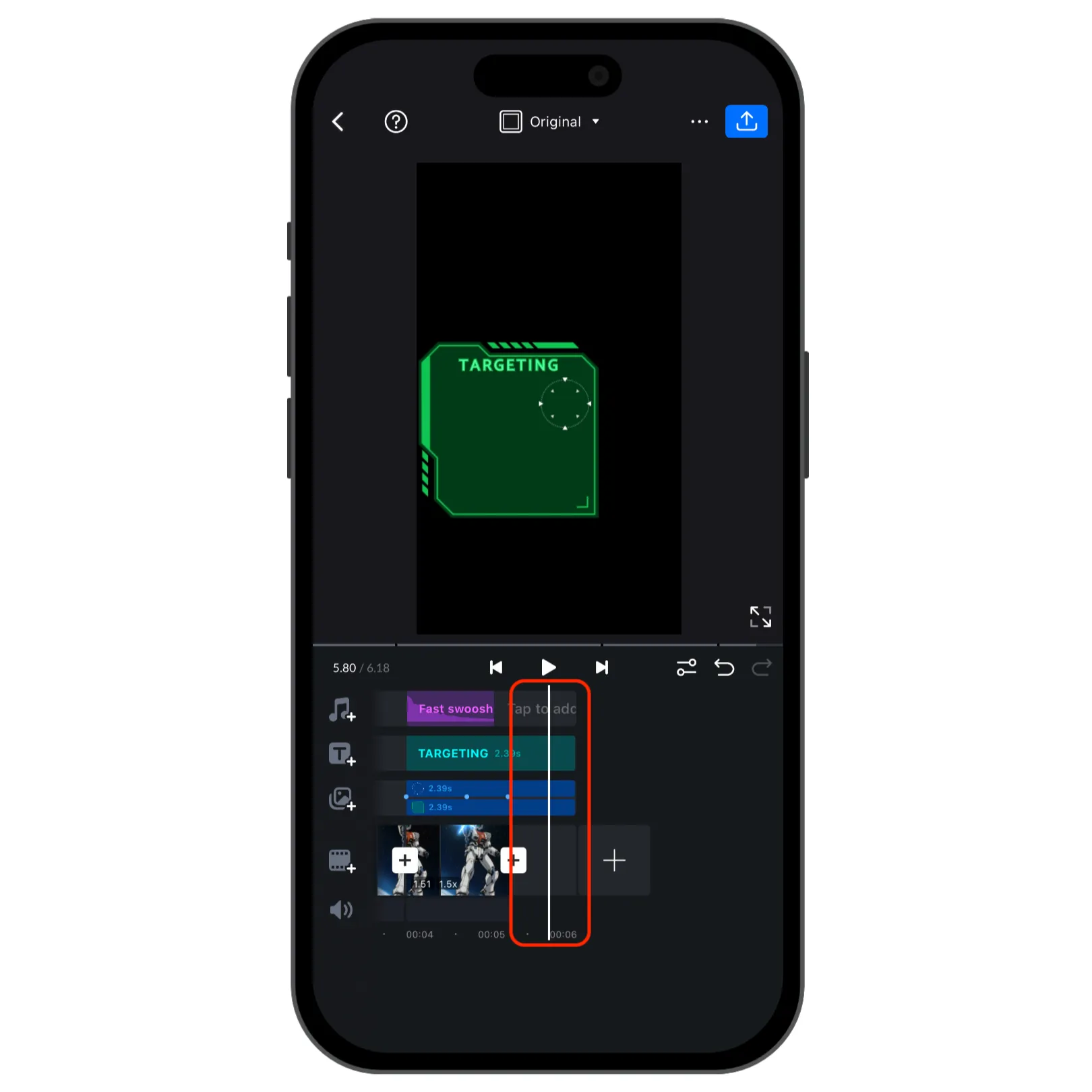
When it's turned on, texts, audios, and elements can now continue beyond the end of the main track. Use this when you need extra audio, captions, or overlays after the main clip ends.
When it's disabled, texts, audios, and elements will be limited by the main track length. If you shorten the main track it will also shorten the items on the sub-track that are near the begining or the end. Use this when you want the project duration to stay aligned with the main video track.
Overlay Track Height
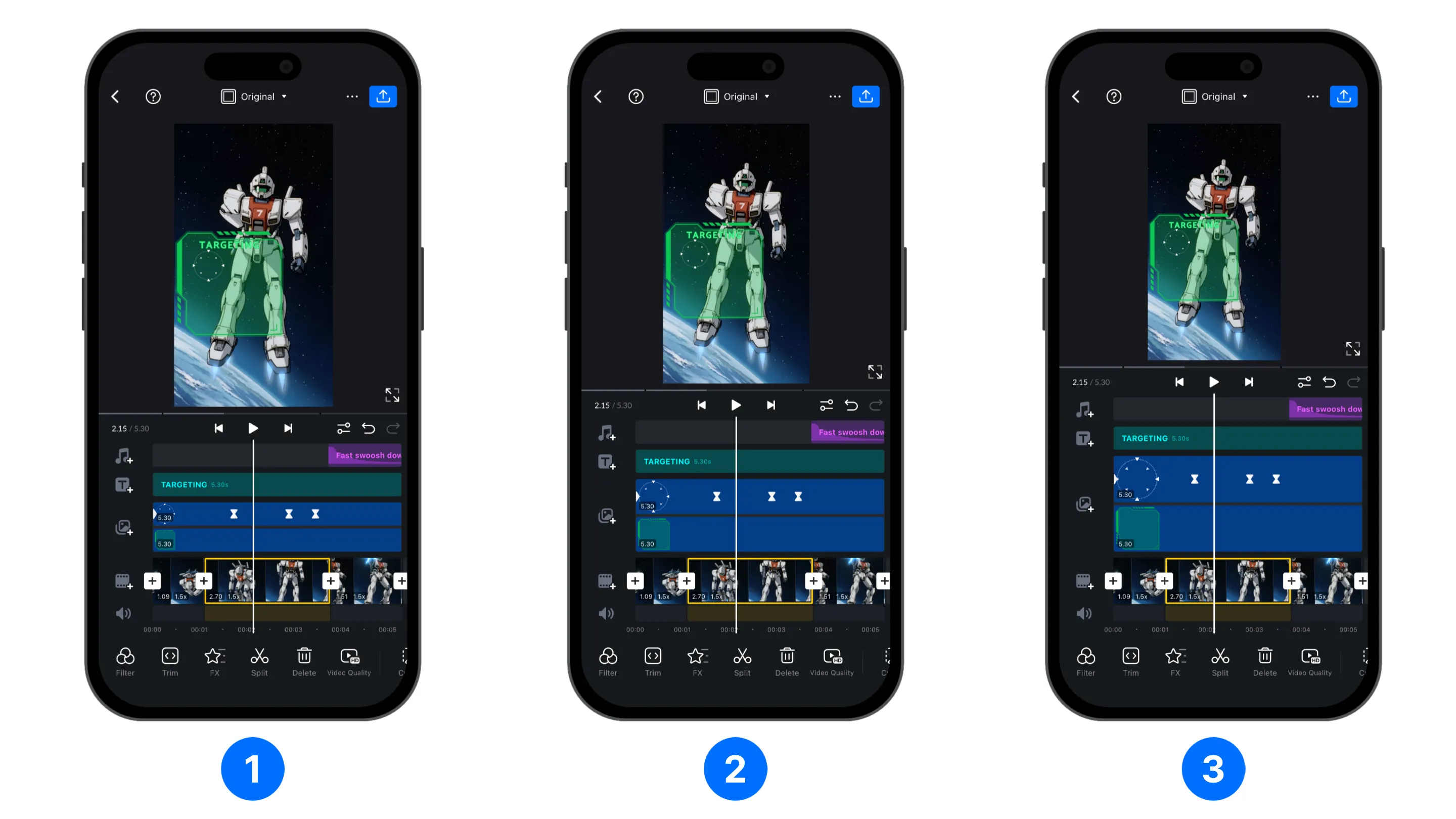
This option controls if the overlay track is shows up as collapsed or in a fixed width mode. By default VN uses the [Collapsed - Compact] mode.
You can switch [Overlay Track Height] to [Extended], and choose from:
1. Small 2. Medium 3. Large
Visibility
[Visibility] allows you to show or hide audio track, overlay track, or text track using the three bottoms. This can frees up realestate for other tracks or the preview window.