



Options under [Advanced] let you control object alignment and preview playback.
1. Open a project in VN and enter the editor, then tap the [Editor Preferences] button in the editor toolbar.
2. In [Editor Preferences], switch to the [Advanced] page to configure [Object Snapping] and [Preview FPS].
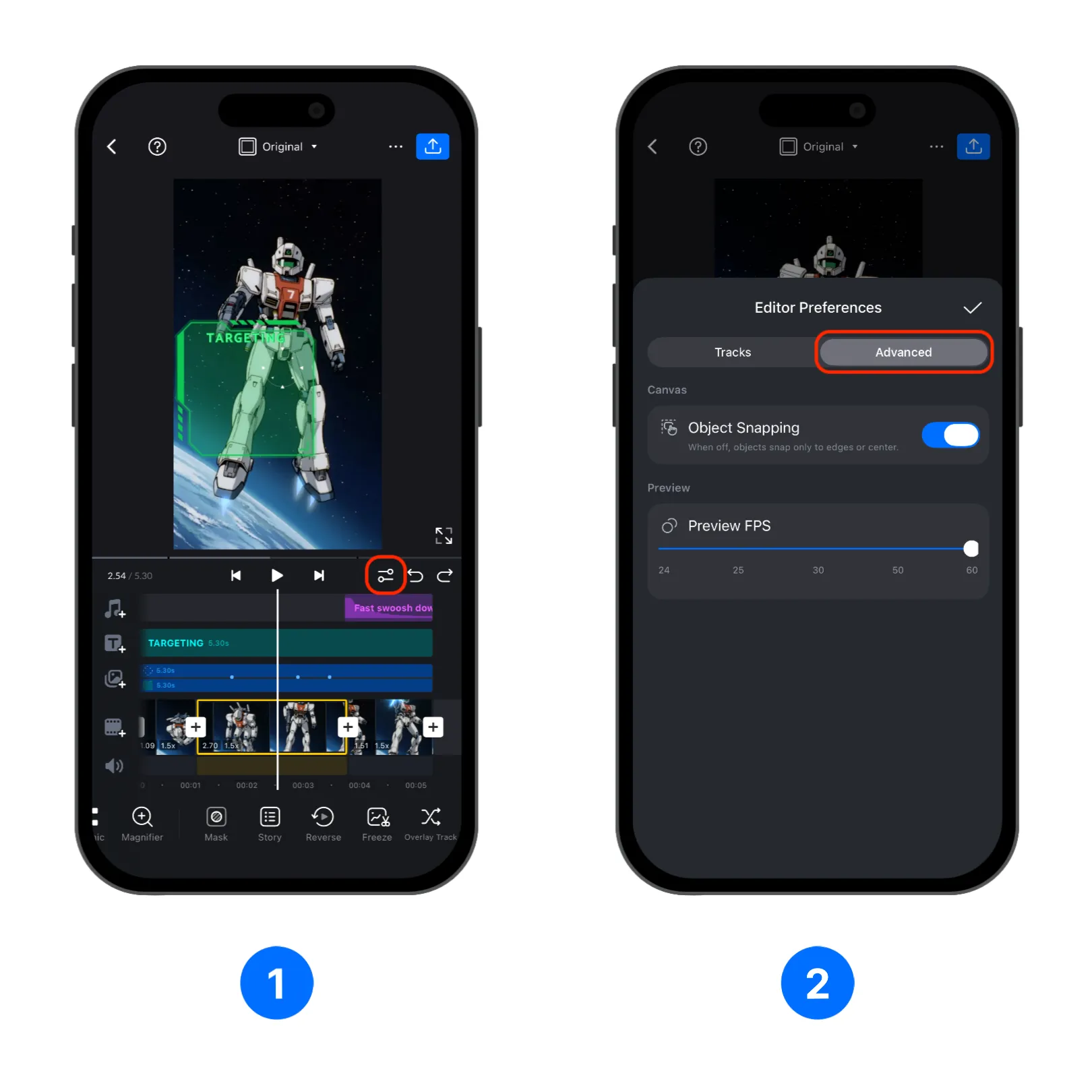
Object Snapping
[Object Snapping] allows you to choose if you want to align object to other objects or only to the video frame.
When enabled, objects like text, elements will also align to other text or elements as well as to the video frame's edge or center.
When disabled, objects will only be aligned to the video frame's center or edge.
Preview FPS
In [Editor Preferences], find [Preview FPS]. Drag the slider to set the frame rate used for editor preview playback.
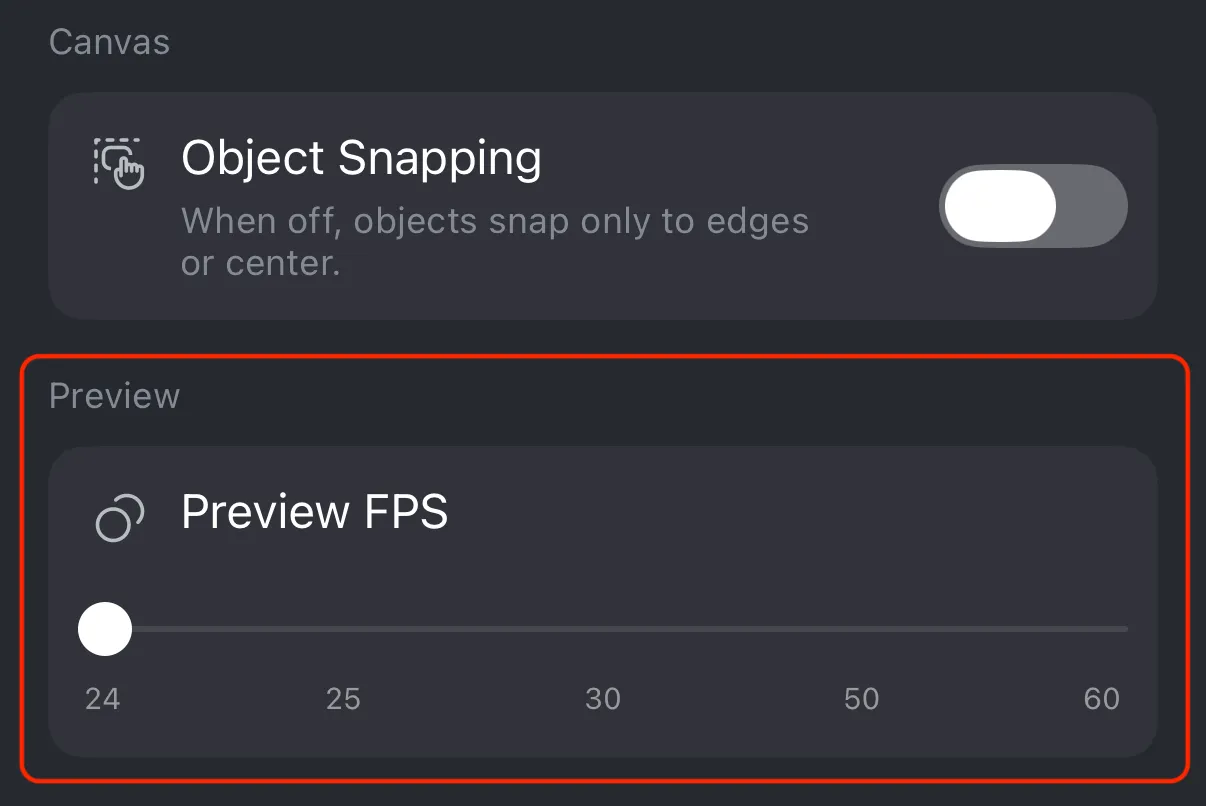
Lower the preview FPS if preview playback feels laggy on a complex project. Raise it when you want smoother preview provided your device can handle the project.
Preview FPS only affects the preview. To change the final video frame rate, adjust the export settings when exporting the project, more about export settings can be found in Export.