
Video Transition
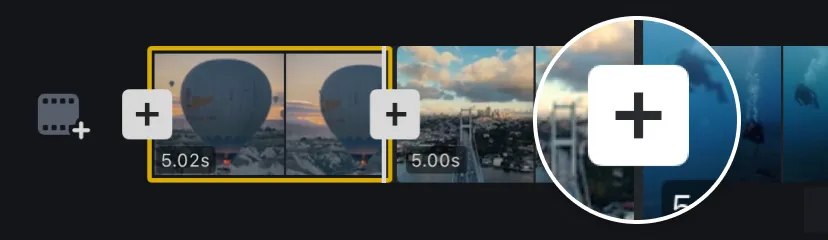
1. Import at least two video clips, then tap the [+] between the clip thumbnails.
2. Choose a transition category, select a transition, and apply it.
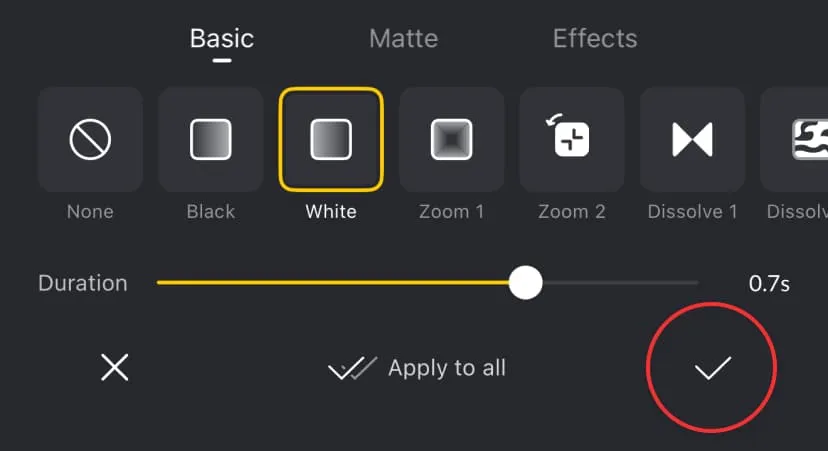
Note: Effects use AI to create the transition and require credits. VN Pro subscribers receive 100 credits each subscription month, and you can purchase more if needed. Learn more about credits in this guide.
Mosaic
Tap [Mosaic], choose a mosaic style, and drag to adjust its position and size to fit your needs.
Magnifier
Tap [Magnifier], adjust the magnification level, and drag to set its position and size as needed.
Blur
Tap [Blur], choose from the Base, Horizontal, Vertical, or Radioactive blur styles, and adjust the intensity to achieve the desired effect.
Reverse Video
Tap [Reverse] to generate a reversed video.
Apply to All Clips on the Same Track (Filter, FX, Transition)
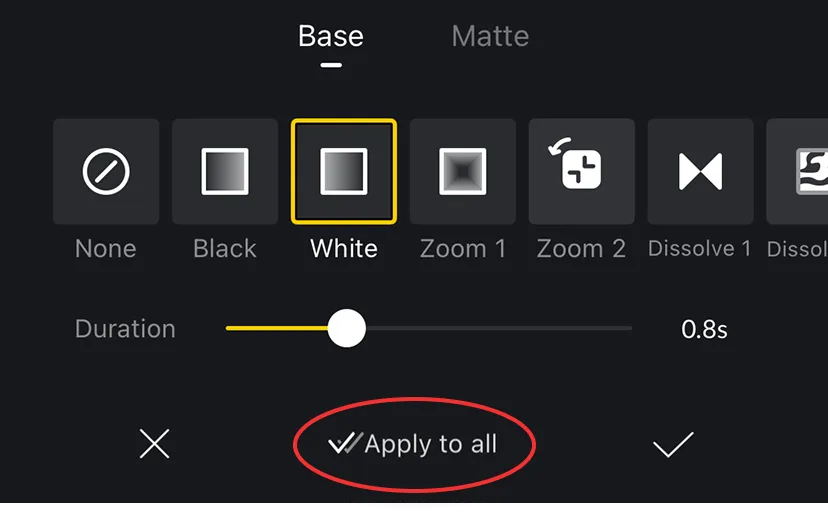
Using a transition as an example:
Tap the [Apply to all] to apply the transition to all clips on the same track.