When to Use From Music
Use [BeatsClips] > [From Music] when you want the structure of a template to follow a song's rhythm. This method is useful for photo montages, fast-cut edits, transitions, and other templates in which each media change should align with a beat.
VN can analyze the selected music and generate beat points automatically. You can then review the waveform, change the beat density, and manually adjust the markers before publishing the template.
Note
Use [From Short Video] instead when you want to reproduce the timing of an existing reference video rather than start from a music track. Create and Share a BeatsClips Template From a Short Video
Create BeatsClips From Music
1. Open [Your Projects] and tap the [+] button.
2. Select [BeatsClips], then tap [From Music].
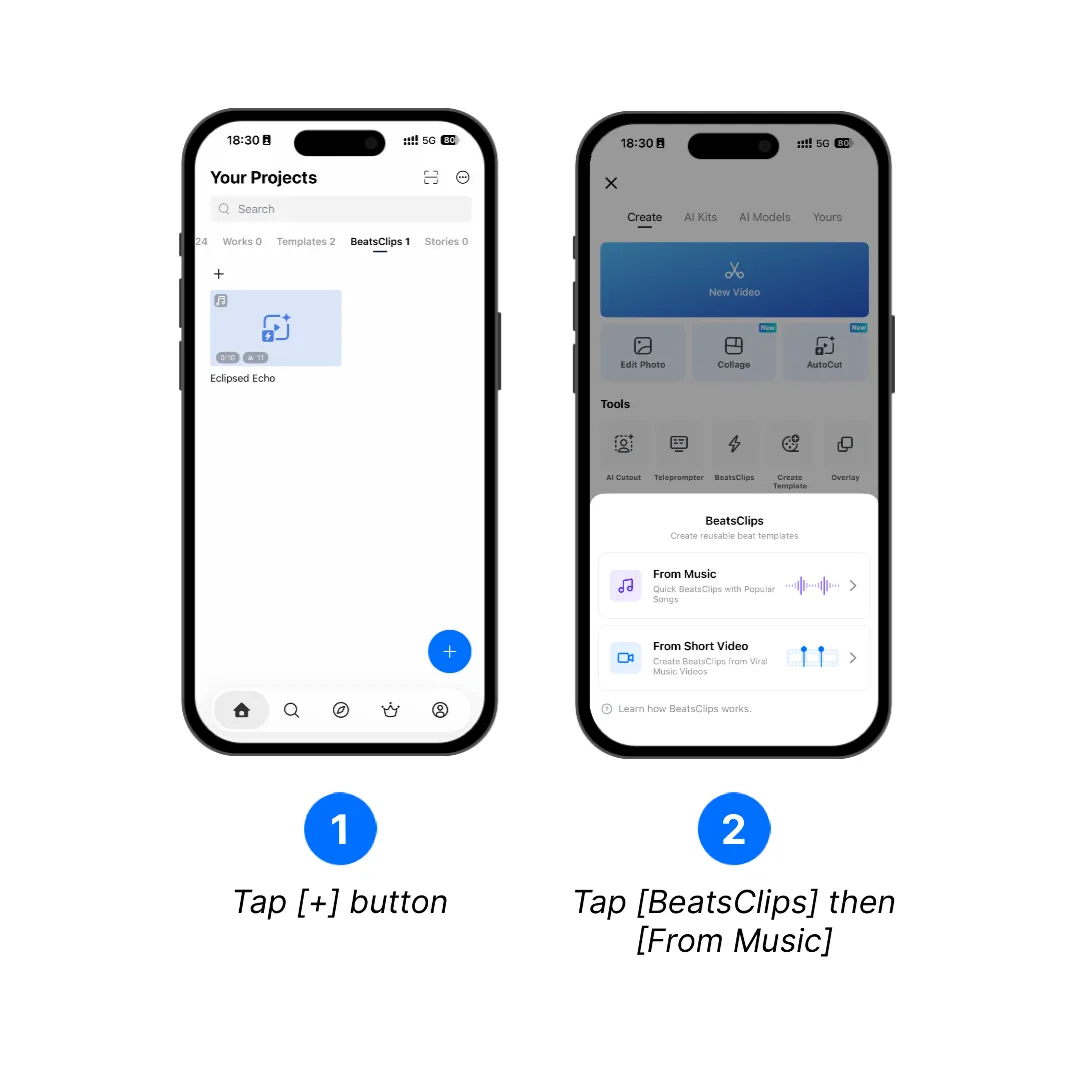
3. Choose a track from the music library. Preview the track when needed, then tap [Use].
4. Drag the selection handles to choose the part of the track you want to use. VN analyzes the selected section and generates beat points automatically.
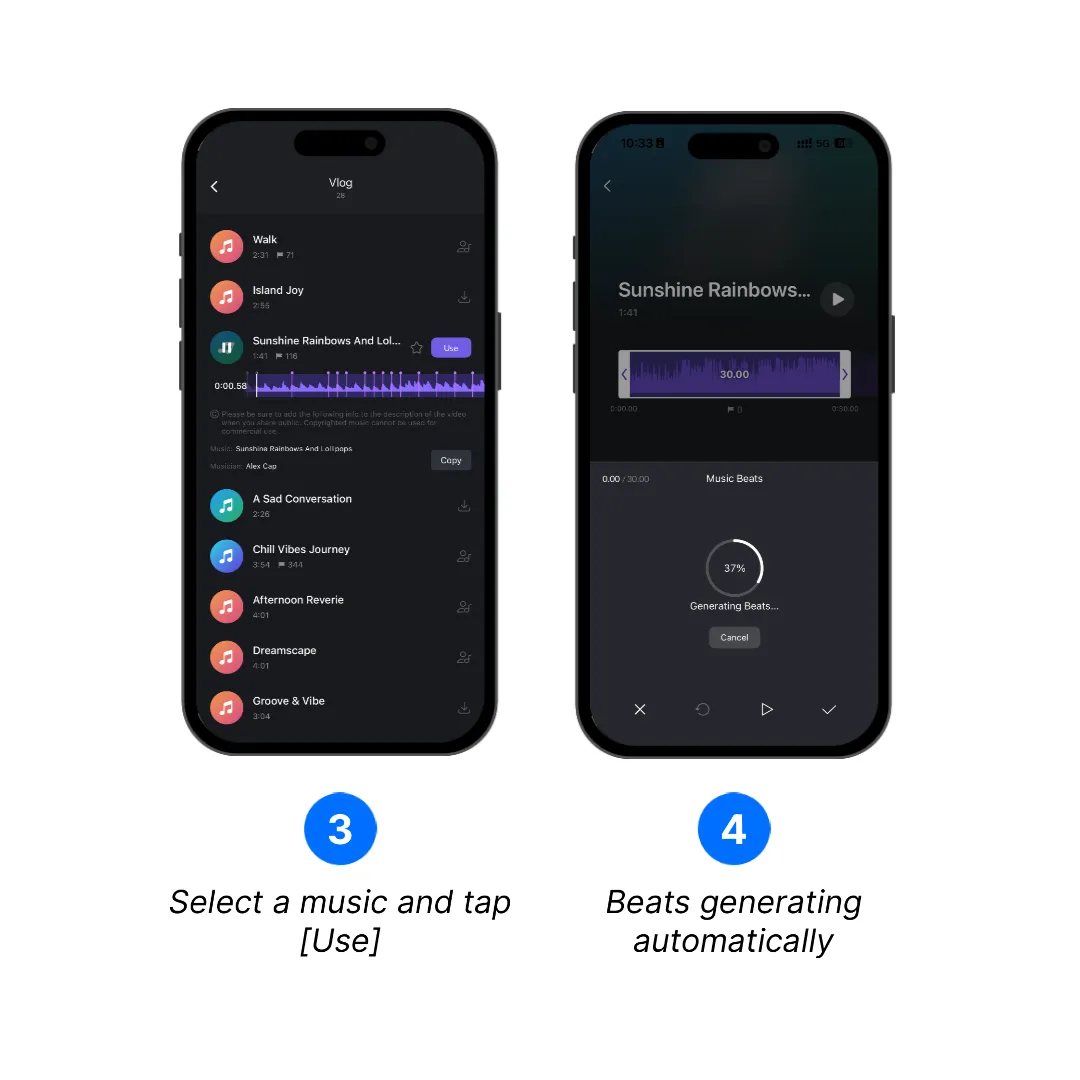
5. Review the generated beats. Use [Auto Beats] and its slider to change the number of generated beat points, or add and remove markers manually. Play the selected section to confirm that the markers match the rhythm.
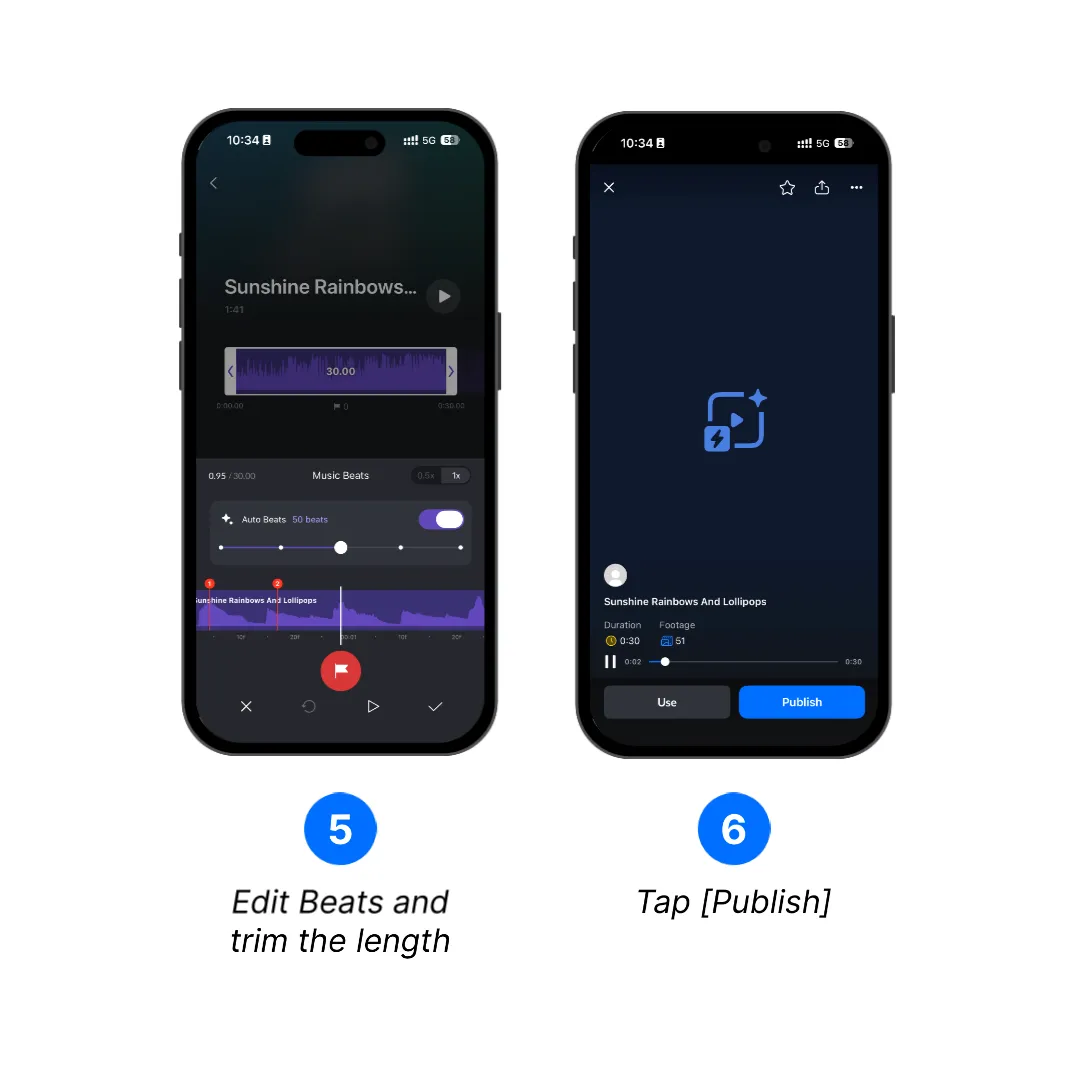
6. Tap the checkmark to finish the beat setup. On the BeatsClips preview screen, tap [Publish].
Publish With Official Music
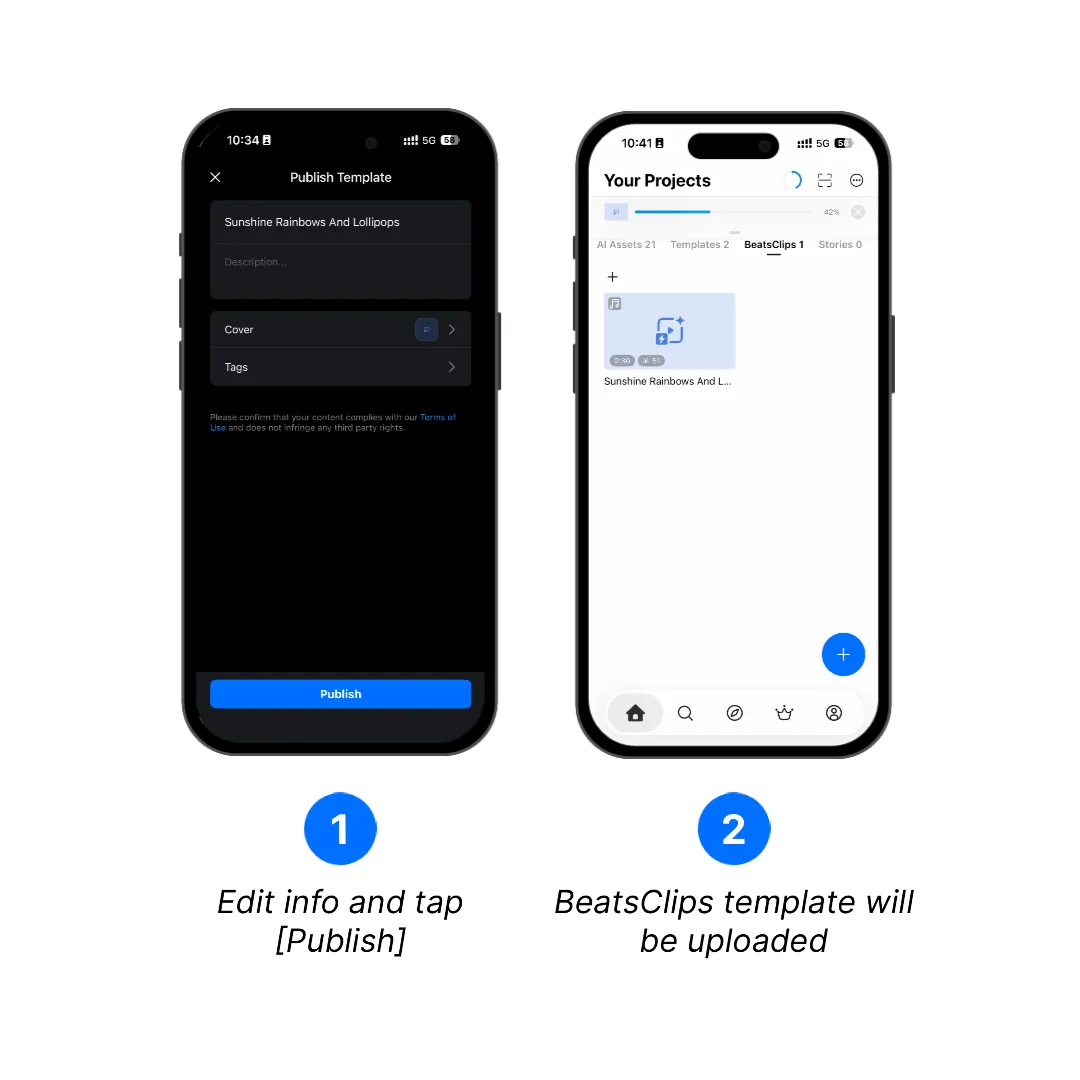
When you select music provided in VN's music library, you can publish the BeatsClips template directly from the publishing screen.
1. Enter a clear template title and description.
2. Add a cover and relevant tags.
3. Review the template information, then tap [Publish].
4. Wait for the upload to finish. The published template appears in the [BeatsClips] tab under [Your Projects].
Note
Follow the music usage information shown in VN. Some tracks may have restrictions on public sharing or commercial use.
Publish With Your Own Music
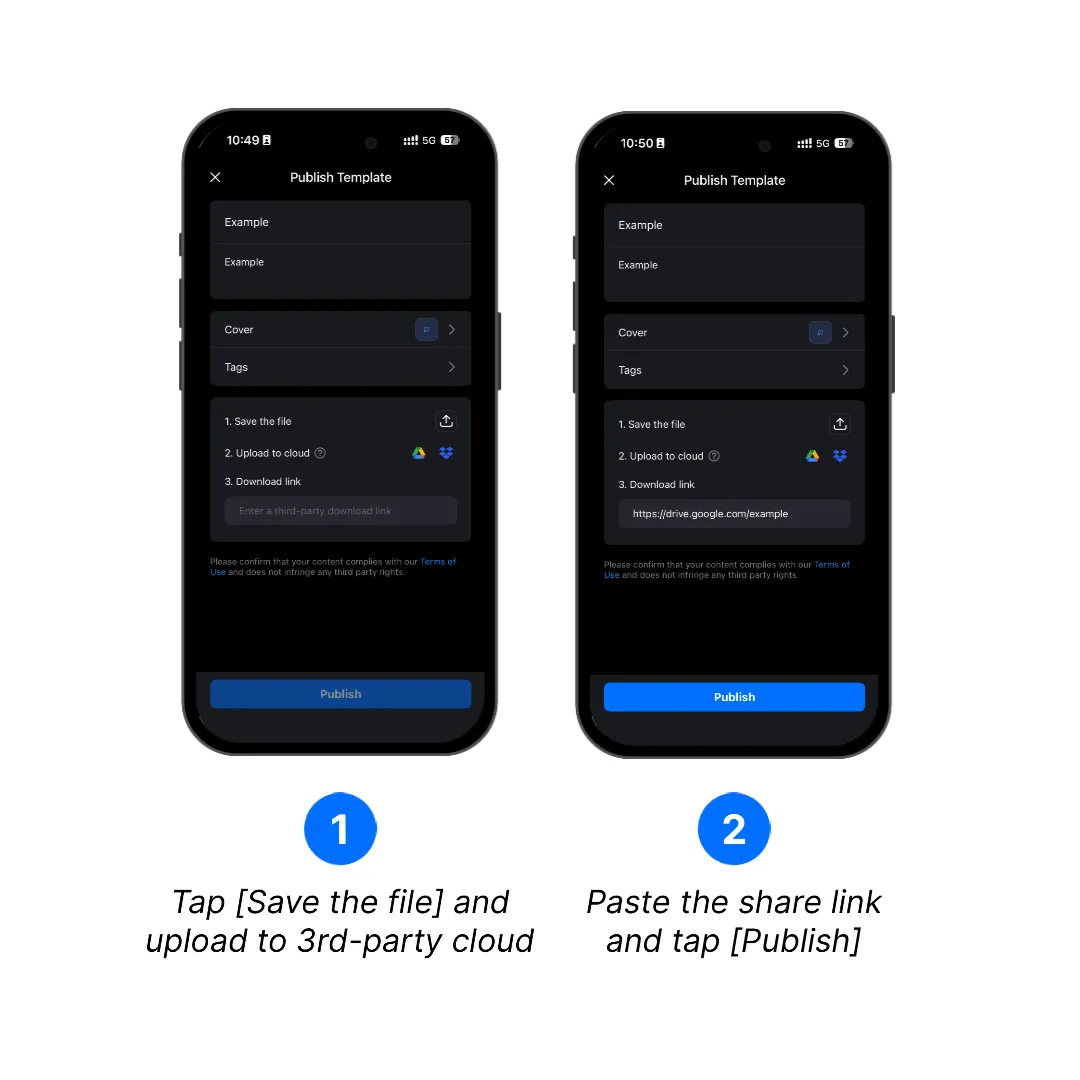
When the BeatsClips template uses your own imported music, the publishing screen asks you to provide a downloadable template file.
1. Complete the title, description, cover, and tags.
2. Tap [Save the file] and save the generated template file to your device.
3. Upload the saved file to a supported third-party cloud service, such as Google Drive or Dropbox. Configure the file so that anyone with the link can access or download it.
4. Copy the accessible download link, paste it into the [Download link] field, and tap [Publish].
Note
Only publish music and other content that you have permission to use. Keep the cloud file available after publishing so users can continue downloading the template.
Find and Share BeatsClips
After creating or publishing the template:
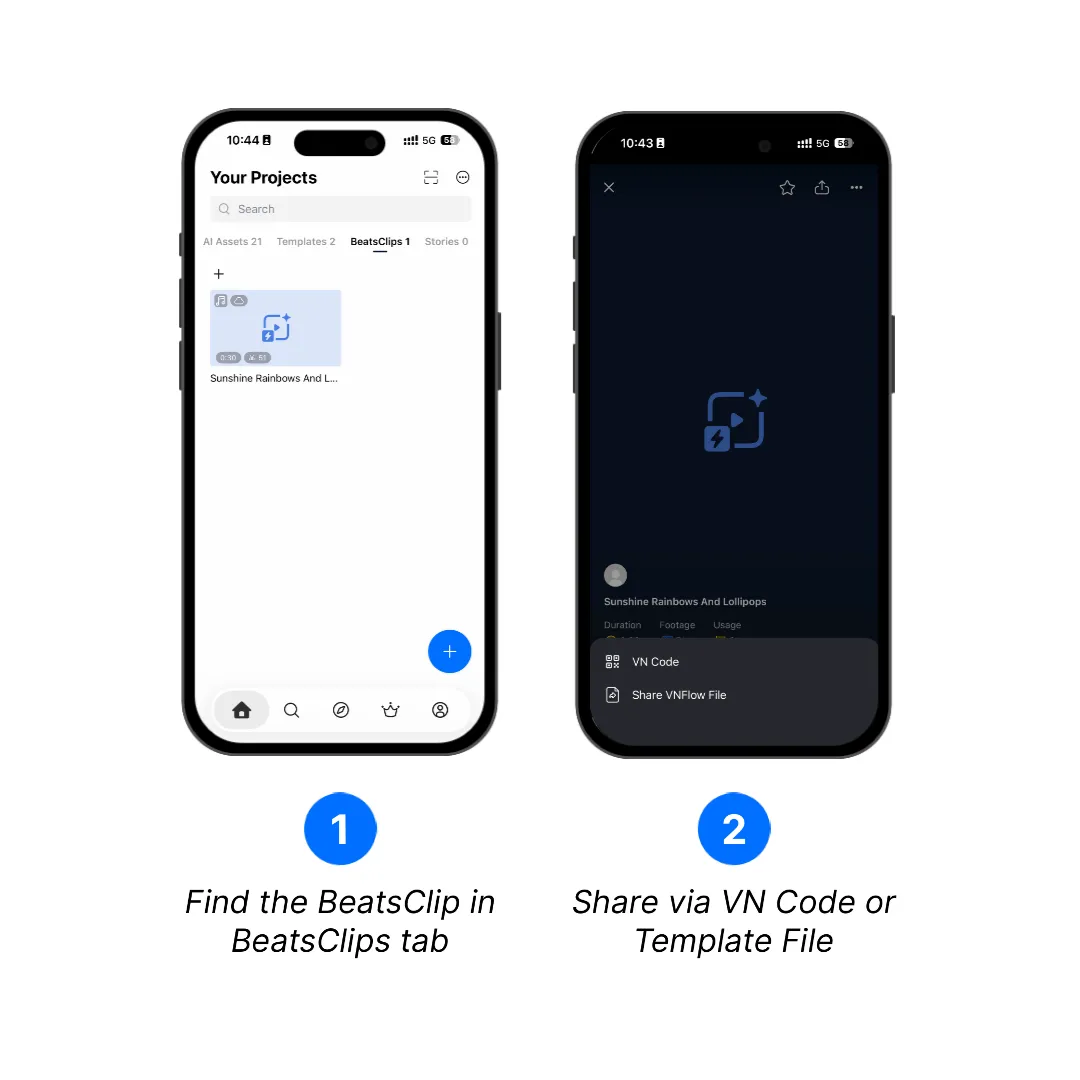
1. On the home screen, select the [BeatsClips] tab and open the template you want to share.
2. Tap the share button, then choose one of the available methods: - [VN Code]: Generate a scannable code that another VN user can scan directly in VN app to use this template. - [Share VNFlow File]: Export and send the template file directly through another app or storage service.