



When to Use Music
Use [BeatsClips] > [From Music] when you want a VN template to follow a song's rhythm. This method is useful for photo montages, fast-cut edits, transitions, and other templates in which each photo or video change should align with a beat.
VN analyzes the selected music and generates beat points automatically. You can then change the beat density, adjust individual markers, and preview the timing before creating the template.
Note
To create a template based on the timing of an existing viral music video, use [From Short Video] instead. See Create VN Template with Viral Music Video.
Create VN Template with Music
1. Open [Your Projects] and tap the [+] button.
2. Select [BeatsClips], then tap [From Music].
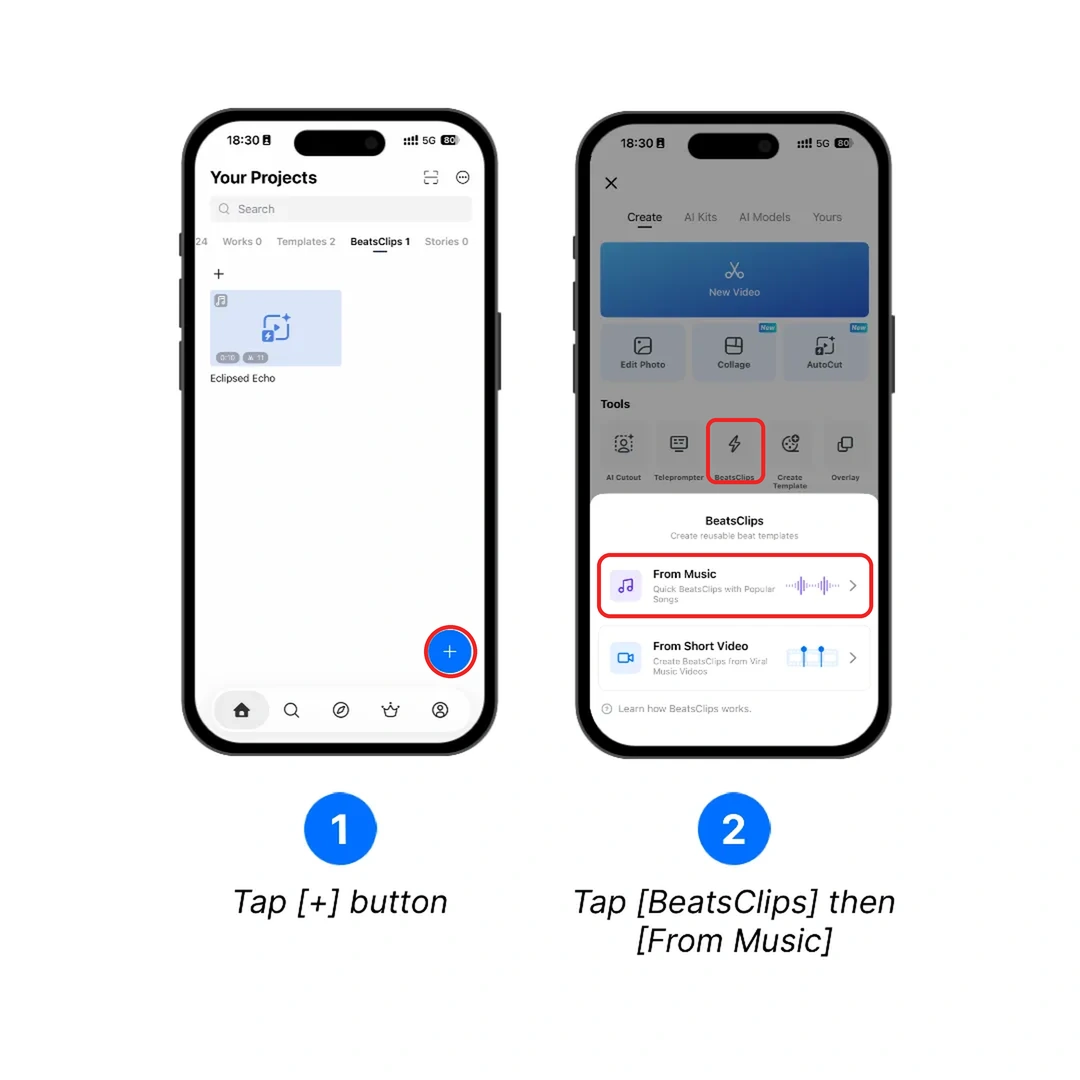
3. Choose or import the music you want to use. Preview the track when needed, then tap [Use].
4. Drag the selection handles to choose the part of the track for the template. VN analyzes the selected section and generates beat points automatically.
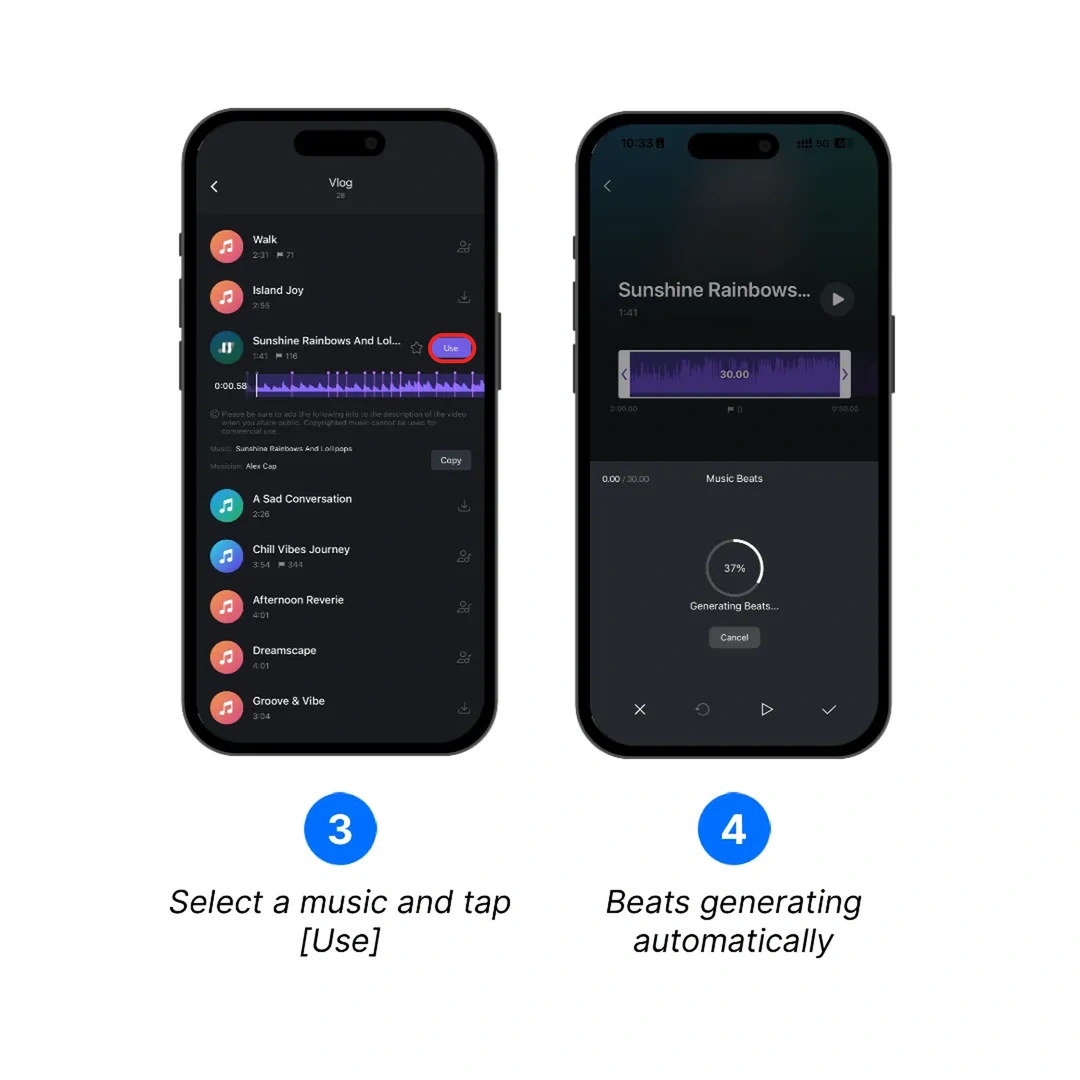
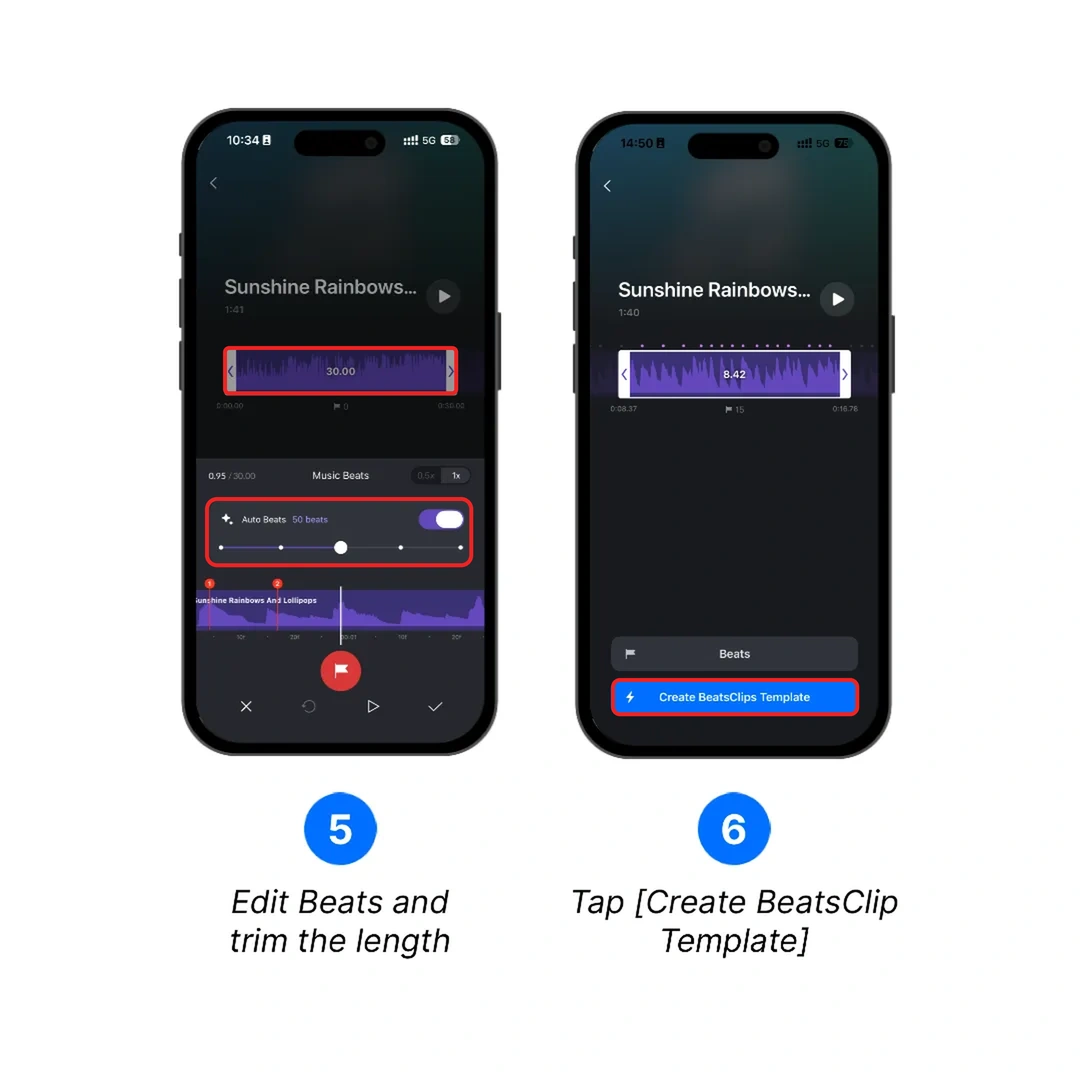
5. Review the generated beats. Use [Auto Beats] and its slider to change the number of beat points, or add and remove markers manually. Play the selected section to confirm that the markers match the rhythm.
6. Tap the checkmark to finish the beat setup. On the template preview screen, confirm the duration and number of footage slots, then tap [Create BeatsClips Template] to finish creating the template.
7. For sharing VN Tempalte file or VN Code, head over to How to Create and Share VN Template?. VN Templates created via BeatsClips can be located in the [BeatsClips] tap on the VN app home screen.