



When to Use a Viral Music Video
Use [BeatsClips] > [From Short Video] when you have a viral music video whose pacing and cut timing you want a VN template to follow. This method is useful for recreating photo sequences, transition videos, and music-focused edits in which the media changes at specific moments.
You select and trim the reference video, then add beat points at the cuts or rhythm changes you want to preserve. Each beat point creates a replacement slot that other users can fill with their own photos or videos.
Note
To start directly from a music track and let VN generate beat points from its rhythm, see Create VN Template with Music.
Create VN Template with Viral Music Video
1. Open [Your Projects] and tap the [+] button.
2. Select [BeatsClips], then tap [From Short Video].
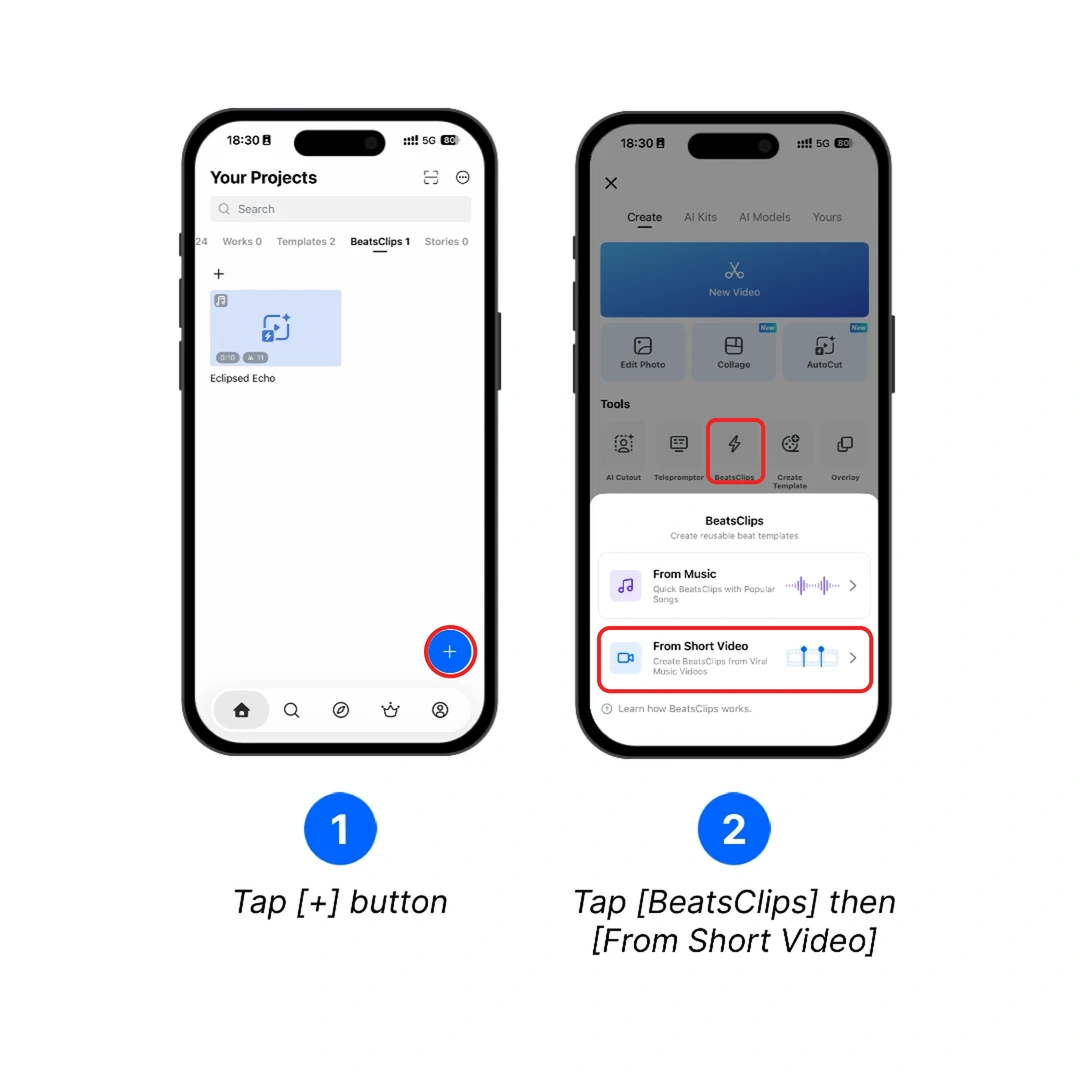
3. Select the viral music video you want to use as the timing reference.
4. Drag the trim handles to choose the section you want to turn into a VN template. Preview the selected section, then tap the checkmark to continue.
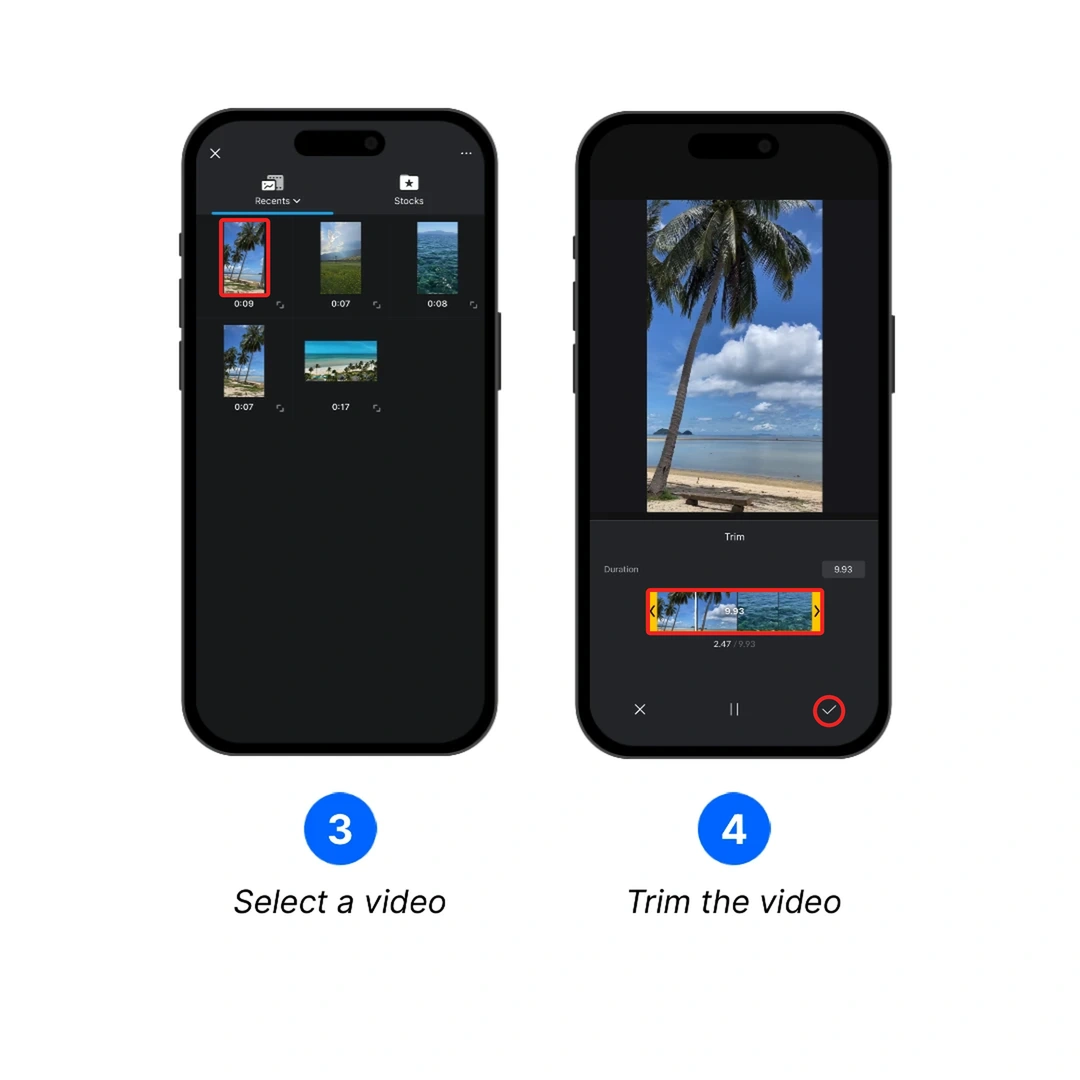
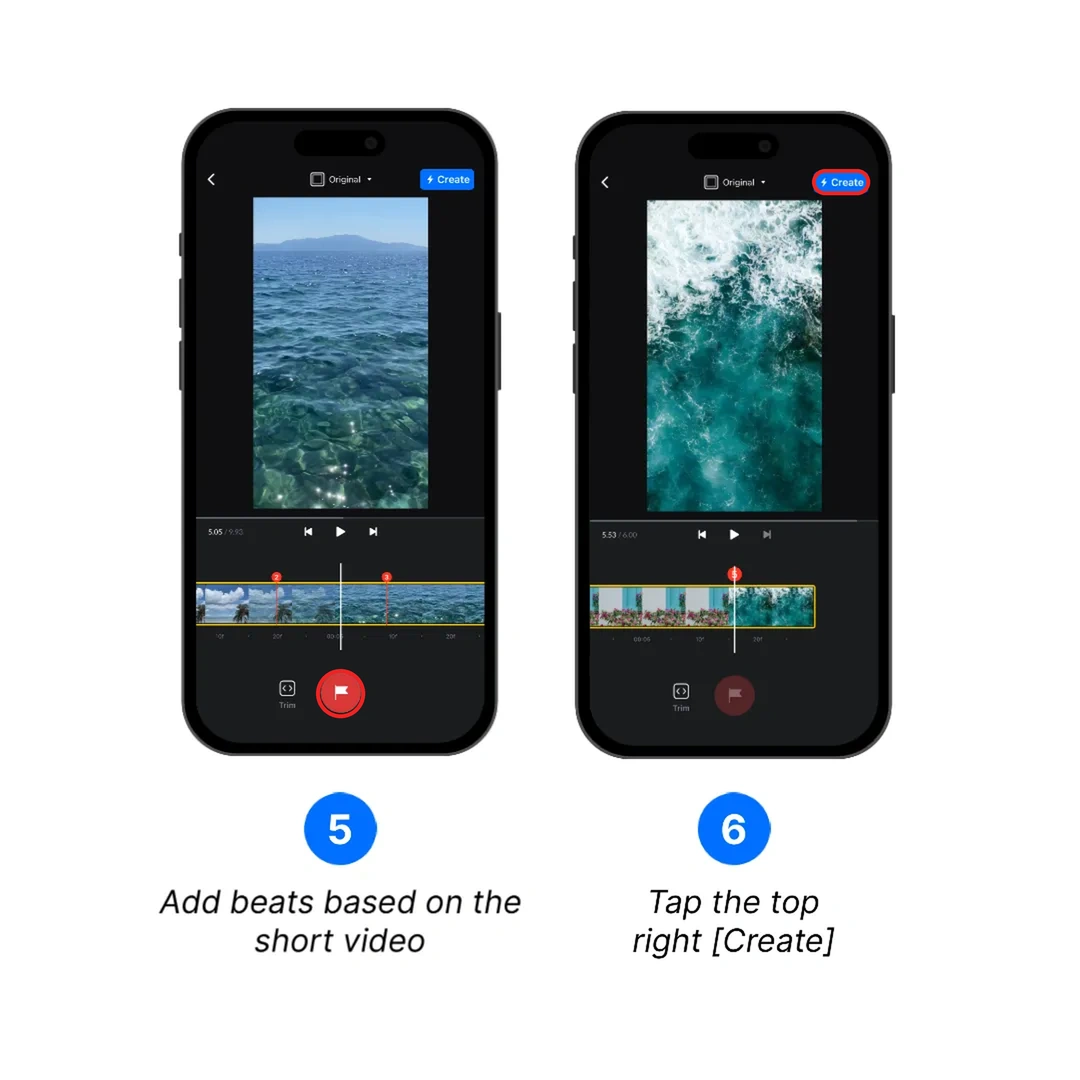
5. Play through the video and add beat points where the photos or videos should change. Place the markers on visible cuts, transitions, or rhythm changes so the template follows the reference video's pacing.
6. Review the complete sequence, then tap [Create] to finish creating the VN Template.
7. For sharing VN Tempalte file or VN Code, head over to How to Create and Share VN Template?. VN Templates created via BeatsClips can be located in the [BeatsClips] tap on the VN app home screen.