



Have you seen a group dance or rap video where the performers are replaced by animals or other characters? Think GENER8ION - STORM I & II starring Yung Lean, or Quavo & Takeoff - HOTEL LOBBY | A COLORS SHOW. Ever wonder how those videos are made? The fun is in seeing a familiar performance with a surprising new cast while the original movement carries the moment. Let’s take a look.
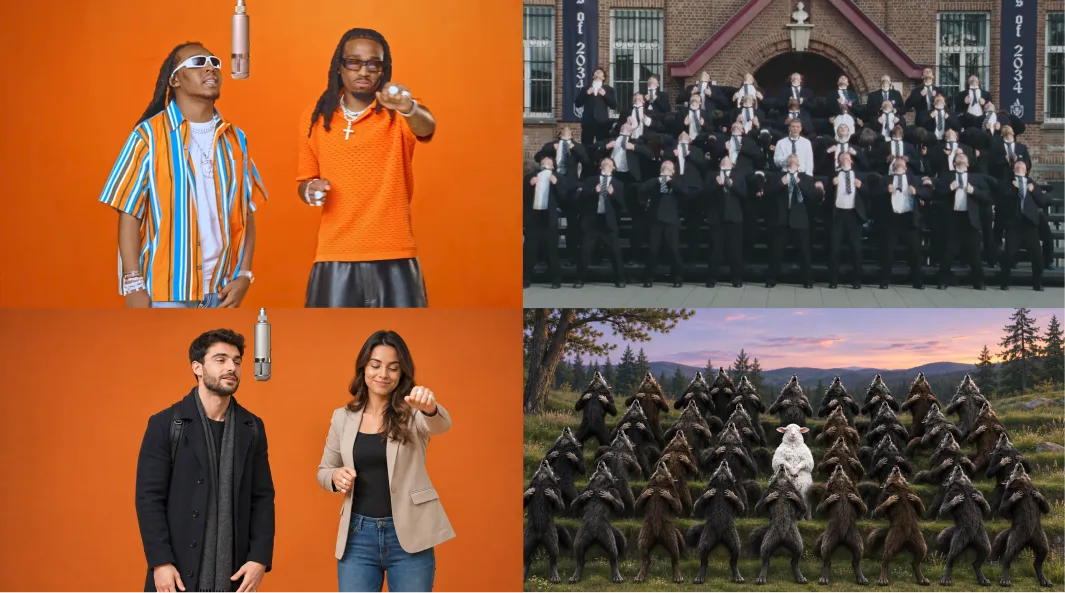
The Swap Is Trickier Than It Looks
Music Copyright
Popular songs and vocal performances can raise copyright concerns or trigger content checks. If you don’t have permission to reuse the source audio, you’ll need to separate it and choose audio you can use.
Person Likeness Rights
A famous person’s recognizable face or a copyrighted character can raise rights concerns. Using the original appearance directly in a new generation may carry those recognizable features into the result.
Movement Can Drift
It can be hard to preserve choreography, gestures, timing, and facial expression while changing a character. Fast movement, changing angles, or objects crossing the frame can make a replacement less consistent.
Lip Sync Challenges
When the new character performs to a vocal track, its mouth movements may not line up with the words. Isolating the vocal and using it to guide video generation can help improve the match.
Solve It One Layer at a Time
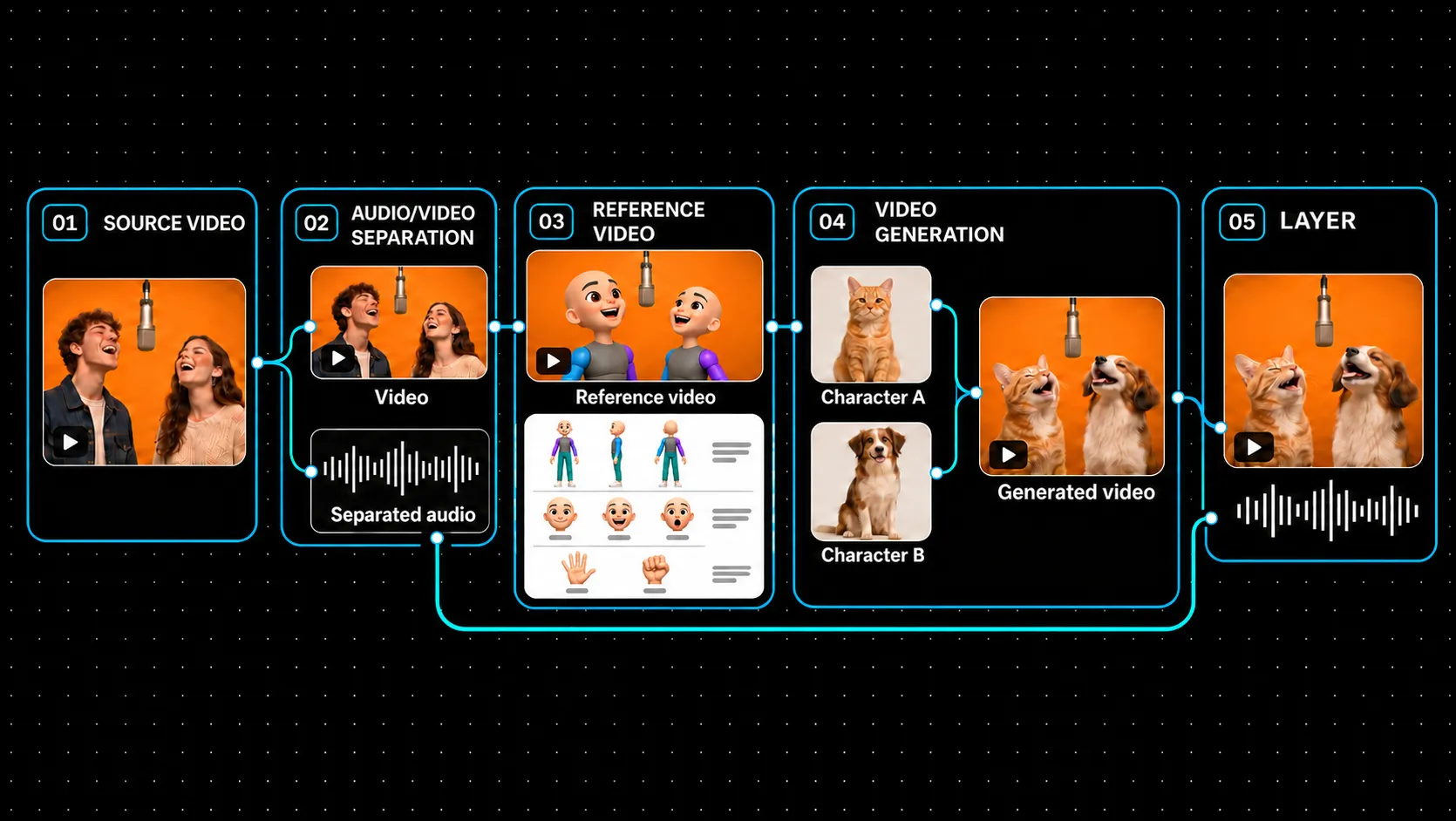
The workflow image above gives an overview of the process, from preparing the source and reference video to generating the replacement and layering the audio.
Clear the Sound First
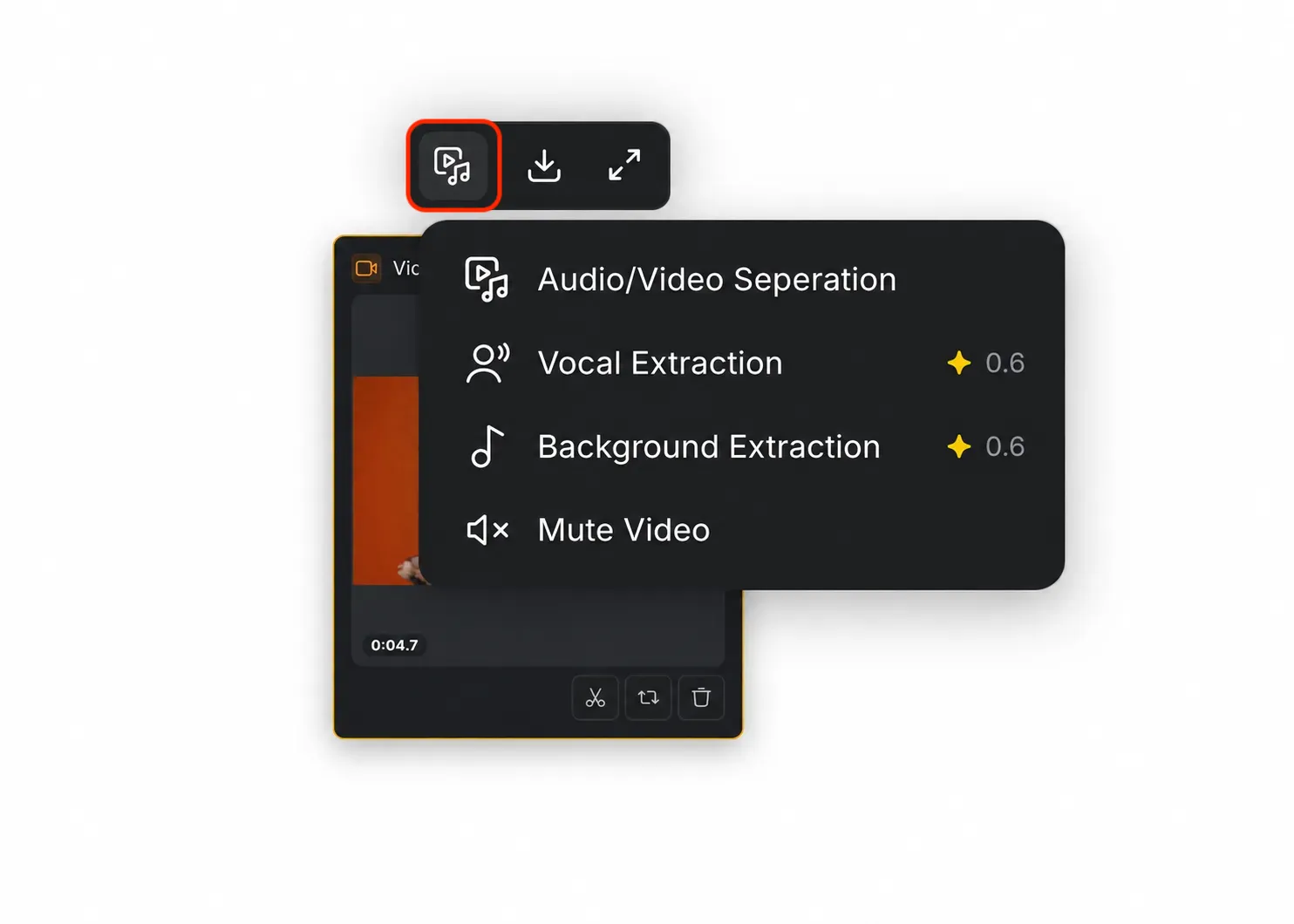
If you don’t have permission to reuse the source music or vocal performance, separate the audio before building the replacement. See Audio Separation to learn how to separate it. This helps you to get the video to work with the AI Video model without triggering copyright alert. If you want the new character to match a vocal performance, use Vocal Extraction to isolate the vocal and feed it into the video-generation step to help align the lip sync.
Preserve the Performance
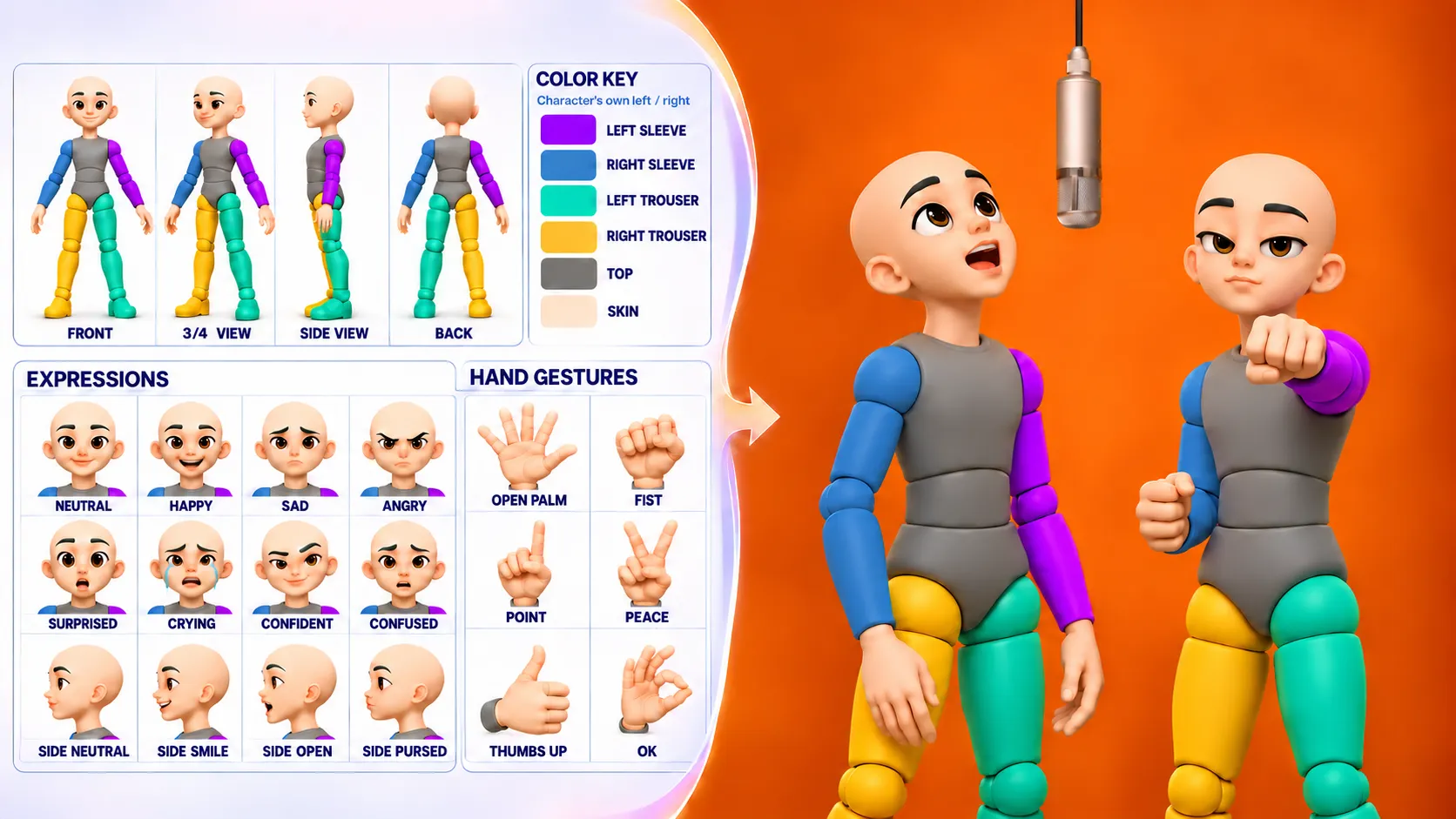
If the source features a famous person or copyrighted character, first replace them with a generalized character reference, such as a skeleton, and generate an intermediate video. This reference keeps the original movement and facial expression while moving away from the recognizable appearance.
Bring In Your Character
Next, combine that intermediate video with an image of the character you want to use. Let the image guide the new character and generate the final replacement video, adjusting the prompt to fit your scene.
Tip: For a more consistent character, include a reference sheet with front, side, and back views, plus close-ups of the face from the front and side.
Bring the Pieces Together
Use the Layer Node to combine the video you just generated with the audio you separated earlier. Add both layers, then adjust their timing so the sound lines up with the new performance. See Video Processing for more about the Layer Node.
One Workflow, More Room to Play
CawCut brings these parts into one character-replacement workflow, so you can focus on the creative choice: who takes the lead, which motion stays, and how the sound supports the new version.
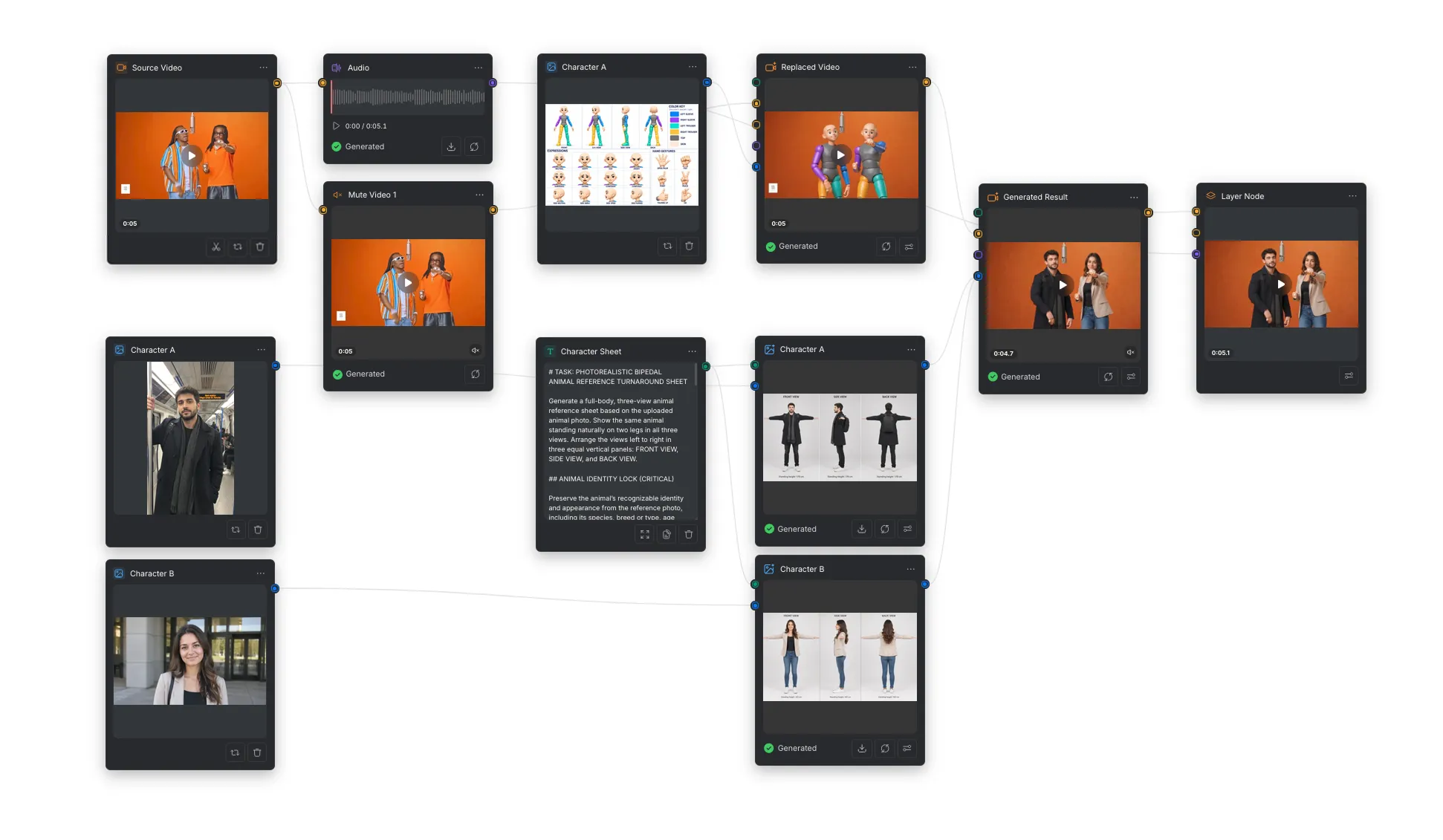
Use the sample workflow as a reference, then adapt its prompts and character branches to your own clip. The example has two characters; add or remove branches as needed and refine the prompts until the result feels right.
Tips for Better Results
- For the replacement video, choose Seedance 2.5 and use the Edit Video method for the best result. Start at 480p with a set seed so you can test and compare generations consistently. Once the result looks right, generate it at 720p or 1080p. See Video Generation for more on resolution and seed settings.
- For the reference character video, use Wan 3.0 at 480p to keep the generation cost as low as possible. Learn more in How to Use Wan 3.0.