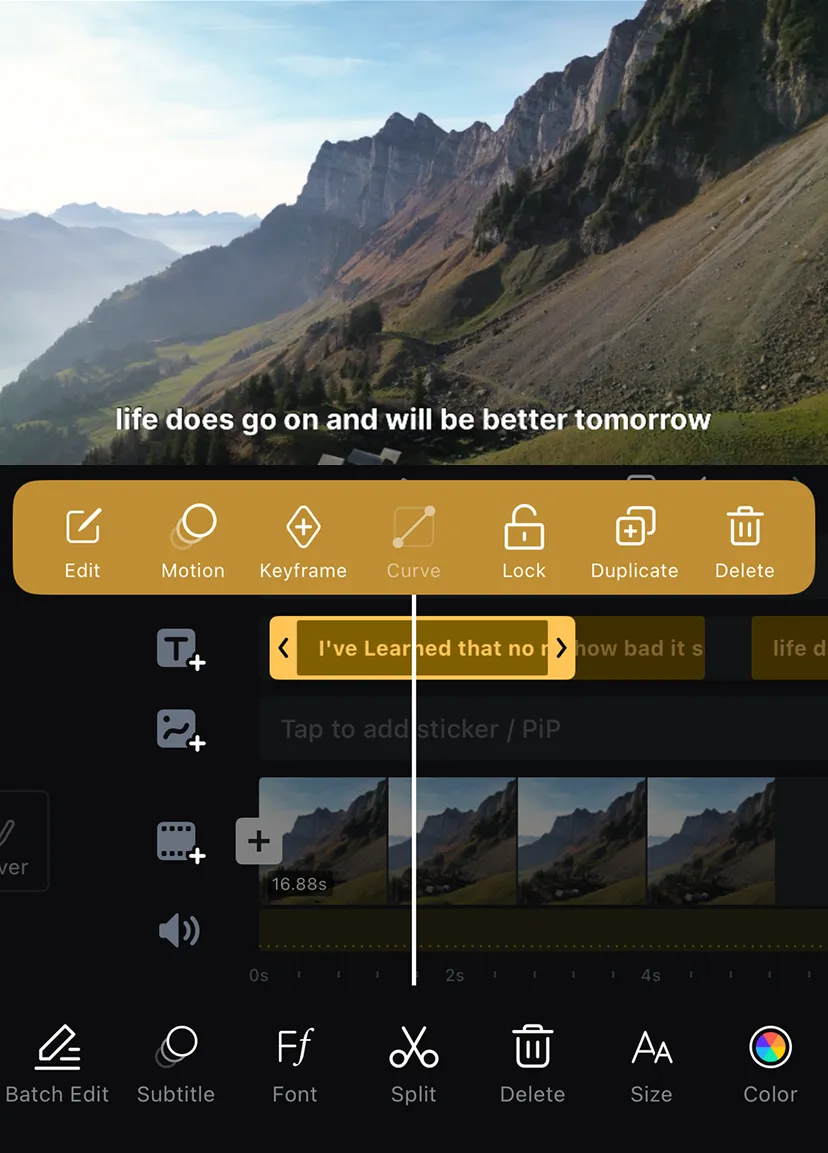
Add Custom Stickers
Tap [Sticker] to open the [Imports] page. On this page, tap [Add] to select images or files and import them as stickers into your current project.
Import Music & Fonts
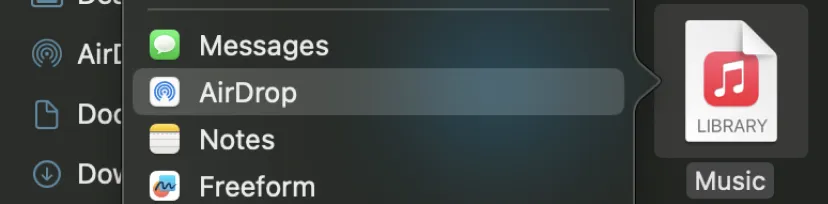
From Mac to iPhone Using AirDrop
Use [AirDrop] to send music and font files from your Mac to your iPhone. After receiving the files, share them to VN.
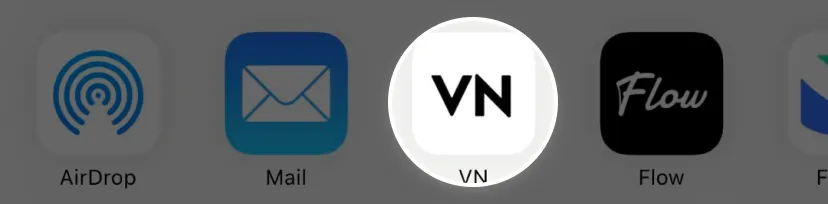
Importing Music from the File App
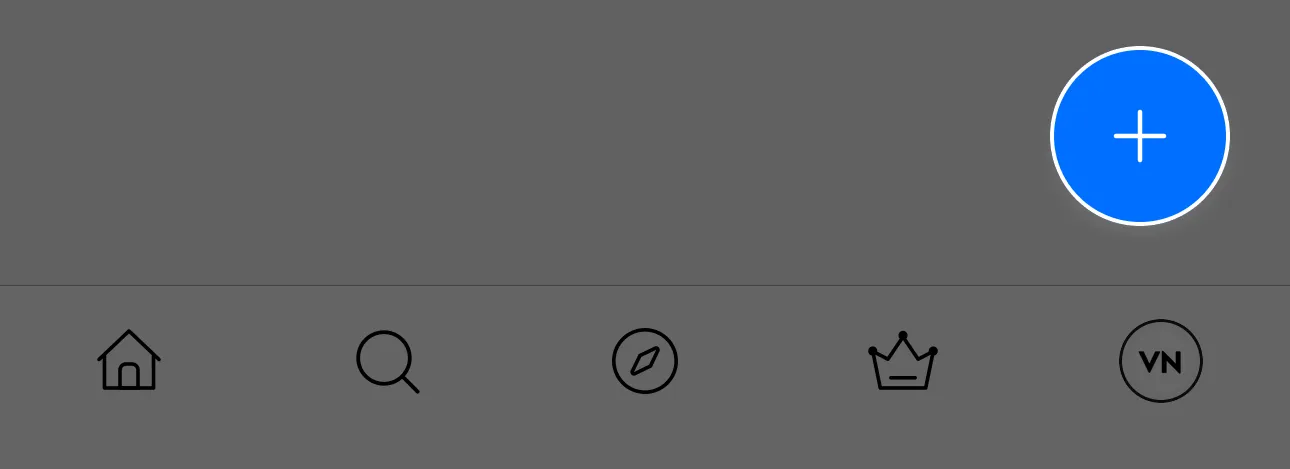
1. In VN, tap the [+] Create button in the bottom right corner.
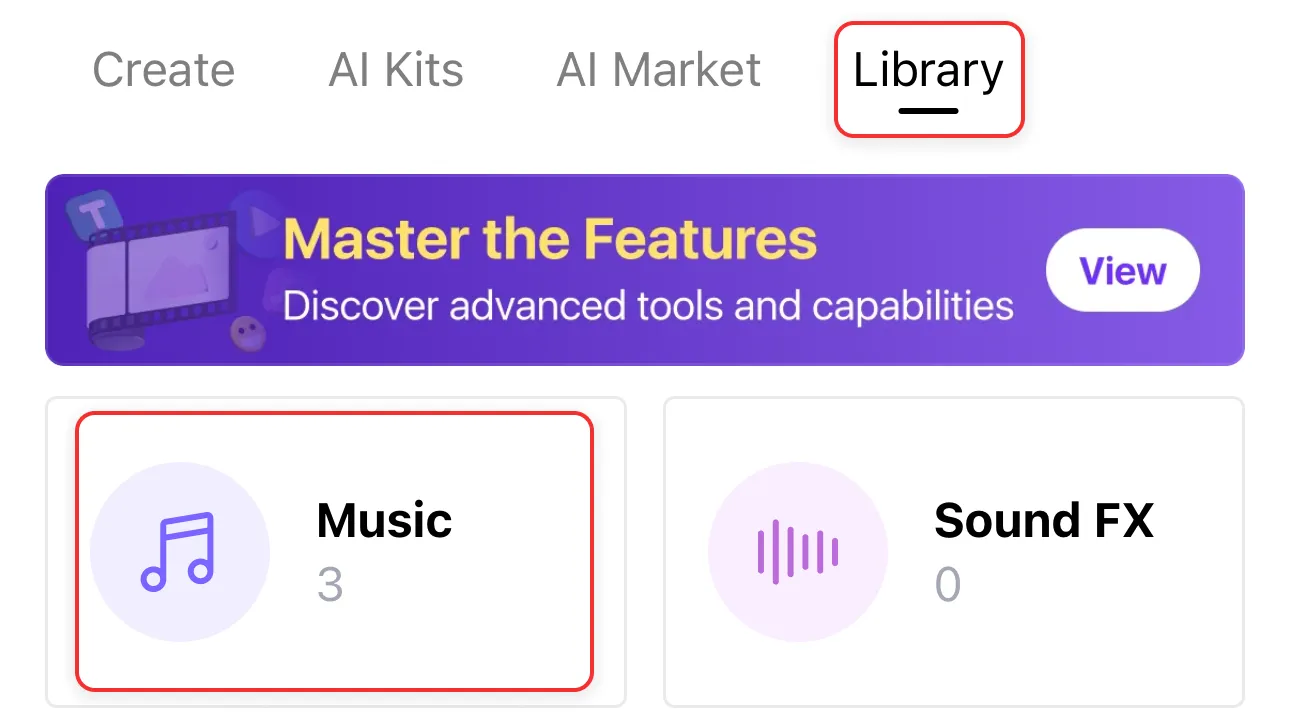
2. Select [Music] under [Library].
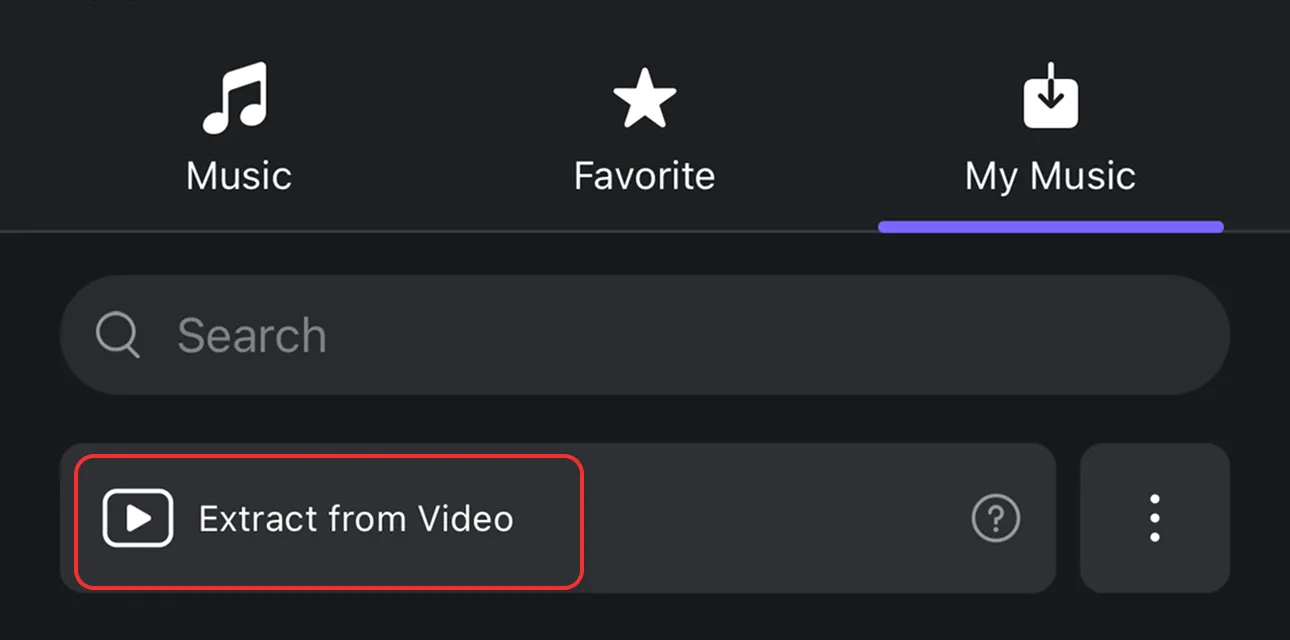
3. In [My Music], tap [Extract from Video] and select a video.
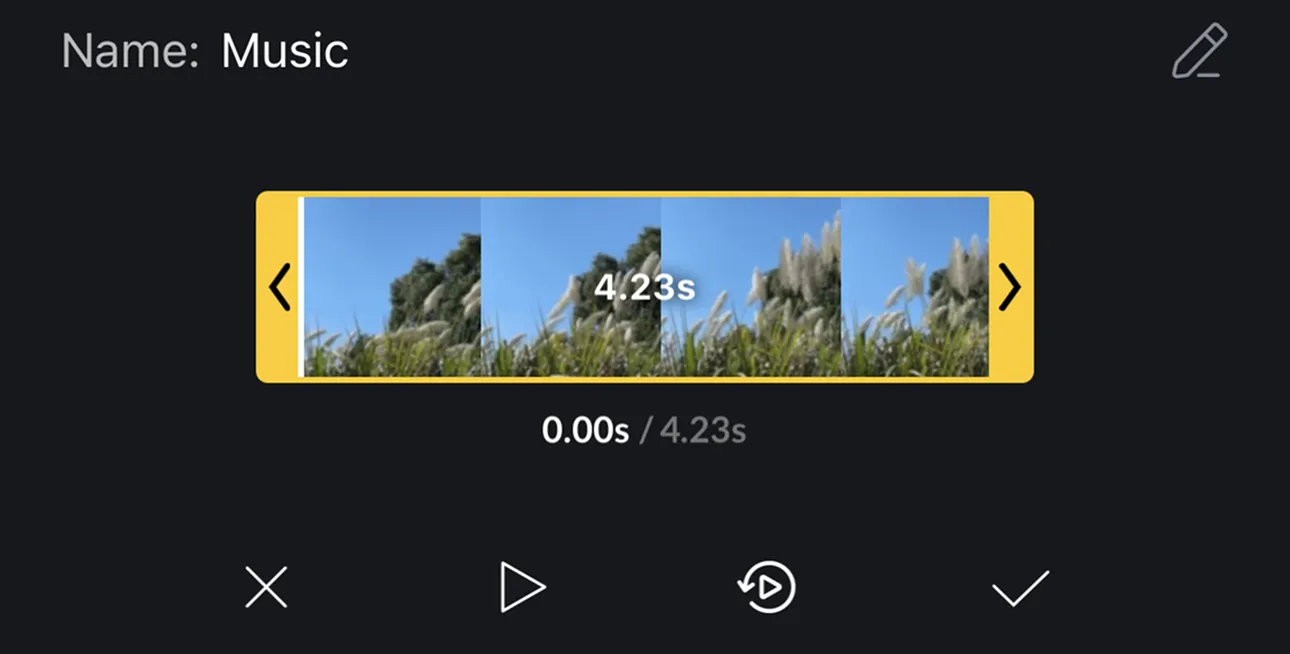
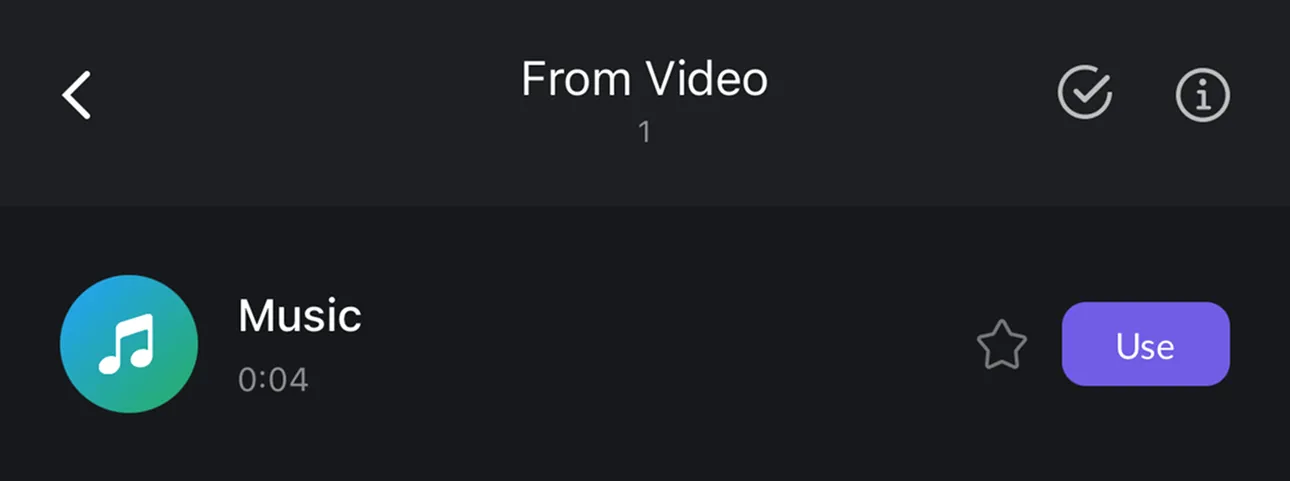
4. After selecting a video segment, tap "Done" to complete.
Import SRT Subtitle Files
1. Tap [+] on the text track.
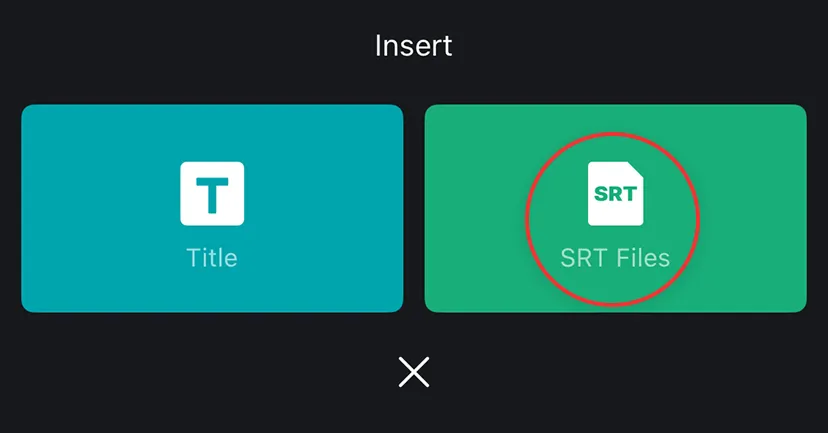
2. Tap [SRT Files].

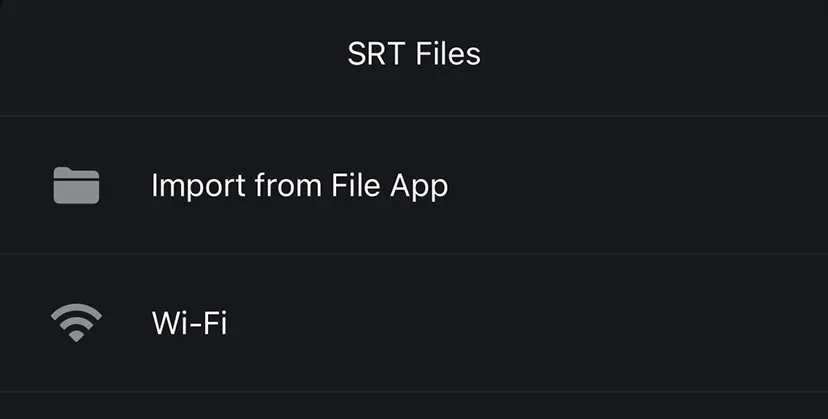
3. Tap [Import from File App] and select your SRT subtitle file.
4. Once imported, the subtitles will appear in the editor.