



Use AI Edit in VN to transform a selected section of a video clip with a text prompt. You can add images for visual reference, adjust generation settings, and choose a model for the result you want.
Select a Clip
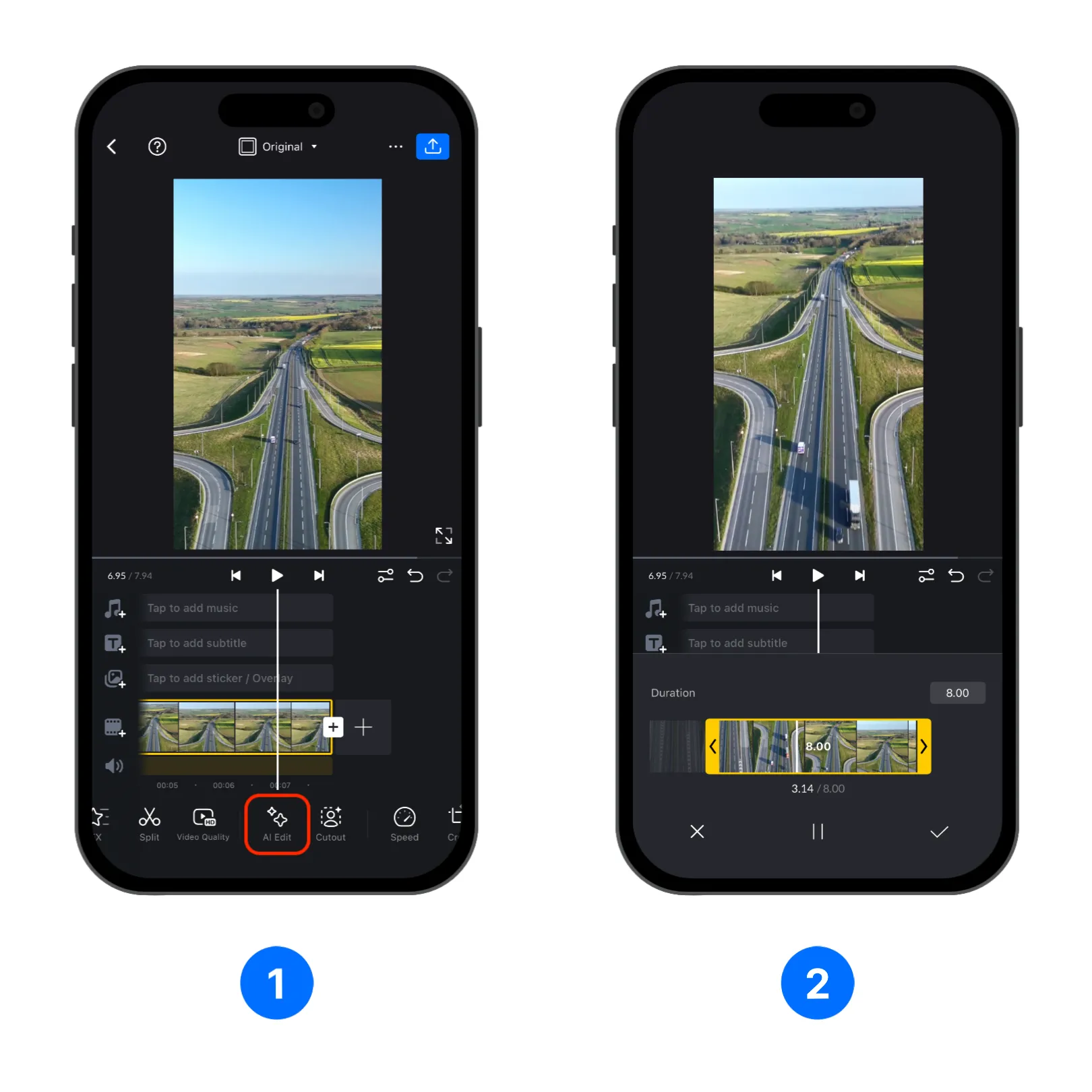
- Open your project in the VN video editor and select the clip you want to change on the timeline.
- In the bottom toolbar, tap [AI Edit] .
- Adjust the highlighted clip range to choose the section you want AI to edit. Confirm the selection to open the AI Edit prompt panel.
Prompt, Resolution, and Cost
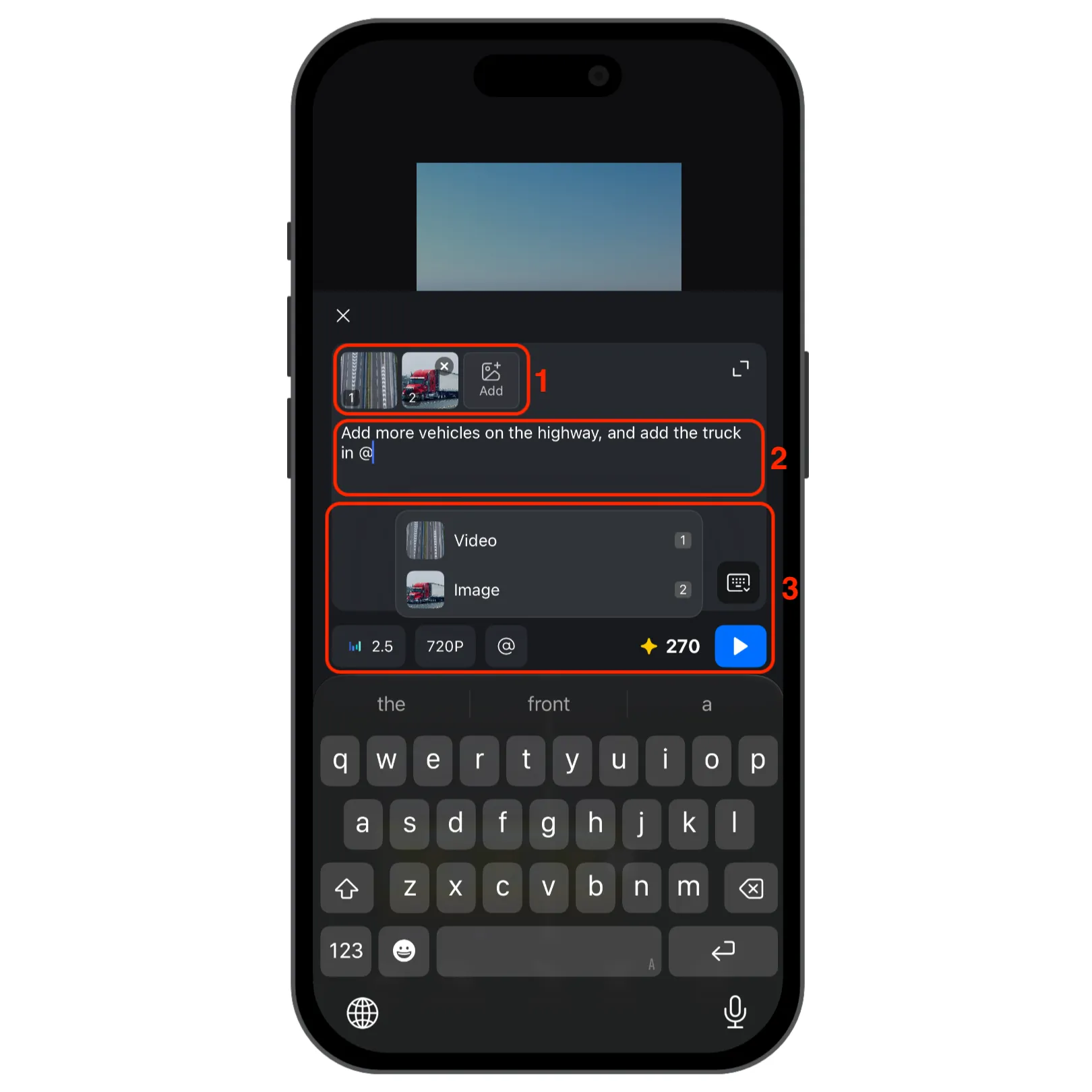
The AI Edit panel is arranged from top to bottom:
- Reference images: Tap [Add] above the prompt to attach images that show the look or details you want.
- Prompt: Describe how you want AI to change the selected video section.
- Options row: Along the bottom of the prompt, the controls appear from left to right:
- Model: The first selector shows the current model. See Choose a Model for a quick comparison.
- Video settings: Choose the output resolution, Enable or disable audio for generated clip, and use a seed if needed.
- [@] Reference: Tap [@] and select the video clip or an added image to reference it in your prompt.
- Estimated cost: Review the credit estimate beside the Generate button. It may change based on your selections. See Credits for more information.
- Generate: Tap the button to create the edited clip.
Choose a Model
Choose a model based on the kind of result you need. Model availability and performance can vary by app version and generation settings.
| Model | Strength |
|---|---|
| Seedance 2.5 | Strong reference control and precise editing. |
More Control with CawCut
For more control over AI video generation, try CawCut, a node-based AI workflow platform. Connect models and creative tools to generate and edit videos, images, and audio, or build reusable, multi-step production workflows.
Visit CawCut Help to learn more.