





The [Preview Performance] page controls how VN displays and prepares demanding media while you edit. Use these settings to balance smoother playback, clearer preview edges, and the time needed to prepare large videos.
The proxy options are most useful for high-resolution, high-frame-rate, or high-bitrate footage that is difficult for a device to preview in real time.
Open Preview Performance Settings
1. Open [Settings] from the [Home] screen, select [Preview Performance]. 2. The [Preview Performance] settings page will open.
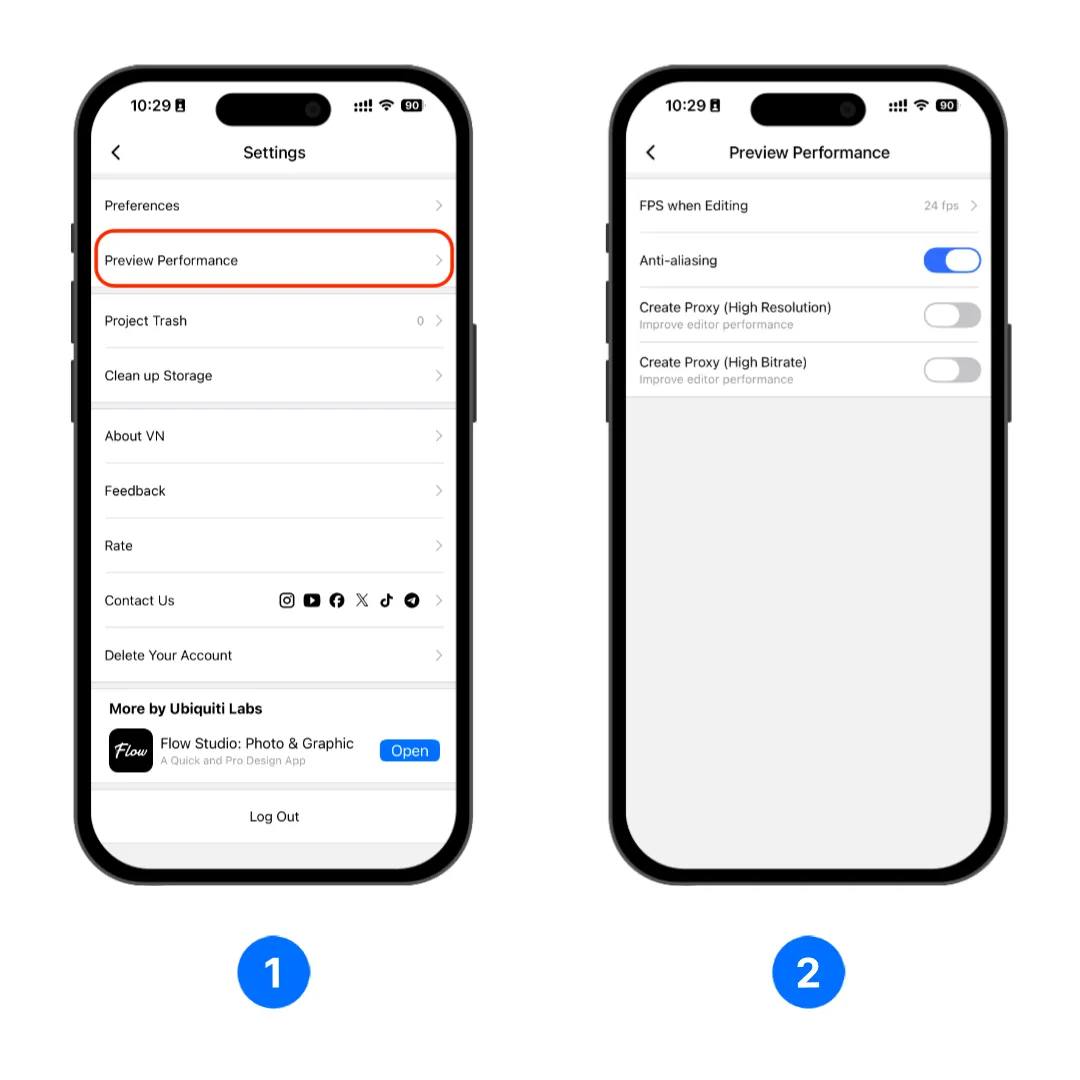
The page contains four controls: [FPS when Editing], [Anti-aliasing], [Create Proxy (High Resolution)], and [Create Proxy (High Bitrate)].
FPS when Editing
[FPS when Editing] controls the playback frame rate used inside the editor.
- Choose a higher value for smoother-looking preview motion when your device can handle it.
- Choose a lower value when playback is slow, uneven, or delayed in a demanding project.
Note
This setting affects only the editing preview. It does not change the frame rate or quality of the exported video.
Anti-aliasing
[Anti-aliasing] smooths the visible edges of text, graphics, and other detailed shapes in the preview.
- Keep it enabled for cleaner-looking edges.
- Disable it when your device needs more performance for preview playback.
Note
Anti-aliasing affects only how the editing preview is displayed. It does not reduce export quality.
Create Proxy for Smoother Editing
The two [Create Proxy] switches allow VN to prepare demanding videos before or during editing. Turning on a switch does not mean every imported video will be processed. VN first checks whether that video reaches the applicable threshold.
What a Proxy Does
A proxy is a lighter temporary editing copy of a video. It can make playback, scrubbing, and editing smoother when the original media requires too much processing power to preview in real time.
Proxy creation does not replace or modify the original video. VN continues to use the original media for the final export.
Create Proxy (High Resolution)
Enable [Create Proxy (High Resolution)] when you work with videos that have large pixel dimensions, such as 2.7K or 4K footage.
For most users on a current iPhone or iPad, this means the setting is mainly relevant to footage above approximately 2.7K. The exact threshold can differ on older devices and on Mac.
Create Proxy (High Bitrate)
Enable [Create Proxy (High Bitrate)] for videos that contain a large amount of data, including some high-quality camera recordings and high-frame-rate footage.
VN checks the media automatically during project creation and/or importing the clips. File size alone does not determine whether processing starts because resolution, frame rate, and data rate are evaluated together.
When the Compressing Screen Appears
The visible [Compressing] screen is used when VN needs to prepare eligible media before the editor opens.
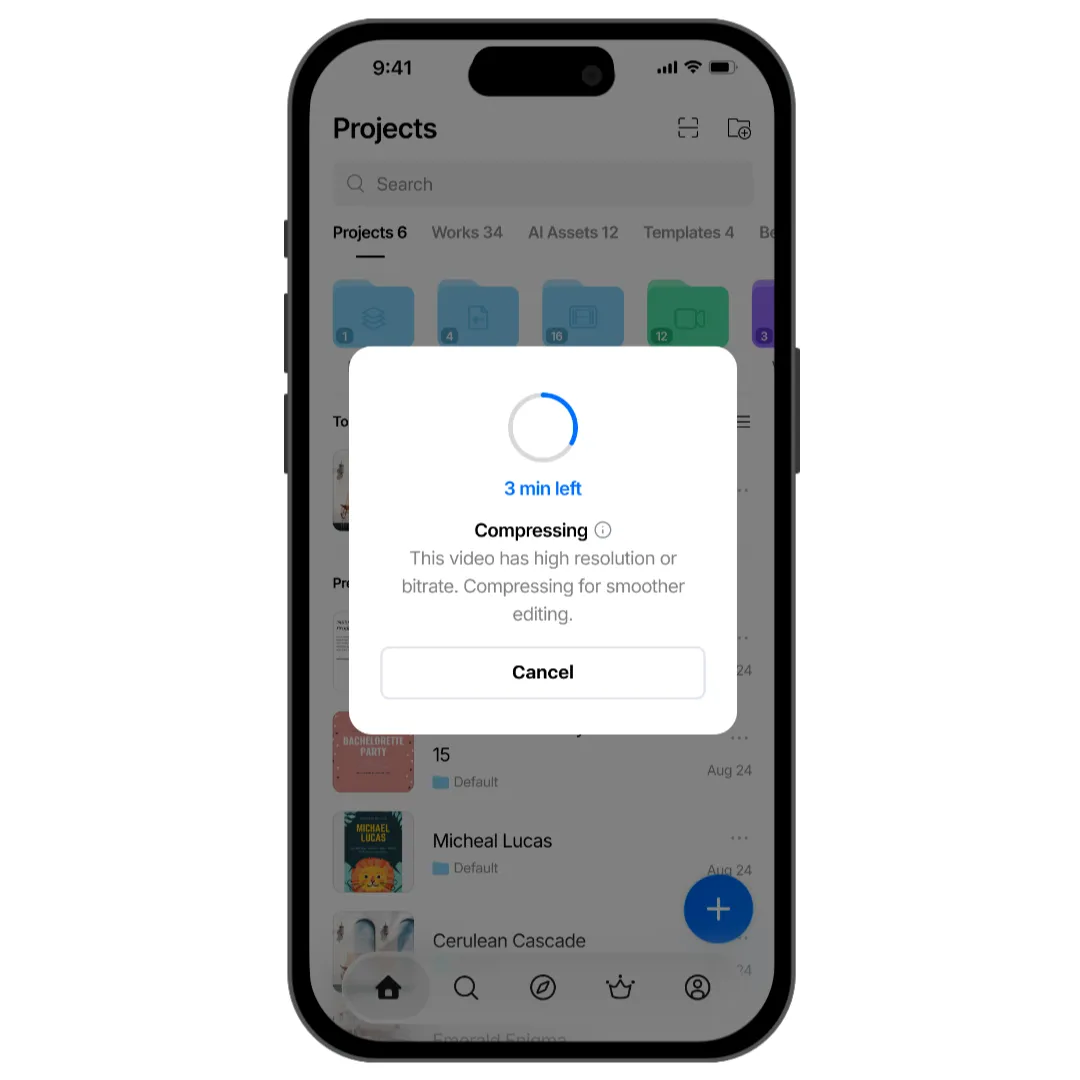
Before the Editor Opens
The visible screen appears only when all of the following apply:
- [Create Proxy (High Resolution)] or [Create Proxy (High Bitrate)] is enabled.
- At least one selected video meets the threshold for the enabled setting and device.
- VN needs to create the proxy before the project enters the editor.
The process can start while you select media to create a project or while VN prepares a draft to open. Select [Cancel] to stop the visible preparation process.
You will normally not see this screen when the relevant proxy setting is off or when every selected video is below the applicable threshold.
After the Editor Opens
On supported higher-performance devices, VN may also create a proxy silently after the editor is already open. This can happen when you open a project, add a clip, or replace media.
Background processing:
- Does not show the [Compressing] progress screen.
- Is available only on supported higher-performance devices.
Lower-performance devices will show the compressing prompt instead of processing it silently in the background.