

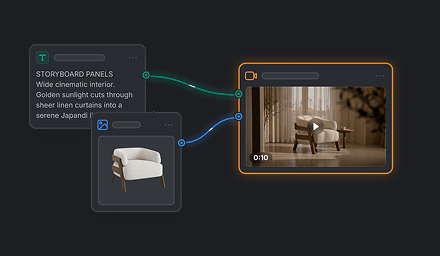



GPT Image 2.5 Flare is the speed-oriented image model in the GPT Image 2.5 family. It combines improved image creation and editing with a faster generation path, making it a versatile choice for everyday creative work and rapid iteration.
GPT Image 2.5 Flare strengths
| Strength | What it offers | Example use |
|---|---|---|
| Fast generation for rapid iteration | The speed-oriented GPT Image 2.5 option, positioned for most general applications. | Explore compositions, product settings, campaign concepts, or visual styles quickly. |
| High-quality creation and editing | Combines GPT Image 2.5 image quality and editing improvements with speed. | Develop a creative brief into a social post, product visual, or polished concept. |
| Reference fidelity | Helps preserve recognizable subjects and distinctive features from reference photos. | Reimagine a person, character, or product in a different setting. |
| Focused image edits | Designed to change a requested element while preserving surrounding composition and identity. | Update a background, product color, or small visual detail. |
| Refinement across edits | Designed to follow successive instructions while retaining earlier changes. | Develop a visual through rounds of feedback. |
Image models are available in AI Cutout and in related functions on the Kits page. Availability may vary by feature.