Use AI Avatars in VN to add a clip showing a virtual presenter that speaks a script in your video. If you only need a voice over for your video, see Text to Speech and Captions.
AI Avatars and Script
- Open your project in the VN video editor.
- In the bottom toolbar, tap [AI Avatars] . The AI Avatars panel opens with a script field and Language/Avatar choices. Currently avaialble languages are English, German, Portuguese, French, Spanish, Italian, and Chinese. Available languages and AI Avatars are subject to change. You can tap one of the available presenters to preview their voice and see if they fit your video or not.
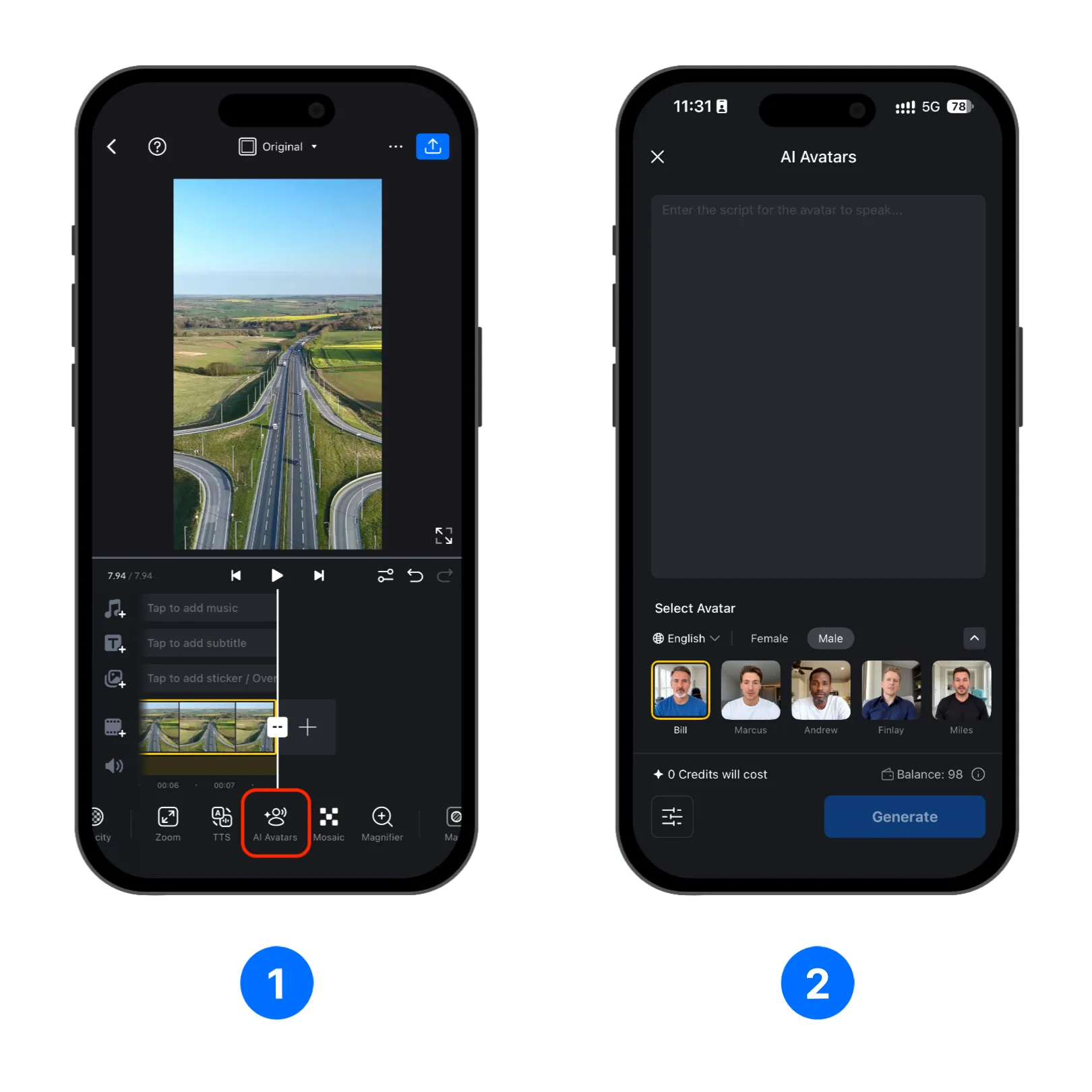
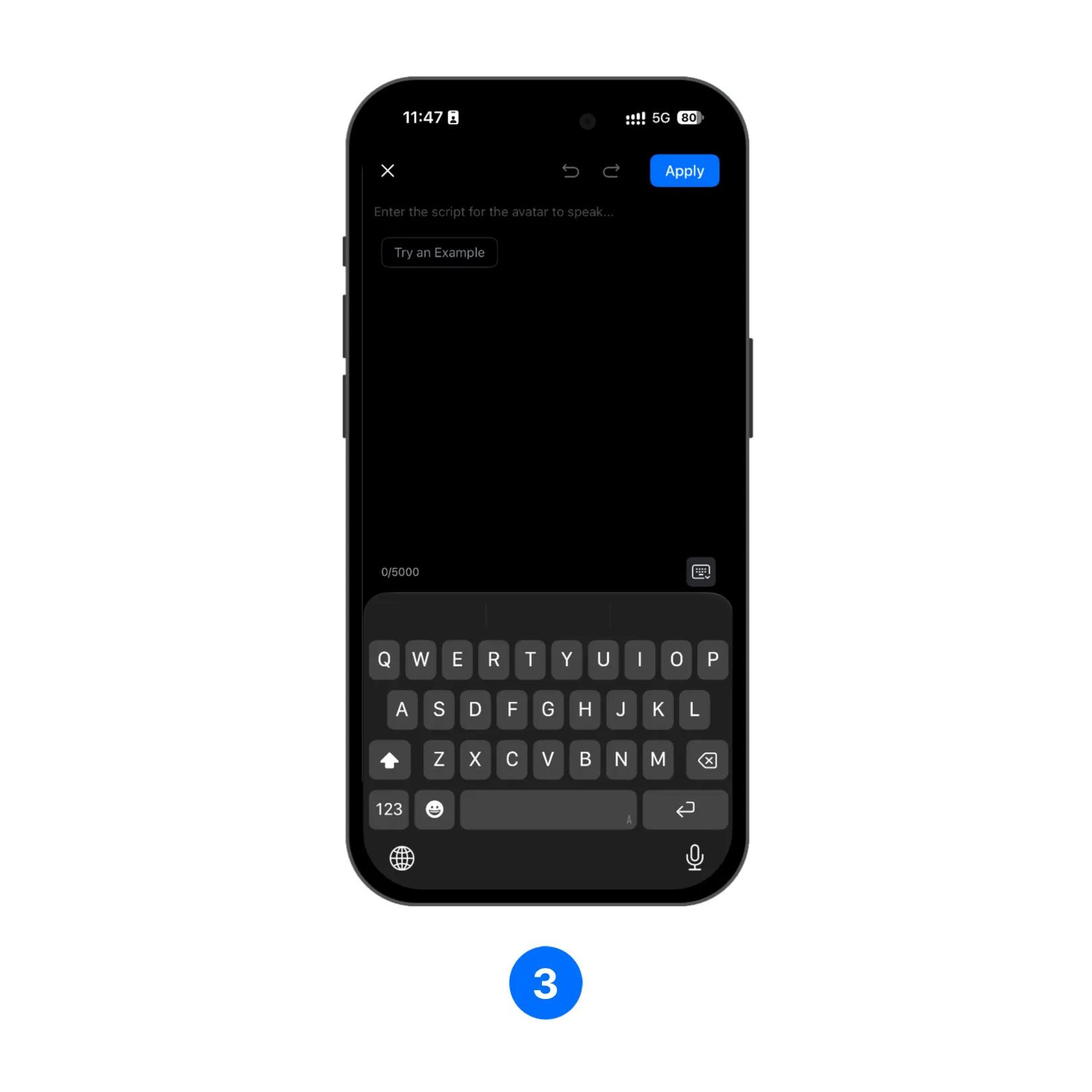
- Tap the script area to open the script editor. Enter the text you want the avatar to say. The editor allows up to 5,000 characters. You can also tap [Try an Example] to see a sample script. Review or edit the script, hit [Apply] to finish editing the script, and tap [Generate] to create the AI Avatar video.
Credits and Generation Settings
- After applying your script, the estimated credit cost will be show aloneside your available balance near the bottom of the screen. Check out Credits for more details.
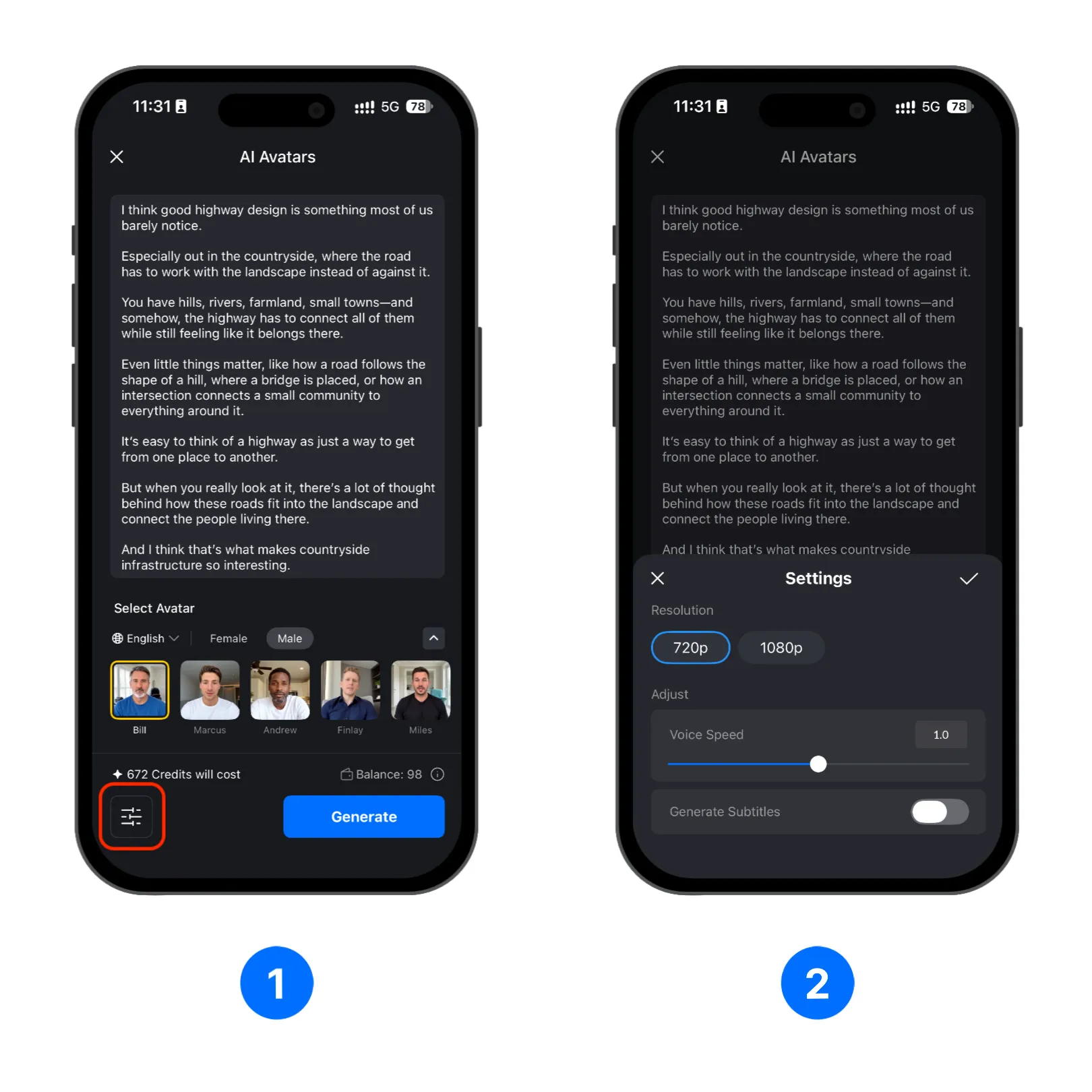
- Tap the settings button at the lower left of the panel to open [Settings] . Once done, tap the check mark to save the settings and return to the AI Avatars panel.
| Setting | Options | Description |
|---|---|---|
| [Resolution] | [720p] or [1080p] | Choose the generated clip's resolution. |
| [Voice Speed] | [0.5x] to [1.5x] slider | Adjust how quickly the avatar speaks. |
| [Generate Subtitles] | [On] or [Off] | Turn on to include caption in the subtitle track. |